These days, it seems like there’s always a ton of security issues in Windows. Ransomware, malware, spyware, and viruses are just a few examples.
So, how you do protect yourself? Installing the best antivirus software is one obvious answer, but there are also some built-in tools in Windows 11 that can help you improve the security of your system. We’ve gathered up a list of these tools for you below.
Enable Windows Security ransomware protection
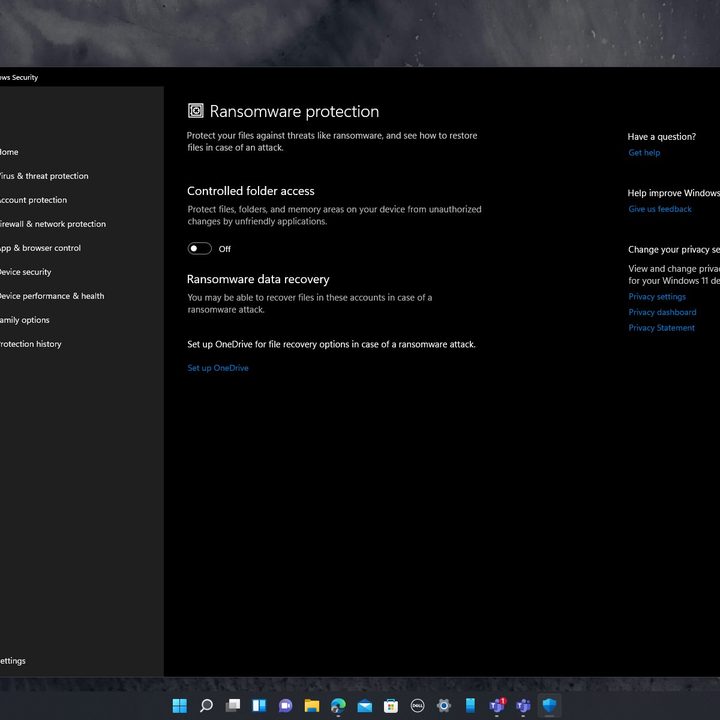
We started our article by mentioning the need for antivirus software, but Windows has its own built right in. Known as “Windows Security,” this in-built virus protection gets daily and weekly definition updates from Microsoft, and can provide decent protection against common threats. It’s not as in-depth as a paid antivirus program, but it gets the job done, according to most experts. So, if you’re not using it, or don’t have it enabled and don’t have antivirus, give it a try!
There’s one setting in Windows Security that you might want to turn on. The app has a ransomware protection feature that’s usually turned off by default. You can find it under the Virus & threat protection section of the app. You’ll want to enable Controlled folder access, so you can protect files, folders, and memory areas on your device from access by authorized programs and applications.
This doesn’t fully prevent ransomware from infecting your PC, but it does help any potential ransomware from accessing the folders you predesignate. This can ensure that in the event ransomware hijacks your system, you’ll still have access to critical files and won’t lose the files if the ransomware goes even more rogue.
Enable Windows Sandbox
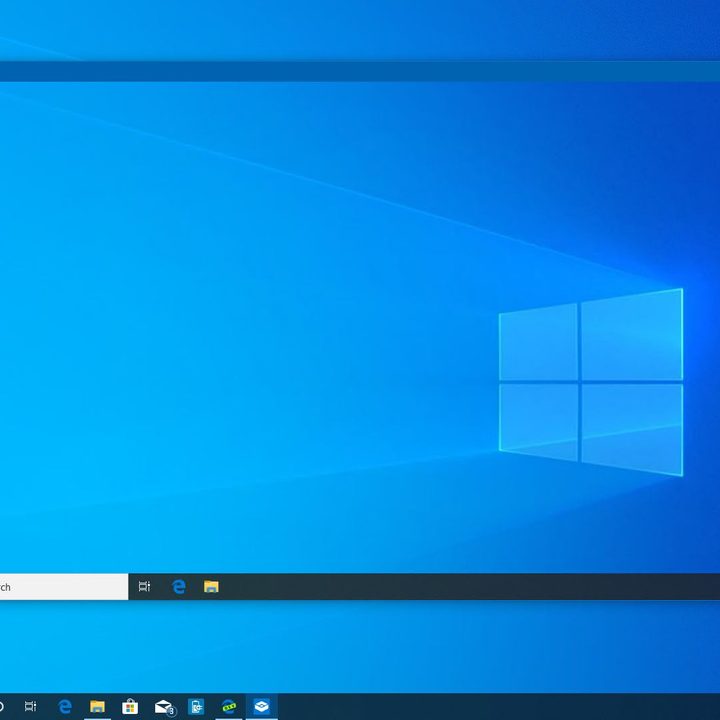
Next up is yet another security tool built into Windows 11 (and Windows 10). Known as Windows Sandbox, it allows you to open up a virtualized and contained version of Windows 11 on top of your existing system. Note that this works on Windows 11 Pro, not Windows 11 Home.
It is a good habit to use Windows Sandbox when you want to go visit potentially unsafe websites or try out unknown apps before running them on your actual PC. This is because Windows Sandbox sessions run like a virtual machine, and don’t have access to your main drives or files.
We have an in-depth guide on how to enable Windows Sandbox. Basically, you can enable Windows Sandbox by checking to see if your PC has virtualization support. If it does, make sure that it is enabled in the BIOS. After that, you can head to the Windows Control Panel, search for Turn Windows Features On or Off, and scroll down in the list and enable Windows Sandbox.
You’ll have to restart your PC, and once you do, you can search Windows Sandbox in the list of apps, and run it like an ordinary app. You’ll have a desktop, taskbar, and a virtual drive. You’ll be able to explore the virtual space and try out unknown apps without putting the security of your PC at risk.
Use Windows Bitlocker
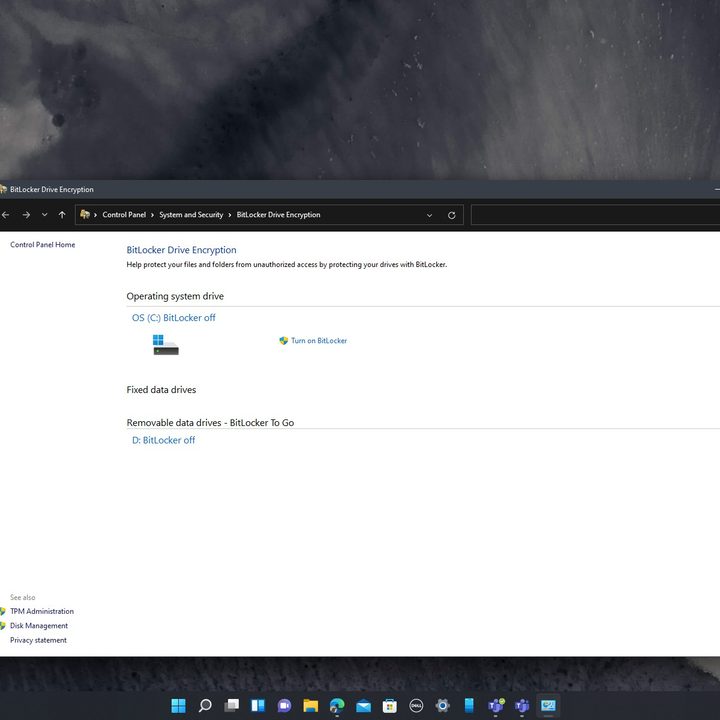
Last on our list is Windows Bitlocker. This is a built-in feature in Windows 11 Pro (with a limited version in Windows 11 Home), and it’s super-useful to help protect your files. As the name hints, Bitlocker integrates with the operating system and encrypts your main “C” drive to ensure that no one can access your data or erase your PC if it is lost or stolen.
Bitlocker works with the TPM chip in your PC and creates a “recovery key” tied to your Microsoft Account (so it won’t work if you set up Windows without a Microsoft Account). So when you start up your computer, you’ll need a PIN number or “key” to get into the Windows 11 reset or restore screen.
Usually, Bitlocker is turned on by default. If it’s not turned on, you can search for it in the Start Menu and choose Manage Bitlocker to manage and set up the feature.