Apple's tiny true wireless earbuds are an important part of your everyday carry, useful for commuting with music and taking Zoom calls without distracting others. The convenient buds offer instant pairing to all of your favorite iOS and Mac devices, a bevy of customizable controls, top-notch sound, and an excellent way to interact with Siri.
Unlike some headphones, though, you won't be able to simply tap on your AirPods a few times to check the battery levels of each bud. That being said, there are a number of other ways you can quickly and easily figure out exactly how much juice your AirPods (and your charging case) have left.
In the following guide, we've outlined several methods you can use to check AirPods battery level, with step-by-step instructions for each strategy.

Check your AirPods battery with an iPhone or iPad
If you own a pair of AirPods, there’s a decent chance you own an iOS device as well. Whether your mobile hardware of choice is an iPhone, iPad, or iPod Touch, you can use each of these iOS devices to check the battery level of your AirPods.
For this method, you’ll need both your AirPods and your AirPods charging case.
Step 1: If your AirPods aren’t already paired with your iOS device, you’ll need to link them first. To get started, place your AirPods in their case, close the lid, and place them near your iOS device.
Step 2: From the home screen of your iOS device, tap Settings > Bluetooth. At the top of the page is a Bluetooth Toggle Switch. If this is toggled off, make sure to slide it into the on position before continuing.
Step 3: Select your AirPods from the list of available Bluetooth devices. Once the status changes from Not Connected to Connected, this means your AirPods have been successfully paired to your iOS device.
Step 4: Now all you have to do is open the lid of your charging case. After a few seconds, a battery readout will automatically pop up on the bottom part of your iOS device screen. This graphic will show you how much battery is left for both your AirPods and your charging case.
Step 5: If you want to check the battery level of each individual AirPod, remove one of them from the charging case and wait a few seconds for the readout to refresh.

Step 6: This process works just the same for iPads, but be sure to give your AirPods a few seconds to connect while open if you don't usually use them on iPad.

Check your AirPods battery with a Mac
If you happen to own a Mac, you can use your desktop or laptop to check your AirPods battery level. Here’s how to do so.
Step 1: Make sure your AirPods are in their case with the lid shut.
Step 2: From the desktop of your Mac, in the top top-right part of the screen, click the Bluetooth icon. If the emblem isn’t displayed here, there’s an easy way to add it to the queue of commands. Simply open System Preferences, then click Bluetooth. At the bottom of the page, check the box next to Show Bluetooth in the Menu Bar.
Step 3: When you click the Bluetooth icon, your AirPods should populate in the list of available devices. If not, make sure that your AirPods are not connected to any other Bluetooth devices. It might also help to reset and re-pair your AirPods. To do this, make sure your charging case lid is closed, then press and hold the Setup button on the back of the case until a white indicator light starts blinking.

Step 4: You can either select your AirPods with your mouse cursor, or open the lid of your AirPods case. Once you do this, a battery readout will appear next to the name of your AirPods, showing you the charge level of both the left and right AirPod.
Check your AirPods case battery without an iOS device
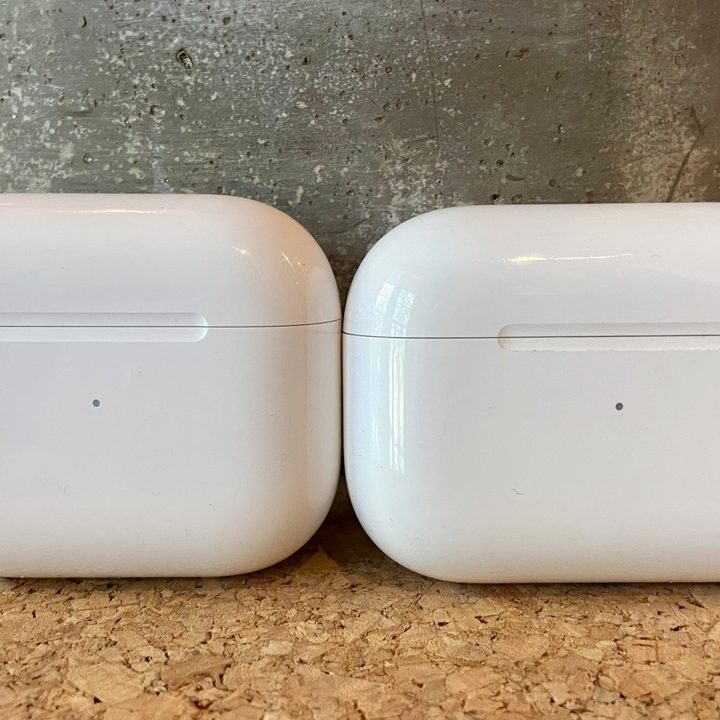
While not as detailed as the other methods in this list, you can use the status light on your AirPods case to get a rough idea of how much battery is left between both buds.
Step 1: Make sure your AirPods are removed from the case. Then, go ahead and open the lid.
Step 2: Take a look at the status light of the charging case, located inside or on the front of the case (depending on the model of AirPods you own). If the status light shines green, this means the charging case is fully charged. If the indicator shows amber, it means your case only has enough juice left for one recharging of your AirPods.
Check your AirPods battery without the case
The three above methods all require the use of your AirPods charging case to check the battery level of the AirPods themselves, as well as the case. If your case isn’t in proximity, though, and you want to check the battery of your AirPods, there’s another way to get a readout from an iOS device.
Step 1: Make sure that Bluetooth is enabled on your iOS device and that your AirPods are connected.
Step 2: Press and hold any blank part of the home screen on your device. Once the apps start shaking, you’ll be able to start editing parts of your device’s layout, apps, and widgets.
Step 3: Tap the Plus icon in the top-left corner of the screen. Now you’ll be taken to a dropdown of widgets you can add to your device screen(s). Select Batteries from the list of options, then choose what size widget you would like to add. When you’re finished, select Add Widget.
Step 4: After selecting where you’d like your widget to live, tap Done in the top-right corner of the screen
Step 5: Now when you open the Batteries widget, you’ll be able to check the battery level of each AirPod. This works even if your AirPods are connected to another Bluetooth device.

Are you looking to get more out of your AirPod battery life? More advanced AirPods have a special feature called Optimized Battery Charging. This is available on AirPods Pro, AirPods Pro 2, and AirPods 3 and is typically enabled automatically, although you can enable or disable it in your AirPods settings.
This feature learns your AirPod charging habits and when you are more likely to use them, and it keeps them charged to about 80% until just before you usually need them, at which point the case will charge them up to 100%. This helps save overall battery life over time and prevents the battery from decaying as fast ... or if it feels too invasive to you, you can turn it off at any time.