Ready to make a survey? Google Drive makes it easy – and free – with the right tools. If you are familiar with Google Docs, you’ll have no problem quickly customizing a survey and getting it sent out to collect results fast. Here’s the best way to build one.
How to make a survey on Google Docs
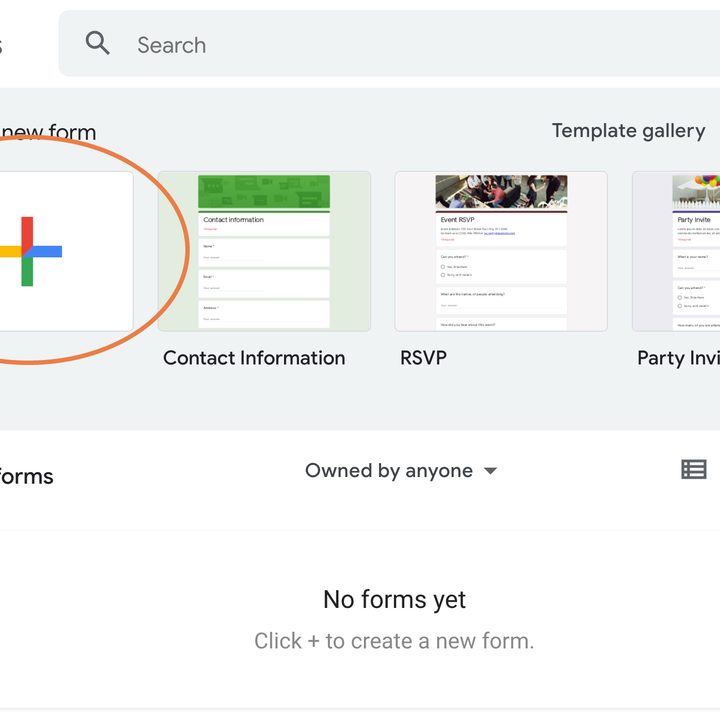
Step 1: Navigate to Google Forms. Forms is where Google Drive keeps many of its interactive tools, allowing you to build a variety of forms for the topic – including surveys. Like Docs, it’s free if you have a Google account. Visit this webpage to start, and select Go to forms.

Step 2: Select the Blank option with the plus sign to start a new Form.
Step 3: Name your Form, and describe what kind of survey it is. Make your description useful for those who will be seeing your Form, so describe why you are surveying them, what kind of answers you would like them to give, and more.

Step 4: At this point, we suggest going over to the Settings section at the top of the Form. Since this is a survey, you won’t need to worry about making it a quiz. However, you should check the Responses section to see if the settings are correct. You can choose to collect email addresses from responders or not, allow people to edit their responses, and more.
Then visit the Presentation section, where you can make choices like shuffling questions for each respondent, showing a progress bar for survey questions (a good idea), sending a confirmation message, and more. Tailor this to the purpose of your survey and how you want it to work.
The Defaults section at the bottom will allow you to permanently change some settings if you plan on making a lot of surveys over time.

Step 5: Now, we suggest visiting the Palette board icon in the upper-right corner to customize the theme. Here, you can add a header image, choose colors, and change the font. Customize your survey to look exactly how you want. If you aren’t sure where to start, Google does have a bunch of themes to pick from, such as Event Feedback or Course Evaluation, which can make things very easy for you.

Step 6: All right, you are ready to start making survey questions! Ideally, you’ll have the questions already pre-made in Docs, so you can just quickly copy and paste them over. But make sure you check the dropdown menu on the right for your question, where you can change the type of answer that people can give, from multiple choice to uploading a file. For a survey, you may want to use the Short answer and Paragraph options for some open-ended questions.

Step 7: Continue building your questions until the survey is completed. You have the ability to easily delete questions, make them required, and use other useful tools. When you are ready, click the Arrow icon in the upper right to send the survey to the people you have in mind. Sending it directly by email is the easiest way, but you can also create a link for it that you can share on other platforms or get HTML code for it. When ready, select Send, and your survey will be on its way.

Alternative: Use Google Surveys
You also have the option to use Google Surveys, which you can find here. It’s a more complex tool that’s better suited for larger surveys where you’ll really want to take a look at the statistical variance of responses. It may be a better choice if you are working on a marketing survey for a broad customer base, an employee survey for an organization with thousands of workers, and similar instances.
Using Google Docs to create surveys is a great way to maximize the possibilities with this software. Learn these Google Docs tricks to find other productivity benefits.