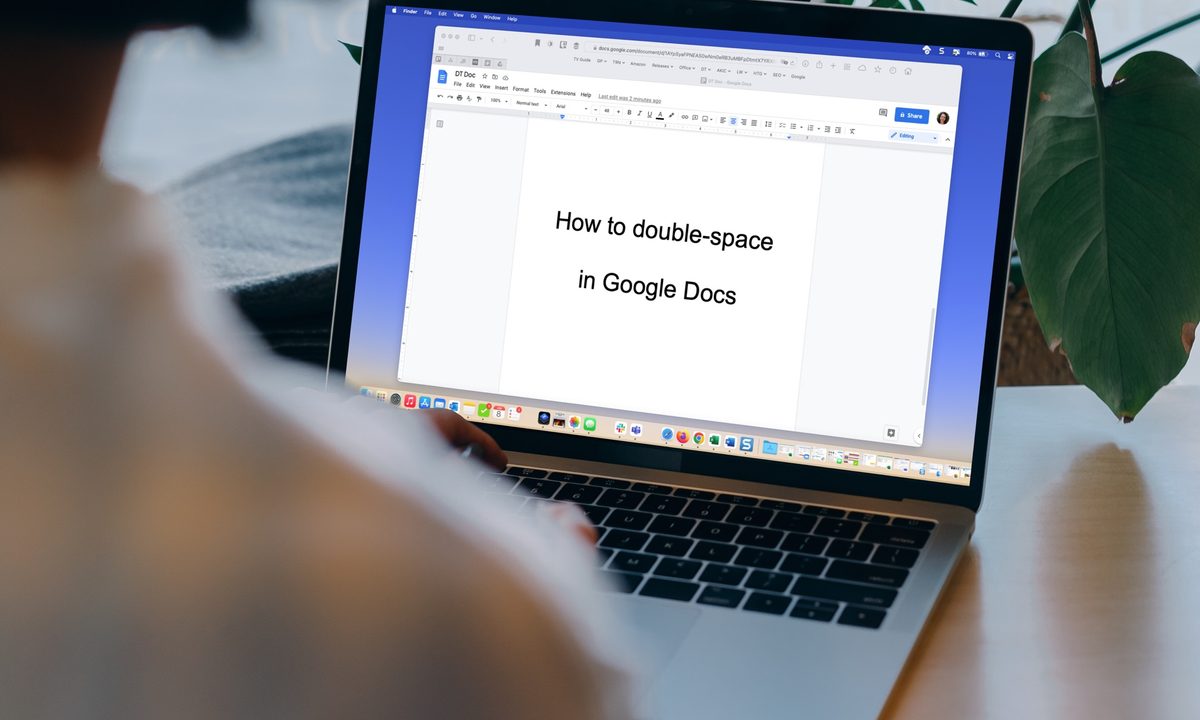
Whether for personal preference or as a requirement for the APA or MLA writing style, we’ll show you how to double-space in Google Docs.
The nice part about this format in Google Docs is that you can apply it to the entire document or only selected blocks of text. Plus, you can double-space in Google Docs on the web and in the mobile app.
Quick answer: If you're on the web client and want to get things done fast, all you need to do is click Format at the top, go to Line & paragraph spacing and then select Double.
Read on for a more visual guide and to learn more about the procedure.
Double-space in Google Docs on the web
Head to Google Docs on the web, sign in, and open your document or create a new one.
Step 1: If you already have text on the page, select all relevant text in your document that you want to transform to double-spacing.

Step 2: Go to the toolbar and select the Line and paragraph spacing button or go to the Format menu and choose Line and paragraph spacing.
Step 3: Select Double using either the drop-down or pop-out menu.

Step 4: Your selected text or new document now have double-spacing applied. You can follow the same steps to choose a different line spacing option later if you like.

Double-space in Google Docs in the mobile app
If you use the Google Docs mobile app on Android or iPhone, you can apply double-spacing to your document there as well. Open the app and follow these steps.
Step 1: Create a new document or open an existing one. Select the Edit button (pencil icon) on the bottom right to enter edit mode.
Step 2: If you have existing text that you want to double-space, select it. You can tap and hold a word on Android or double-tap one on iPhone and then drag the small blue circle through the text.
If this is a new document without text, move onto the next step.
Step 3: Tap the Format icon at the top, which is an uppercase A with four lines on Android and an uppercase underlined A on iPhone.
Step 4: In the formatting tools that appear at the bottom, select Paragraph.
Step 5: Next to Line spacing, tap the Arrow on the far right pointing up until you reach 2 or 2.00.
You can then select a spot in your document or the Format button to close the tools at the bottom.
Follow the same process to choose a different line spacing option later if needed.


Now that you know how to double-space in Google Docs, find out how to apply strikethrough in Google Docs or how to select more than one portion of text.