If you’re a Windows user, then you’ll be familiar with the Recycle Bin icon ever since you used your first system. It’s been a mainstay feature that is synonymous with any PC. After all, we all need a place to delete our unwanted files and folders.
But if you find yourself not having much use for the Recycle Bin, or you simply want to hide it, then here’s a guide explaining how to remove Recycle Bin from the Windows 11 desktop.

How to remove or hide the Recycle Bin on Windows 11
The process of removing or hiding the Recycle Bin on Windows 11 is quite similar to the process in Windows 10 (skip below for those steps). It takes a few simple clicks, and here's how you can do it.
Step 1: First, right-click on an open space on your desktop. Then, choose Personalize.
Step 2: After that, choose the Themes option in the settings app. It should be the third option on the list.
Step 3: On the next page of the settings, under Related settings you'll want to choose Desktop icon settings. This will open up a separate window.
Step 4: In the Desktop icon settings window that opens up, you'll want to uncheck the options for Recycle Bin and then click Apply. This will remove the Recycle Bin icon from your desktop. You can close all windows to end.
Since the recycle bin is a core component of how Windows functions, you can’t completely get rid of Recycle Bin from your Windows system. But the above steps should remove it from your desktop at least.
Step 5: To add the recycle bin back to your desktop, simply repeat the above steps and make sure that the box next to Recycle Bin is ticked. Then select Apply to add it back to your desktop.
These steps work for both Windows 11 Home and Windows 11 Pro, although those editions do have some key differences.
How to remove or hide the Recycle Bin on Windows 10
Since Windows 10 is the foundation of Windows 11, it's no surprise that the process of removing the recycle bin is much the same. Here's how to do it.
Step 1: Within the Start menu, select Settings, or press the Windows + I keys.
Step 2: Now choose the Personalization option, Themes, and finally Desktop icon settings.
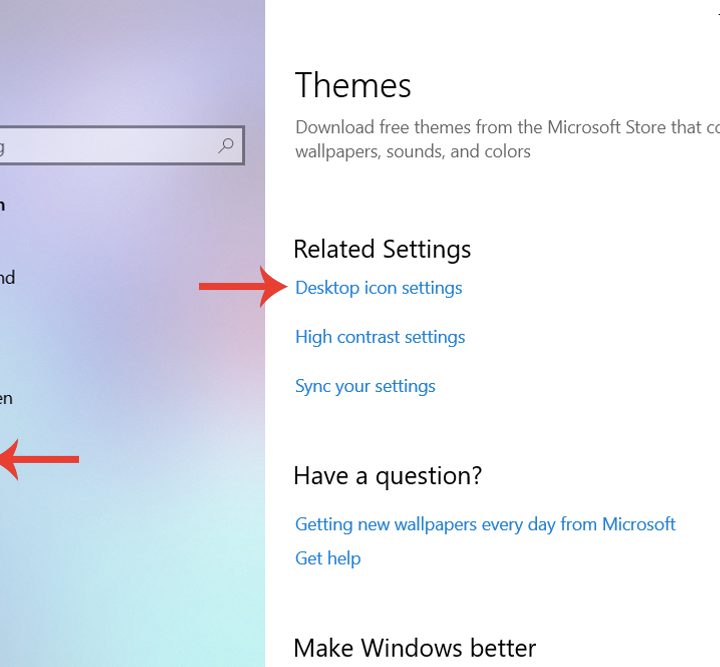
Step 3: Within the icon settings, select the Recycle Bin field, which will be automatically checked by default. Uncheck it. After clicking the Apply button, you won’t be able to view the Recycle Bin on your desktop anymore.

Step 4: To add the recycle bin back to your desktop, simply repeat the above steps and make sure that the box next to Recycle Bin is ticked. Then select Apply to add it back to your desktop.
Where is my recycle bin? How to access the Recycle Bin after removing it
If you don’t have much use for Recycle Bin and have removed it from your desktop but still want to access it from time to time without going through the process of making it reappear, then you can do so by simply searching for "Recycle bin" in the Windows search bar.
If that doesn't work, you can also open an explorer window or use the Windows search bar, and enter "::{645FF040-5081-101B-9F08-00AA002F954E}" (without quotes) then press Enter.
You'll be taken directly to the recycling bin.