If you're a Netflix user in the U.S., you've undoubtedly heard that the streaming giant has cracked down on password sharing, and has policies and payment options for subscribers using the service outside of their "household," also known as the "primary location."
Netflix has rolled out this new policy on plan in Canada, New Zealand, Portugal, and Spain, requiring customers to choose and set their primary location for the Netflix account used "in the main place where you watch Netflix, and is associated with your home Wi-Fi [or wired] network and the devices connected to it."
We'll go into greater detail about it below, but if you want to kickstart things now, do can the following the begin the process of setting or changing your primary location in Netflix:
- Sign in to Netflix> access the lefthand menu> select "Get Help"> "Manage primary location."
Once your primary location is set, as long as everyone accessing the account lives in the same household, everything works as it should. You can even travel and use the account normally outside the primary location, like at a second home or vacation cottage or something, for up to 30 days. Any longer than 30 days and you'll have to declare a new primary location using the TV and internet connection at that new location. However, if anyone using the account at the "old" primary location at the same time will be then considered a traveling member and be cut off, or they'll have to request a temporary access code which will give them access for seven days.
Alternatively, if this is all too much and it makes more sense for some of your users to have their own access, you can add up to two people outside your household to your Netflix account for an additional monthly fee, which is $8 per month in Canada, so we can likely expect something similar here. Existing profiles can be ported over and they all have their own login and passwords, and personalized recommendations.
This may all seem confusing and daunting, but truthfully setting up and changing the primary location is easy. Here's how.

How to set and update your primary location on Netflix
Setting your primary location for your Netflix account is easy, but it must be done through the TV connected to your home network with the Netflix app. This cannot be done through a set-top box like an Apple TV or a Roku device.
Step 1: From a TV that is connected to the Wi-Fi network or wired internet network of your home location, sign in to Netflix and access the Home screen.
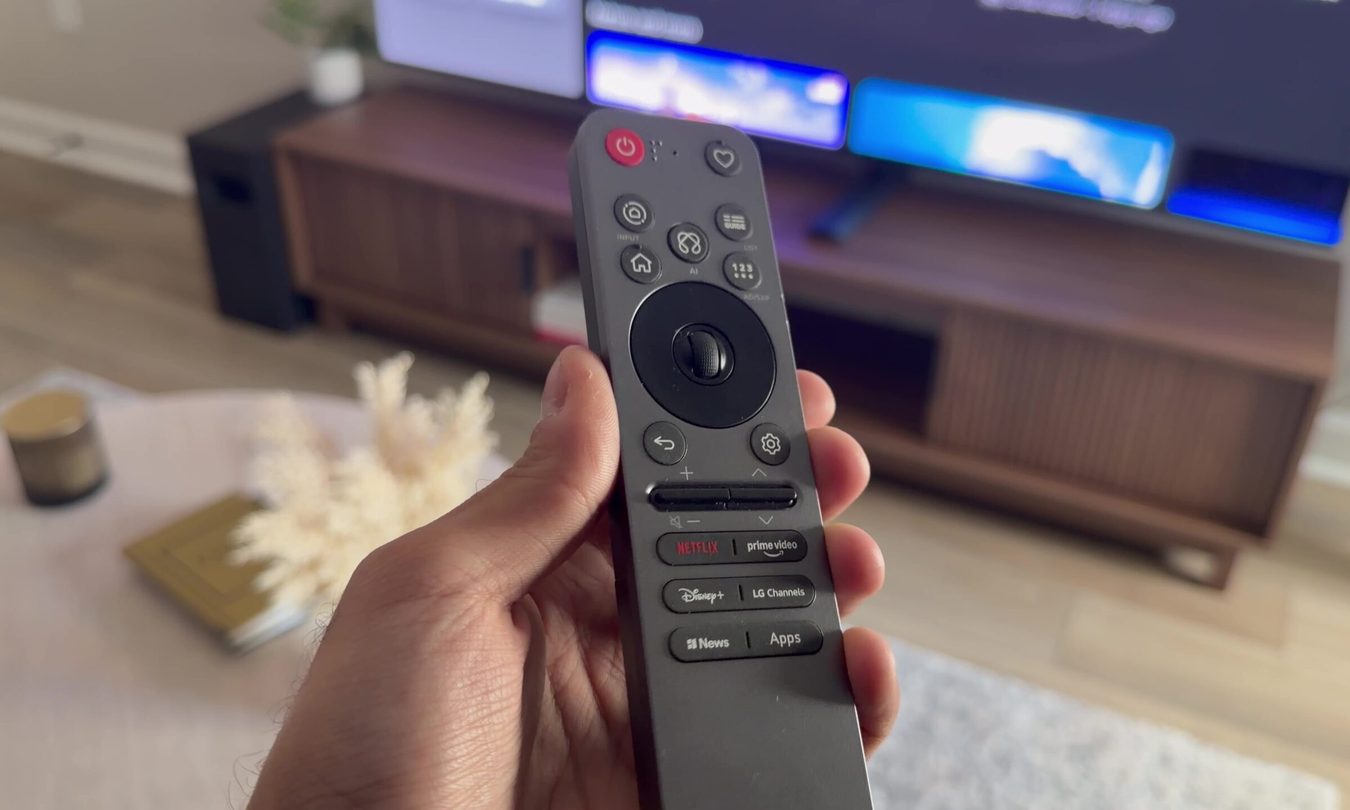
Step 2: With the TV's remote, press left to access the menu.

Step 3: From there, select Get Help and then Manage primary location.

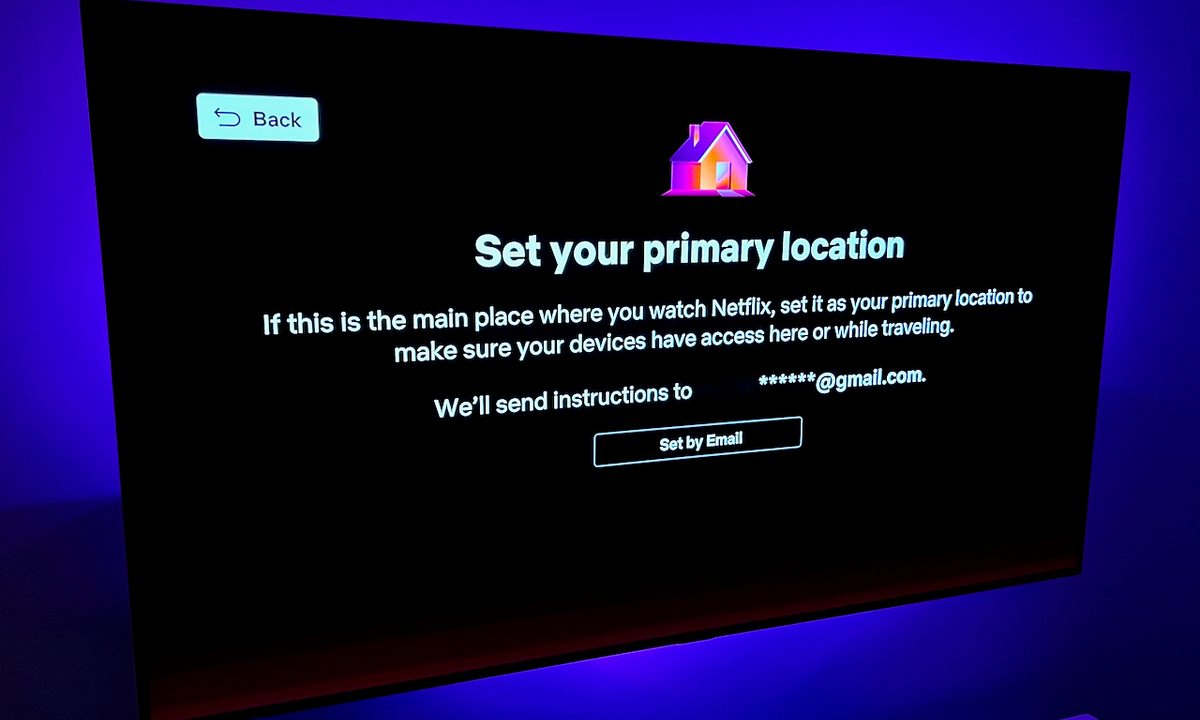
Step 4: Here you'll choose where you want the verification link to be sent — either Set by Email or Set by Text. The link will be sent to whichever you choose, but make sure you have this information entered in your account profile.
Note: The verification link expires after 15 minutes, so don't be slow about it. If it expires, you can select Resend Email or Resend Text or, if you've been distracted by more important things, you can choose Remind me Later.

Step 5: Open your email or text message and choose the Review Request link where you'll find an option to select Set Primary Location. You know what to do.

Step 6: A confirmation that the primary location has been set will appear on your TV screen, and you'll also get a confirmation email. Now you're good to start watching.
Step 7: If you have to change the primary location, just follow the same steps through the TV and Wi-Fi network of the new location.
For the most part, Netflix's password-sharing crackdown shouldn't affect you too much if you're not using the service longer than 30 days at a time, in a location outside of where you set the primary location.
If this isn't working for you — like if you have a kid away at college tapping into your account throughout the school year — you might want to explore adding them as a new user from outside your household. This will add an extra expense to your monthly Netflix bill, but you can export their profile and all their preferences over to the new account. If there's a workaround (and we're sure there will be), we'll make sure to update this post accordingly.
Frequently Asked Questions
How to change location on Netflix?
Here's how to change your location on Netflix:
- From the Netflix home screen, access the lefthand menu, and select "Get Help"
- Select "Manage primary location."
- Choose a method for receiving a verification link: "Set by Email" or "Set by Text."
- Open your email or text message, and click the "Review Request" link where you'll be promoted to "Set Primary Location."
- A confirmation will appear on your TV screen, and you'll also get a confirmation email.
How does the new Netflix primary location work?
Once you set your new Netflix primary location, you can use your account from home to your heart's content. You can also use your Netflix subscription while you're traveling for up to 30 days. If you want to use it any longer than that from outside your normal locale, you'll have to update your profile again with a new primary location.
What if primary location is wrong on Netflix?
If your primary location is displaying something other than where you actually are, it may be that you have a VPN enabled that's giving you false information. If that happens, try turning your VPN off, and restarting Netflix.