Vinyl may be decades old, but as the world’s current number one selling form of physical music media, it’s never been more relevant. And whether you’re rediscovering your old crates of records or dropping the needle on a fresh new pressing you grabbed at Record Store Day, or you’re new to vinyl altogether and just started your collection, you might be wondering how to bridge the gap between the vintage medium and your modern wireless Sonos system.
Luckily, connecting a turntable to your Sonos system is not only possible, it’s surprisingly simple. With newer models like the Sonos Era 100, Sonos Era 300 speakers, and more recently, the Sonos Move 2, there are more options than ever for connecting one of the best record players to Sonos speakers so you can get to spinning. Doing this will allow you to select the turntable line input through the Sonos app, like usual, and play your vinyl through your Sonos speakers, to multiple rooms if you have that set up. Additionally, with Bluetooth turntables becoming more common, connecting to any of Sonos' Bluetooth capable speakers is easier than ever, too.
If you're on the opposite side of this equation and are looking to add Sonos to an existing analog setup with a turntable and third-party speakers, then we'll run through how you can do that too. Let's get started.

What turntable do I need?
First things first: you're going to need a turntable. Any turntable will do, technically speaking, and if you haven't purchased one ye,t we can suggest some that we think are the best.
There is a caveat, though. To connect your turntable with a Sonos speaker or system, you will either need one that has a built-in phono preamp (like the one pictured above) or you'll need to buy an external phono preamp (also known as a phono stage) to connect it to. Why? Because turntables themselves only output a very low signal, and the preamp boosts it so that it can be amplified properly. There are several good preamps on the market, and they can run anywhere from $50 to several hundred dollars. In many cases, a good phono preamp can improve the sound of a turntable with a mediocre internal preamp, so that's something to consider as well.

Connecting directly to a Sonos speaker
As mentioned above, Sonos now has several speakers that it has outfitted with direct line-in ports. They currently include the Era 100 ($249), Era 300 ($449), Sonos Five ($549), and the discontinued Play:5. The only difference to note is that the two new Era speakers have a USB-C line-in port (pictured above), which will require the . The Five and older Play:5 feature a 3.5mm line input.
Here's how to connect your turntable to these Sonos Speakers.
Step 1: If your turntable has a built-in phono preamp, connect an RCA cable to the RCA outputs on the back of the turntable, with red going to red and white going to white (right and left, respectively). Depending on the Sonos speaker you have, you can either connect your 3.5mm cable directly to the speaker or to the 3.5mm adapter.

Step 2: Connect the other end of the cable to the Sonos speaker's USB-C (Era 100 and Era 500) or 3.5mm input (Sonos Five).

Step 3: If your turntable doesn't have a built-in phono preamp, and you've purchased an external one (which is usually a small box the size of an external hard drive), the only difference here is that you're going to first connect the turntable to the preamp's input with an RCA-to-RCA cable — same as before, white to white, red to red. If this your setup, you can skip ahead to the 'Play your vinyl with the Sonos app' section below.
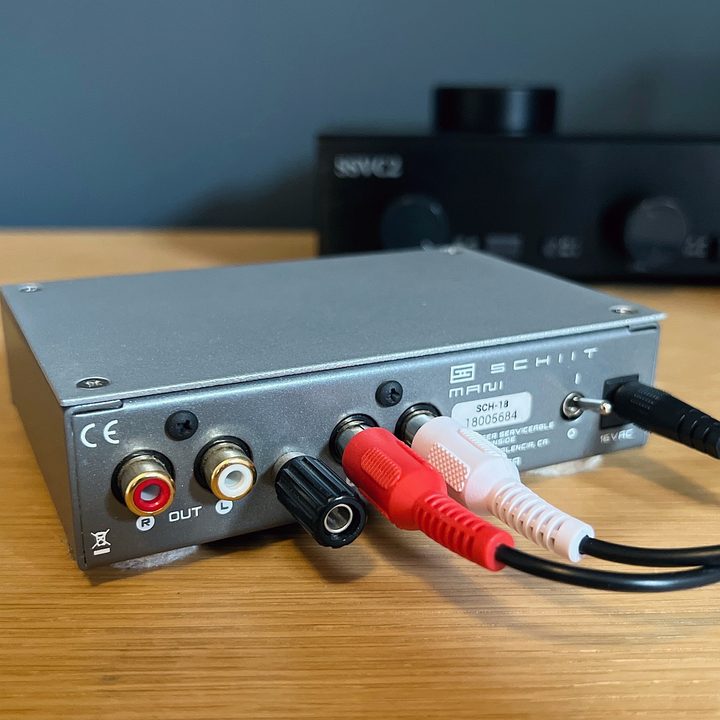
Step 4: Then, from the preamp's output, similar to step 1 above, connect to the Sonos speaker's line input. Plug the preamp on to power and you're all set. Jump to the Sonos app section below to get playing.

Connecting to a Sonos Amp
The is a good solution that allows you to add the Sonos network streaming experience to a set of third-party passive speakers. Its 125 watts-per-channel is ample power, but its Sonos connectivity also allows you to wirelessly stream to any Sonos speaker in the house. It's a good mix of both technologies.
On the back of the Sonos Amp is a set of RCA inputs that you can connect to a turntable. Here's how.
Step 1: From a turntable with a built-in phono preamp: With an RCA cable, all you have to do is connect directly from the turntable's RCA output to the Sonos Amp's RCA input and it's ready to go.
Step 2: From a turntable without a built-in phono preamp: As mentioned in the above section, you have to first connect your turntable to the external phono preamp and then connect the preamp to the RCA input of the Sonos Amp. Plug the preamp in to power and you're ready to jump to the Sonos app section below.

Connecting to a Sonos Port
The is similar to the Sonos Amp, except it doesn't have any amplification and is designed for those who already have a stereo setup with an amplifier or receiver and a set of speakers, or even a set of powered speakers.
Connecting the Port allows you to add Sonos connectivity to pretty much any existing setup with amplification so you can send music to Sonos speakers in your home, as well as through speakers in your setup.
We won't add any unnecessary steps here, but to connect your turntable to the Port, it's basically the same as connecting the Sonos Amp — with our without a built-in phono preamp. The output of the Sonos Port then connects to an available analog AUX input or line input on your receiver or amplifier.

How to play your vinyl with the Sonos app
Once you have your turntable connected to the Sonos setup of your choice, all you have to do now is use the Sonos app to switch the system over to access the turntable. One caveat though: things have changed with the latest redesigned version of the Sonos app (that many folks are not happy with), and the steps to get to the Line-in are different. Here's how:
Step 1: Launch the Sonos app, which will open on the new Home screen.

Step 2: Scroll down to Your Sources, where you will see Line-In if you have a Sonos adapter connected or an active Line-In to a compatible Sonos speaker.

Step 3: Selecting Line-In will bring up a new section where any components you have in your system connected via Line-In will appear. Select the one you want and press Play.

Play your vinyl via Sonos Bluetooth
There's one last method you can use to play your vinyl records through your Sonos system, and that's through good ol' Bluetooth. While Sonos is widely known as being a Wi-Fi network-based streaming system, in the last couple of years Sonos has embraced Bluetooth by adding it to more of its products.
Currently, Sonos speakers with Bluetooth connectivity include the Sonos Move and Move 2, the Roam, Roam SL, and newest Roam 2, and the Era 100 and Era 300 speakers. This connectivity makes it possible to stream music in the absence of a Wi-Fi network or, in the case of the Roam and Move speakers, when on the go.
If you have a turntable with Bluetooth connectivity, like the excellent , you can pair it with one of the above Sonos speakers that can also be used to then send the vinyl music throughout your entire Sonos system — with the exception of the Move, which is limited to playback on just itself because its older Bluetooth and Wi-Fi antennas are separate, while they're combined in the Roam and Era speakers. Hence, the Move cannot do both at the same time.
Here's how to pair a Bluetooth turntable with a Bluetooth-enabled Sonos speaker. Keep in mind, though, that this might vary depending on the turntable — some use apps, while others do not. Check your turntable's manual for pairing instructions.
Step 1: Place the turntable and Sonos speaker next to each other (within a few feet at most).
Step 2: Put the Sonos speaker that is powered on and awake in pairing mode by pressing and holding the button on the back for two seconds and then releasing it. You'll hear a pairing tone and the light on the speaker will flash blue.

Step 3: Put the turntable in pairing mode. There will likely be a button on the back to press — follow the instructions of your turntable.
Step 4: The two devices should pair automatically, but you'll hear another pairing tone from the Sonos speaker and the LED light will turn solid blue.
Step 5: Play a record and make sure it's all working. Using the Sonos app with your phone connected to Wi-Fi, you can group the speaker with others in your Sonos system to send the music there, too.
Lastly, I'd be remiss if I didn't point out that playing vinyl through Bluetooth is good in a pinch, but bear in mind that Sonos only supports the standard SBC and AAC Bluetooth codecs, so while it will sound decent to most people, it won't be anywhere near the clarity or sound quality of either vinyl through an analog system or one of the other line-in options outlined above, which reproduce the analog signal at a much higher quality before sending it out through the Sonos system.
Lastly, lastly, if you happen yo have a pair of Sonos Ace wireless headphones, however, they support higher-resolution Bluetooth codecs such as aptX Lossless, Adaptive, and HD. But make sure your Bluetooth turntable does too, because the quality will only be as good as the worst codec.