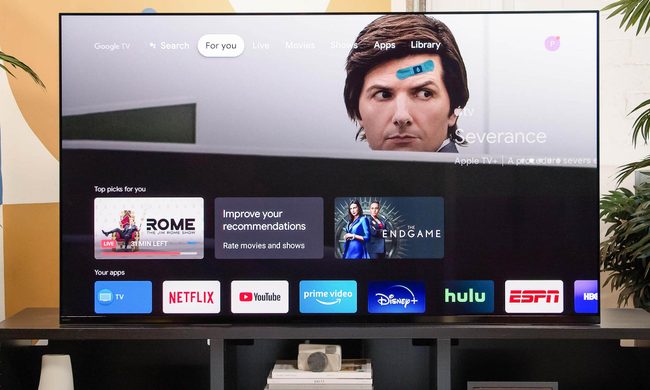
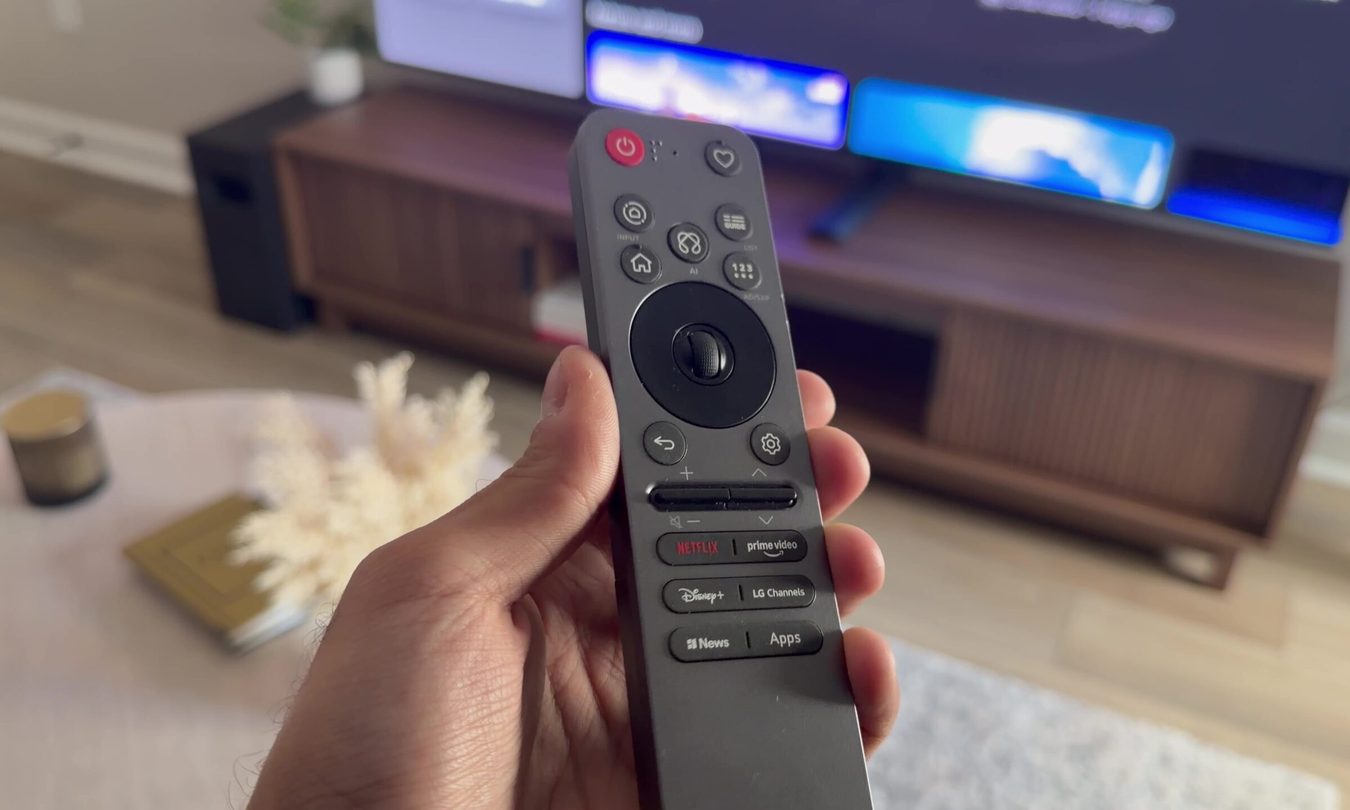
Netflix is available on just about every smart TV, streaming stick, game console, and set-top box you can buy. That’s convenient until you need to sign out of an old TV, switch accounts, or make sure you didn’t leave your Netflix login behind at a hotel or Airbnb.
The good news is that signing out of Netflix is still simple in 2026. The exact menu labels can vary by TV brand, streaming device, and app version, but the basic process is the same: open the Netflix app, find the help or settings menu, and choose the sign-out option.
Here’s how to sign out of Netflix on a smart TV, plus how to remove a device from your account remotely.
Difficulty
Duration
What You Need
-
Netflix account
-
Netflix app
-
Compatible smart TV or streaming device

How to log out of Netflix on a smart TV
Generally speaking, the Netflix app on most smart TVs is going to look and perform pretty similarly from one brand to the next. Here’s how to sign out of your Netflix account on a smart TV, no matter what brand of smart TV you own, or whatever type of streaming device you have connected to your TV.
Step 1: Launch the Netflix app on your smart TV.
Step 2: Press the up arrow on your remote to move to the top bar.
Step 3: Press the left arrow to highlight your profile icon in the top-left corner, then select it.
Step 4: In the menu that appears, scroll down and select Get Help.
Step 5: On the Get Help screen, scroll down and select Sign out.
Step 6: Select Yes to confirm.
That’s it. Netflix will sign out of the current account and return to the sign-in screen.
If you’re signing out so someone else can use their account, they can now log in with their own email address and password.

How to sign out of Netflix on a TV from a web browser
If you don’t have access to the TV anymore, you can sign it out remotely through your Netflix account.
Step 1: Go to Netflix.com in a web browser and sign in to your account.
Step 2: Select your profile icon in the upper-right corner.
Step 3: Select Account.
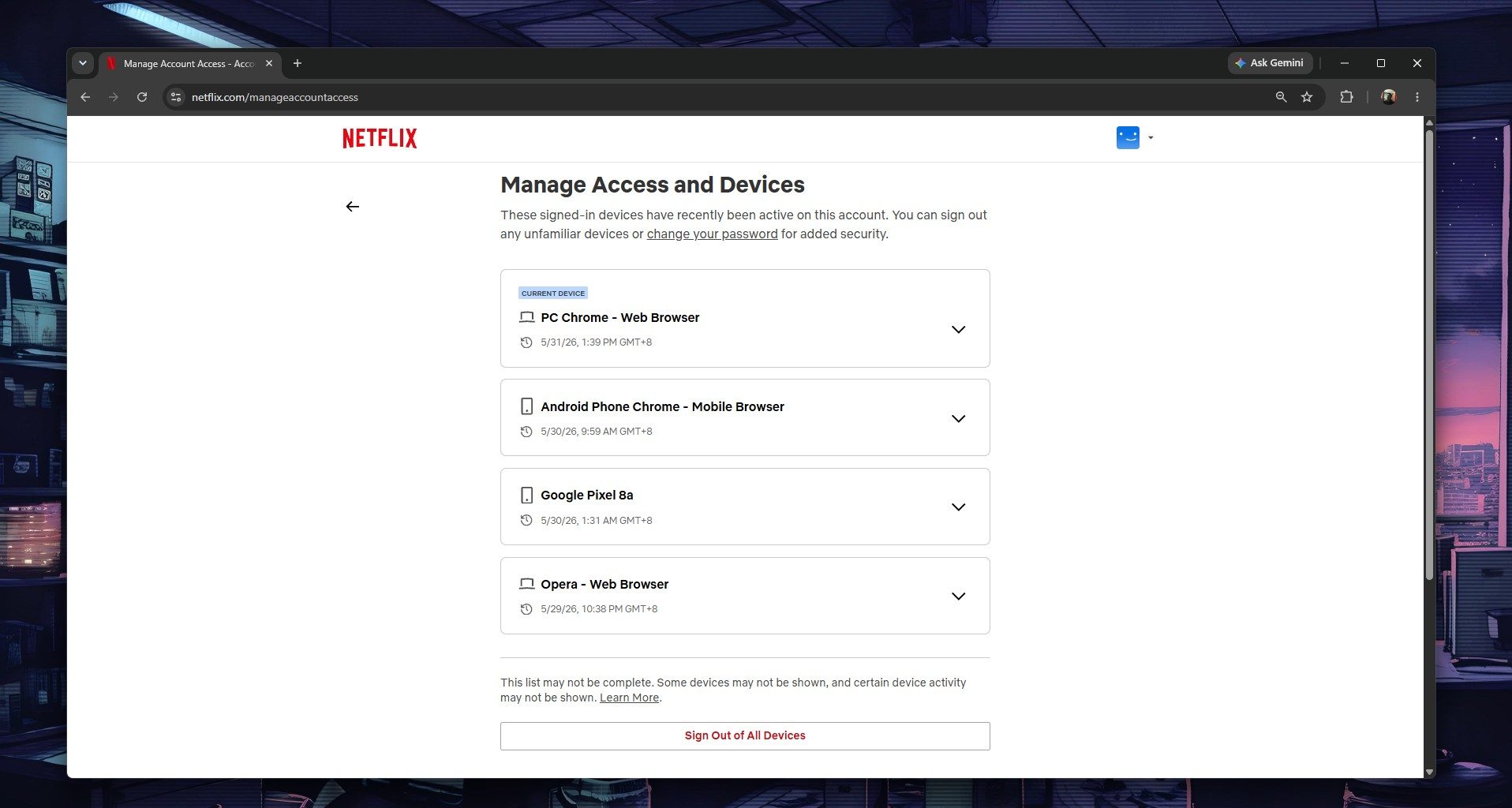
Step 4: Go to Manage access and devices.
Step 5: Find the smart TV, streaming device, or other device you want to remove.
Step 6: Select Sign out next to that device.
Netflix says devices can take some time to appear in this list, and not every device may show up. If you don’t see the TV you’re looking for, use the all-devices method below.
How to sign out of Netflix on all devices at once
If you forgot to sign out on a hotel TV, gave your password to someone you no longer want using your account, or just want a clean reset, you can sign out of every device connected to your Netflix account.
Step 1: Go to Netflix.com and sign in.
Step 2: Select your profile icon.
Step 3: Select Account.
Step 4: Go to Manage access and devices.
Step 5: Choose Sign out of all devices.
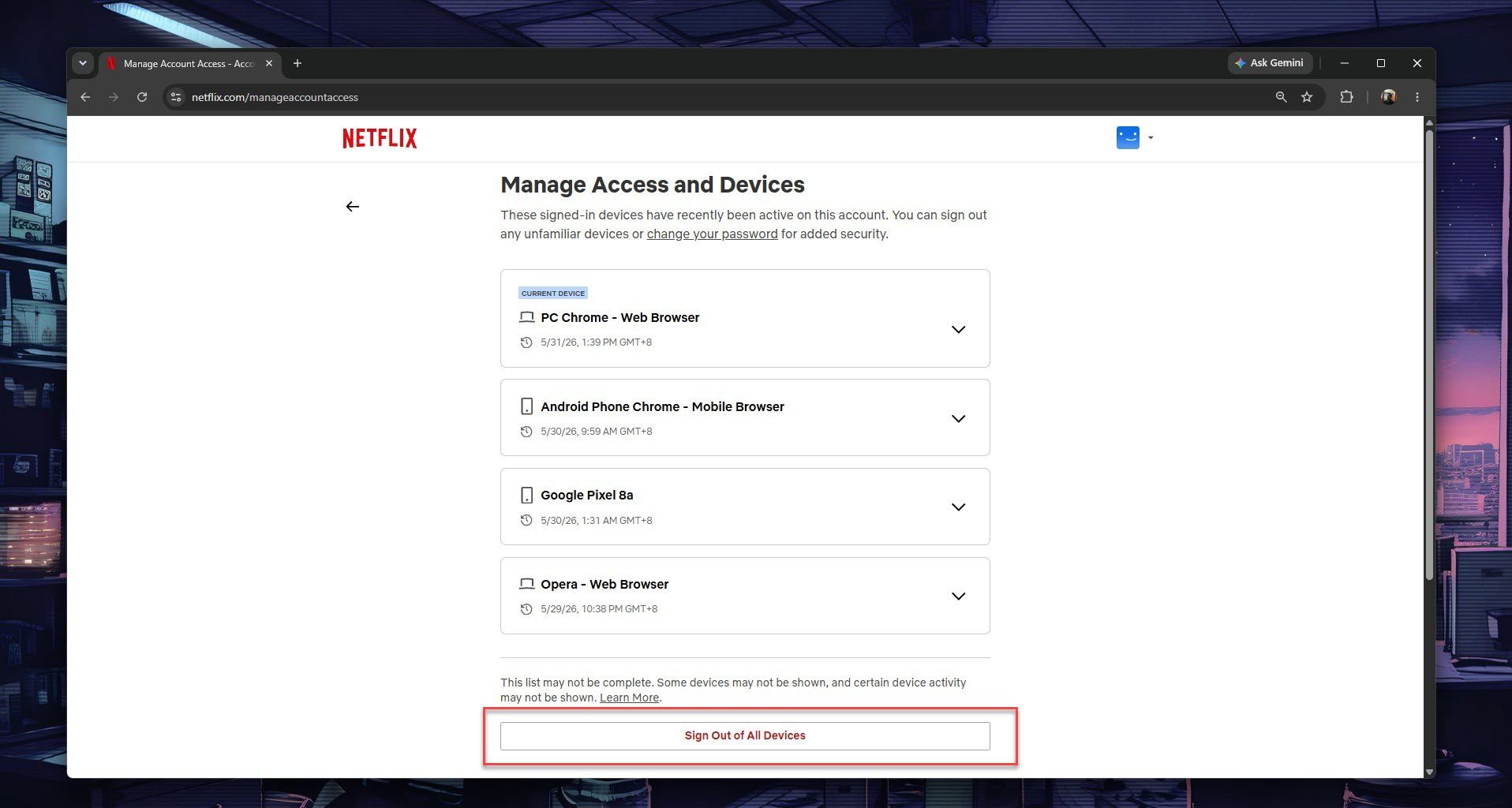
Step 6: Confirm your choice.
This will sign out every phone, tablet, TV, streaming stick, game console, and browser connected to your Netflix account. You’ll need to sign back in on the devices you still use.
If you think someone else has your Netflix password, change your password after signing out of all devices. Otherwise, they may be able to log back in.
How to sign out of Netflix on a smart TV from your phone
If you’ve already left the location and forgot to sign out, you can remove the TV from your Netflix account using the Netflix mobile app.
Step 1: Open the Netflix app on your phone.
Step 2: Tap your profile icon.
Step 3: Go to Account.
Step 4: Select Access and devices.

Step 5: Find the TV or streaming device you want to remove.
Step 6: Tap Sign out next to that device.
Netflix may not show every device right away. If you don’t see the TV in the list, use the Sign out of all devices option from your account settings instead.