Overdrive! It sounds cool and it is, but you might not have it enabled in your monitor's settings because what it does is not exactly obvious. But you should, because it can actually improve how fast motion looks on your screen, helping to eliminate ghosting and improving clarity in competitive games. Just don't overdo it, or you might make the problem worse.
Here's how to enable your monitor's overdrive.

What is monitor overdrive?
Monitor overdrive, or response time overdrive, is a method of boosting the response time of your monitor so that it transitions more quickly from one pixel state to another. Typically, this is measured in gray to gray, or rather gray to a different shade of gray, and is given in milliseconds (ms). It needs to be fast enough not to get caught out by the monitor refreshing the image before it's ready.
So, for example, a 60Hz monitor refreshes the image 60 times per second, or around every 16.67ms. The response time of that monitor needs to be less than 16.67ms to avoid ghosting. Higher refresh rates demand more from a monitor. A 144Hz display needs a response time less than 7ms, and it only gets harder from there.
Slow response times can lead to "ghosting" during fast motion where the pixels can't change what they're displaying fast enough, so the image can seem to trail behind it, or ghost across the screen. Improving your response time by using overdrive can eliminate this problem, and make the images appear crisper on the screen.
How to enable monitor overdrive
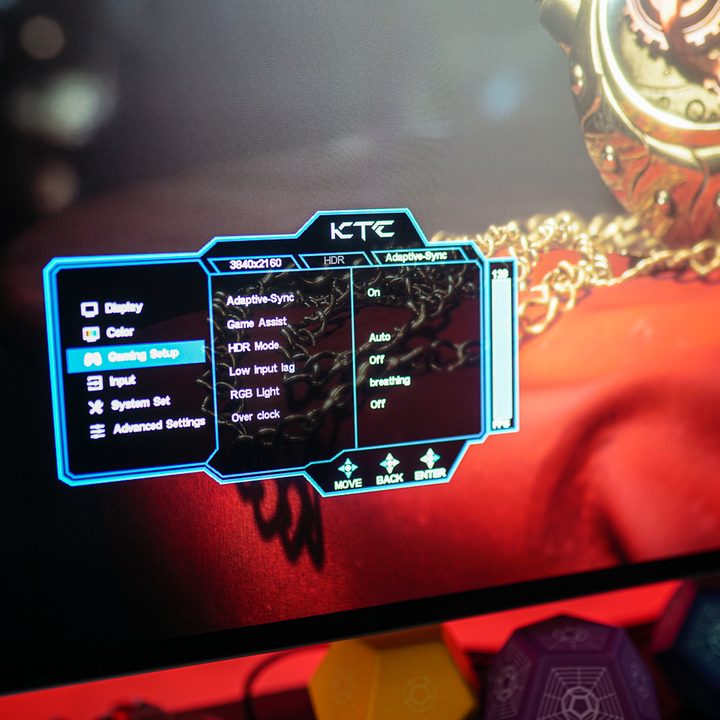
To enable your monitor's overdrive, you can simply use the on-screen display. This is a setting that your monitor will have to have in order for you to use it, though, and that's far from a guarantee. Not every display has it, so if you can't find the setting, it may not be available. Check your monitor manufacturer's website or the manual to double-check.
Step 1: Press the button on your monitor to bring up its on-screen display (OSD). It will typically be located on the side or rear of your monitor, but there are usually indicators for where it's located. You can also check the manual if it's proving particularly hard to find.
Step 2: Look through the settings until you find an Overdrive, or Response time setting you can adjust. This may be located within a gaming menu of some kind.
If the overdrive setting is grayed out or you can't adjust it for some reason, try turning off Freesync, G-Sync, or VRR modes, as some monitors don't let you change the Overdrive settings when some form of syncing technology is being used.
Step 3: If it's an on or off toggle, try toggling it to on, and then play a game or watch a fast-paced TV show or sports event and see how the monitor looks. If it looks good, leave it on and enjoy your newly Overdrive-powered monitor.
If you have a range of Overdrive settings or options, though, you'll need to start with the first one, with the least overdrive applied, and then run some tests to see how it looks and feels. The best one is the TestUFO.com ghosting test.. Change the overdrive settings and then see how the little aliens look as they move across the screen.
As you increase the overdrive, you should see a reduction in any ghosting. However, do note that you can go too far and end up with overshoot where the pixels appear to glow ahead of the object.
Step 4: One additional consideration to make if you use Freesync, G-Sync, or another form of Adaptive Sync during gameplay, where your monitor's refresh rate will dynamically adjust, is that you may need to manually adjust your overdrive setting based on the frame rate you're playing at. If you end up playing a game at a low frame rate because it's particularly demanding, but your overdrive is configured for the monitor's 240Hz refresh rate, for example, you might run into overshoot problems.
On some AMD models, there's an advanced version called Adaptive Overdrive, while some G-Sync models have Variable Overdrive. These will adjust the overdrive setting dynamically without any input, based on the frame rate.
Wish your monitor did have overdrive, or just want something with a better response time in general? Here are some of the best gaming monitors you can buy in 2024.