Your ChatGPT history is more than just a list of old conversations. It’s a digital paper trail of your unfiltered thoughts, work projects, and personal queries. And in the GPT-5 era, that trail is stickier than ever. With OpenAI’s latest models leaning heavily into “Memory” features that track your preferences across sessions, a cluttered sidebar isn’t just an organizational headache. It could also be a privacy liability.
Unless you want all your conversations to influence future ChatGPT responses, it’s a good idea to purge old chats regularly. The process is remarkably frictionless, taking less than five minutes whether you’re at your desk or on the move. OpenAI has made it incredibly easy to wipe the slate clean with just a few taps on both desktop and mobile.
Difficulty
Duration
What You Need
-
A computer or mobile device with an internet connection
-
Your ChatGPT login and password
Archiving vs. Permanent Deletion
Before you start clicking buttons, you first need to be clear on your objective. Are you simply trying to clear the visual clutter from your sidebar, or are you looking to scrub your interactions from OpenAI’s servers entirely? OpenAI offers two distinct paths for clearing your sidebar: archiving and deleting. And there’s a clear distinction between the two.
Archiving chats is the digital equivalent of sweeping dirt under a rug. It tidies up your view by hiding conversations, but the data remains tethered to your account.
Deletion, on the other hand, doesn’t just hide threads. It clears them from the UI and triggers a 30-day countdown for permanent removal from OpenAI’s servers.
If your goal is to ensure your conversations are truly wiped from your digital footprint, here’s how to get it done.
How to delete all your ChatGPT chats on desktop
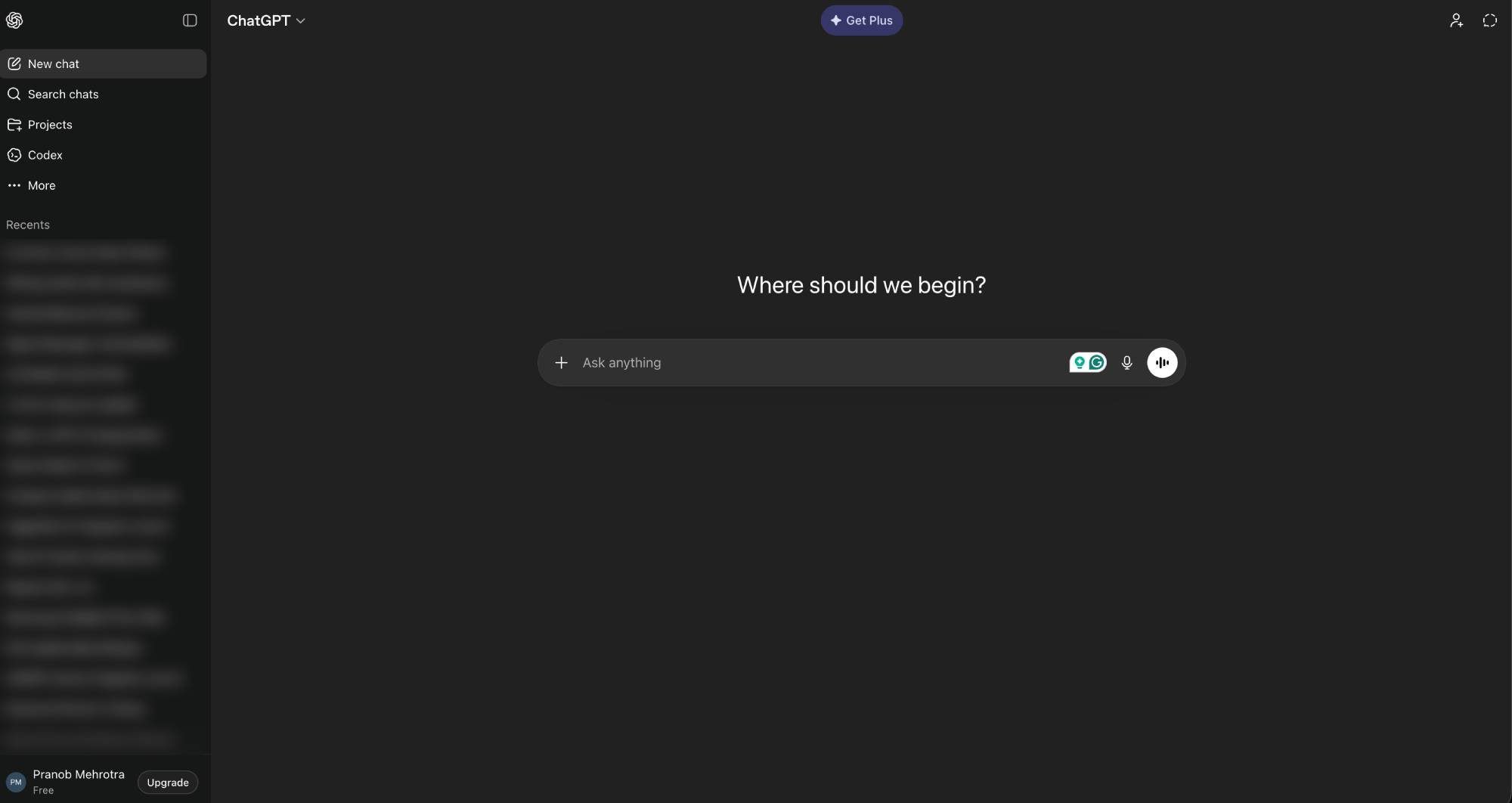
Step 1: Log in to your ChatGPT account, then click your user name in the bottom-left corner.
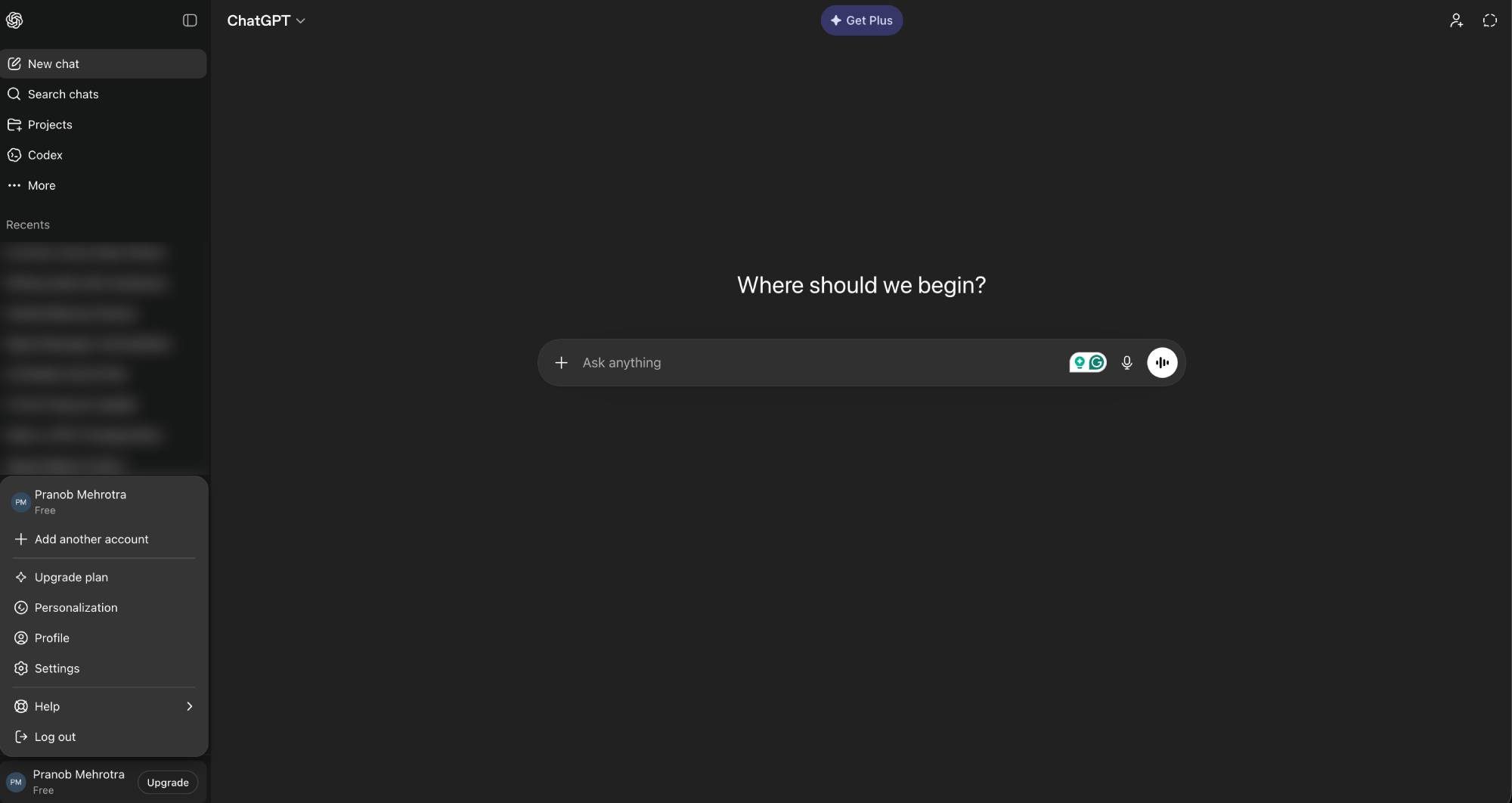
Step 2: In the pop-up menu, click on Settings to open the ChatGPT settings menu.
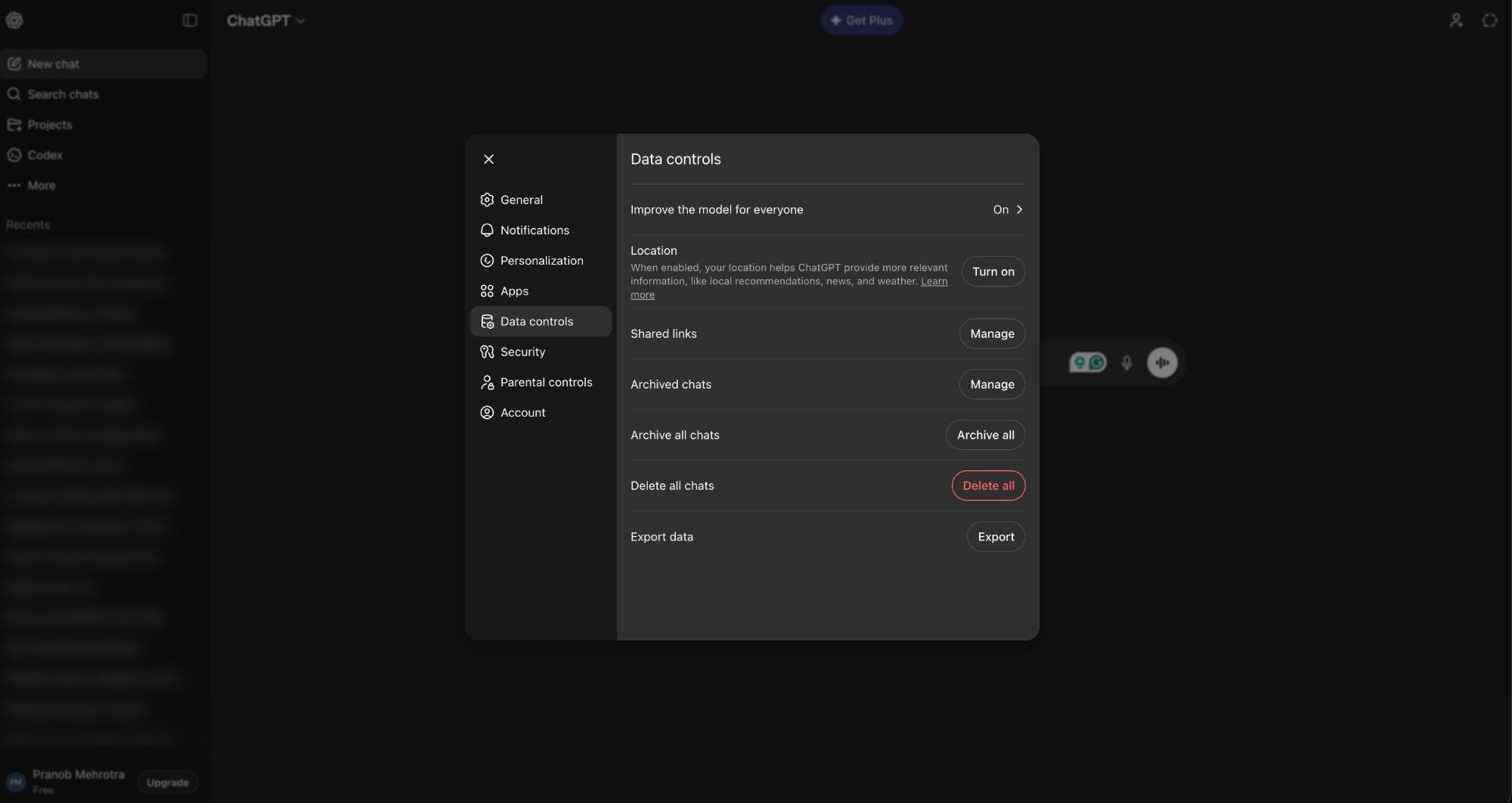
Step 3: In the settings menu, click “Data controls” in the sidebar, then click the red “Delete all” button next to the Delete all chats option.
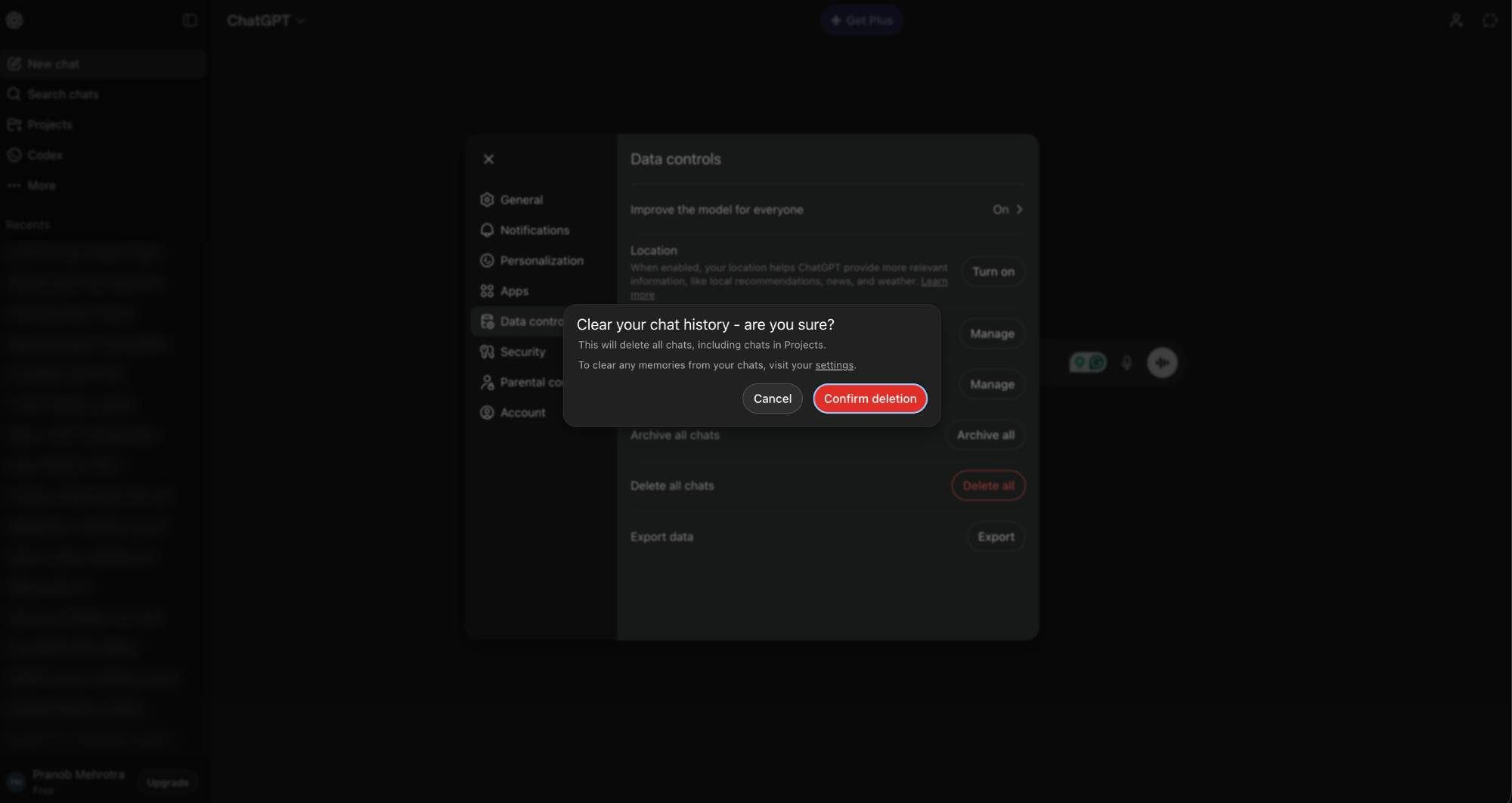
Step 4: Click “Confirm deletion” in the confirmation dialog to delete all chats.
How to delete all your ChatGPT chats on mobile
If you use the ChatGPT app on Android or iOS, the steps for deleting chats in bulk are slightly different.
Step 1: Log in to your ChatGPT account and open the sidebar by tapping the button in the top-left corner or swiping right.
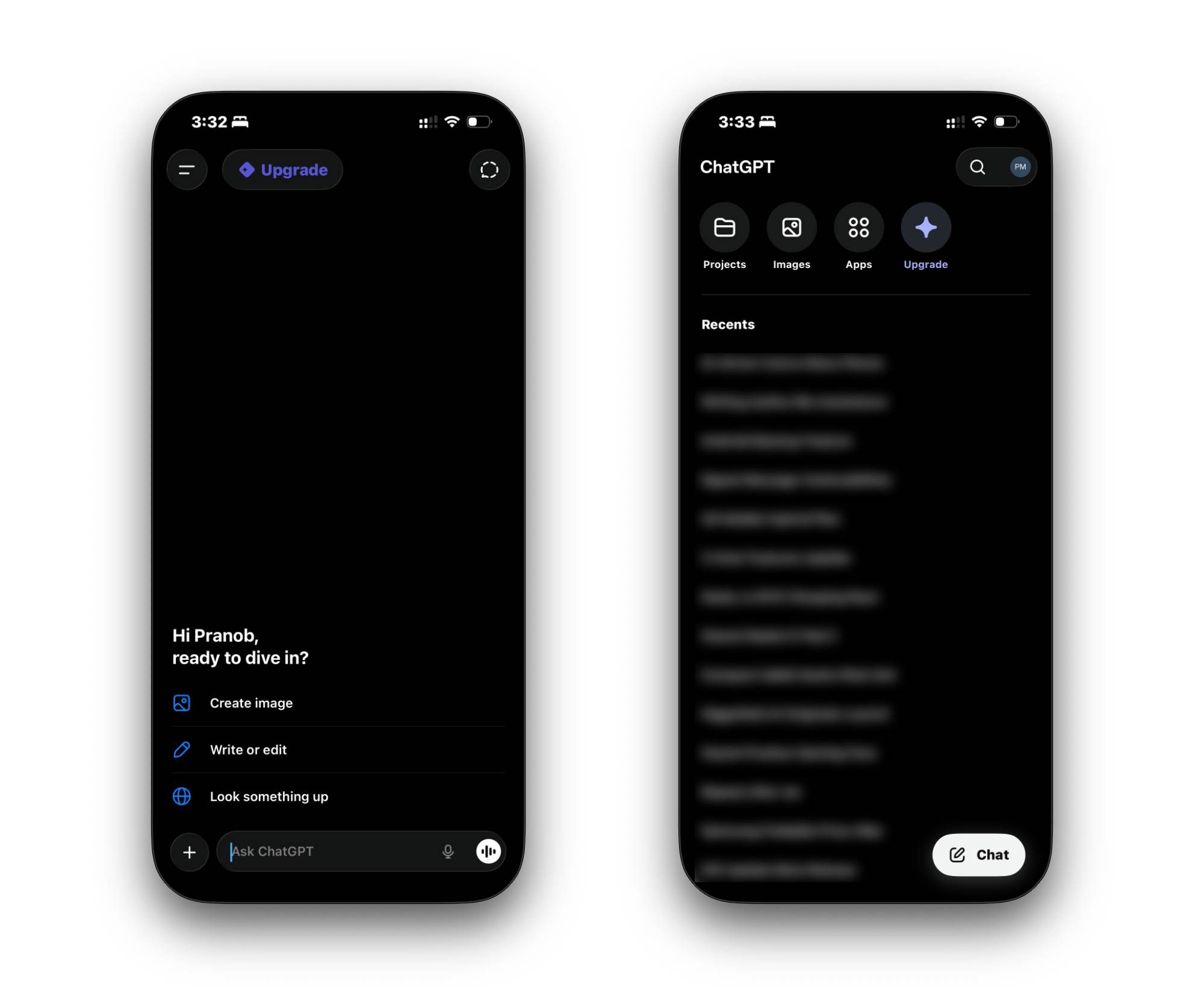
Step 2: Tap your profile icon in the top-left corner to open the Settings menu.
Step 3: Select the Data controls option and tap the red “Delete all chats” option.
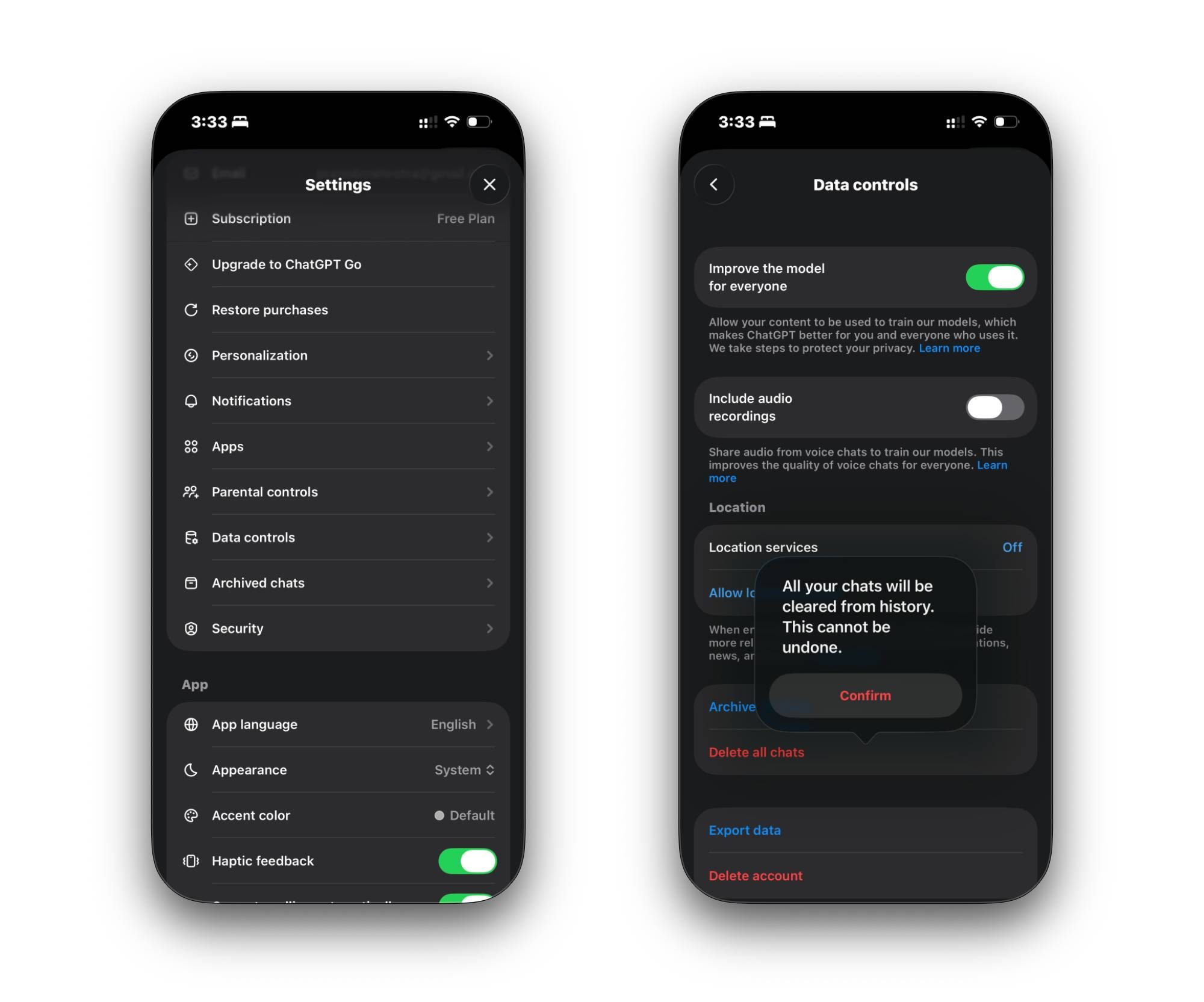
Step 4: Tap “Confirm” in the confirmation dialog to nuke all chats from OpenAI’s servers.
How to to delete a single ChatGPT conversation
In some cases, surgical pruning is a better move than clearing out your entire chat history. For instance, if you’re about to share your phone’s screen for a work presentation and don’t want your colleagues to see a chat about sensitive financial data, killing that specific thread is the way to go. It allows you to keep your secrets without getting rid of your entire chat history.
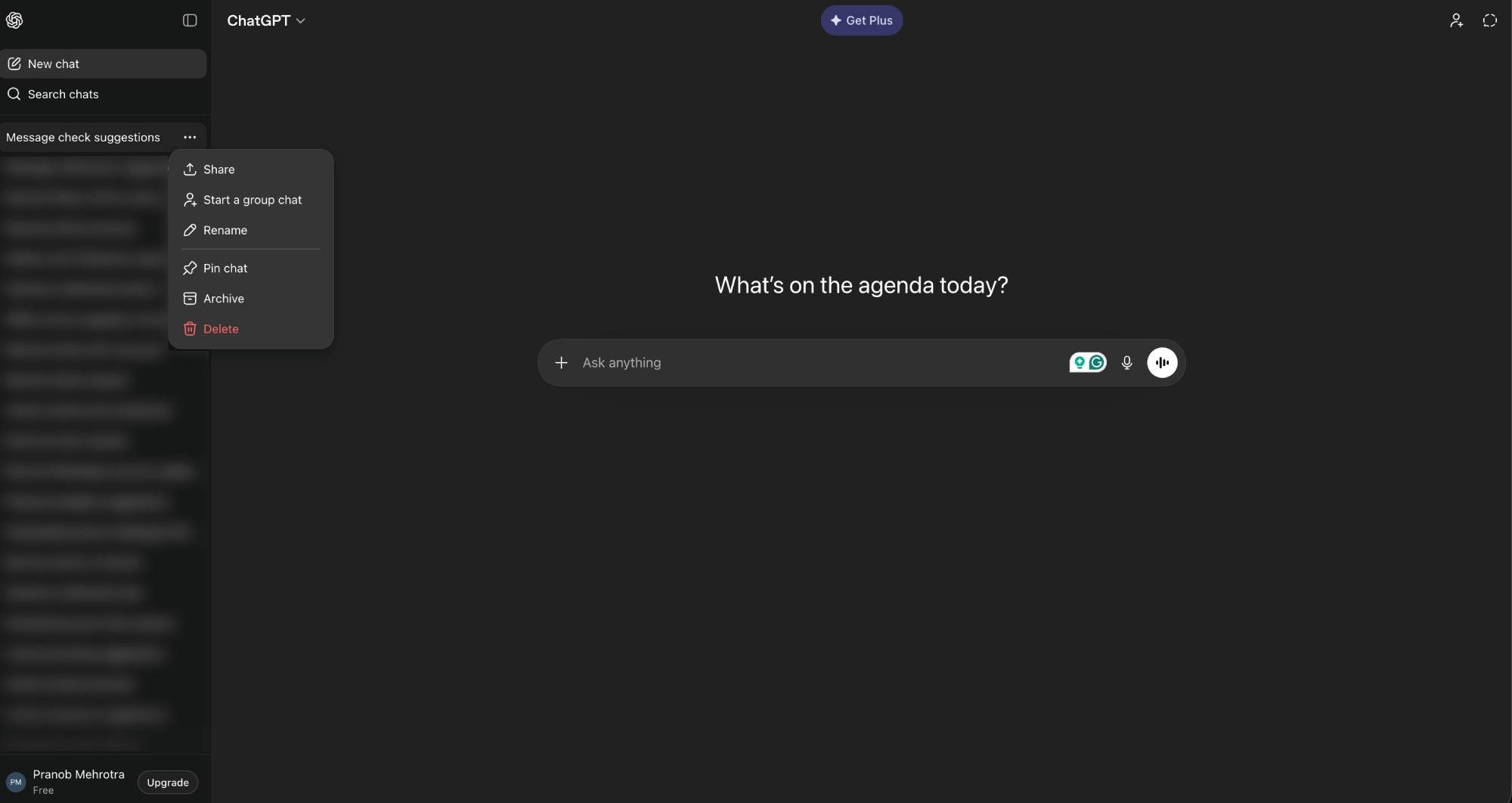
On desktop, you can do this by hovering the cursor over the chat, clicking the three dots that appear to the right of the title, selecting “Delete” from the dropdown menu, and clicking “Delete” again in the confirmation dialog.
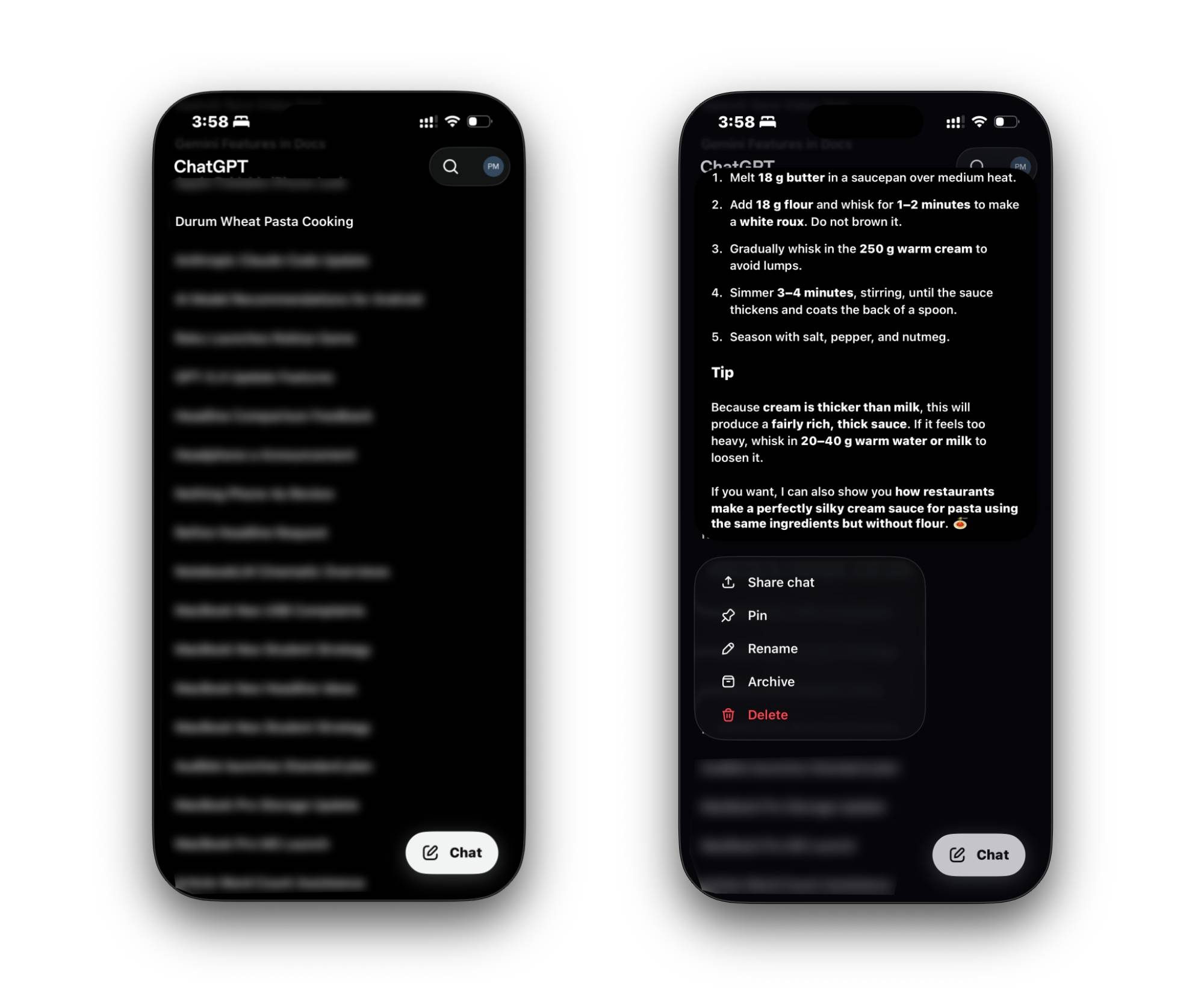
On mobile, tap the button in the top-left corner or swipe right to reveal the sidebar. Locate the chat you wish to delete, long-press on the title, and select “Delete” on the following menu.
Proactively manage your ChatGPT history with Temporary chats
The most effective way to keep your ChatGPT history clean is to never create it in the first place. The Temporary Chat option lets you do just that. You can toggle it on by clicking/tapping the dotted speech bubble button in the top-right corner.
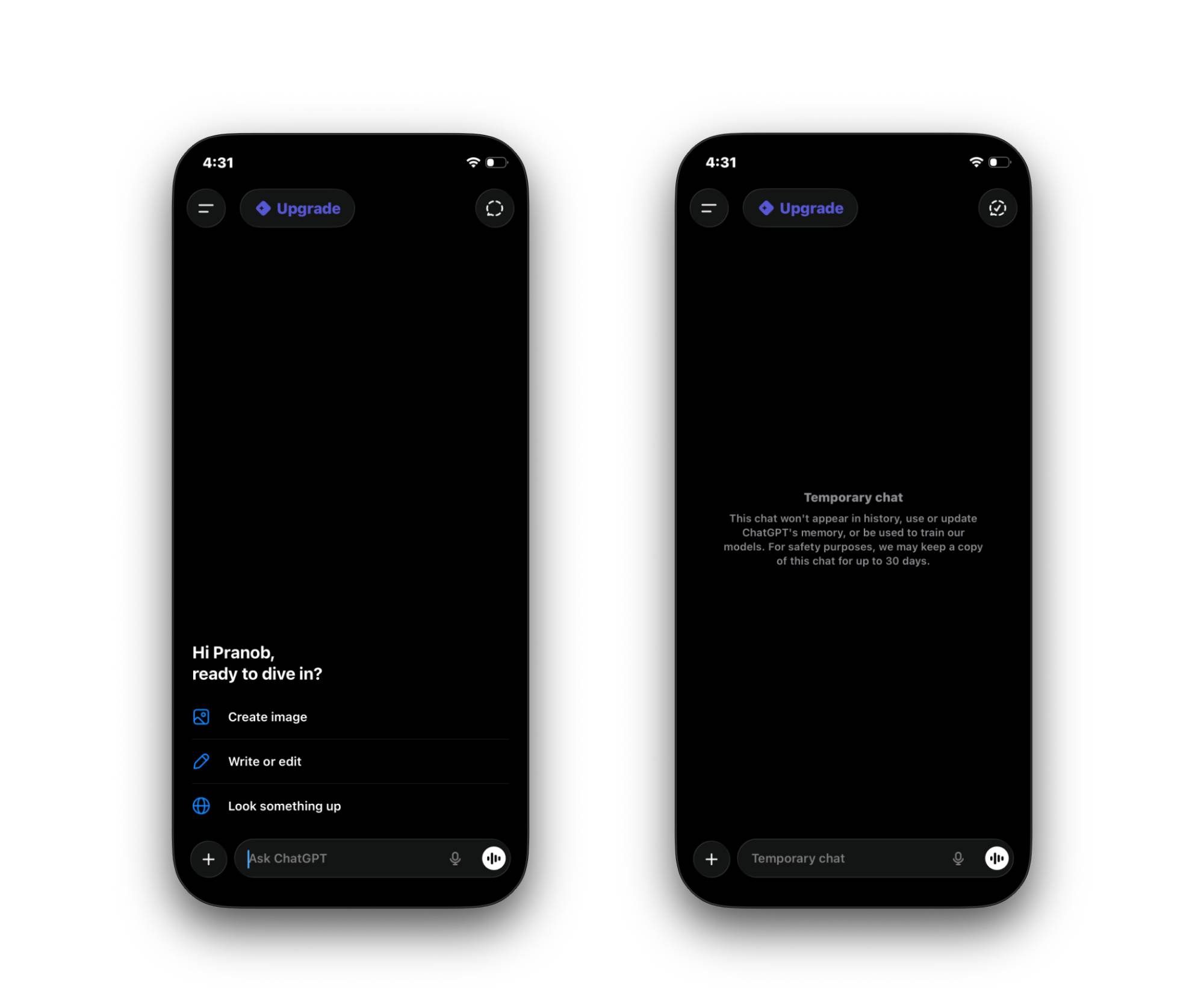
New conversations started in this mode don’t appear in your history, they don’t contribute to the “Memory” feature, and OpenAI claims they aren’t used to train ChatGPT models. It’s the incognito mode of the AI age, and it should be your default for any sensitive one-off query.
Does deleting chats actually wipe your data?
It’s a common misconception that hitting delete instantly wipes your data from OpenAI’s servers. Under its current guidelines, the company retains deleted conversations for up to 30 days to monitor for policy violations before the permanent purge occurs.
Furthermore, if you have the “Improve the model for everyone” option turned on, data from your conversations may have already been baked into the model’s training set. To truly remove your data, you’ll first have to delete all chats and then disable this option before starting a new session.
Take control of your data
Whether you’re scrubbing a single query or purging your entire chat history, managing your footprint in ChatGPT is a non-negotiable part of using AI responsibly in today’s day and age. OpenAI has made the tools accessible, but you’ll have to make the effort to clean things up.
With regular housekeeping and using Temporary Chats for sensitive work, you can enjoy the benefits of ChatGPT without leaving a permanent trail for OpenAI to follow. Clear your history, disable model improvement, and keep your data where it belongs: with you.