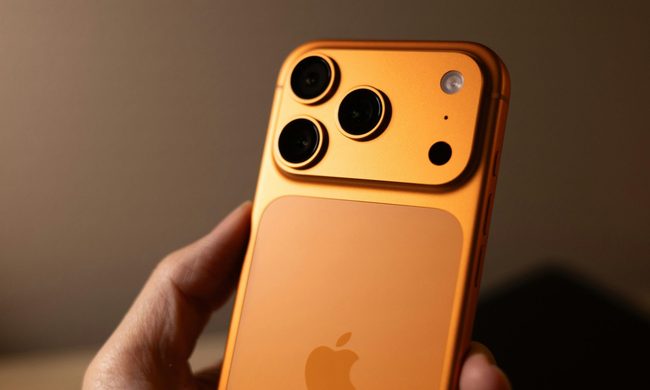
For fans of the Apple ecosystem, it’s been an incredible week. Apple’s annual WWDC 2025 keynote revealed a whole new Liquid Glass design that’s unified across all its platforms. Also unified across all platforms is the numbering scheme, with iOS 26 designed to represent the year of release… plus one.
The new platform doesn’t deliver one of the key things I asked for — multitasking, which is available on iPadOS 26 — but it does bring several new features that make the iPhone far more usable.
I’ve been running the first iOS 26 developer beta on my iPhone 16 Pro for a few days, and it’s worth noting that this is just the first release designed to help developers build experiences. As it is every year, there will be improvements before the final beta launches next month, and many more before the stable release in the Fall.
1. Liquid Glass design
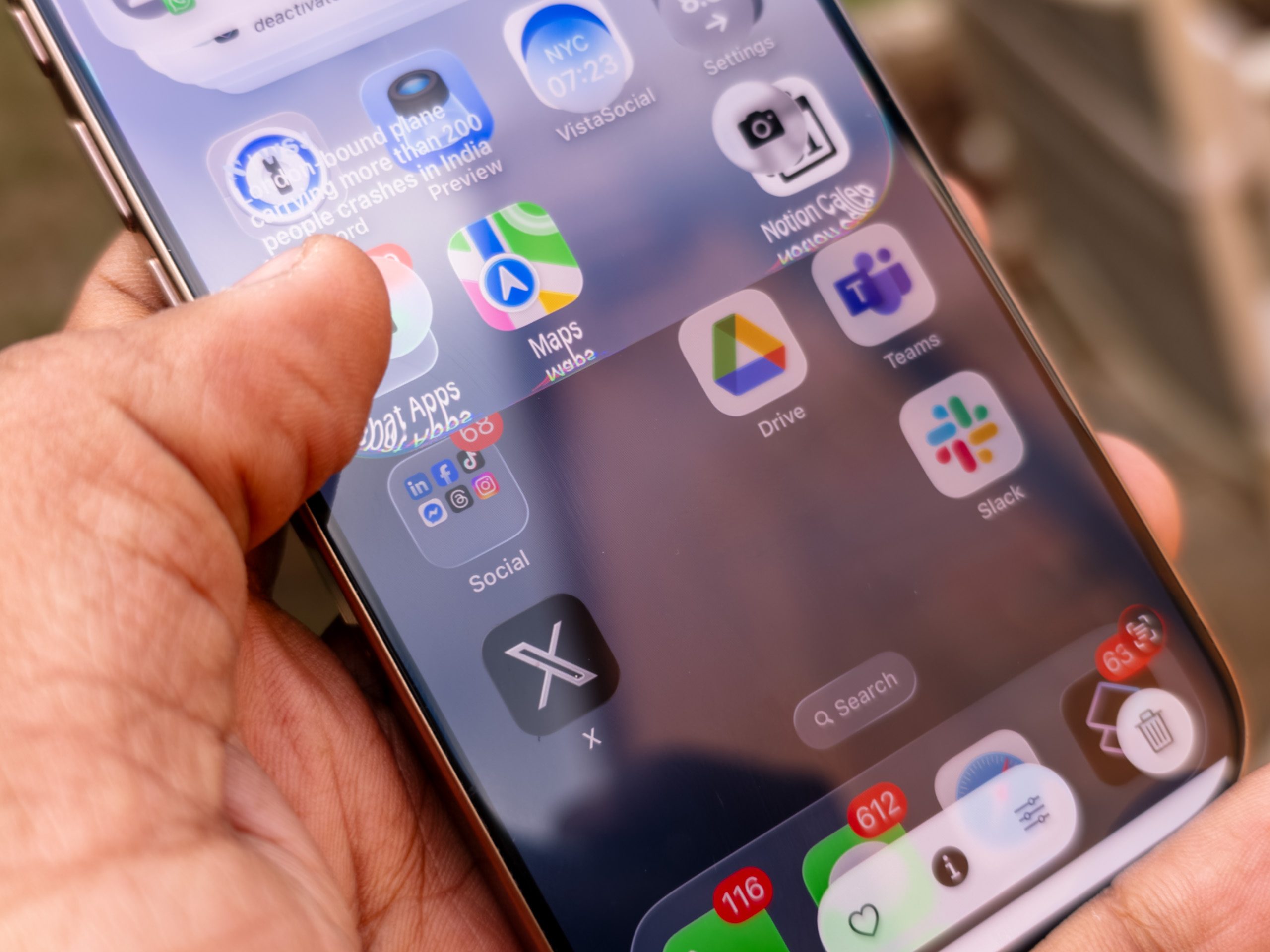
I love the new Liquid Glass interface design. The translucent effects — as you can see below — make this feel incredibly refreshed. I can’t say how this impacts battery life or performance, but it looks incredible and should stand out even more on the upcoming iPhone 17 series.
As it stands, it has already transformed my iPhone 16 Pro, making it feel refreshed and more premium. IOS 18 added several new features, but it lacked the polish of older Apple releases. Liquid Glass is different: it represents a comprehensive overhaul of the entire interface and experience, with an added benefit.
Before the launch of Liquid Glass, rumors suggested a redesign of Apple’s platform, and I called for Apple to do more than redesign the OS; I wanted them to address the inconsistencies, bugs, and aging portions that had accumulated since the last redesign 12 years prior. We’re still at the first developer beta, but this is a major overhaul that has already addressed many of my concerns.
2. The new Preview and Files apps from iPadOS

For years, Apple has extolled the value of the iPhone as a productivity machine, but in iOS 26, the company leaped forward. The reveal of iPadOS 26 included a focus on the new Preview and Files apps from macOS, but unmentioned was that these apps were also coming to the iPhone. By bringing these apps to the iPhone, Apple has matched the file capabilities of Android, although you still can’t access your on-device photos outside of the Photos app.
I’ve long used PDF Expert across iPhone, iPad, and Mac, but while the new Preview app won’t let you edit the text in PDFs — which PDF Expert does — it does let you sign for free or add text boxes to fill out a PDF. It’s elegant and has just enough features for most users.
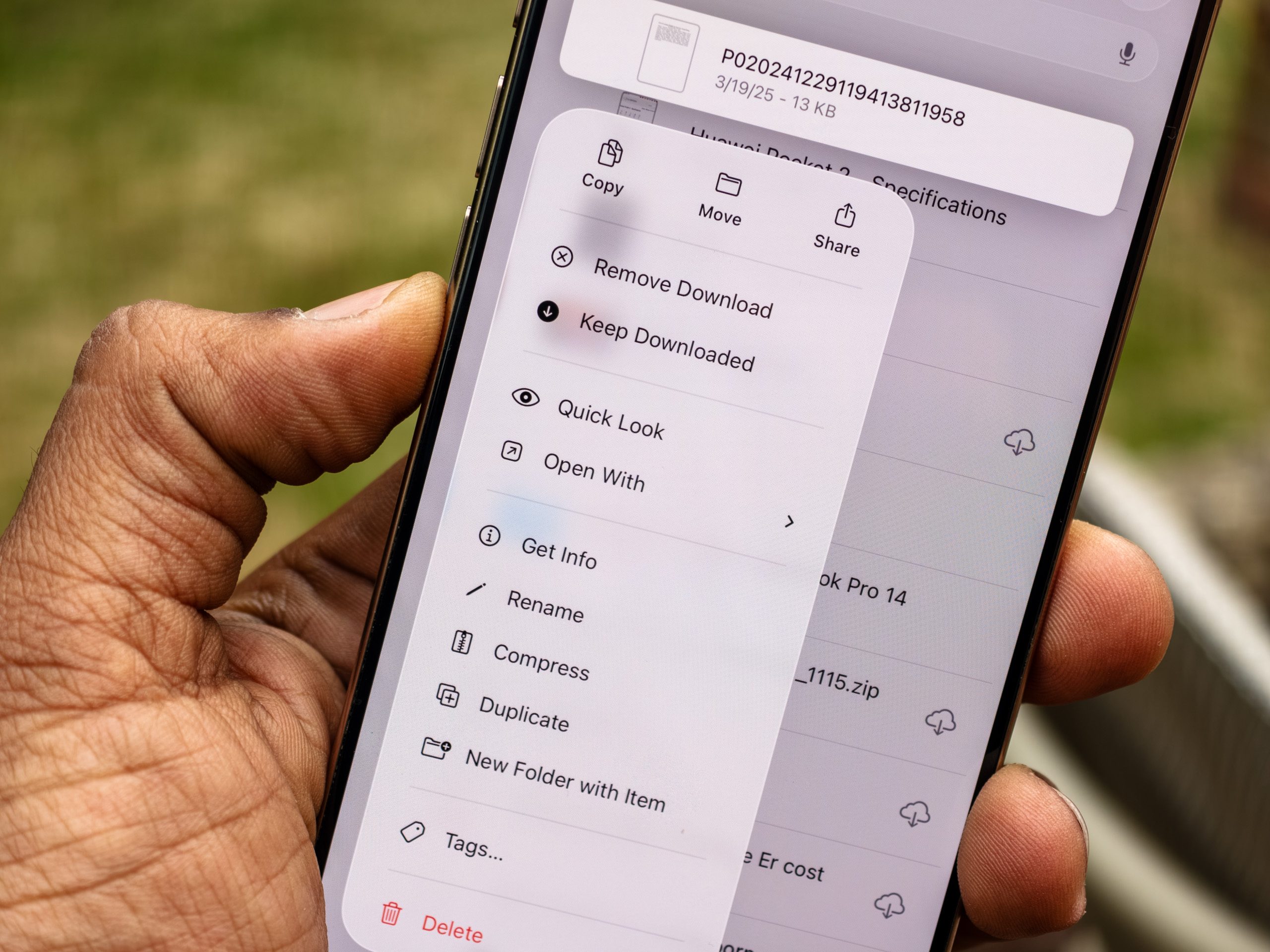
Meanwhile, the Files app isn’t new, but it has also been updated to include many of the same context menus and features as Preview. You can also set the default app to open different file types and change other parameters from a Mac-like menu that’s accessible by pressing and holding the file.
Both apps also integrate with iCloud Drive, which means I can access any file from my Mac, after setting them up to sync, on my iPhone. Files could already do this in the past, but Preview now makes it effortless to do many things I’d use a Mac for on either my iPhone or my iPad.
3. Dialer, Hold Assist, and Call Screening

It’s rare for any company to make a big deal about a new dialer, but Apple did exactly that during the iOS 26 reveal. The dialing and contact experience has been radically improved in iOS 26, and the result is an experience that’s far more akin to that of the Google Pixel than the Apple of old.
First, the dialer features a single unified view that displays your call log, missed calls, and voicemails. It’s quite an interesting approach, and reminds me of the unified inbox that was featured on many early smartphones. Don’t like the new dialer? Like many other parts of iOS 26, there are options to disable some features or revert to previous designs.

Alongside the dialer, Apple has two additional calling features that use AI to make life easier. Like the Pixel 9 Pro series, iOS 26 will screen your calls or stay on hold for you so you don’t have to. Call screening has already come in handy many times, and I can’t wait to use Hold Assist for those long calls to various service providers.
Call Screening, in particular, is useful as it means you aren’t always disturbed by calls. Haptic notifications have improved, so I often find myself seeing the call transcript being displayed, even though my phone is on silent, and can quickly decide whether to answer or not. These are some of the features that have tempted me to the Pixel 9 series in the past, especially since I receive a lot of automated spam calls. These are huge changes to iOS 26 that are already making life easier.
Usability and efficiency improvements

This isn’t a feature, but consider it a bonus: a set of little improvements I’ve noticed throughout iOS 26. As mentioned, the Files and Preview apps come with big improvements to the context menus, but this isn’t just limited to those apps. Throughout iOS 26, I’ve noticed big improvements to how easy it is to do something.
For most of the iPhone’s life, it’s been less customizable and functional when compared to Android, but iOS 26 is infinitely more usable. There are useful drop-down menus that appear when you expect them to, such as when asking to call a number you see on a website. Instead of having just a call and copy number option, you now have options to dial with a variety of apps like WhatsApp, Telegram, or more.
iOS 26 is full of little improvements that make the iPhone feel more like using a portable Mac. Yes, there’s still no multitasking, and it’s disappointing as it was one of the three features I wanted to see, but so far, the iOS 26 developer beta is shaping up to be a far more useful update for the iPhone.