Google pulled off a surprise this year by releasing Android 16 months ahead of the usual schedule. The stable build for its Pixel smartphones was released in the second week of June, and at the moment, QPR builds with experimental features are being tested.
The release, beyond the hype, has been somewhat bittersweet. On one hand, we got a glimpse of all the exciting new changes that are landing with the OS upgrade. On the flip side, a few of the more remarkable features are yet to appear.
But that doesn’t mean there isn’t anything worth getting excited about. I got the stable update on release date after months of beta testing, and have since shifted to the developer channel on my Pixel 9. So far, these are the five features that I would recommend to all users who already have it installed on their phone, or folks waiting eagerly for Android 16 to land on their daily driver:
Identity Check
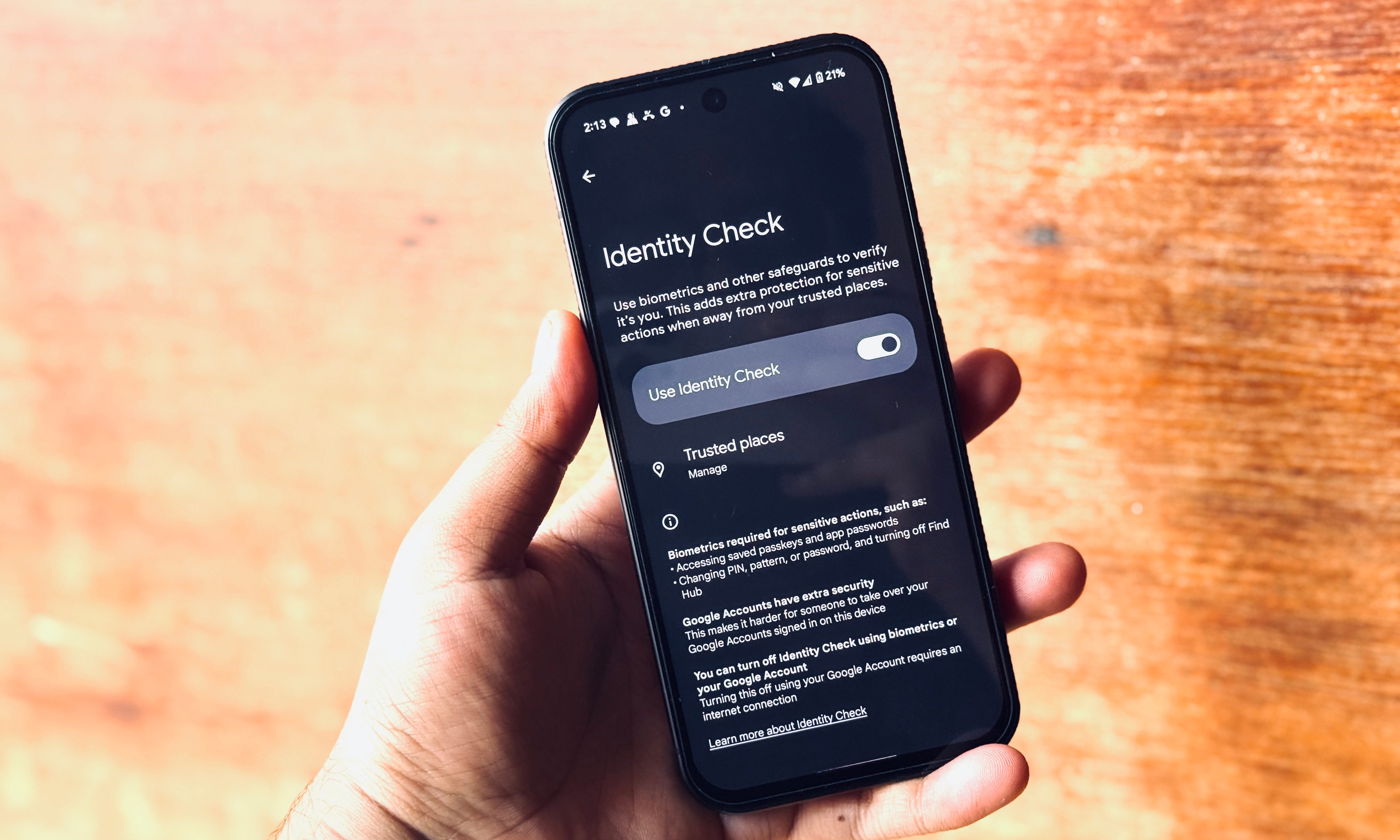
In the past couple of years, Google has really upped the ante for safety and security enhancements on Android. With the latest release, the company has added a new safety tool tied to verifying the legitimate owner’s identity. It was originally introduced for Google’s Pixel smartphones, but has now expanded to all devices that can run Android 16.
Identity Check keeps track of your (or your phone’s) location, and if it detects that the device is in an unfamiliar place, it will automatically lock sensitive settings and information behind a biometric lock. So, even if a bad actor has glanced at your lock screen password, they won’t be able to do much damage.
When you first set up Identity Check, you will be asked to designate a few trusted or safe locations. Once it is enabled, the device will require a biometric unlock (such as fingerprint or face unlock) for sensitive tasks such as changing password, accessing Passkeys, or disabling theft protection, among others.
This ties in with the built-in anti-theft tools, which rely on motion algorithms among other identifiers to detect incidents such as theft or snatching. With theft detection enabled, the screen will lock automatically. Morever, if the device is taken offline, the screen lock kicks into action in that scenario, as well.
Advanced Protection
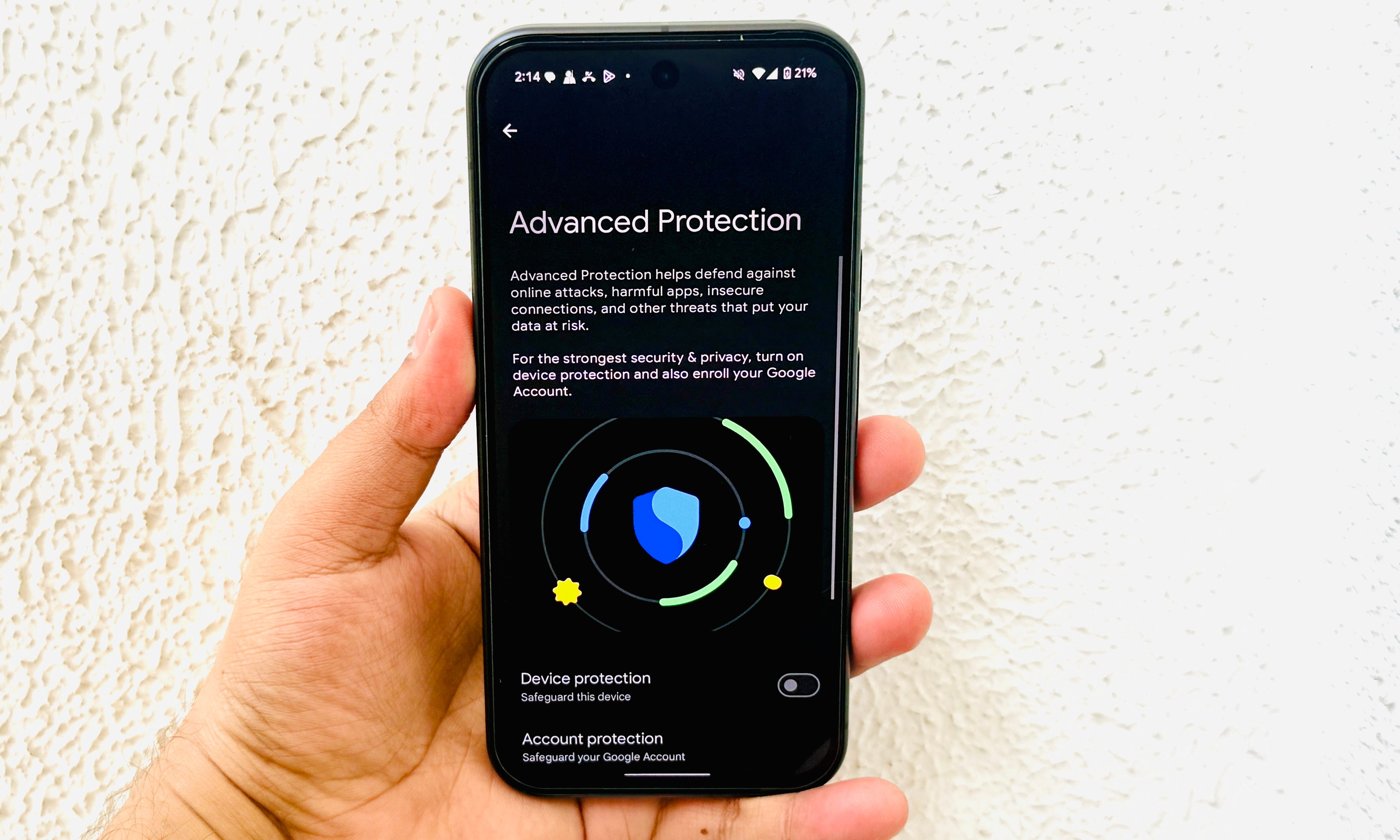
The overarching theme with Android 16 has been security, and this year, Google offered the most holistic solution it has delivered so far. The new system is called Advanced Protection, which acts more like a one-stop shop for securing your phone from all kinds of risks and threats. When you enable it, your apps, browsing activity, calls, and messages are automatically put in a secure environment.
At the device level, your phone will lock itself automatically after 72 hours of inactivity to protect the onboard data. Moreover, theft detection lock is enabled, and USB access is blocked to only allow charging and not data transfer of any kind. Additionally, Google Play’s malware detection kicks into action to scan apps and block risky apps from other sources.
Advanced Protection also activates safe browsing in Chrome, which warns users about risky websites and unsafe download packages. The Messages app also shows warnings regarding unsafe links and will perform scam and spam detection in real-time. Similar guardrails are put in place for the Phone app, as well. Finally, it also disables access to unsecured Wi-Fi and 2G cellular networks.
Notification Cooldown
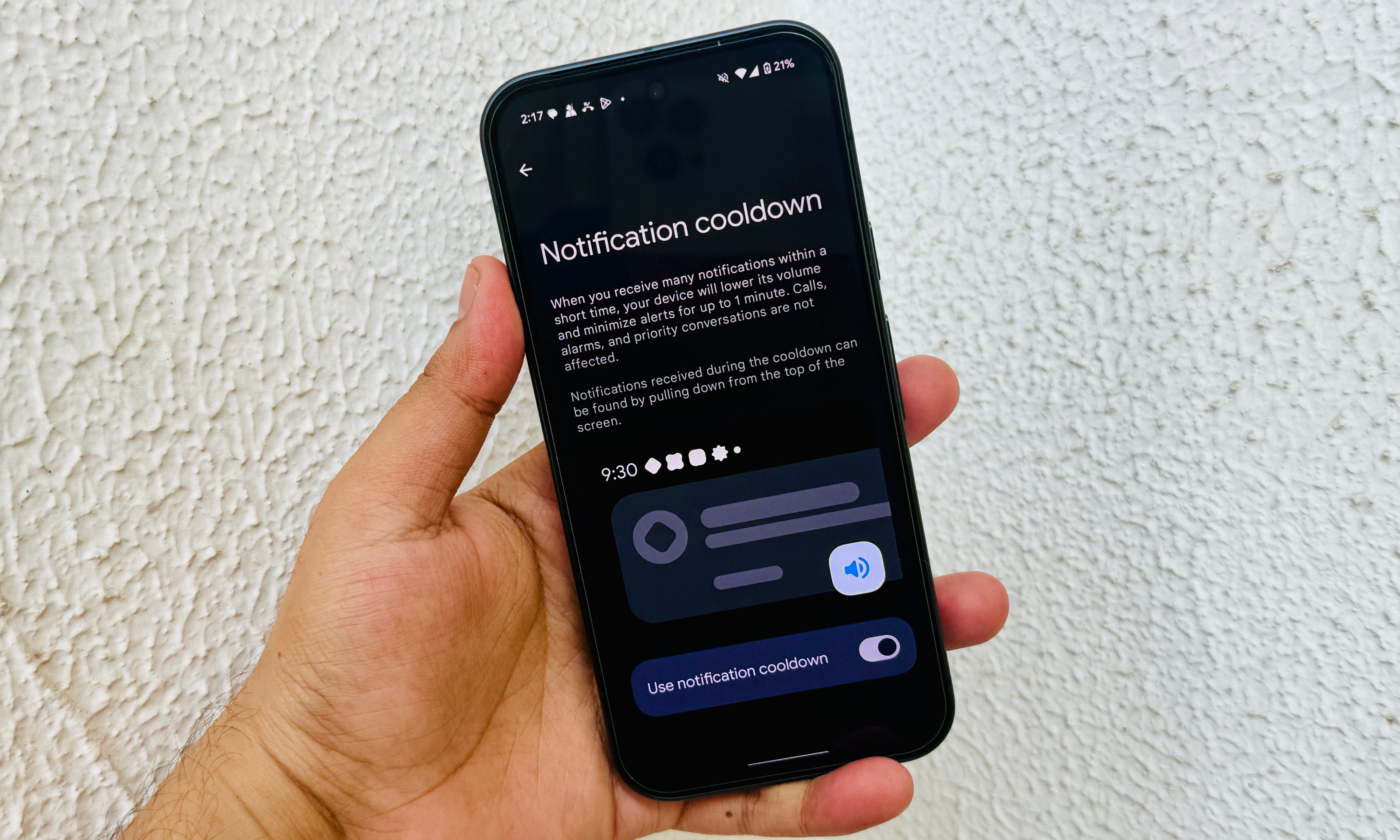
This one has been a bit of an on-and-off situation, but it is finally a part of the stable update. As the name suggests, Notification Cooldown saves you from the barrage of notification pings, especially those coming from the same app. Think buzzy family group chats or Discord channels with gaming buddies.
Once you enable it, consecutive notifications from the same app are progressively lowered in volume. Simply put, you hear a loud alert tone only once, and the subsequent pings are slowly muted. Think of it as a fuss-free trick that makes chained notifications less vexing.
In order to enable it, go to the Notifications dashboard in the Settings app, scroll down, and flick the toggle corresponding to the Notification Cooldown option. I work across apps such as Slack and Teams, which are always buzzing with workplace chatter. Notification Cooldown drowns the noise, but keeps me aware of the group activity.
Battery Health
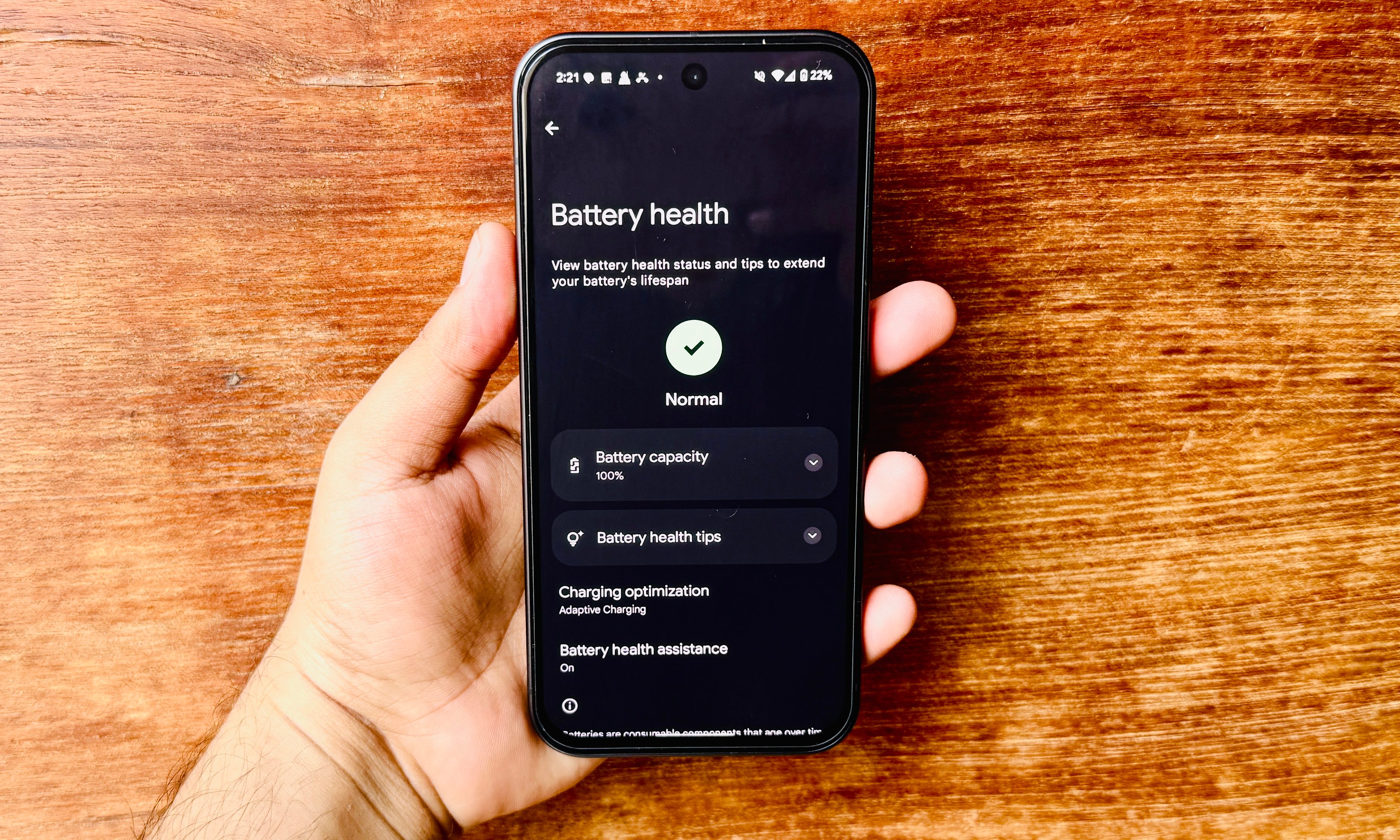
Android 16 adds a dedicated dashboard, akin to iPhones, where you check the charging health status of the phone’s battery. Here, you can check the charge retention efficiency, labeled as the phone’s “Battery capacity,” in percentage figures. Underneath, you will see tips to help enhance the battery life.
This is also where you can enable the charging optimization system, activate adaptive charging, or limit the peak charging capacity to 80%. The goal is to reduce the electrochemical stress and tone down the number of full charge-discharge cycles so that the battery can last longer.
When these features are enabled, the phone does voltage adjustment in the background to reach a balance between battery aging and the power drawn out of it without affecting the day-to-day performance of the phone. On a side note, if the battery health capacity falls below 80%, a replacement is the only reliable path ahead.
Desktop Mode
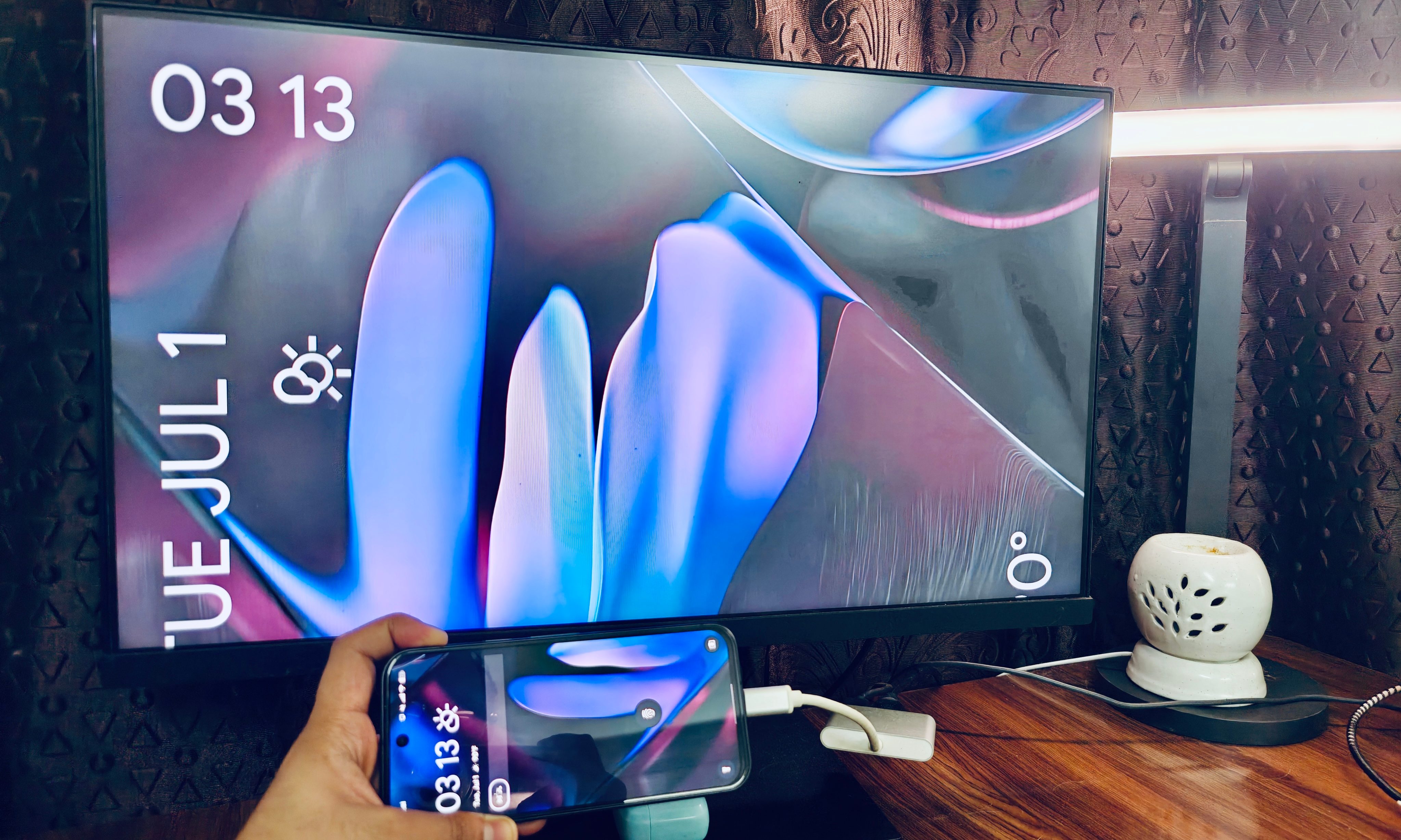
Android 16 enabled a hidden desktop mode that opens a Samsung DeX-like large screen environment on a monitor. It looks like ChromeOS at first glance, but currently missing out on a lot of features that could make it nearly as viable for serious work as DeX. It’s a promising start, nonetheless.
All you need is a USB-C cable, but I tried with an HDMI-USB splitter, and it worked out well. App windowing works fine, and so does cursor drag resizing. You get the familiar three-button layout in the top corner for core window activity controls.
In its current shape, there are some issues with screen resolution output and keyboard shortcuts, and you will run into random stutters, as well. It makes sense why Google hid this desktop mode in the Developers Section of the Settings app. I am hoping that as QPR testing goes on and more brands start rolling out stable Android 16 updates, the desktop mode will mature accordingly.