
 It’s been a week since Google announced its plans for spring cleaning and eighteen days since Evernote suffered a meltdown and tried to make up for it. Why are these worth the mention again? Google announced the launch of yet another pet project, this one geared towards addressing the same problems Evernote was. It’s called Google Keep.
Instead of jotting down reminders and ideas on a Post-it, on a napkin, or in your handy-dandy notebook, Google Keep intends to make your life easier by affording you a way to store all your personal notes in one easy portal and not have the risk of misplacing them. Aside from simple notes, you can also create checklists and upload photos. Currently, it is available on the Web and for Android devices running Android 4.0 Ice Cream Sandwich and above – that way you can take a peek at your list while you’re enjoying your morning cup of coffee at home or when you’re out and about attending to your errands. Its integration with Google Drive allows all your content to be synced across all your devices.
Aside from being a collector of notepads and notebooks that all have my ideas in them, I am an occasional Evernote user and I’ve got the Android app installed on my phone, along with a redundant sticky notes app that reflects my fondness for Post-its. I want to see if Google Keep is a good replacement for all of those.
What’s good
I’ve got a Google account set up on my phone already, so upon booting Google Keep I was directed to a pretty simple interface that assumed I was already logged in.

A prominent “Take a note” icon takes up the space, along with a “Add quick note” option. Since it’s a quick note, it is assumed that you will only need a tiny space for text. Hitting enter right after typing into the quick note field will automatically post it on the screen. Two icons are available – one that allows you to change the color of your note, the other one leads you to a page with bigger text space. Here’s what it looks like when you add a quick note and click the arrow icon:

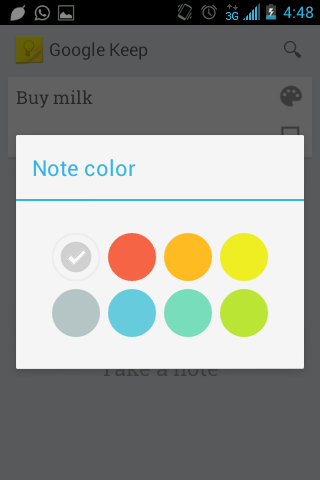
I added a title to the note and pressed back (it’s the light bulb icon on the top-left).

The quick note (that I eventually edited) came out looking like I stuck a Post-it on my phone, which is a good visual trigger for me (and other note lovers). It also shows the note in large text, ensuring that I do not forget to buy milk. Note that the top part of the screen absorbed my color change.
Now, to the checklist option:
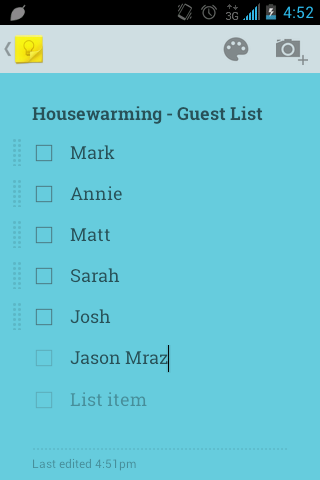
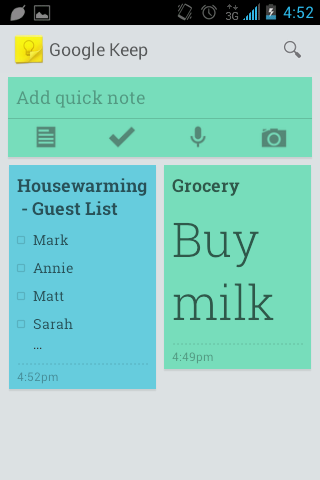
Like the note, it has a space for a title. The checklist option has great foresight, showcased by that “List item” option that always appears after your last entry. Hitting back shows a truncated version of the checklist on the screen, which is to be expected (otherwise your screen would look crappy with a mile-long note taking up too much space).
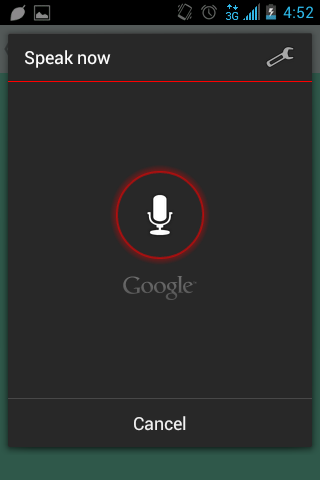
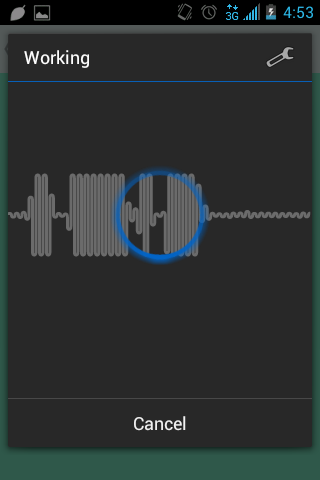

The voice memo option is pretty straightforward – click on the mic to start speaking, and give it time to analyze your voice and try to get as accurate a result as possible. I muttered “Chicken recipe” and it got it right (which is rare). I added a fake link just to see what it would look like. Note that in the absence of choosing a note color, it came out green, the first color I ever picked for my first note.
The photo option allows you to take a picture using your phone’s camera. I asked my husband to look up a cat photo on his phone and took a picture of that. I had an option to put some text and a title, but I skipped that part.
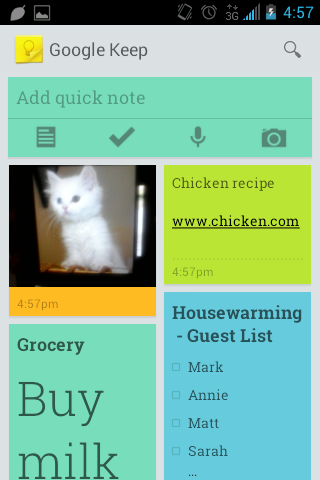
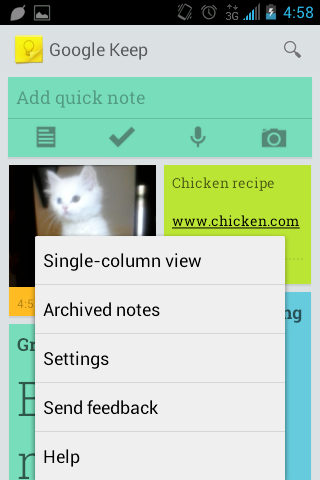
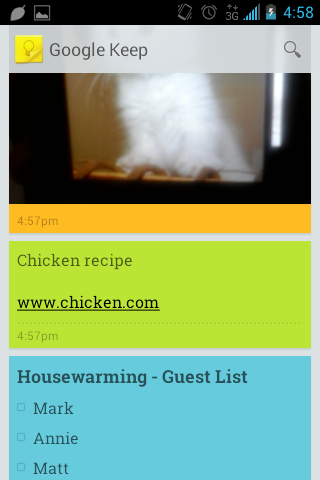
Pretty neat so far. I changed the color of some of my notes to make it look pretty. Every note has a “Delete note” option for ones that you no longer need, and an “Archive note” option that doesn’t delete it, but keeps it out of the way. Clicking the menu button of my phone revealed the option of viewing my notes in single-column.
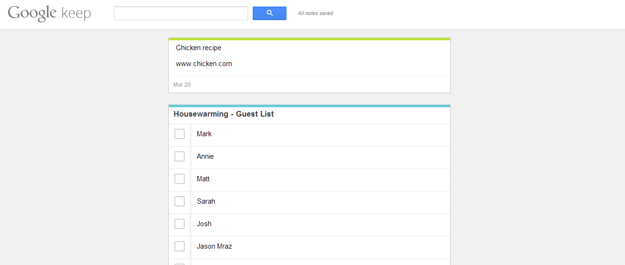
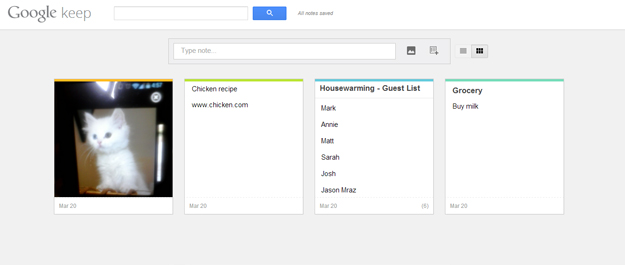
An important thing to consider: If you want the notes you just added on your phone to appear on the web, you have to make sure the syncing option is turned on in Settings. Once it’s on and you check Google Keep on your computer, you will see all your notes, in single-column view by default. You can change views, of course.
What needs more work
There was a reason why I had to ask my husband to hold up his phone with a cat picture – from within the Google Keep app, it seems like you can only post photos that you take on the spot, not the ones that you’ve got stored on your phone. It would be nice if options to post pictures from your phone’s photo gallery or your social networking accounts would become available through the app soon. Once you exit the app and go to your phone’s gallery, you can share photos to various apps you’ve installed, including Google Keep.
Have you tried Google Keep? It seems to be a good enough alternative to Evernote, and those who are loyal to Google may want to make the switch just because they want to keep their apps uniform and under one account.


