
Let’s be honest, you’d be hard pressed to find a swath of people truly gung-ho about advertising. And if you don’t know already, Facebook recently decided to implement the brilliantly-unoriginal idea of using your browser history as a more efficient means of advertising — making more difficult than ever to skirt targeted advertising. Whereas the popular social network once only culled information from what you “liked” to attract advertisers, the site will now join the ranks of Google and Yahoo, providing ads based on your search inquires and your browsing habits.
Though it’s doubtful Facebook would do anything malicious with the information it finds, it will likely sell the browsing information to those you might not trust. Luckily, there is a method for barring Mark Zuckerberg from seeing everything you search on Google if you’d rather not abstain from social media all together. You may not be able to reverse the data already collected, but you can stop the site from further selling information. Moreover, if your beef is only with a certain kind of ad in particular say — ahem, Farmers Only — then you can remove those specific ads directly on the site.
Here’s our guide on how to stop Facebook form using your browser history, or at least make it more difficult to do so. Also, check out our guides for adjusting your various Facebook privacy levels or deleting your Facebook profile entirely. After all, there’s no way for Facebook to displayed targeted ads if you don’t possess Facebook to begin with.
How to stop Facebook from using your desktop browser history
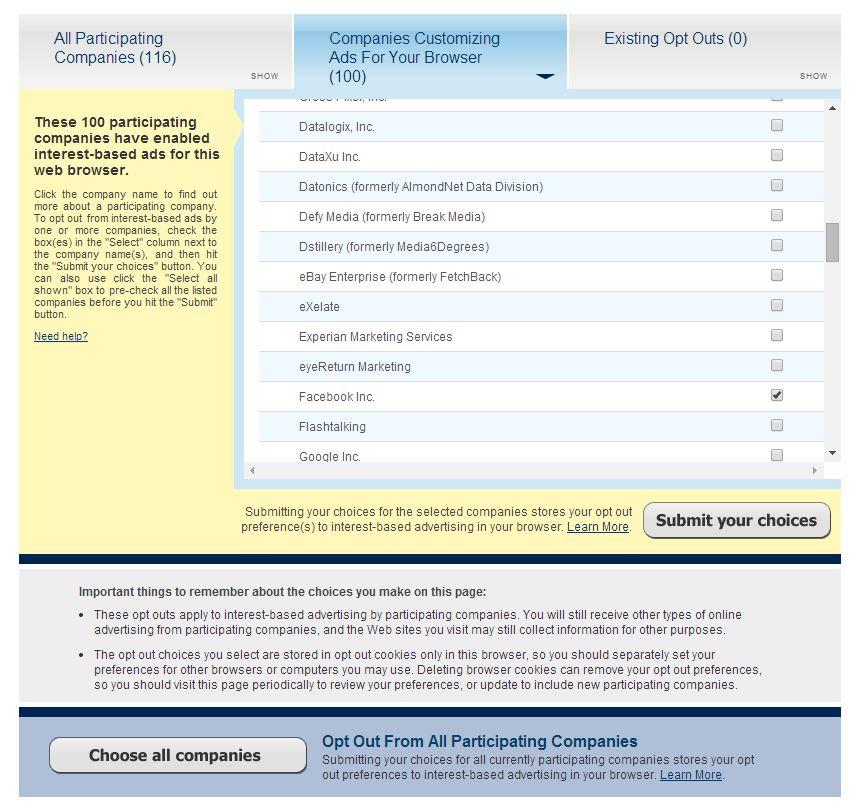
Step 1: Navigate to the main Digital Advertising Alliance website and allow the site to begin scanning your browser to curate a list of companies tracking your browsing history. The trusted site is a product of an association of various advertising trade groups, one that runs a welcome opt-out program for those who’d rather not view targeted advertisements within their browser. Once the site creates a list of the participating companies, click the “Companies Customizing Ads For Your Browsers” tab located directly atop the results.


Step 2: Scroll through the alphabetical list of participating companies until you reach “Facebook Inc.” When found, click the check box directly right of the site’s name prior to clicking the gray “Submit your choices” button in the bottom right corner of the list of companies. Alternatively, click the check box directly right of the “SELECT ALL SHOWN” option at the very top the list prior to submitting your choices, or click the gray “Choose all companies” button located at the bottom of the page. You can also manually scroll through the list of other potential offenders, checking off individual companies as you go along.
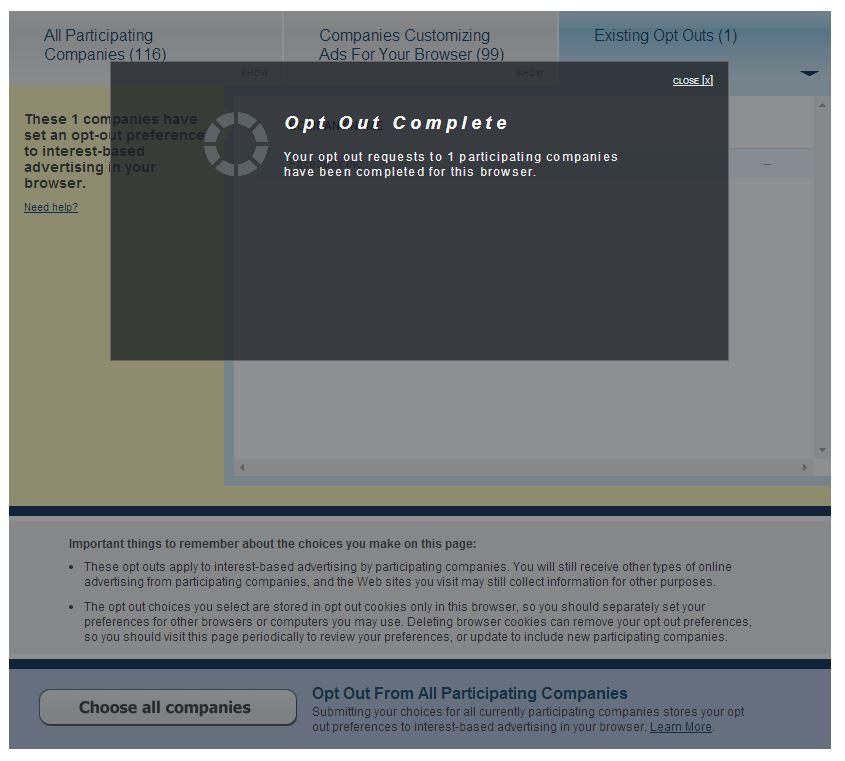
Step 3: You’ll receive a pop-up window informing you when your requested opt out is complete. Afterward, repeat the process in every browser you’re likely to use Facebook on to ensure the website doesn’t utilize targeted advertising on a browser other than your typical choice. If you chose to eliminate all sites, remember to check back regularly to see if your browser has accumulated any new ones.
How to stop Facebook from using your mobile browser history (iOS)
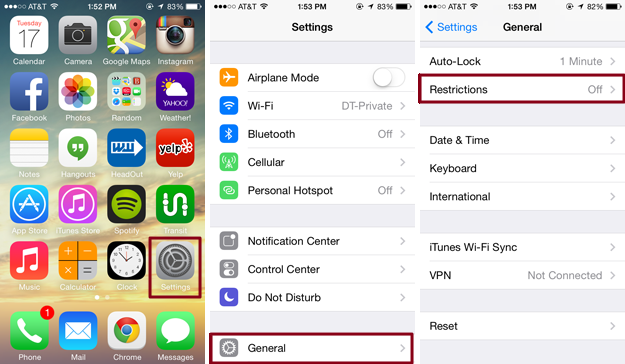
Step 1: Assuming you use the Facebook app on your smartphone, the opt-out process doesn’t stop with your favorite desktop browser. Tap the main Settings app, scroll down and select the General option, followed by the Restrictions option near the bottom of the resulting page. If prompted, enter your four-digital passcode using the resulting number pad.
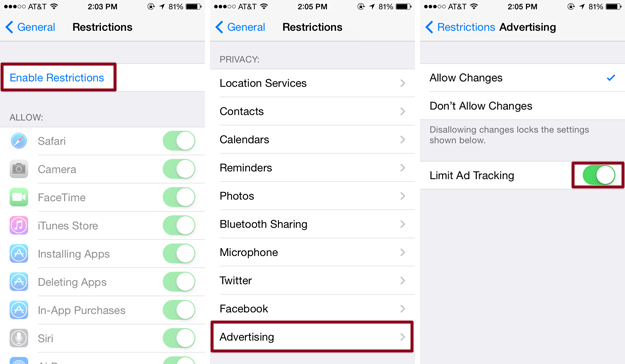
Step 2: Click the blue “Enable Restrictions” link at the top of the page once inside the Restrictions panel. Afterward, use the number pad to enter and re-enter your desired restrictions passcode if you haven’t already, and scroll down to the Privacy section. Then, tap the Advertising option and toggle the switch directly right of “Limit Ad Tracking” at the bottom of the page.
How to stop Facebook from using your mobile browser history (Android)
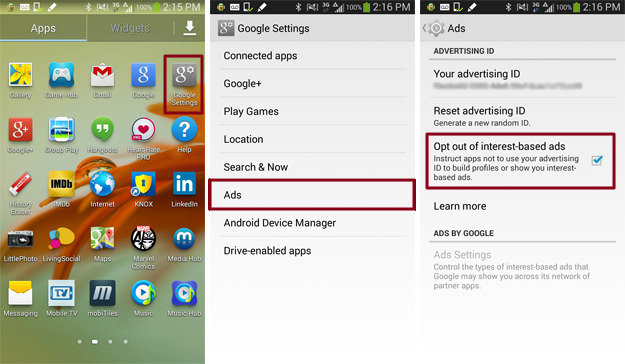
Step 1: Tap the Google Settings app to begin the process. Afterward, select the Ads option near the bottom of the resulting page and check the box directly right of “Opt Out of Internet Based Ads.”
Unfortunately, Windows Phones currently don’t possess the option to limit Internet-based ads like iOS and Android devices. We’ll update this article as necessary when, or if, the option comes to Windows Phone.


