1. Home
  2. Computing
  3. Evergreens

How to change the background in Windows 8 and 8.1’s Start screen

Add as a preferred source on Google

It’s no secret that Windows 8 is unpopular. The same goes for Windows 8.1, a free update for the OS that was released back in April. While you can choose to avoid the Metro UI when using Windows 8, having the ability to change the background of the Start screen could at least make the experience of interacting with Metro less of a headache.

Related: Windows 9 will eliminate the Windows 8 Charms menu

Recommended Videos

However, changing the Start screen isn’t a process that’s necessarily as straight-forward as it can be. That’s what we’re here for: to make things easier on you!

Related: Best Microsoft Office alternatives

With this guide, we’ll show you how easy it is to change the background on the Start screen. Most of you may not like poking around in there, but at least you can customize it to your liking so that it’s more pleasing to your eyes whenever you do dive into Metro.

How to change the background in the Windows 8 and 8.1 Start screen

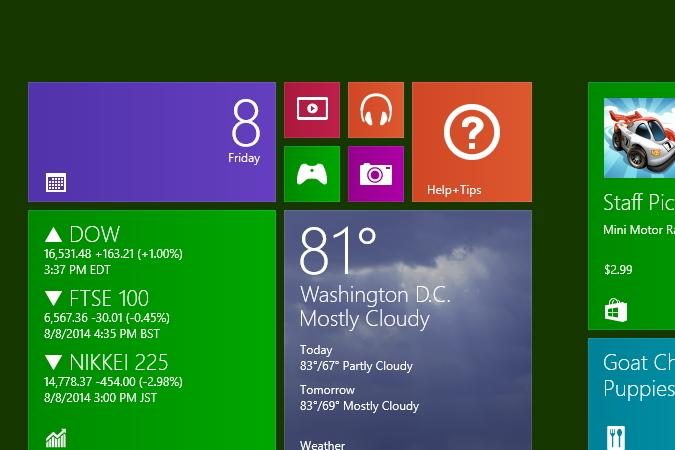
Head over to the Start Screen, if you aren’t there already. If you’re at the classic desktop UI, just press the Windows key on your keyboard, which should take you straight there.
Change start step 3
Image used with permission by copyright holder

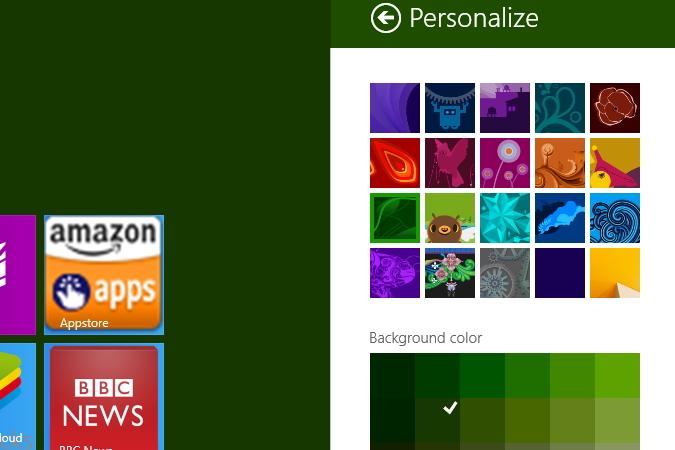
From there, type in “change start.” Click on “Change the background and colors on Start,” which should be the first result that comes up.

Change start step 1
Image used with permission by copyright holder
Change start step 2
Image used with permission by copyright holder

Now, a “Personalize” menu will come up in the Metro UI. Here, you can pick from a multitude of images that you can slather the Start screen with. Once you pick one, you can also tweak that image’s by messing with the “Background color” and “Accent color” settings.

Microsoft’s newest operating system has its fair share of problems, and while many issues are related to the confusing new interface, some have deeper roots. Yes, like any new operating system, Windows 8 has bugs. Gasp! Fortunately, Windows 8 shares something else in common with prior version of Windows; a trend towards maturity. Many showstoppers and annoyances now have solutions. We’ve solved many of the common problems you’ll run into: Check out our guide to common Windows 8 problems — and how to fix them.

Update: This article was updated on Sept. 24, 2014 to include an instructional video.

Konrad Krawczyk
Former Computing Editor
Konrad covers desktops, laptops, tablets, sports tech and subjects in between for Digital Trends. Prior to joining DT, he…
This cross-device clipboard app solves the copy-paste problem I keep running into on my Mac
ClipboardAI keeps a searchable history of everything you copy
Text, Electronics, Mobile Phone

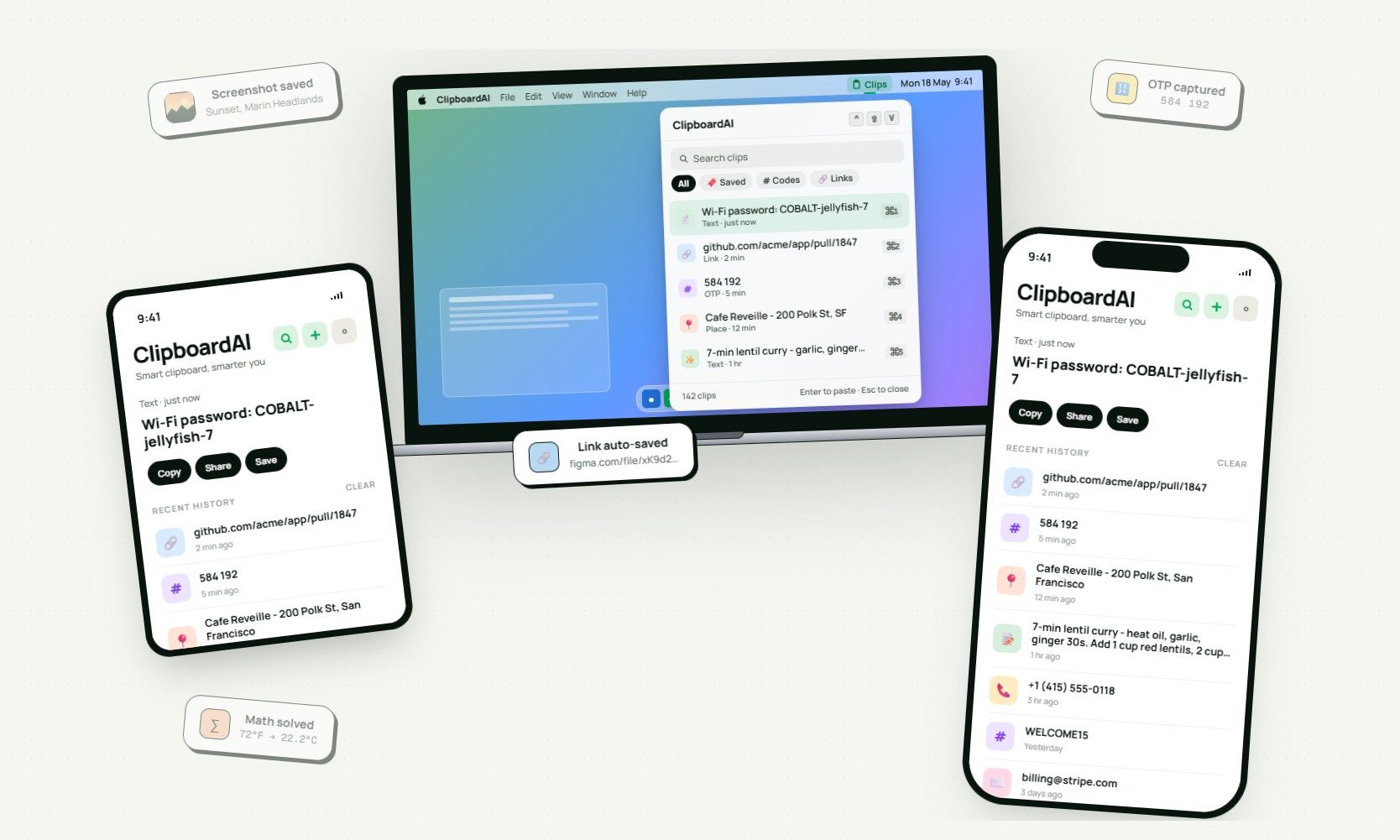
I have lost count of how many times I have copied something important, copied another thing before pasting it, and then realized the first item was gone. It is a small frustration, but it happens often enough to become annoying. I recently came across ClipboardAI, which caught my attention because it goes beyond Apple’s built-in clipboard by saving copied items into a searchable history.

Instead of replacing the last thing you copied every time, ClipboardAI keeps a searchable record of copied text, links, codes, email addresses, phone numbers, addresses, and images across iPhone, iPad, and Mac. That means an older clip does not disappear just because you copied something new.

Read more
If you miss the feel of paper in the digital age, this app gives your Mac’s screen a textured look
A paper-like screen overlay could make long work sessions feel less harsh.
Advertisement, Poster, Electronics

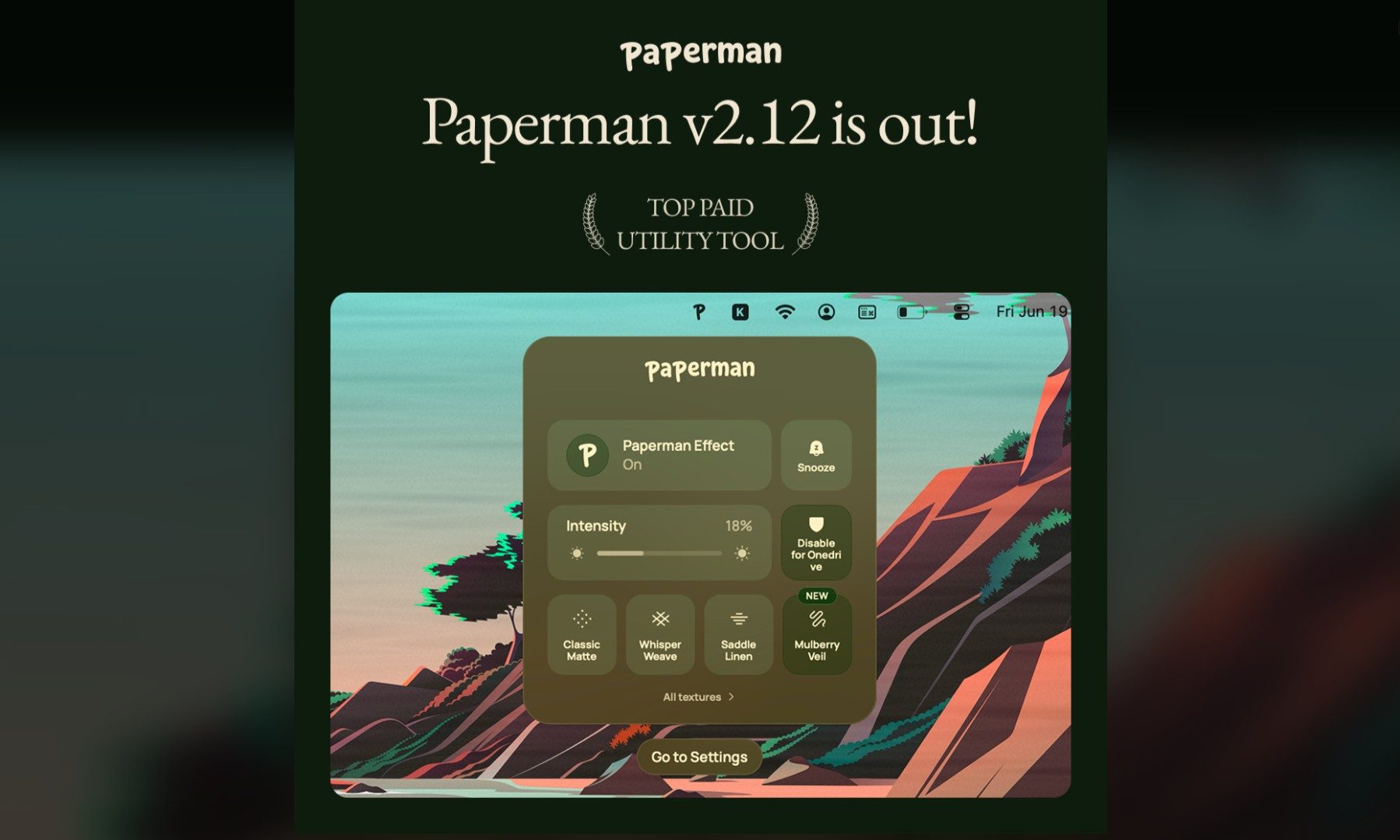
Most screen-comfort tools work by changing color temperature. Apple’s Night Shift makes the screen warmer, often giving everything an orange tint. Paperman is an interesting alternative because it adds a subtle paper-like texture over the display instead.

The app is available for Mac and Windows, and it is designed to make a screen look closer to paper, matte glass, or an e-ink display. It softens the harsh contrast and reduces the glossy look of modern screens during long reading or writing sessions.

Read more
I dug these last-hour Prime Day smart home, laptop, and accessory deals that are irresistible
Deals up to 60% off, a few hours left, and no reason to wait any longer.
Electronics, Phone, Speaker

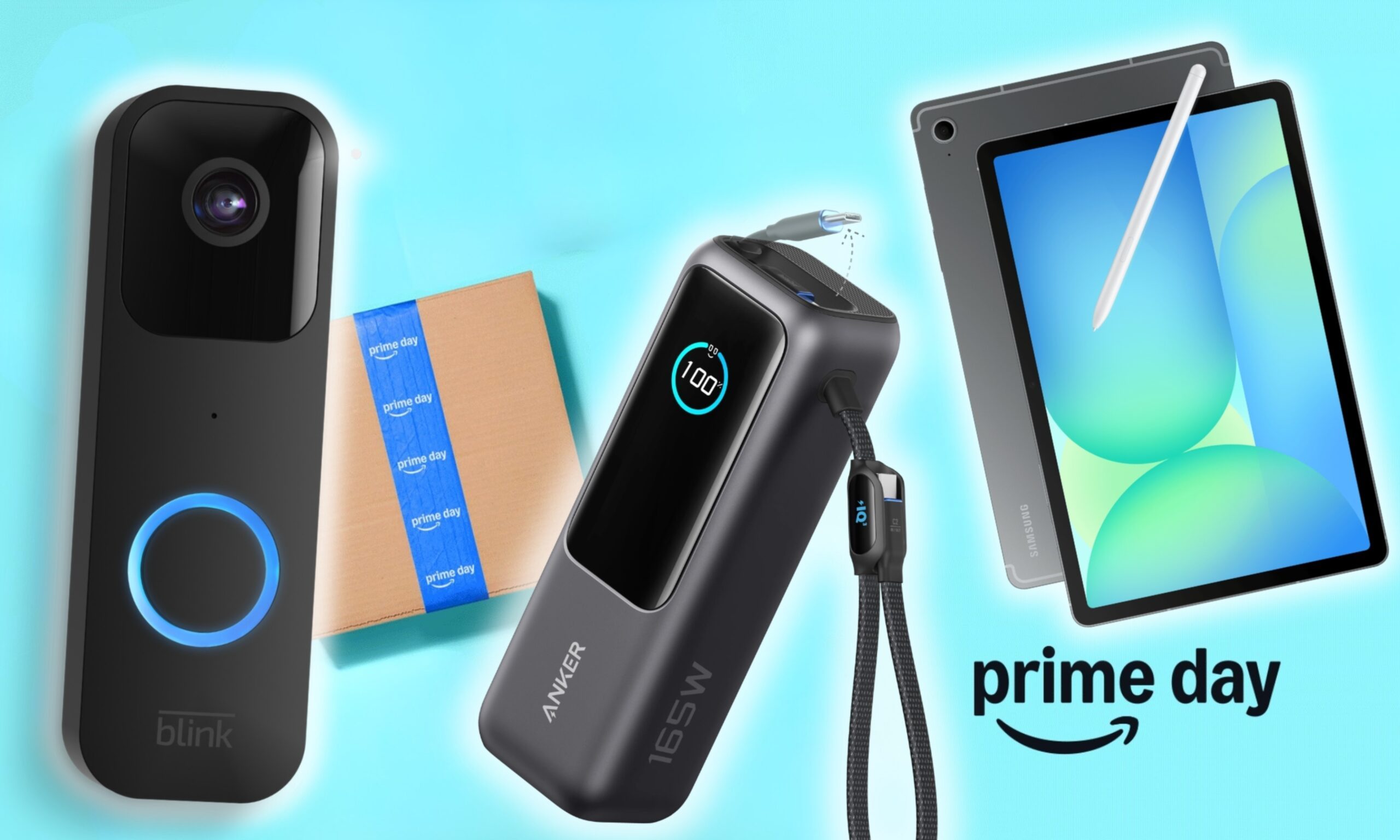
Amazon's Prime Day 2026 sale is in its final hours, giving you your last chance to get your hands on the best smart home, security, tablet, laptop, and accessory deals. I've pulled together the picks that are still live, still deeply discounted, and still worth buying before the sale ends tonight or until the stock lasts.

Best Amazon Prime Day deals on smart home devices

Read more