
  1. Home
  2. Computing
  3. Web
  4. How tos

How to update your Gmail picture on desktop and mobile

Add as a preferred source on Google
A man holding a teacup staring at laptop screen.
Andrea Piacquadio/Pexels

There are lots of reasons why you'd want to change your Gmail profile picture. Maybe you have a great, new selfie you want to show off. Or you just want to update your work email with a photo that's recent and professional-looking. Whatever the reason, we can help you update your Gmail picture in just a few quick steps. We've also got you covered whether you choose to change your photo via Gmail's desktop website or through its mobile app.

Recommended Videos

Difficulty

Easy

Duration

5 minutes

What You Need

  • Desktop PC, laptop, tablet, or smartphone

  • Gmail app (optional)

How to change your profile picture in Gmail: Desktop method

Step 1: Navigate Gmail via your browser and log into your Gmail account if you're not already logged in.

Step 2: Click on your profile photo icon, which is located in the top right corner of your screen. From there, you have two options: You can either click on the little camera icon at the top of the menu that appears, or you can click on Manage your Google Account. If you choose the camera icon, just follow the on-screen prompts to change your profile picture and then click Set as profile photo. If you choose Manage your Google Account, go to Step 3.

Gmail profile photo change step 1
DigitalTrends

Step 3: On your Google Account page, select the Personal info tab on the left side of your screen.

Step 4: Within the Photo section, under Basic info, select your current profile picture icon.

Step 5: Follow the on-screen prompts to choose or upload your photo. Then select Set as profile photo.

gmail profile photo change step 5
DigitalTrends

How to change your profile picture in Gmail: Mobile app method

Changing your profile picture in the Gmail app on iOS and Android are much the same as in the web browser. Here's how to do it.

Step 1: Select the Gmail app on your Android or iOS device to open it.

Step 2: Click on the photo icon you see at the top right corner.

Step 3: A window will pop up that says either Manage your Google Account or Google Account button, depending on your version of Android.

Gmail Manage Your Google Account
DigitalTrends

Step 4: When the next screen loads, select Personal info.

Step 5: Find the Basic info header, and click the profile photo that is currently uploaded.

Gmail android app screenshot 2
DigitalTrends

Step 6: A window will appear with an explanation; the message is longer on more recent versions of iOS, but the process is the same. Tap on Set profile photo.

Gmail app step 5 screenshot
DigitalTrends

Step 7: A pop-up window (Android) or slide-up menu (iOS) appears on the screen. Navigate to your photo library to pick an image you’ve already saved, or click on the camera to take a new picture.

Anita George
Anita George has been writing for Digital Trends' Computing section since 2018. So for almost six years, Anita has written…
Microsoft’s new Surface PCs are cheaper — but there’s a catch
Cardboard, Box, Carton

The tech industry’s favorite balancing act is getting harder by the month. Component prices are rising, memory costs refuse to settle down, and laptop makers are scrambling to keep sticker shock under control. Microsoft’s latest Surface refresh feels like a direct response to that problem.

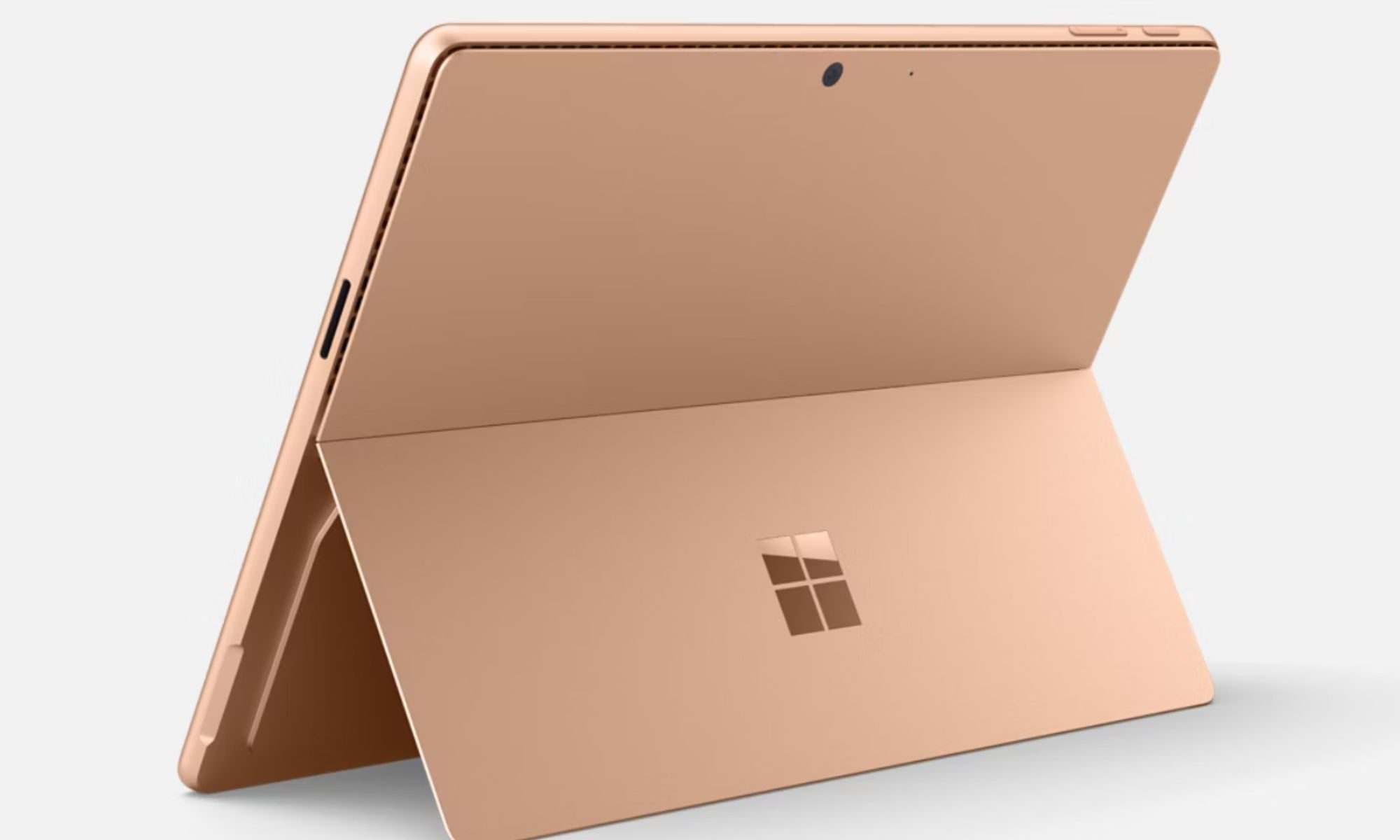
The company has introduced new entry-level versions of its 12-inch Surface Pro and 13-inch Surface laptop, offering lower starting prices without changing the processor or storage. On the surface, that sounds like good news for budget-conscious buyers. Dig a little deeper, however, and you’ll find a compromise hiding in plain sight.

Read more
A new supercomputer has dethroned the U.S — here’s why it matters
Crowd, Person, Architecture

The race to build the world’s fastest supercomputer has been dominated by the United States. Now, China has stormed back into the lead. A newly ranked system called LineShine has claimed the No. 1 position on the latest Top500 list, a closely watched ranking of the planet’s most powerful supercomputers. The machine, located in Shenzhen, pushed past the U.S. government’s El Capitan system and became the first Chinese computer to top the list since 2017. That’s notable on its own. But what makes LineShine particularly interesting is how it got there.

The tortoise just outran the rocket

Read more
I rounded up the best Prime Day 2026 laptop deals, and these five are the ones I’d buy
Memory costs are up, laptop prices are following, and Prime Day 2026 might be your best window before both climb further.
Prime Day Deals on Apple Products

If you’ve been keeping up with recent laptop launches, you’ve probably noticed just how expensive they’ve become. Laptop prices have been climbing for the past year, and there’s little indication that they’re coming down anytime soon. That makes the ongoing Prime Day 2026 sale an exceptionally good time to buy a new laptop.

Many of the discounts apply to devices at or near their original launch prices, making the savings more meaningful. I’ve sifted through several Amazon Prime Day laptop deals, but only these five hold up at their discounted prices. To make things easier for you, I’ve arranged them from the most affordable option to the most expensive.

Read more