The Samsung Galaxy Z Flip 5 is one of the most impressive foldable Android devices we’ve seen in a minute. Of course, 2023 was also the year that brought us the phenomenal Motorola Razr Plus. And why are both of these phones being called out in the same article? Because the former lets you open and interact with apps on the cover screen. The latter (the Galaxy Z Flip 5) technically has this ability, too, but you’ll need to do a few things to amp up your cover screen’s functionality first.
Fear not though: Preparing your Galaxy Z Flip 5 for apps to work on the cover screen isn’t difficult, and we’ve put together this guide to walk you through the process. Do keep in mind that the first method we cover will limit you to a handful of Samsung-approved cover screen apps. If you want any app to work on the cover screen, we have guidance for that method toward the bottom of this post.
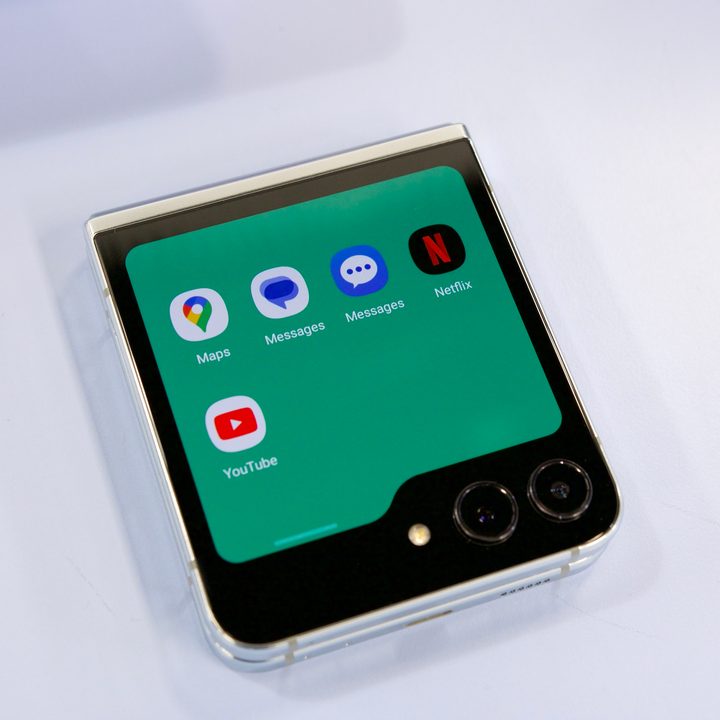
You can run select apps on the Z Flip 5's cover screen
By default, the cover screen on the Galaxy Z Flip 5 will only show widgets, similar to how it works on the Galaxy Z Flip 4. The widgets include things like weather, calendar, notifications, and more.
But if you want to run apps, things get a little more involved. In order to get apps running on the cover screen, you need to enable that feature from the Labs section of the Settings app. To do this, you need to follow these steps.
Step 1: Open the Settings app.
Step 2: Tap on Advanced Features.
Step 3: Tap on Labs.
Step 4: Tap the toggle next to Apps allowed on cover screen.
Once you enable this setting in Labs, you’ll then get access to the “Apps widget” on the cover screen. This widget features a curated collection of apps that will work on the cover screen. These apps include YouTube, Netflix, Samsung Messages, Google Messages, Google Maps, and WhatsApp. From Labs, you can enable all of these apps or pick and choose which ones you want to show up.
As you can see, the apps widget for the Galaxy Z Flip 5 is a little … limited. It's only a handful of apps, and when you compare it to the Motorola Razr Plus’ ability to run any Android app out of the box, it’s disappointing, to say the least.

How to run any app on the Z Flip 5 cover screen
While the method above only allows you to run a handful of apps on the Galaxy Z Flip 5's cover screen, there is a way to run practically any app without having to flip the phone open. This method involves using an app called Good Lock, which offers plenty of extensions, called "modules," to enhance the appearance and functionality of your Galaxy smartphones.
On the Galaxy Z Flip 5, Good Lock enables a separate widget called “cover screen launcher” that lets you deploy apps directly on the cover screen.
Here are the steps you must follow to run any app or game on the Galaxy Z Flip 5's cover display.
Step 1: Download Good Lock from the Samsung Galaxy Store. If your phone does not come with the Galaxy Store preinstalled, download the Good Lock installer and sideload it on your Galaxy Z Flip 5.
Step 2: Open Good Lock and tap Life Up at the bottom. Scroll down on this page to find a module called MultiStar.
Step 3: Tap the download icon next to the name, which will redirect you to the dedicated page on the Galaxy Store. Tap Download here to install the module. If you can't find MultiStar inside Good Lock, download the installer file and install it on the phone.

Step 4: Go back to Good Lock and open MultiStar from the top of the Life Up tab.
Step 5: Inside MultiStar, tap the option that reads, "I ♡ Galaxy Foldable," and then tap Launcher Widget.
Step 6: Select the apps you want to use on the Galaxy Z Flip 5 cover screen.
Step 7: Now, tap Enable Launcher Widget. This opens the list of widgets for the cover display. Scroll down on this list and enable the toggle next to Launcher.
Step 8: These steps should enable the cover screen launcher. To use it, unlock the Galaxy Z Flip 5 when it is folded and swipe left on the screen to scroll to the Good Lock widget, where you will find all the select apps listed. Tap any icon to open and enjoy the app on the cover screen.

How this compares to the Motorola Razr Plus
Compared to the Motorola Razr Plus, the Samsung Galaxy Z Flip 5 is a little disappointing when it comes to the cover screen functionality.
On the Razr Plus, you can launch any Android app you have installed — right out of the box. There are no extra steps involved, no workarounds; it just works.
Samsung, on the other hand, requires you to enable Labs, which are technically beta, experimental features. And even then, you only have six apps that work on the cover screen. If you download and install Good Lock, however, then you can open any app you choose.
With all these workarounds, it’s clear that the Galaxy Z Flip 5 can run any app on the cover screen. But it’s frustrating that Samsung puts this functionality behind an “experimental” feature that’s also super limited unless you download a custom launcher.
Motorola makes it easy to just get your apps running on the cover screen of the Razr Plus without any extra steps involved. So if that’s what you’re looking for, then you may want to consider the Razr Plus instead. But if you don't mind doing some tweaking, it doesn't take that long to run any app on the Galaxy Z Flip 5 — and the experience is pretty good once it's configured and ready to go.