There are many reasons to subscribe to Hulu; perhaps you’ve had enough of Netflix price increases, or you’re a big fan of shows like Only Murders in the Building, Alien Earth or The Bear, or you might like the fact the streamer offers live TV options. Whatever it is, the ability to download shows to your devices is definitely a stand-out of their premium options.
With the holiday season coming up and traveling to be done, you’re going to want to make sure your phone or iPad is jam-packed with shows and movies to enjoy buffer-free, or you might just have a lengthy daily commute to get through. But currently, you still can’t download to a computer, smart TV or games console.
Once you’ve downloaded some content via Hulu you won’t even need an internet connection to watch, which is perfect for areas with poor or sketchy wi-fi, so in order to get yourself ready to have the titles you want at your fingertips, check out this step by step guide.
Difficulty
Duration
What You Need
-
Web browser
-
A downloads-supported Hulu subscription
Opt for a different plan, if necessary
So, you have a compatible device and a Hulu subscription, but you see no option to download your favorite movie or show. You’re out of luck if you’re only paying for the basic, ad-ridden $11.99 per month plan. The download function is only offered on the following tiers:
- Hulu (No Ads) — $18.99/month
- Disney Bundle: Hulu (No Ads) + Disney+ and ESPN+ — $29.99/month
- Hulu (No Ads) + Live TV + Disney+ and ESPN+ — $89.99/month
If you need to switch plans to benefit from offline download Hulu viewing, do the following:
Step 1: Open Hulu in your web browser ideally, rather than through your TV and log in. You cannot make account changes using Hulu’s mobile apps.
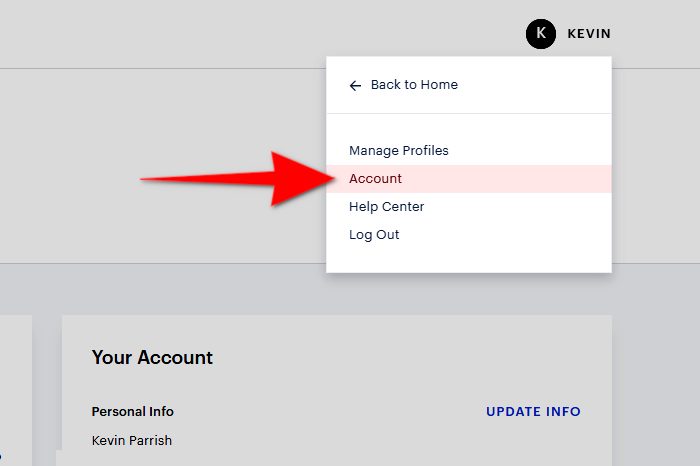
Step 2: Click or tap your Account icon located in the upper-right corner, and select Account in the drop-down menu.
Step 3: Enter your password if prompted.
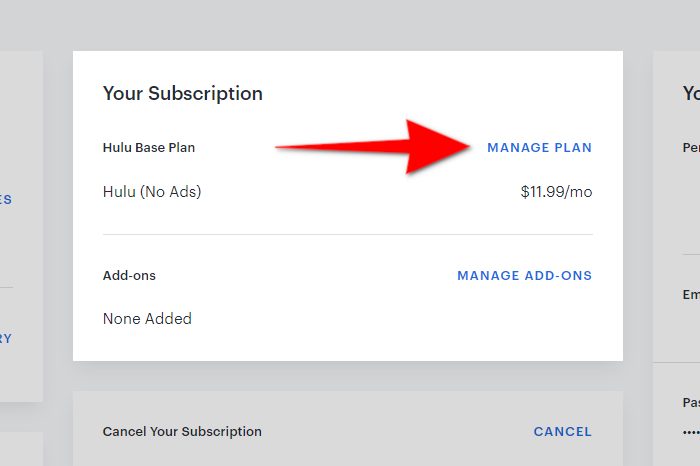
Step 4: In your Subscription panel, select Manage plan and choose one of the three plans that support downloads. Toggle the on/off switch for the plan you desire.
Step 5: You can add or remove any add-ons at this stage. A checkmark lets you know you have an add on, while a plus mark allows you to add one. Then click the Review changes button and then click the black Submit button.
Do note that if you change your plan from one that allows downloads to one that doesn’t, you’ll lose any previously downloaded content.
Make sure you have a compatible device
Currently, you cannot download your favorite shows and movies to your computer, a set-top box, or a gaming console. To watch offline, you’ll need a mobile device from Amazon, Android, or Apple.
Here’s the complete list of compatible devices:
Amazon Fire Tablets
- Fire 7 (9th generation or higher)
- Fire HD 8 (8th generation or higher)
- Fire HD 10 (9th generation or higher)
- Fire Max 11 (13th generation or higher)
Android
- Most models running Android 7.1 or higher
- Screen size of at least 800×480 pixels
Apple (Must run iOS 16.4 and newer)
- iPad
- iPhone

Note that timing is limited
Downloading content to your device is similar to renting digital media. You can store it for a specific amount of time, but once you click play, that timeframe shrinks significantly.
Hulu restricts you to 25 downloads
You can store up to 25 downloads on up to five supported mobile devices at one time. That’s among five compatible devices, not per profile. If you go over that limit, the Hulu app prompts you to delete a previous download.
You have 30 days to start watching a download
You can store downloaded content for 30 days. Once you start watching the show or film, your time limit moves to the next step.
There’s a two-day watch period
You only get 48 hours after clicking play. If you never complete a specific show or movie in that timeframe, the download expires, and you must renew the content.
How to find and download content
With all that out of the way, finding and downloading content is extremely easy.
Step 1: Tap the Search icon located in the global navigation bar at the bottom.

Step 2: Tap the Downloadable option on the following screen and then See what’s downloadable to browse through Hulu’s library of downloadable content and find what you want to view offline.
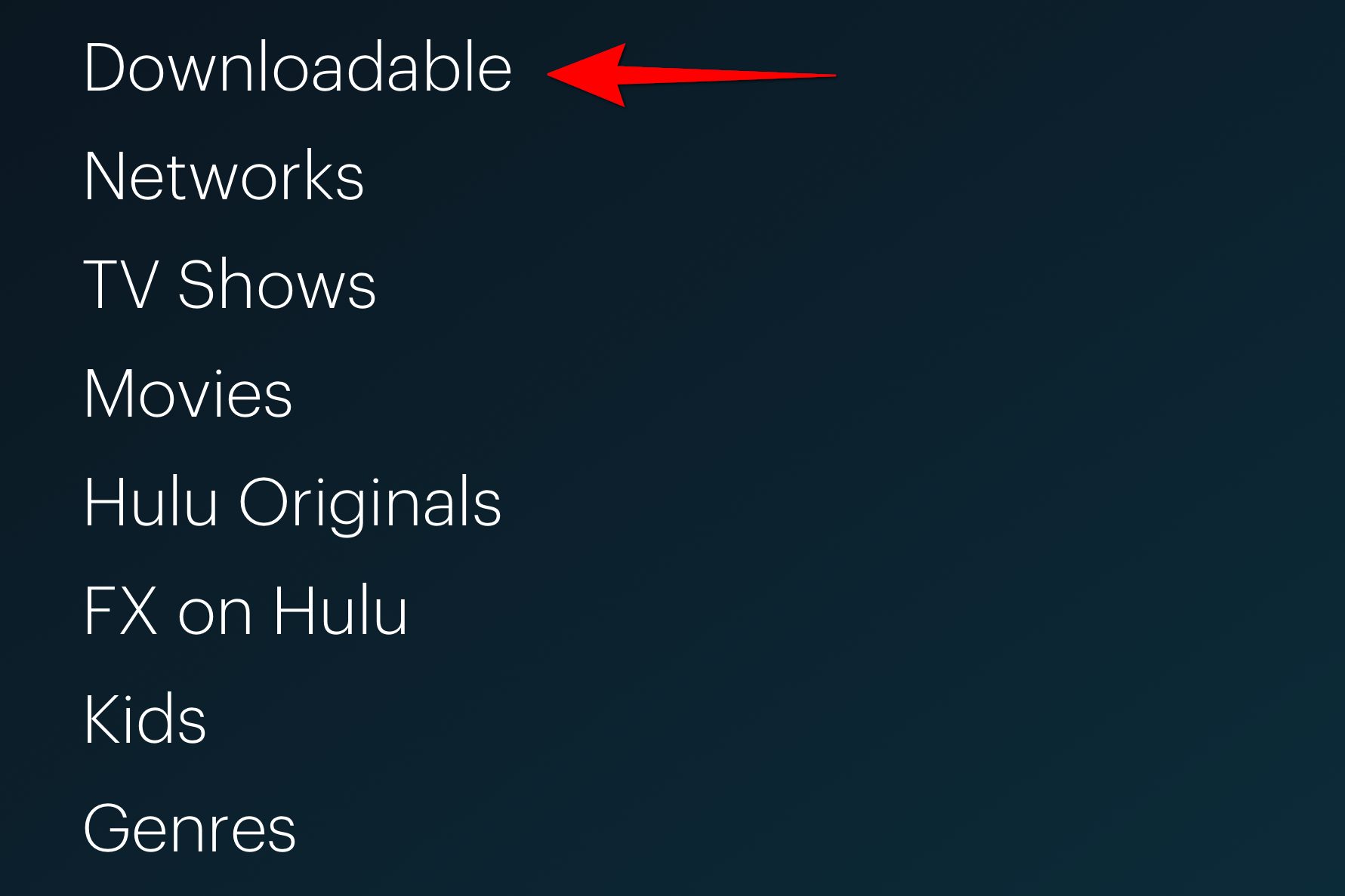
Step 3: For shows, tap the Download icon — it resembles an arrow — next to each episode. For movies, tap the Download icon displayed beneath the Watch movie button.

How to delete downloaded content
Once you finish watching your offline content, you can delete it immediately. The following steps pertain to deleting the media at a later date.
Step 1: Tap the Downloads option in the navigation bar at the bottom.

Step 2: Tap the Checkmark icon located to the right of your downloaded content. Then, Tap the Delete download option in the resulting pop-up menu.

How to adjust video quality for downloads
Hulu uses *Standard* resolution by default, allowing faster downloads and less storage. You can switch to *High*, but the content will take longer to download and consume more space on your device.
Step 1: Tap the Downloads option in the navigation bar at the bottom. On the resulting screen, tap the Settings gear icon located in the upper-left corner (iOS) or upper-right corner (Android).
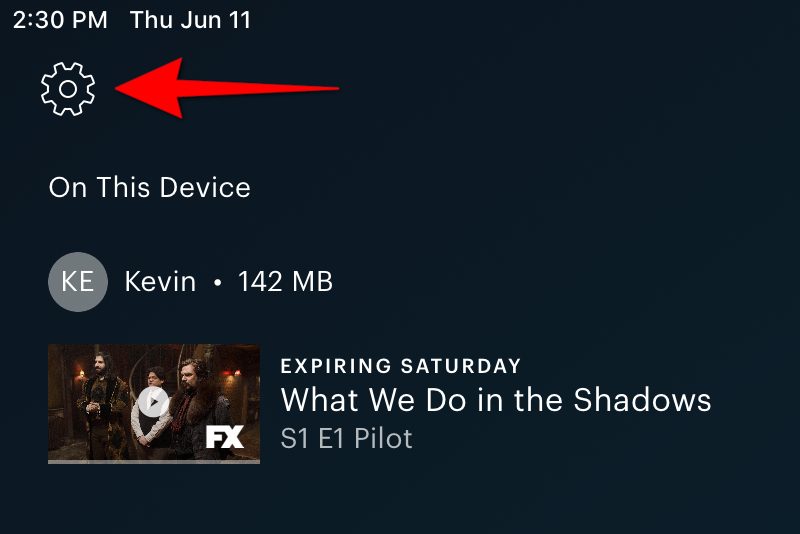
Step 2: Tap the Video quality setting on the following screen.

Step 3: Select the Standard or High option.
How to renew expired downloads
There are two types of expired media. If you downloaded content and didn’t finish watching before your 48-hour limit, it expires, forcing you to renew your temporary license. The second type is media that’s currently leaving or removed from Hulu. Typically, you’ll also see this content listed under the *Expiring* section in *My stuff*. Once Hulu pulls this programming, you cannot watch it.
Step 1: Tap the Downloads option in the navigation bar at the bottom.
Step 2: Tap the Expired icon located to the right of your expired media.
Step 3: If available, tap the Renew download option.
Downloading via Cellular Data
First, you’ll need to turn on Cellular Downloading in Offline Download settings. You’ll be prompted to ask if you want to continue downloading data without a Wi-Fi connection.
iOS
To enable or disable cellular downloading on iOS mobile devices:
Toggle Cellular Downloading to ON or OFF
From the menu bar, go to Downloads
Tap Settings at the top of the screen
Android
To enable or disable cellular downloading on Android mobile devices:
From the menu bar, go to Account
Tap Settings > Downloads
Toggle Cellular Downloading to ON or OFF