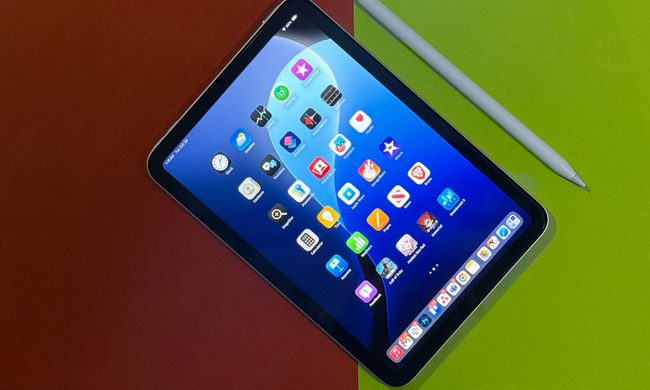
The newest generations of iPhone and iPad include high-quality cameras powerful enough to deliver video editing capabilities. You can use your iPhone or iPad to edit your videos before sharing them with friends and family or on social media.
Editing a video can seem intimidating if you’ve never done it before, but the iOS Photos app includes video editing tools that make this process simple and accessible. Photos comes with convenient video editing tools you can use to trim, crop, flip, or rotate your videos, among other functionalities. Mastering the different editing tools that come with your iPhone or iPad will help you explore new possibilities with your videos. The process is the same whether you’re using iOS 13 or the newly released iOS 14. Here’s how to get started.
How to trim video
The first thing to do when editing video is to cut it down to a reasonable size and trim off parts that you do not want in the final movie. The iOS trimmer is bare-bones, in that you can only trim from the beginning or end, unlike some dedicated video apps that let you cut and splice frames from anywhere in the sequence. However, for a quick video, the trimmer is very easy to use and can be accessed via the Photos app in Edit mode.


- Choose a video from your Photos app.
- Tap Edit at the top right of the screen.
- In edit mode, tap the camera icon at the bottom to access the trimming tool.
- Tap and hold the left or right side of the timeline to view the yellow trimmer and its anchors.
- Drag the anchors left or right to trim from the beginning or end of the movie.
- Tap the sound icon at the top left to switch the sound on or off.
- Choose either Save Video or Save Video as New Clip.
- Tap Done on the bottom of the window (iOS 13) or at the bottom right of the window (iOS 14).
How to crop, straighten, flip, and rotate
You can make numerous adjustments, including cropping the video to zero in on your subject. You can also straighten the landscape, rotate the video, and fix both horizontal and vertical alignment. At the top of the screen, a Flip and a Rotate tool are also available. Say you’ve shot a vertical video that you’d prefer to view in a more traditional landscape orientation — you can rotate it and adjust the alignment accordingly. The straighten circle is the first one in the sequence, and probably the one you’ll use most. Horizontal and Vertical alignment are also available in case you need to adjust the orientation or angle.


- Within your chosen video, tap Edit at the top right of the screen.
- Tap the crop icon.
- To crop, just grab a corner and adjust the view any way you want by moving your finger.
- With your finger, choose Straighten, Horizontal, or Vertical to properly align your video.
- Move your finger left or right to resize in real time.
- Choose the flip icon at the top left to flip your video, if needed.
- Select the rotate icon at the top left to rotate your video, if needed.
- Tap Done.
The Crop tool also lets you change the video’s aspect ratio to some preconfigured sizes, including Square, 16:9, 5:7, 3:4, 2:3, or freeform. The tool, at the upper right of the screen, is highlighted in yellow when selected.


How to apply adjustments
iOS boasts a comprehensive video editing ensemble in the Photos app that you can browse through by simply click on the adjustment tools option. You’ll quickly discover that editing your videos is very similar to editing your photos. You can control exposure, highlights, shadows, contrast, brightness, black point, saturation, vibrancy, warmth, tint, sharpness definition, noise reduction, and vignette. It’s easy to personalize each change; all you need to do is adjust using the bottom dial.


- Tap the Adjustment icon.
- Choose the tool you need.
- Scroll left and right to select the intensity of the effect.
- Tap Done.
How to use filters

The Filters tool will pop up as the third icon in the list of icons on the bottom portion of your iPhone’s editing section. If you’re using an iPad, you’ll find it on the left side of the canvas. This handy accessory provides you with a collection of appealing Instagram-like photo filters to add to your videos. These tools include Vivid (warm and cool), Dramatic (warm and cool), Mono, Silvertone, and Noir.
You also have the ability to change the level of each filter to give your video the distinct color tone you prefer. The Filters tool is an excellent option for videos that need either a dramatic or minimal color scheme; though, most videos will look great without even using one of the many cool filters.
Bottom line
Suppose you already consider yourself a photo-editing professional on your iPhone or iPad. In that case, we can assure you that you’ll have no trouble at all editing with the iOS 13 or 14 editing software. We do want to point out that the built-in device doesn’t offer as many editing abilities as the innovative and contemporary standalone applications; that being said, you can still take advantage of a generous amount of settings that let you develop refined and attractive video projects.