Excited for the new iOS 5 update? Yeah, me too. Or at least I was, four hours ago, when I started the whole hellacious process. First came the massively slow download speed, which I fixed by restarting the process from the beginning, after my connection timed out. Once the download was complete, however, that’s when the real problems began: error messages.
I have so far tried to update to iOS 5 nine times. Maybe more. I can’t tell at this point, as I’ve begun to lose my marbles due to lack of oxygen from screaming at my computer. Each time, after the 15 minute process of backing up the phone, extracting the software and trying to verify the update with Apple, I’d receive an error message, which read, “The iPhone ‘iPhone’ could not be restored. An unknown error has occurred.” Thanks, Apple. I hate you.
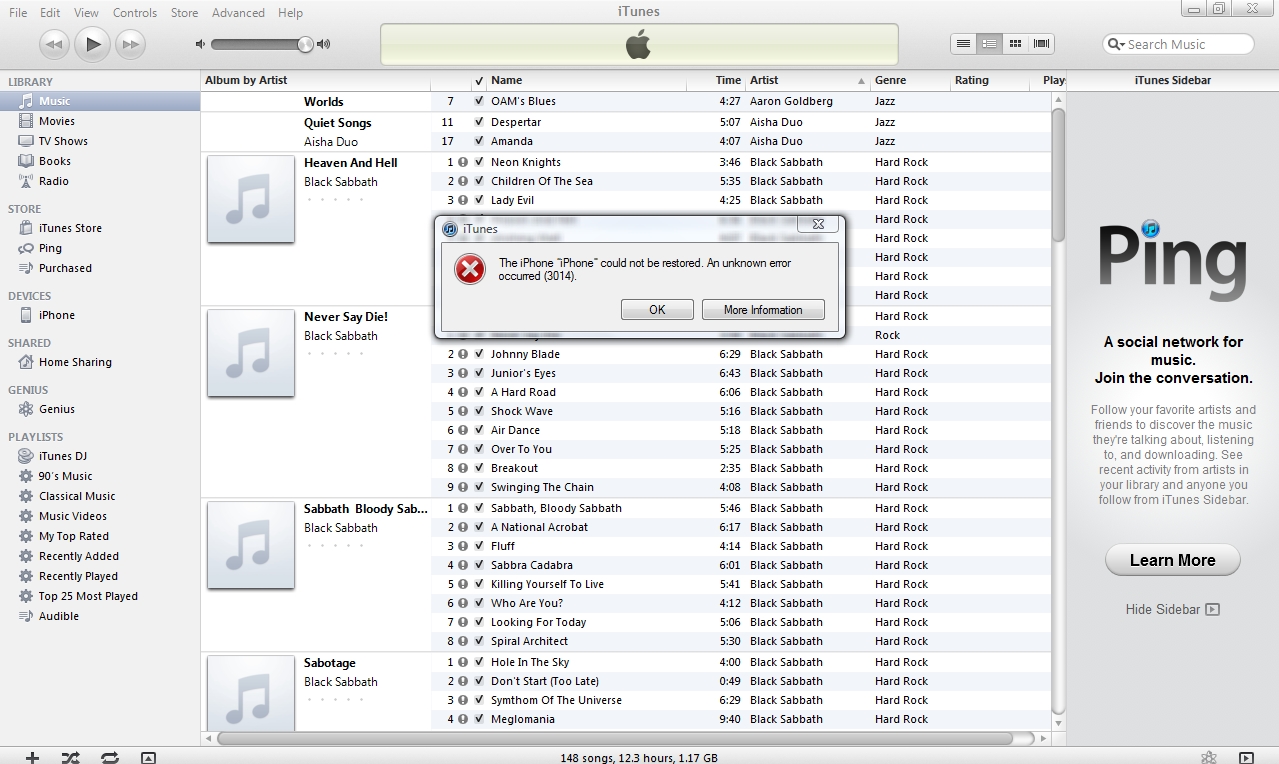
That cheery bit of text was always followed by a number. The first five times it was 3002, then 3200, then 3014, then 3004. Each time this happened, I’d frantically scour blog posts, forums and all colors of Internet resources in an attempt to figure out what to do. At the time of this writing, nothing has worked so far.
The primary problem seems to be due to an overload of Apple’s servers. When iTunes attempts to verify the update with Apple – something that happens so close to the end of the process that you can almost taste victory – everything goes to hell. So the only surefire way to fix the issue is to wait until everyone else has had their fun, then swoop in an snag the update while nobody’s looking. I’d suggest holding off for a few hours, at least.
If, however, you’re as impatient as I am, here are a few things you can try, for better or worse.
Option 1: Download firmware directly from Apple’s servers (not through iTunes)
Rather than hit the “Update” button under “Summary” in iTunes, instead download the firmware for your device directly from Apple. Here are the links:
iPhone 3GS
iPhone 4 (CDMA)
iPhone 4 (GSM)
iPad
iPad 2 (CDMA)
iPad 2 (GSM)
iPad 2 (Wi-Fi)
iPod touch (third generation)
iPod touch (fourth Generation)
Make sure to download the software to a place that you’ll remember. Once download is complete, hold down Alt (Windows) or Option (Mac) and click “Restore”in iTunes. You’ll then be asked to point iTunes to the correct software, which you just downloaded. Your update will then begin. NOTE: This method will delete all your apps, music, contacts, etc, as it is a complete restore to factory settings, so make sure your device is backed up before proceeding.
Option 2: Put your phone in DFU mode (a.k.a. “restore mode”)
This is one of the first suggestions I found, but it is NOT one I’d recommend. Right now, my iPhone 4 is completely useless. It won’t even connect to iTunes (error 0xE8000065). But if you want to take a chance, here’s the simplest way to do it:
-
Plug your phone into your computer (as if it isn’t already).
-
Shut off your phone.
-
Once off, hold down both the power button and home button, as if you’re doing a soft restore.
-
When you see the Apple logo, let go of the power button, but continue to hold down the home button.
-
Open iTunes.
-
Once your device is connected, you will be in DFU mode.
-
Click “Restore” in iTunes, and go through all the subsequent prompts.
-
Cross your fingers.
Please note, this method can be just as tedious and frustrating as the original updating process, so only use it if you’re desperate.
Option 3: Wait
Grab some food, go see a movie, crack a beer, hang out with your dog, do ANYTHING other than try to update your iPhone. Once you’re good and relaxed, Apple’s servers should be better equipped to handle your need for the latest and greatest iOS in the land. Start from the top, and hope I’m right.
UPDATE: My phone is now working (6:40pm ET) after using option 1. To the rest of you who haven’t yet had any luck, godspeed.


