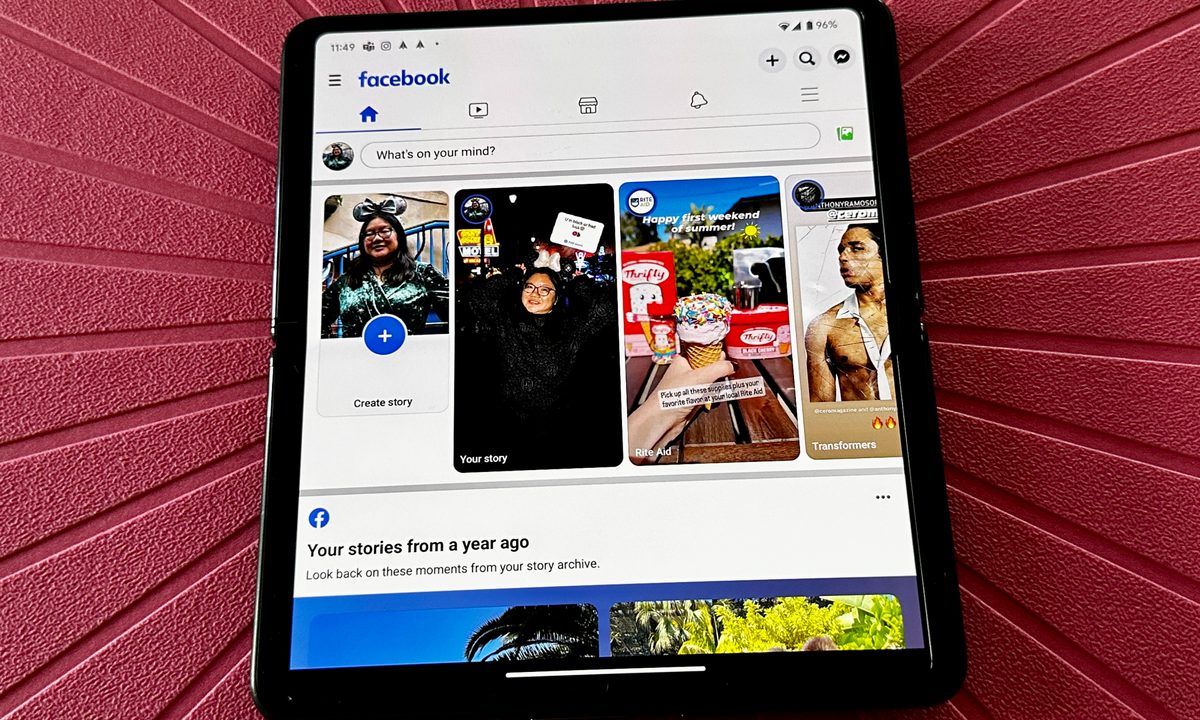
Maybe you just need to take a break from using Facebook. Or maybe you haven't used your Facebook account in awhile and don't plan to in the future. Whatever your reasons, you should know that you have two clear options when it comes to doing away with Facebook.
If you just need a break and will likely need your account in the future, you can deactivate your Facebook account. If you've moved on to greener social media pastures or just don't need your account anymore, you can delete your Facebook account too.
In this guide, we'll go over what each option entails and how to use them. Let's take a closer look at how to delete or deactivate your Facebook account.
Note: If you plan on deleting your Facebook account, you may want to consider downloading your Facebook account's information first. If keeping a copy of that information is important to you, you should request a copy from Facebook. Take a look at Facebook's official guide on how to request and download a copy of your Facebook account information.
What is the difference between deactivating and deleting your Facebook account?
As we mentioned earlier, you have two options for saying goodbye to Facebook and it all depends on how long you want stay away from the platform. If you're absolutely sure it's a permanent goodbye, you can delete your Facebook account. But if you know you're going to come back to it, it might be best to just deactivate your account. Here's what to expect from each option:
Deleting your Facebook account
This is the permanent goodbye option. If you choose to delete your account, you'll lose access to that account 30 days after sending the deletion request. According to its own Help Center guide, Facebook does give you up to 30 days to change your mind after the request, but after that it's over. The account is gone. All of the Facebook profiles you had under that account will also be deleted, not just the main profile of the account. You also won't be able to log into any third-party apps in which you used your Facebook account to log in. All of your content will be deleted, except for messages you sent.
Deactivating your Facebook account
This is the see-you-later option. This is the option you use if you know you'll come back to Facebook at some point, but for now you just need some time away. With this option, you'll always have the ability to reactivate and access your account. While deactivated, your profile isn't visible to anyone and if you have a Facebook Page, that Page will also be deactivated. Deactivating doesn't affect third-party apps in which you use Facebook to log in. Facebook Messenger will still be available to you.
How to deactivate your Facebook account
The following steps for deactivating your Facebook account, involve the Accounts Center. If for some reason you don't have access to the Accounts Center, refer to Facebook's Help Center guide on how to deactivate your account via Facebook Settings instead.
Step 1: Once you're logged into the Facebook account you want to deactivate, select your Profile picture icon in the top right corner. Then in the menu that appears, select Settings & privacy > Settings.
Step 2: You should see a section labeled Accounts Center in the top left corner. If you do, select Accounts Center.
Step 3: On the Accounts Center screen, choose Personal details > Account ownership and control.

Step 4: On the screen that pops up, select Deactivation or deletion. Then choose the account you want to deactivate from the choices presented.
Step 5: Choose Deactivate account on the next screen. Then select Continue.
You'll then be presented with a series of screens asking you confirm the deactivation over and over again and to answer some questions. Do so. Keep going until you finally deactivate the account.
That's it. Your account should now be deactivated.

How to delete your Facebook account
As with the deactivation method above, the steps below involve the Accounts Center. If you can't access the Accounts Center, you'll need to use Facebook's alternative method for deletion which can be accomplished via Facebook Settings.
Step 1: Log into your Facebook account and then select your Profile picture icon in the top right corner. From the menu that appears, choose Settings & privacy and then Settings.
Step 2: The Accounts Center section should be on the top left side. Select Accounts Center.
Step 3: Select Personal details and then choose Account ownership and control. A menu will then appear, choose Deactivation or deletion.
Step 4: On the next screen pick the account you want permanently deleted.
Step 5: Choose Delete account and select Continue.
You'll then be guided through a series of screens asking you for further confirmations of your decision to delete your Facebook account. During this process you'll be asked questions and given the opportunity to do things like download or transfer copies of your Facebook information. Read all of these screens carefully and download your account data if you want to. Keep moving through these screens, until you reach the final confirmation screen. Once you confirm your deletion request at this point, the request is officially sent.
That's it. Your Facebook account will be deleted after 30 days. You can cancel the deletion any time within those 30 days.

FAQs
What is the fastest way to delete a Facebook account?
When it comes to deleting your Facebook account, it's actually less about speed and more about which method is available to you. If you have access to Meta's Accounts Center, you'll use the methods outlined above. If you don't have access to the Accounts Center, you'll use another method that takes you through Facebook Settings.
Where is the delete account button on Facebook?
Again, this depends on whether or not you have access to Accounts Center. If you do, the Delete account button will be found during the account deletion process after you've selected the Deactivation or deletion option, which is housed under Account ownership and control.
If you don't have access to Accounts Center, according to the Facebook Help Center, you should find it within Facebook Settings, after choosing Deactivation and deletion which is housed within Your Facebook Information.