Email signatures are a great way to automatically include your contact information to your email correspondence. If you’d like to add a signature to your emails in Gmail, it’s easy enough to add one. You’ll just need to go through your Gmail settings to do it.
In this guide, we’ll show you how to add a signature in Gmail whether you’re using the desktop website version of Gmail or its mobile app.
How to add a signature on your desktop
Step 1: Launch your favorite browser and log into your Gmail account as you normally would.
Step 2: Next, select the Settings gear icon the upper-right corner of the screen, and then select the See all settings button.
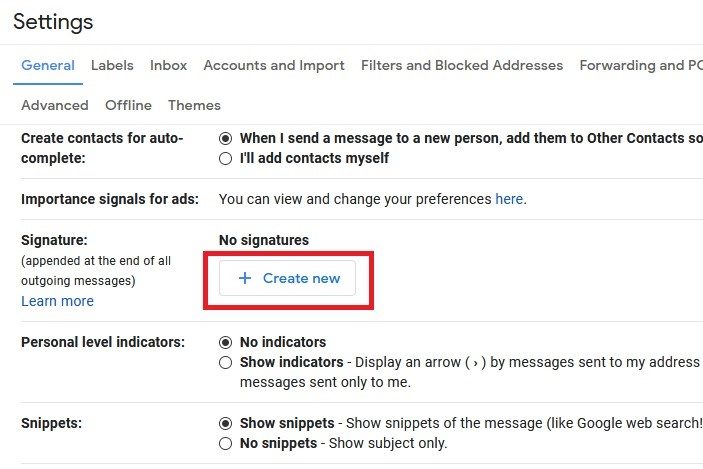
Step 3: Under the General tab, scroll down until you see Signature. Select the Create new button.
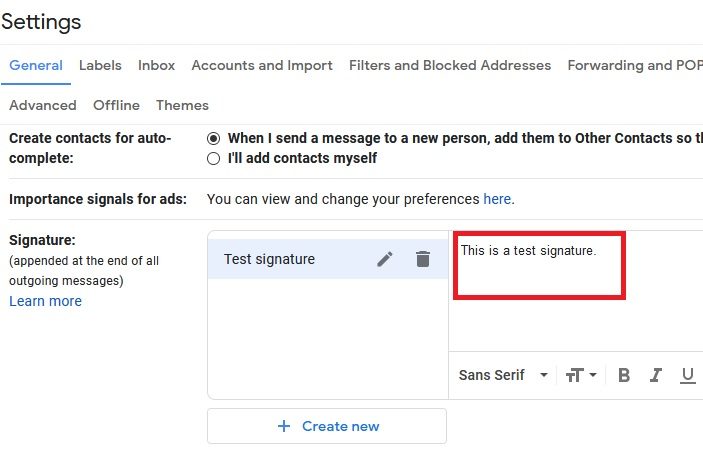
Step 4: In the dialogue box that pops up, enter a name for your new signature. Then choose Create. Then, you’ll be taken back to the Settings screen, and a new text box will appear next to your signature’s name. Type your desired email signature into this text box.
Optional: Below the signature field, you’ll see a check box that allows you to add your signature before quoted text in email replies. This will make your signature more visible in email threads. It’s worth toggling on if you’re using your email for professional correspondences or if you want your signature to remain visible in follow-up messages. This section below the signature field also contains two other drop-down menu options that allow you to choose if your signature shows up in new emails or in replies and forwarded emails.
Step 5: After you’re satisfied with your signature, scroll to the bottom of the page and select the Save changes button. That’s it! Your signature will now appear on all new messages and outgoing mail.
If you have an email address from Yahoo, Outlook, or another email service, you can also send emails via that address using Gmail’s Send mail as feature. You can set that feature up from within your account settings, and once you do, you’ll be able to create a different signature for that email address. Just select the drop-down menu that appears within the Signature section of the Settings page’s General tab. You should see this menu underneath the phrase Signature defaults. Choose your preferred email address from that menu. Then, from the drop-down menus beneath that menu, choose your preferences for new emails, replies, and forwarded emails. When you’re done, scroll down, and select Save changes.
How to add a signature on your Android or iOS device
Keep in mind that you won’t be able to personalize this app on your mobile device to the extent that you can on your computer. Plus, the signature you set up on the app will only appear when you send email messages from that same device, so you will have to set up your signature on each device separately.
Here’s how to customize your signature via the Gmail smartphone app.
Step 1: Download the Gmail app to your phone and launch it as you would normally.
Step 2: Select the Three horizontal lines (also known as the hamburger menu) in the upper-left corner.
Step 3: Choose the Settings option in the resulting pane. You’ll need to scroll down to see it.
Step 4: Select the account you want to add a signature for by selecting the entry. Note: if you only have one email account connected, it will be your only choice.
Step 5: On your iOS device: Select Signature settings, then select the option to enable Mobile signature. For Android devices: Choose the Mobile signature option (you can find it under the General section).

Step 6: Type your signature the way you want it.
Step 7: On iOS: When you’re finished, select Back to save your newly-minted signature. With Android: After your signature looks exactly right, select OK so it will save your updates.
Customizing your Gmail signature might inspire you to change other things in your Google account, like away messages, filtering, and even the look of your mailbox background. There are several other ways to customize your Google email account. For starters, check out our guide on how to change your Gmail account photo. With just a little work on your part, your Google profile will be cohesive, professional, and convenient everywhere you’re on the web.
Frequently asked questions
How do I add an email signature?
The method for adding an email signature will vary depending on which email service you’re using. For example, if you’re using Gmail, you can follow either of the methods outlined earlier in this article to add an email signature to your Gmail messages.
How do I add an image to my Gmail signature?
When you want to add an image to an existing Gmail signature, simply navigate to the Signature section of your Gmail settings (as described in the desktop instructions discussed earlier in this article), and then go to the signature you want to add the image to. In the text box of your signature, select the Insert image icon, which looks like a square with triangles inside of it.
Then on the Add an image window that appears, select the image you want to add; either from a URL, your Drive, or from your PC. Once the image is added, you can select the image to bring up a small menu that will allow you to pick the size of your image or delete it. For an email signature, you’ll most likely want to select Small for the image size. Once you’re done adding your image, select Save changes at the bottom of the Gmail Settings page.
What are some other ways to customize Gmail?
You can do all sorts of things to customize your Gmail experience, such as adding a dark theme to your inbox or even adding new folders to your inbox to better organize your emails.
We even have a guide to all sorts of other Gmail tips and tricks you can use to make your Gmail inbox better suited to your needs.