If you work on a remote team, you need an efficient way to communicate. Even in-house teams can benefit from popular workspaces such as Slack or Microsoft Teams. With both being at the top of the workspace market, you should consider which one is right for you.
Depending on the features you need, you might already have a clear winner in mind. But if not, you can read our guide to help you figure out which one is best for you.
Messaging abilities
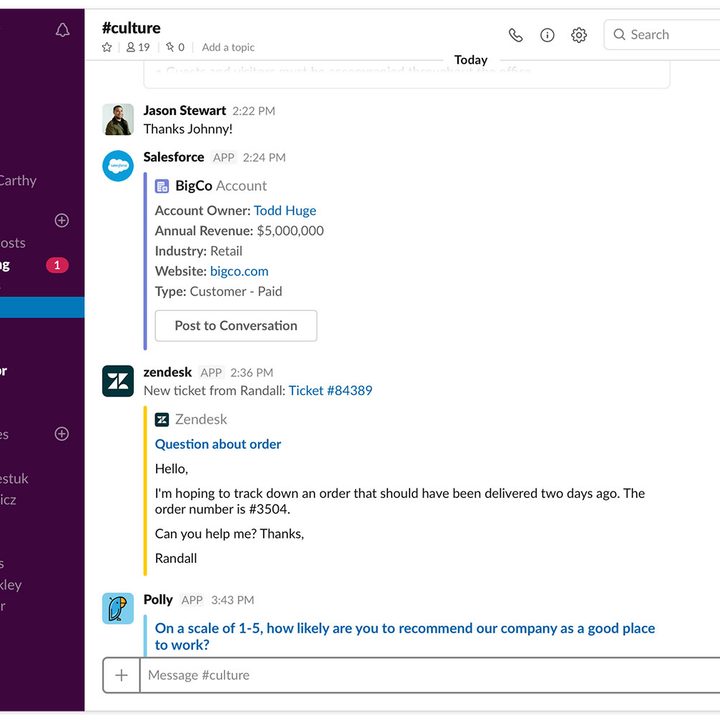
Both Slack and Microsoft Teams offer fairly similar conversation threads for messages, including plain text and tagging. Both support GIFs as well, though Teams provides a more robust way to fully convey your messages. For instance, to insert a GIF into your Slack message, you must enter a command like /giphy image name.
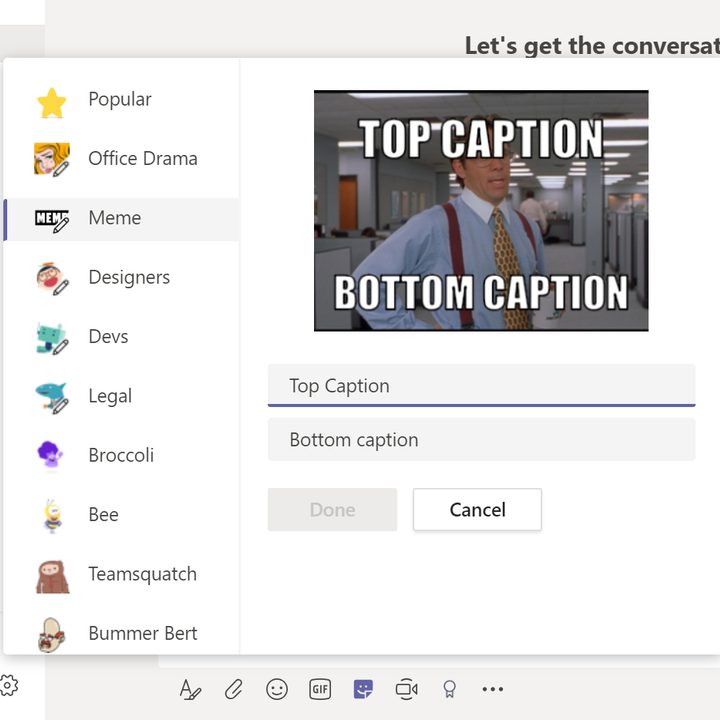
In Teams, you’ll find a toolbar at the bottom providing access to a library of GIFs and stickers. Even more, you can click the Sticker button to create a customized meme. Slack does offer integration with Bitmoji and similar services, but it isn’t native and as easy to access as with Teams’ messaging features.
As for customizing the message interface, Slack offers better variety. You can switch between light and dark themes to change the overall appearance. For a more customized feel, you can switch the sidebar colors between various preset options that complement your overall theme, or you can create a custom theme for yourself.
Meanwhile, Microsoft’s client merely swaps between three general color themes: Default (light), dark, and high-contrast. There are no specific color options despite the client’s Windows-based roots.
Pricing models
Both apps offer freemium models, which is particularly attractive for smaller businesses that want to save money.
Slack offers unlimited public and private channels, file sharing, 5GB of storage, and 10 app integrations. The free plan locks your viewable and searchable message history to 10,000 entries. There’s no indication, however, that Slack’s free plan limits the number of users accessing your workspace.
Meanwhile, the Teams platform offers unlimited messages, screen sharing, and 2GB of storage per individual (chat file attachments) and 5GB shared.
Naturally, both services offer premium packages. Slack’s Pro package costs $6.67 per person per month when billed annually. It adds unlimited apps, increases the storage to 10GB per member, and enables screen sharing. You also have access to the entire message history. Want even more? Slack’s Business+ plan costs $12.50 per person per month when billed annually. It increases storage to 20GB per member, among other upgrades. There’s an Enterprise Grid plan, too, offering 1TB of storage for each member, though pricing requires a call to Slack’s sales department.
Microsoft Teams offers three premium plans. For $4 per user per month when billed annually, Microsoft Teams Essentials has a 300-user limit but increases the storage to 10GB. This plan also extends the maximum meeting duration to 30 hours, offers guest access, and “around the clock” web and phone support. The Microsoft 365 Business Basic plan maintains the 300-user maximum but adds meeting recordings and transcripts, breakout rooms, and over 250 integrated apps and services. You also get 10GB per license. This plan costs $6 per user per month when billed annually.
And lastly, Microsoft 365 Business Standard costs $12.50 per user per month when billed annually, and you still only get a maximum of 300 users. Microsoft 365 Business also offers hosting for webinars, guest access, and desktop versions of Office apps like Word, Excel, and Publisher.
Storage limits
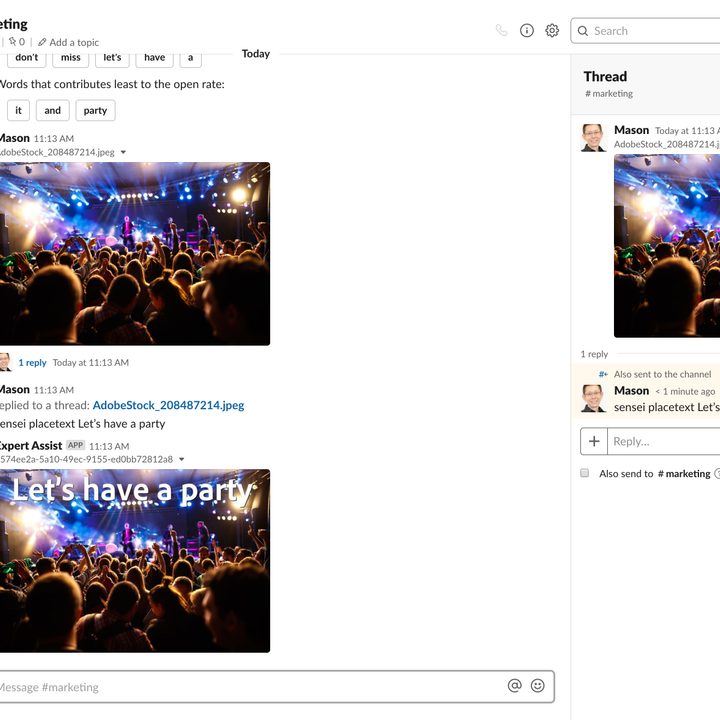
As previously mentioned, Slack’s free model includes 5GB of file storage for a single team. Paid plans increase the size to 10GB, 20GB, or 1TB per user, depending on the plan. There’s also a cap of 10,000 messages on message history for the free version, which disappears for the paid versions.
The Microsoft Teams free model offers 5GB total of shared storage “across all teams.” Switching to the paid plans increases storage to 10GB for Essentials and 1TB for the entire organization, plus 10GB per license for both Business Basic and Business Standard. There are no message history limits in Teams.
Integrated apps
Slack’s free mode limits app integrations to 10. This roadblock goes away in the paid plans, and businesses can take full advantage of Slack’s more than 2,400 app integration possibilities. If you use another productivity app at work, there’s a very good chance it’s compatible with Slack.
Microsoft’s Teams platform takes a different approach. It offers integrations with other apps for only two of the pricing tiers (Business Basic and Business Standard), and it only supports around 250 apps. However, Teams does have the best integration options with Microsoft 365, given it’s designed to work perfectly with Microsoft’s suite. This may be the most important consideration for businesses that use Microsoft 365.
Web conferencing

Slack’s free plan offers one-to-one voice or video calls. However, if you need additional callers in a single conference, you’ll need a paid plan, which supports up to 15 simultaneous callers.
Teams, meanwhile, has far superior web conferencing capabilities. On most tiers, not including the free version, you can host online or videoconferencing meetings with up to 300 people. The free version of Teams has a meeting capacity of 100 participants. Teams also offers the ability to record meetings in two of its premium tiers (which Slack does not) and provides screen sharing for all tiers (which Slack only has in premium tiers). This is a boon for team-oriented or larger companies where this type of conferencing is common.
Helper bots
Both platforms support bots. In Slack, Slackbot is a chatbot that can be used to provide custom responses or reminders related to your workplace or tasks.
The free version of Microsoft Teams doesn’t include built-in bots. Instead, you’ll find Microsoft’s in-house Who bot in the premium models. Who gathers information about specific teams or employees, like their specialties, managers, departments, and more. It also answers general questions with employee recommendations for individuals needing help or putting together teams.
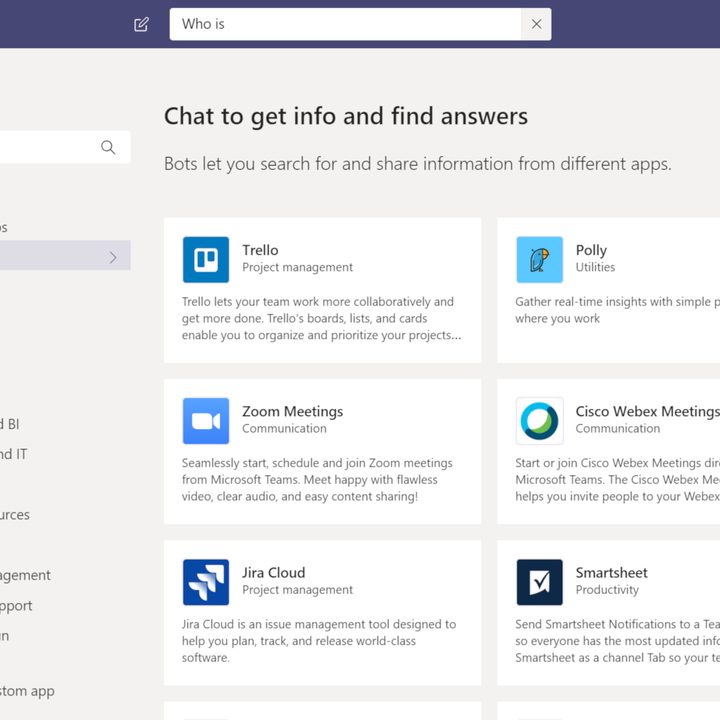
That said, both services include built-in support for discovering and installing additional bots supporting productivity apps such as Trello, Zoom, GitHub, Adobe Creative Cloud, and many more.
Platform compatibility

Slack is currently available on these platforms:
- Windows (32-bit, 64-bit, Microsoft Store)
- MacOS (Mac App Store)
- Linux (DEB, RPM, Snap Store)
- Android
- iOS
You can grab Microsoft Teams for these platforms. What’s interesting here is that Microsoft doesn’t even offer a native Windows app, just a traditional desktop client:
You can also use Slack and Microsoft Teams as a web-based app within any modern browser.
Which collaboration app wins?
Both Slack and Microsoft Teams are excellent chat applications for organizations and companies. Ultimately, the choice between the two depends on what you’re looking for in a collaboration app. If you need a specific type of app integration, double-check with Slack and Teams to see if they support your app(s).
Overall, Slack is a bit more familiar and comfortable, given it led the collaboration pack for so many years. It’s also an independent application that might work better for a group that’s more platform-agnostic. For that reason, it’s the ideal choice for the majority of businesses and teams looking for a reliable collaboration tool.
Microsoft Teams, however, certainly has its place. It’s better for larger, more complex companies. If a company already subscribes to Office or Microsoft 365, connecting with Teams is a great solution in terms of features and pricing. In particular, Teams’ more robust videoconferencing should be a huge attraction for companies with remote workers scattered across the globe.