1. Home
  2. Social Media
  3. Evergreens

How to get Snapchat filters in Zoom

Add as a preferred source on Google
 

If you’re looking to add a little spice to your seemingly endless stream of Zoom meetings, or you just like to stand out from the crowd, you can add Snapchat filters, backgrounds, and lenses to your session. From turning yourself into a pickle, to walking in space, to trying on crazy hats, you’ll have a lot of fun with the seemingly endless new options available to you.  The process of setting up Zoom with Snapchat filters is pretty easy. Here’s how to do it.
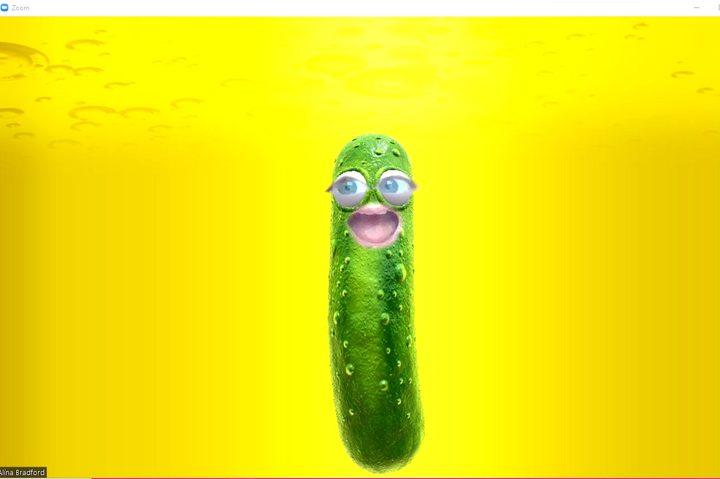
Zoom with pickle Snapchat filters
Image used with permission by copyright holder

Getting started

Your first step is to install Snap Camera to your computer. Snap Camera was created by Snapchat’s parent company, Snap Inc., to let you add cool backgrounds, filters, and lenses to any livestream or video chat, not just Zoom. Once you have it downloaded, all you need to do is to sign in to Zoom.

Recommended Videos

Starting a funny meeting

Zoom with Snapchat filters 2
Image used with permission by copyright holder

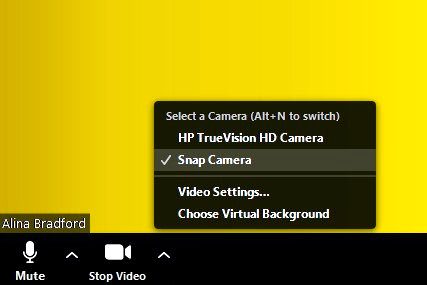
Now that you have Snap Camera downloaded, open it and choose what type of background, filter, or lens you want to use. We recommend the pickle lens, but that’s just our preference. Then, go to your Zoom meeting and click on the tab beside the video icon at the bottom of the screen. Finally, click on the Snap Camera option. That’s it. Whatever you chose in the Snap Camera will now show up on your Zoom video.

Change it up

If you get bored throughout your meeting, you can always change things up. Just go into Snap Camera again and choose a different filter, background, or lens. Within seconds, the change will be visible on your Zoom video.

How to go back to yourself

Once you’ve decided you’re done (or your boss has had enough of your shenanigans), switching back to your normal face and background is easy. Just go into the video options again in Zoom and click on your regular camera. Everything will switch back to normal. You can switch back to the Snap Camera anytime you like throughout your meeting or livestream.

One word of caution, though. Using Snap Camera may make your computer lag a little bit and give you a little bit of a jumpy video stream. You may want to test it out in a video meeting by yourself before you try it out in front of an audience.

Alina Bradford
Alina Bradford has been a tech, lifestyle and science writer for more than 20 years. Her work is read by millions each month…
Yet another research proves TikTok injury advice is just downright bad
Your knee should not be taking rehab instructions from viral TikToks
TikTok

We've already heard a lot about the negative impact of social media, like how it keeps kids hooked to screens. But one of its emerging problems is the terrible medical advice being shared on the platform. The platform is often used for new learning dance routines or a new recipe, but it's also being used to share health-related advice from non-professionals.

A new study led by researchers at Université de Montréal has assessed TikTok videos about anterior cruciate ligament rehabilitation exercises, and the result is not exactly reassuring. The team looked at 106 videos found through the search term “ACL rehab exercises,” including 55 posted by ordinary users and 51 posted by health care professionals.

Read more
Instagram is testing a more convenient way to tune recommendations
A Reels shortcut is being tested to make Instagram’s Your Algorithm tool easier to access
Instagram

We have all had an Instagram feed go off track. A random Reel catches your attention for a moment, and before long, the app starts serving up the same kind of content again and again.

Instagram already has a way to fix some of that through Your Algorithm, a feature that lets users adjust the topics shaping their recommendations. Now, the company wants to make that tool easier to reach while people are actually using the app.

Read more
Snapchat Planets Meaning: Order, Rankings, and How Friend Solar System Works
Snapchat Planets turns your best friends list into a solar system, and yes, your orbit says a lot
Snapchat Planets being shown on the Snapchat app on iPhone.

Snapchat+ includes several exclusive features, but few have generated as much curiosity as Snapchat Planets. Part of the app's Friend Solar System, it transforms your Best Friends list into a planetary ranking, assigning each of your top eight friends a planet based on how often you interact.

From Mercury, which represents your closest friend, to Neptune, which represents your eighth closest, the system offers a quick visual snapshot of your interactions. But what do the different planets actually mean, and how does Snapchat decide who gets which one?

Read more