Your amazing QD-OLED can do so much more than stream Netflix and play your Xbox. We’re thinking outside of the box though, because we already know that the best TVs deliver everything we need for cinema, shows, and gaming. So how about we discuss taking a video call or two on your prized Samsung or Sony screen?
Believe it or not, your smart TV is a perfect portal for platforms like Teams, Zoom, and other conference tools. All it takes is a little know-how to get yourself set up, which is why we’ve put together this guide to help you along the way.

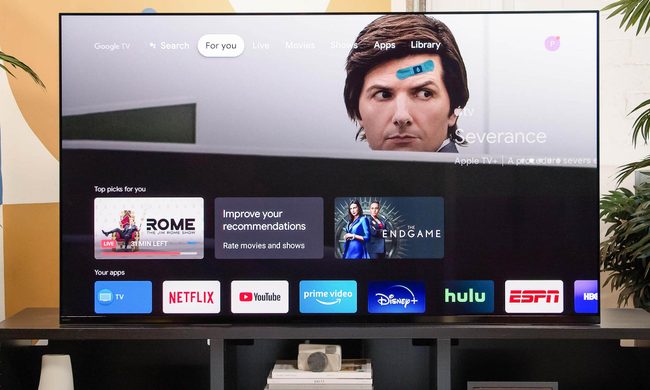
How to make a video call on Google Chromecast with Google TV
Google’s latest streaming media player, the , is a superb and affordable media machine, but it also has an unadvertised (and unofficially supported) feature.
You can buy a USB hub and use it to connect a USB webcam to the streaming dongle. From there, you simply load the Google Duo app from the Google Play store, and voila, you’ll now be able to make TV-based video calls with any other Google Duo user. The one catch is that, for the moment, the Duo app seems to be restricted to outgoing calls only.
Because the Chromecast with Google TV runs a version of Android TV, this little trick should work with any video-calling app that you can find on the Play Store, and possibly apps that can be sideloaded onto the device, but don’t count on it — as I said, none of this is officially supported by Google.

How to make a video call on Amazon Fire TV Cube
Amazon makes several great Fire TV streaming devices, but its has one very cool feature that helps it stand out from the streaming device pack:
You can buy an inexpensive USB webcam, hook it up to the Cube, and use the device to make free two-way video calls with anyone with an Alexa-equipped smartphone, tablet, Echo Show, or Echo Spot. It also works with select video calling apps like Zoom.
You can use Alexa to initiate and end calls, as well as tell her you’d like to turn the camera on or off.
The most recent Fire TV Cube (third-gen, pictured above) has built-in USB-A port, making it easy to connect a webcam. However, the previous two generations of this device do not – they have a MicroUSB port. This means that in order to use a webcam, you'll need a MicroUSB to USB-A adapter cable, sometimes known as an On-The-Go (OTG) cable. Fortunately these can be purchased for just a few dollars.
This solution doesn’t have the now-defunct Facebook Portal TV’s fancy tracking smart camera (unless you buy a USB webcam that has this feature) and you’re limited to calling folks with Alexa devices, but if you already own a Fire TV Cube, or you were thinking of buying one, this is yet another benefit to owning one.

How to make a video call on TiVo Stream 4K
The TiVo Stream 4K is essentially the same hardware as the Chromecast with Google TV, which means it should also work with a webcam if you buy a powered USB hub and Google Duo.
The Stream 4K runs Android TV, and though it doesn’t have the Google TV interface, it does come with TiVo’s Stream app, which provides a very similar curated and personalized experience for finding streaming content to watch. It also has a fantastic integration with Sling TV, making it an ideal accessory for Sling subscribers.

How to make a video call on Mecool Now
Speaking of Android TV and Google Duo, the Mecool Now is like a hybrid of the Facebook Portal TV and the Chromecast with Google TV.
It perches above your TV (or you can mount it on a tripod), and its built-in webcam and microphone are all you need to make TV-based calls via Google Duo.
It’s also a full-fledged Android TV device, so you can use it to access a wide variety of streaming services like YouTube, but it is not among the very small number of Android TV devices that Netflix has chosen to work with.

How to make a video call on Android TV, Samsung Smart TV, or Fire TV
Several companies — including Sony, Hisense, and TCL — use Android TV as their smart TV software, which means they, too, should work with Google Duo or any other video-calling app that can be downloaded from the Google Play Store. However, you’ll need a USB webcam for this to work — and that’s where things get a bit tricky.
Theoretically, almost any USB webcam should work. In practice, those who have tried this solution have had mixed results.
What we've found is that TVs that support the newest version of Android TV — the one that includes the Google TV interface — tend to be the most compatible with webcams. Sony, for instance, supports several models of webcams made by Logitech as well as two of its own point-and-shoot digital cameras, but only on its TVs with the Google TV software. No promises are made for the company's earlier smart TVs.
TCL makes a USB webcam specifically for its TVs that run Google TV and Android TV and says that it will enable video calling on a variety of Android apps, including Google Duo.
Google’s Duo is also available for compatible Samsung’s Tizen OS, which powers its smart TVs if you have a USB webcam.
Finally, Amazon's Fire TV Omni now supports Zoom calling using a USB webcam. According to the company, this TV supports several Logitech models, and all you need to do is plug one into an available USB port on the back of the TV and you're in business. As with the Fire TV Cube, you'll be able to use Alexa to join and leave Zoom calls.

How to make a video call on Xbox One, Series S, or Series X
This option is heavily Microsoft-centric in that it requires an Xbox gaming console (Xbox One/One S/One X/Series S/Series X), a USB webcam, and a Skype account.
Hooking up a webcam and installing the Skype app from the Xbox store will let you make Skype voice or video calls on the big screen.
As far as we know, Xbox consoles don’t support any other video-calling apps.

How to make a video call using your phone as a wireless webcam
There are a handful of apps you can download that will turn your smartphone into a webcam for your TV. Most of these services will even allow you to choose your video output settings, and will work with both iOS and Android devices. One of our favorite apps for the job is DroidCam (for iOS and Android).
Once installed, all you have to do is connect your phone to your TV, and you’ll be able to start taking video calls. The platform lets you choose between 720p and 1080p, and lets you mute calls, too.

How to make a video call by mirroring your phone, tablet, or PC to your TV
If what you really want is to see your callers on a big screen, mirroring the content of your phone or tablet to your TV is by far the most flexible option, even if it’s not as convenient as having an all-in-one calling solution on the TV itself.
If you own an Apple device, AirPlay screen mirroring will let you project the audio and video from an iPhone, iPad, or Mac to an AirPlay 2-enabled streaming device or smart TV. This used to be something you needed an Apple TV to do, but these days, Apple has licensed its AirPlay tech to a wide variety of manufacturers.
Smart TVs from Samsung, LG, Sony, and Vizio support AirPlay, and Roku just announced the release of its OS 10, which brings AirPlay 2 to a wide selection of its popular streaming media devices.
Alternatively, Google’s Chromecast built-in casting technology can do the same thing from an Android phone or tablet to an Android TV streaming media device or an Android TV-based smart TV.
You’ll still use the camera and microphone built into your phone or tablet, and there are a number of great accessories out there that let you mount these gadgets on stands, tripods, or clamps with flexible goosenecks.