Motorola phones have long offered a stripped-back software experience that makes them easy to navigate, relatively responsive, and great for those who prefer to lean on Google apps and services than anyone else’s. But that doesn’t mean that they’re completely devoid of extra features and tweaks that could come in handy.
In fact, Motorola has included a number of tricks that are worth learning, and they’re not always out in the open. Interested in getting more from your Motorola phone? Here are seven things you didn’t know your Motorola phone could do.
More easily customize your phone
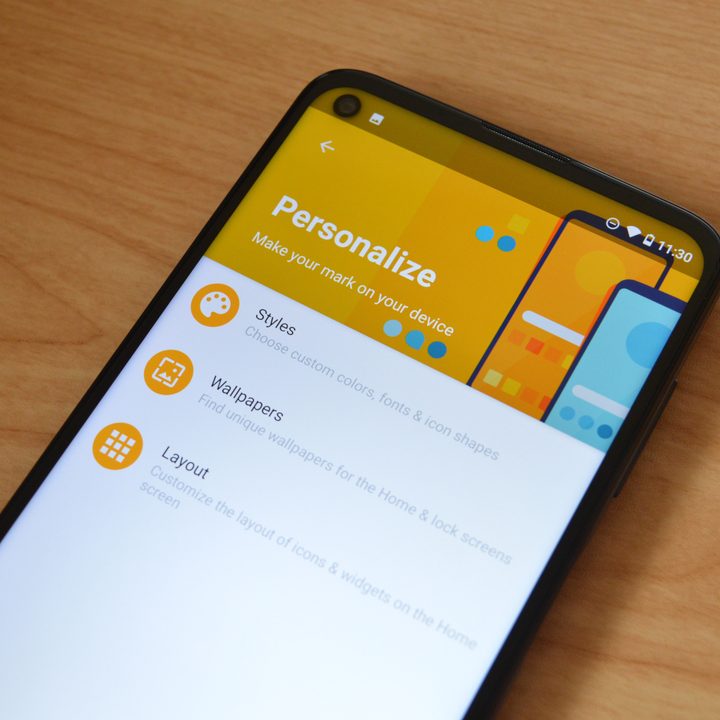
Android has a number of tools built in that help you customize your device — but Motorola makes this process a little more intuitive. That’s thanks to the Moto app. The Moto app, which is built into all current Motorola phones, is the key to a lot of the tips and tricks on this list, so it’s worth getting familiar with it.
To easily personalize your phone, open the Moto app, and in the side menu, tap the Personalize button. From there, you can select different styles, which allows you to change highlight colors and app shapes. You’ll also be able to change the home screen layout and change the wallpaper. It’s all presented in a relatively easy-to-use interface.
Quickly turn on the flashlight
Motorola offers a number of gestures to quickly access device functions too. For example, you can quickly access your phone’s flashlight by using a chopping motion twice while holding the phone. You’ll have to remember that it’s an option, but if you use your device’s flashlight a lot, this gesture can seriously come in handy.
To enable the gesture, open up the Moto app, then select Gestures from the menu. Then, turn on the toggle next to Fast flashlight.
Use gestures to take a screenshot
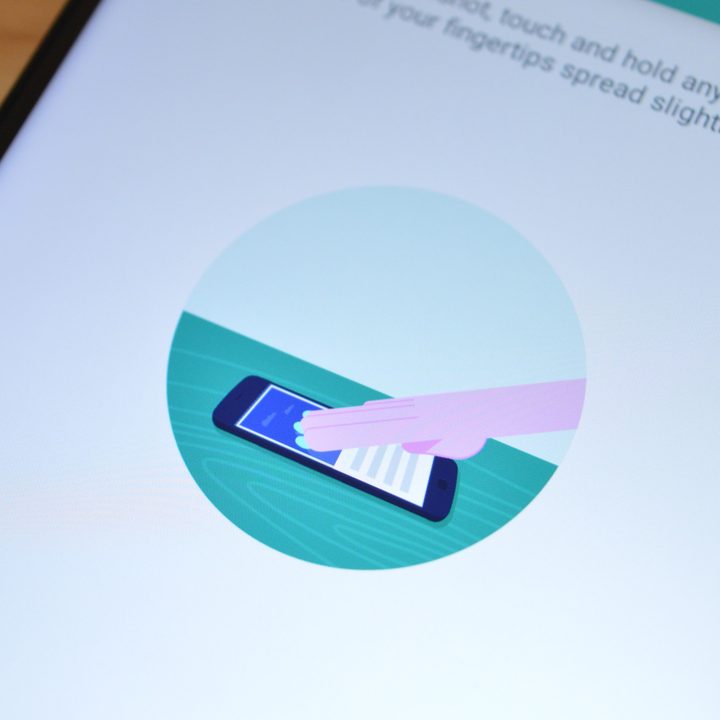
Do you take a lot of screenshots? The Moto app contains a gesture that lets you take a screenshot by simply holding three fingers on the screen. It’s much easier than having to press multiple buttons at once.
To enable this gesture, open up the Moto app and head to the Gestures menu. Then, enable the toggle next to the Three finger screenshot option. Then, you can touch the screen with three fingers to take a screenshot.
Get better screenshot editing tools
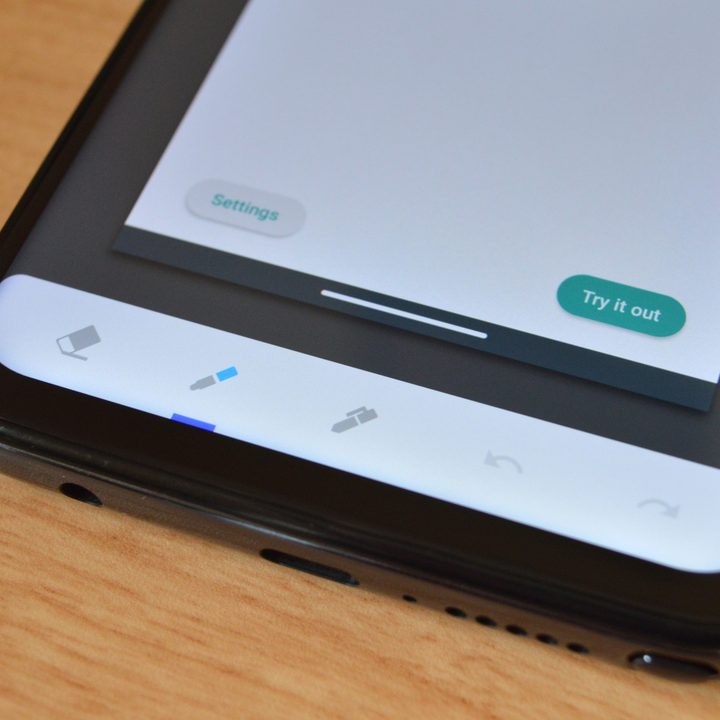
Once you take a screenshot, you can enable a more comprehensive toolkit to edit it, if you want. Using these tools, you can do things like write on your screenshots, crop them, and so on. Without this feature enabled, screenshots are simply saved to your gallery — which frankly might be more helpful for some that don’t want to have to swipe away the editing feature every time they take a screenshot.
To enable (or disable) this feature, open the Moto app, then head to the Display menu item. Then, toggle on or off the Screenshot toolkit option, depending on what you want.
Multitask with a swipe
Want to enable a way to quickly and easily enter split-screen on your Motorola phone? Motorola’s “Swipe to split” feature is the way to go. Swipe to split basically allows you to swipe back and forth on the display to enter split-screen mode. It’s pretty handy.
To enable the feature, open the Moto app, then head to the Gestures menu. Then, enable the toggle next to the Swipe to split feature.
Use Gametime and change its settings
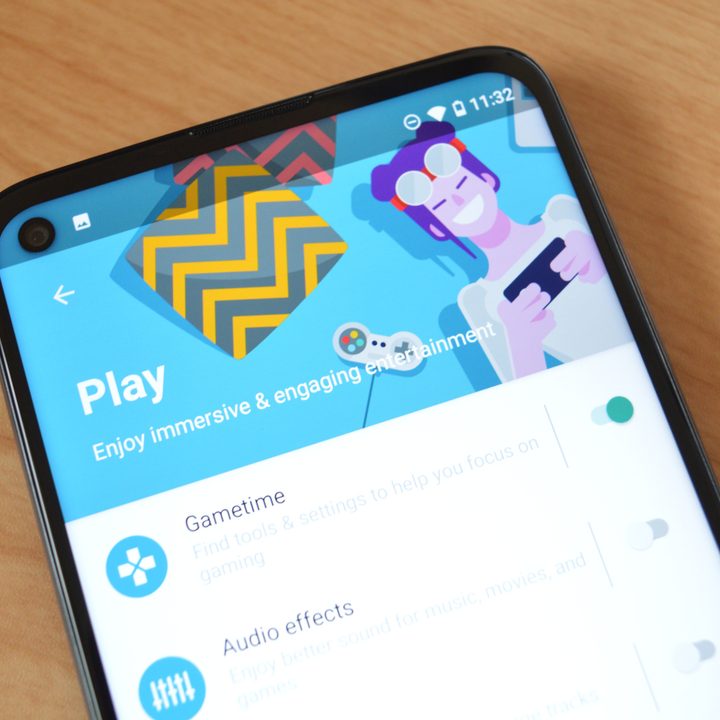
Gametime allows your phone to automatically block notifications, reject incoming calls, and so on when you’re gaming. That’s perfect for those who like to really focus during their gaming. To enable the feature, open up the Moto app, then head to the Play menu and turn on the toggle next to the Gametime option. You can tweak its settings too, by tapping on the option and tapping the Settings button on the bottom left of the display.
Settings including the ability to block notifications, block calls, disable adaptive brightness, and so on.
Skip to the next or previous track with the screen off
Want to be able to skip to the next or previous song without even taking your phone out of your pocket? There’s another feature in the Moto app that allows you to do so. Using this feature, you can skip to the next track by holding the volume up button, or to the previous track by holding the volume down button.
To enable this feature, open up the Moto app, and head to the Play menu. Then, turn on the toggle next to the Media controls button.