  1. Home
  2. Computing
  3. How tos

How to enable Low Power Mode on a Mac

Add as a preferred source on Google
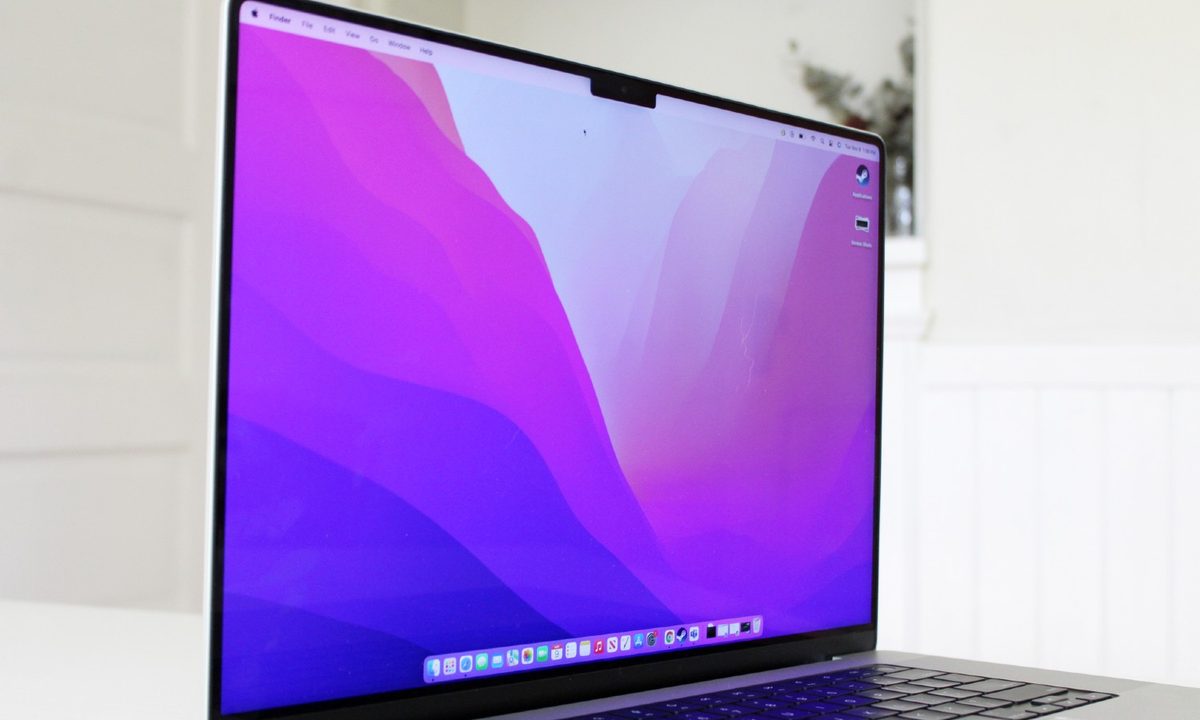
Apple MacBook Pro side view showing display.
Image used with permission by copyright holder

If you’ve ever left your charger at home, you probably know the stress of trying to make your Mac battery last through the day. The M1 MacBooks certainly have more battery life, but you will inevitably find yourself in a situation where you want to make the battery last for as long as possible. For that, you need to know how to enable Low Power Mode.

Recommended Videos

Difficulty

Easy

Duration

5 minutes

What You Need

  • A Mac running MacOS Monterey

Low Power Mode was first introduced in MacOS Monterey, and it improves your MacBook’s battery life by reducing the screen brightness and clock speed on the processor. Not only will this make your battery last longer, but it will also make your Mac quieter as the fans run slower (if it has fans, that is). Here's how to enable Low Power Mode on a Mac.

How to enable Low Power Mode

Step 1: Click on the Apple logo in the top-right corner, then click System Preferences.

enable low power mode on mac step 1
Image used with permission by copyright holder

Step 2: Scroll down and click the green Battery icon.

enable low power mode on mac step 2
Image used with permission by copyright holder

Step 3: On the left side of the next screen, select Battery again and click Low Power Mode at the bottom of the list.

enable low power mode on mac step 3
Image used with permission by copyright holder

Which MacBooks support Low Power Mode?

Low Power Mode was first introduced in MacOS Monterey and MacBook and MacBook Pro models from 2016 and later. That includes Intel and M1 models.

Your Mac should be in Low Power Mode now. You may notice the screen dim, and that’s a good indicator that it’s working. Low Power Mode dramatically slows the clock speed on the processor. It should be enough for simple tasks like watching videos or typing emails. Just make sure to turn it off when you open more intensive apps like Adobe Premiere.

For more on the Mac, check out our guide to resolving audio issues, as well as our review of the latest MacBook Pro, which we think is the best MacBook to come out in years.

Caleb Clark
Former Digital Trends Contributor
Caleb Clark is a full-time writer that primarily covers consumer tech and gaming. He also writes frequently on Medium about…
A Windows 11 bug may be quietly eating hundreds of gigabytes of your storage
Windows 11’s storage-eating bug now has a fix from Microsoft
Windows 11 suffering from RAM crisis

If your Windows 11 PC suddenly looks low on storage, your downloads folder or game library may not be the problem. According to Windows Latest, a bug tied to a Windows system file can silently consume tens or even hundreds of gigabytes on the system drive.

The file in question is called CapabilityAccessManager.db-wal, and it sits inside Windows’ Capability Access Manager folder. Windows Latest says the issue may appear as unusually high “System files” usage in Windows 11’s storage breakdown, even though the Settings app does not clearly identify the exact file responsible. In some reported cases, users saw it grow to 200GB, and even more.

Read more
Your next Teams meeting could have an AI teammate that answers questions for you
Teams is getting smarter, cleaner, and quieter about it. The AI features are opt-in, the chat cleanup is automatic.
Computer, Electronics, Laptop

Microsoft Teams is getting a meaningful update that overhauls almost every part of how you use the app, from AI-assisted meetings to a cleaner chat layout. Most of the changes are already in testing, and several are scheduled to roll out before the end of the summer.

Starting with the most interesting addition: an upgraded AI Facilitator that can listen to your meeting, spot when someone seems confused, and generate a response (via Windows Report). 

Read more
A hacker’s arrest just revealed how Microsoft can track your Windows device
Microsoft knew what websites his Windows PC visited.
Windows 11 on a laptop

A teenager allegedly used a VPN to cover his tracks while hacking a US jewelry retailer, but Microsoft knew anyway.

Court documents unsealed in the US case against Peter Stokes, a 19-year-old dual US-Estonian citizen accused of being a member of the notorious Scattered Spider hacking group, reveal that Microsoft provided the FBI with records tied to a tracking mechanism called the Global Device Identifier, or GDID. 

Read more