The Steam Deck is packed with excellent features, has solid performance, and has decent battery life. But as our review noted, it does still need some work. Fortunately, Valve has been regularly posting important software updates to fix issues and add new features that gamers have wanted, and it’s slowly becoming a more stable, versatile device for it.
But if you’re still running into problems or bugs that make you want to throw your Steam Deck across the room, hold on for a minute. We’ve collected the issues that people are running into, and the solutions that we’ve found can make things much better. Let’s do a little troubleshooting.
Note: Before you try any of the steps we’ve listed below, it’s always a good idea to bring your Steam Deck online and check for any software updates. Valve has released plenty of fixes through its updates, and getting the latest version of Steam Deck’s software could fix your problem the speedy way.

My Steam Deck keeps crashing
If you’ve applied the latest updates but games keep crashing, try holding down the Steam Deck Power button for about 10 seconds to initiate a reboot.
If rebooting doesn’t help, we suggest visiting the Steam Deck Recovery webpage and following its instructions to download the recovery image. You’ll need an extra USB stick and the right utility to run the recovery, but Steam provides good instructions for these steps. When in recovery, choose to Reinstall Steam OS, which attempts to save your downloaded games and progress while resetting the Steam Deck.
If nothing is making a difference, try playing a variety of other games to compare performance. If only one or two games are crashing, they may not be well-optimized to run on the Steam Deck.
My Steam Deck can’t reach Steam Servers
At some point during 2023, an error started popping up telling Steam Deck users that their Steam Deck could not reach Steam servers. As it turned out, this was a Wi-Fi issue that triggered power-saving mode on the Steam Deck.
Luckily, there is an update for the Steam Deck to relieve this issue. While it should download automatically, if you’ve disturbed it during download or have had internet issues you may need to manually update your Steam Deck. To do so:
- Press the STEAM button on the Steam Deck’s left side.
- Tap Settings in the menu that pops up on the left.
- Select System.
- Tap Check For Updates in the Software Updates section.
- Your Steam Deck will tell you that it is checking for updates. If it finds updates, follow the instructions on screen, which may include a system restart.
I updated, but then my Steam Deck stopped working
Restart your Steam Deck by holding the Power button down for around 10 to 12 seconds to reboot it. Rebooting may take some time after an update, but this can often fix any problems you were having.
If the update keeps causing serious problems, you should try rolling back to a previous version of the software. Head to the Steam Deck Recovery page to download the recovery image to a USB key. When running the recovery, you should see an option to roll back to a previous update in the Boot Manager section.
The Steam Deck performance overlay won’t go away
This error involves the Steam Deck’s performance overlay being stuck on your screen, not allowing you to play your games. In theory, it should have been fixed by an update, but there are still some reports of this error continuing. Try these fixes to get rid of the pesky overlay:
- First, try rebooting your Steam Deck.
- Try turning off the performance overlay altogether. To do so, tap the Quick Access button (…), then turn the performance overlay level to “Off”.
- If the overlay was already set to “Off”, you may want to try turning the level to “1” as, paradoxically, some users are reporting this works better for them.
My Steam Deck battery life is too low
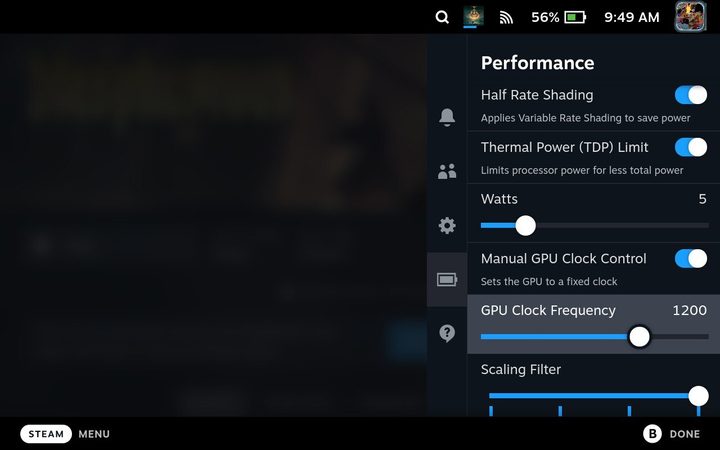
You can keep an eye on battery life by selecting the Quick access menu button on the Steam Deck and going to the Performance section. If your battery is running down too quickly, especially when playing certain games, you should try lowering certain settings to see if it helps.
Try lowering the brightness level as much as you can and turning off connections like Bluetooth if they are not needed. If you need even better battery performance, use the Performance section to lower your frame rate or turn on FSR, which has been known to help save battery life. You can also directly lower the refresh rate cap to 30Hz.
My Steam Deck thumbsticks have started to drift
Often, drifting joysticks cause concerns that the hardware itself is failing and needs to be replaced (just look at the problem with Nintendo’s JoyCons). However, if your Steam Deck sticks are drifting, we have some good news – it’s probably a software issue. This problem has been spotted before when an update caused “deadzone regression.” An additional patch was created to fix this issue. The best thing you can do here is make sure your Steam Deck is updated and restart it.
I can’t find the games I want to play
There should be a way to get almost any PC game you want on the Steam Deck. It supports Steam, Epic Games, a variety of emulators, and even Xbox Game Pass games. There may be some titles that are PlayStation or Nintendo Switch exclusives that you won’t be able to get on Steam Deck, but otherwise, there are few limitations.
However, finding a game isn’t the same as playing it. Some games made for Windows PCs won’t run as well on the Linux-powered Steam Deck, and that can make certain titles unplayable. However, the Steam Deck is optimized for game support, so you should at least try to play a game for a little while before giving up on it. Fortunately, Valve offers gamers a quick tool to check which games are entirely unsupported on the Steam Deck.
There’s no audio for my Steam Deck
If you are using the built-in speakers, check that there’s no Bluetooth connection with another audio device, like a headset or pair of earbuds you were using in the past. If there aren’t any Bluetooth connections, press the Power button for 10 seconds to reboot and start again.
If you’re using headphones that won’t work on the Steam Deck, you have fewer options. Valve says there may be some third-party headsets that just aren’t compatible with the Steam Deck at this time. If you have the option, switch between using a Bluetooth connection and the 3.5mm audio jack to see if one connection works better than the other.
I can’t pair a Bluetooth device
Some devices have a particular button that you need to press to enter pairing mode, so make sure you are doing that. You should also press the Steam button to go to Settings and access the Bluetooth section. Make sure that the Show all devices option is turned on here. If a previously paired device isn’t working, you’ll find an option in the Bluetooth section to forget it and try re-pairing.
I only get a black screen on my Steam Deck
This calls for an old-fashioned reboot. Press the Power button for around 10 seconds to restart. Wait for your Steam Deck to boot up again and see if the screen is back to normal. If this doesn’t work, double-check that your Steam Deck has a battery charge. If nothing changes the problem, it’s time to contact Valve. The Steam Deck has a 12-month limited warranty, so you could qualify for a replacement model.
I can’t turn my Steam Deck on
Check that your Steam Deck has battery charge and plug in the power adapter so you know it has a source of power. Try the reboot trick by holding the Power button down for 10 seconds. Pay close attention to how the power button is working: If the button seems stuck, or it isn’t giving any feedback that it was pressed down, this could be a hardware issue. Some Steam Decks were shipped with power buttons that started malfunctioning like this. Contact Valve — you should be covered under the warranty to get a replacement.
Finally, while it’s not exactly a problem, if you’re having trouble with the Steam Deck’s controls, you do have the option to switch to a keyboard and mouse setup if that will work better.