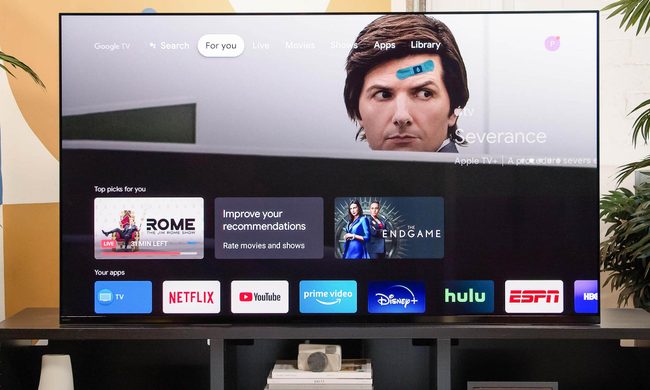
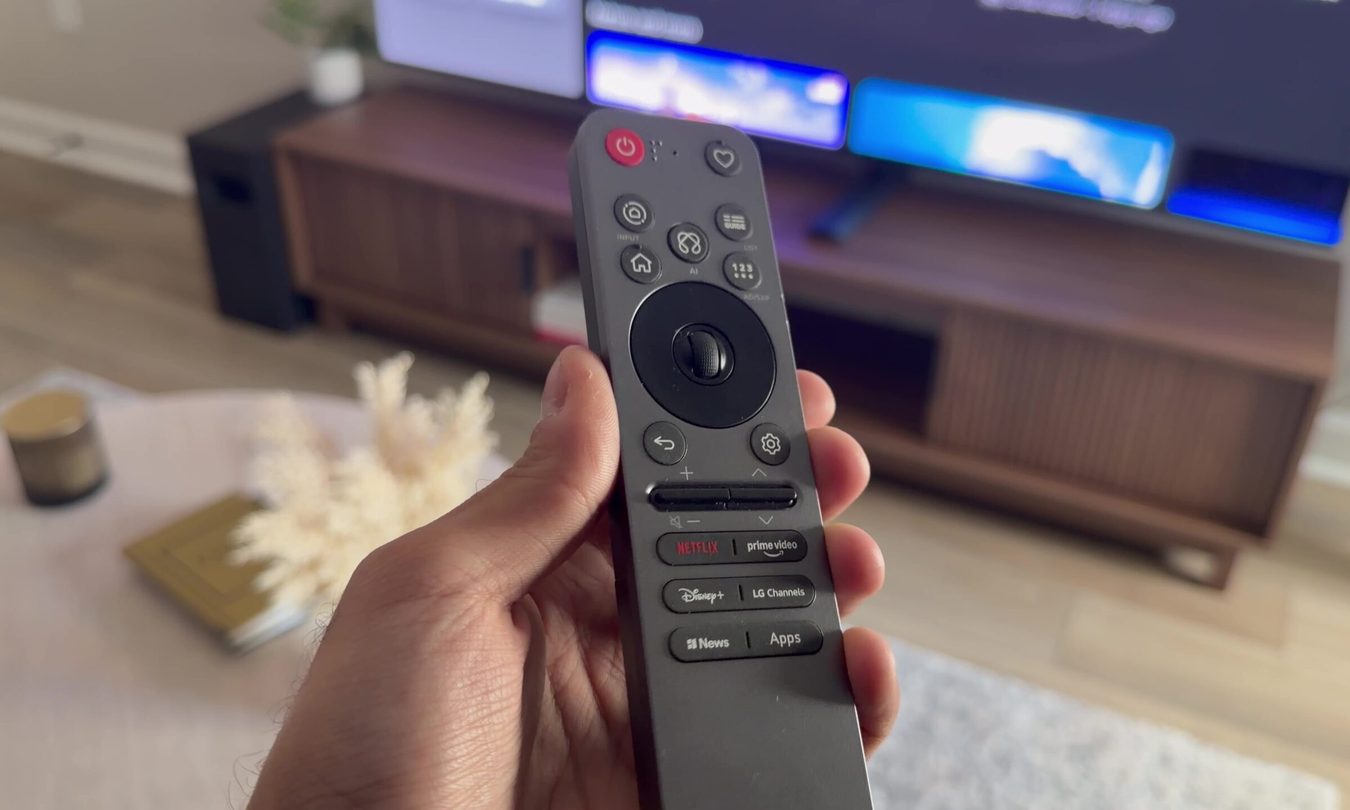
LG’s smart TVs use the proprietary webOS platform that you likely know and (maybe) love. If you’ve ever turned yours on to explore settings and menus, you will have noticed that the webOS platform is sleek and easy to learn, with app icons arranged at the bottom for speedy shuffling with the remote arrow moved by your controller.
WebOS allows you to download all kinds of apps, including your favorite streaming apps like Netflix, news apps, YouTube, and more. But there’s a small problem: As the apps you use mount up, it gets harder to manage that shuffling menu, which can grow crowded and difficult to use. If you download too many apps altogether, the smart TV will start to show an out-of-memory warning, and you won’t be able to download anything new. The solution? Offload some of the unused apps to clear up some space: Here’s how you can delete apps on an LG smart TV.
Further reading on LG TVs
- How to connect an iPhone to an LG smart TV
- How to update software on an LG smart TV
- How to update apps on an LG smart TV
How to delete apps on your LG TV
Before you begin, it’s a good idea to update your LG TV to the latest version that your TV model will support. We have a guide that can help you through the steps, but updating is usually very easy and will only take several minutes if there are any updates available.
Step 1: Turn on your LG TV. Using your LG remote, select the Home or Recents button – it’s typically the button marked with a house-like logo. This should bring up your app menu at the bottom of the screen.
Step 2: Using your remote pointer, move right through the list of your apps so that you shuffle all the way to the very end of the app list. Once you reach the end, you should see a white bar or square with an icon that looks like a marker or pencil. Select it.
Note: Your interface will look a little different depending on the version of webOS that you have. Some versions are a bit more minimal, while the newer versions have somewhat larger icons. But the general navigation and instructions should be just about identical.

Step 3: LG’s webOS platform will now bring up the app-editing screen to let you know that you are in editing mode. Here, you can manually choose an app by pushing the Center button on your control wheel and moving it to whatever position you want. But if you need to clear some space by deleting apps, that’s not quite enough.
As you hover over apps to choose, you’ll see that some apps will show a small “X” or trash can above the app icon. This symbol will not appear on LG’s own apps for settings and management – you can’t delete those at all. But any third-party apps that you have on your TV should show an "X" or a trash can.
Hover your pointer over the X/trash can (on some versions of webOS, a small, sad skull face will appear when you’re in the right spot), and select it with your Center button. Confirm that you want to delete the app.

Step 4: Generally, it’s a good idea to start by deleting the third-party apps that you don’t even recognize, as these are the least-needed versions. A certain number of third-party apps come preloaded on LG smart TVs, so there are probably some you’ve never used. After that, choose the apps that you don’t use much or that you can load from other streaming devices instead, like an Apple TV, a console, or a dongle connected to your LG TV.

Turning on intelligent edit on your LG TV
If you have one of the newest versions of webOS available on LG TVs that are just a few years old or so, you may find that you have an additional option: When selecting the white Editing icon from your app list, you may see a way to enable something called Intelligent Edit.
Intelligent Edit will automatically rearrange your apps to put those that you use the most in the front, so you won’t have to shuffle to the back of the menu to find them. If that’s the only thing that’s really bothering you, you can turn on Intelligent Edit without deleting anything, and it may fix your problem.
The only issue you may run into is on a new LG TV, where Intelligent Edit will tell you that it doesn’t have enough app usage history to reorder your apps in any particular way. But keep it in mind for later use if things ever start to get cluttered.