Not everyone is an Excel spreadsheet expert and you may not always know how to write the formulas you need for a given data set. If you're having trouble figuring out the right formula for your data and computation needs, there's a new option that can help you write up that formula in just a few steps.
That option is ChatGPT, the buzzy, new AI chatbot from artificial intelligence company OpenAI. And among everything else ChatGPT can do, it can also write Excel formulas. In this guide, we'll show you how to use Microsoft Excel and ChatGPT together. Let's get started.
How to use ChatGPT to write Excel formulas
Let's take a look at how to use ChatGPT to write Excel formulas. For the purposes of this guide, we'll use a simple sample data set to do basic calculations (such as subtracting values) with the formulas that ChatGPT generates.
Don't forget: You'll need an OpenAI account and a Microsoft Excel spreadsheet with a data set.
Step 1: Go ahead and open the Excel spreadsheet you want to use.
In our example, we have a simple table of products, services, projected prices, and their actual prices. Using Excel formulas written by ChatGPT, we want to calculate the differences between the projected price and actual price for each product or service listed (Column D), and the subtotals of Columns B, C, and D.

Step 2: Now open your web browser and go to the ChatGPT website. Then log into your OpenAI account. You should now see the New chat screen for ChatGPT.

Step 3: On the new chat screen, type in your request for an Excel formula for your data in the Send a message... text box at the bottom of the chat screen. Then press Enter on your keyboard.
In our example, we want to fill in the cells of the Differences column (Column D) with the answers from subtracting the values of the Actual Price column (Column C) from their corresponding values in the Projected Price column (Column B).
So we'll start by asking ChatGPT to write an Excel formula subtracting the number in cell C2 from the number in B2. You need to be careful in wording your request clearly and precisely as possible, otherwise, ChatGPT could misunderstand you and give you the wrong formula.
For our example we sent the following message to ChatGPT: Please write an Excel formula subtracting the value in C2 from the value in B2.
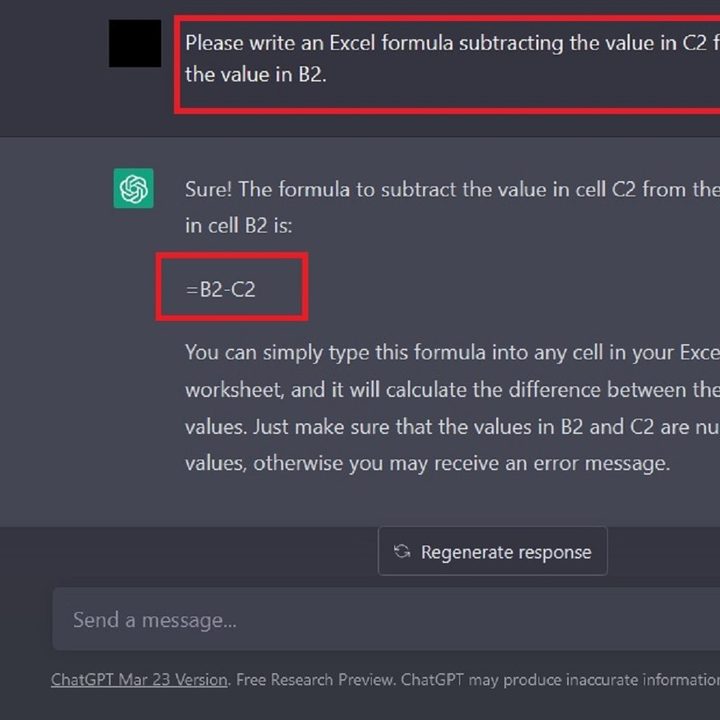
Step 4: ChatGPT's response to your request should include a formula for you to use and a brief explanation of how to use it in an Excel spreadsheet. Copy the formula from the chat screen by highlighting it and then pressing the CTRL + C keyboard shortcut.
Step 5: Go to your Excel spreadsheet and select the cell in which you want your formula to be. Then paste your formula into the cell by pressing CTRL + V on your keyboard. The correct answer to your formula should immediately appear in the cell you selected.
In our example, ChatGPT generated the following formula for our request: =B2-C2. And once we copy and pasted that formula into our desired spreadsheet cell (D2), the formula yielded the correct answer: The difference between Product 1's Projected Price (B2 which equals $50) and its Actual Price (C2 which equals $22) is $28.

Step 6: Then, to fill in the rest of the blank cells in the Differences column (Column D) with each product or service's correct answers, you can simply hover your cursor over the lower right corner of the cell in which you just copy and pasted your formula. Then once you see the black Plus sign icon appear, select the corner and drag your cursor to select the rest of the column until the last row of data.
Then release your hold on the cursor. Once you do, those empty cells should then automatically populate the correct answers for their respective rows of data.

Step 7: Let's do one more example, this time with addition. Using the same spreadsheet example, we now want to know the sum total of all the values in Column B (Projected Price).
So we'll go back to ChatGPT and send the chatbot a request for an Excel formula that adds up all of the values in column B, from B2 to B11.
In this case, our message to ChatGPT was: Please write an Excel formula that adds up all the values in Column B, from B2 to B11.

Step 8: ChatGPT should respond with its formula and an explanation of how to use it. Then you should copy and paste that formula into your desired spreadsheet cell as we did for the subtraction formula earlier in this guide.
Once you paste this addition formula, the correct answer should automatically appear in that cell. For our example, ChatGPT provided this formula to add up all the cells in Column B, from B2 to B11: =SUM(B2:B11).
This formula correctly provided the answer of $5,497. This means the subtotal of the Projected Prices of the products and services listed in this spreadsheet is $5,497.

Step 9: Lastly, since we want to fill in the rest of the data set in this spreadsheet with the subtotals of columns C and D (the actual prices and differences of all the products and services, respectively), we're going to hover our cursor over the lower right corner of the cell we just copied and pasted our addition formula into.
Once the black Plus sign icon appears, we'll select this corner and then drag it over to the right to select the next two cells. Once they're selected, release your hold.
Once you release your hold, the correct subtotal answers should appear for their respective columns of data.

While you can make a graph with Excel and all manner of other data analysis tasks, having the option of streamlining formulas with ChatGPT can potentially change how you use the software.
You can also use Microsoft Copilot with Excel and other applications in the Microsoft 365 suite.