If you spend any amount of time on the Internet, you’re almost guaranteed to have come across annoying advertisements in multiple forms, including pop ups, auto-playing ads, and more. They’re virtually unavoidable, but you can take action to dodge them.
There’s one particular ad blocking browser plugin we love when using Google Chrome, and it works quietly in the background without you having to manipulate it. It’s called Adblock Plus. We’ll show you how to get it up and running, though if you use Firefox, you can follow our guide on how to get an ad blocker for that browser.
How to block pop ups with a Google Chrome browser extension
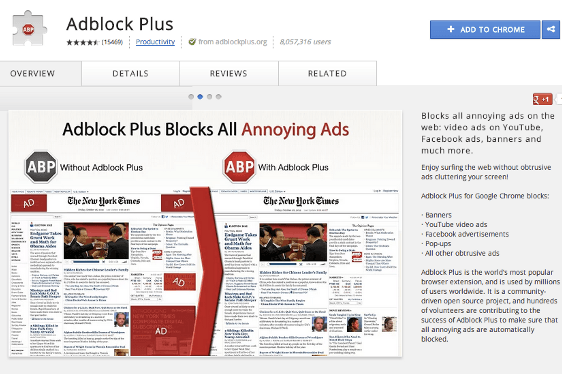
Start by opening up your Chrome browser. Then make a visit to the Chrome Web Store and the Adblock Plus Extension page. There’s a blue button in the top of the window that says “Add to Chrome.” Click it, and the extension will automatically download.
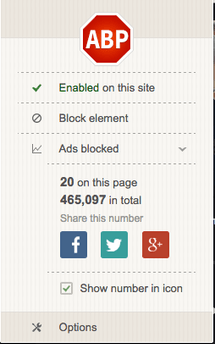 That’s all there is to it, you’re not required to restart Chrome in order to get Adblock Plus up and running. The extension adds a small red stop sign in the top right corner of your window. At any time you can click on this stop sign to see data about what ads are blocked on the page, how you can unblock pages or entire sites, and how you can change targeted ads in your options.
Some content can’t be consumed with Adblock Plus on, depending on its source and format. If you run into this problem, click on the stop sign icon and uncheck “Enabled on this site” to turn ad-blocking off for the site (it will then change to “Disabled on this site,” but you can turn it back on whenever you want). After that, refresh the page containing the content you want to check out, and it should play normally.
Note that Adblock won’t ensnare every single ad you run into on the net, but in our experience, it caught most of them. Also, there are “whitelist” companies that pay to have their ads unaffected by adblockers. Fortunately, the brands that pay for this rarely use pop-up ads in the first placewe. You’ll have to switch it off to view sites that are extra-serious about monetization.
Alternative: Poper Blocker Pro
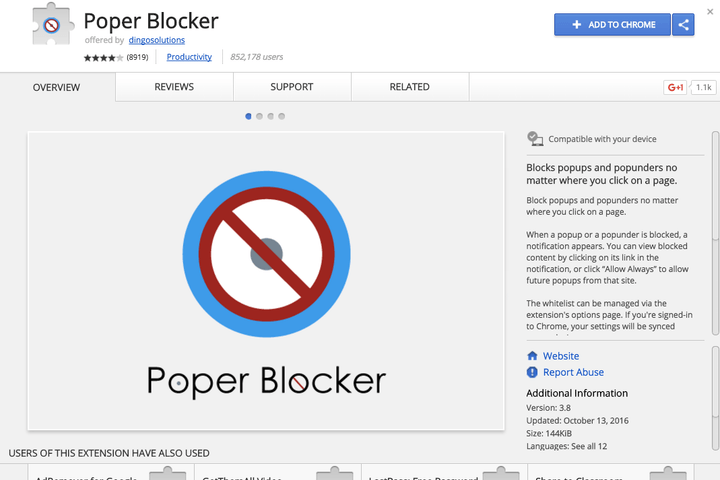
Adblocker Plus is an excellent tool, but it’s very comprehensive. If you are looking for a simpler tool that doesn’t affect as many ads and specifically targets popups instead of everything, we highly suggest the extension Poper Blocker. It gives you a quick notification whenever it blocks a pop-up, and allows for the same kind of whitelists and specific site control that Adblocker Plus down. Additionally, the notifications let you to block a popup just once or every time, based on how often you use a site. You can even change the notifications and toolbar settings if you find them intrusive and want the extension to work invisibly so you can get to work, too.
This article was updated November 21, 2016 to include an updated version of the extension and provide an alternative option.