If you work with multiple images, cropping them all individually to the exact same size can be a real pain. Perhaps you have a batch of 30 images and they all need the same watermark. In either case, editing them all simultaneously can save you loads of time.
In this guide, we show you how to edit multiple photos at once in Windows, MacOS, and Chrome OS. All three platforms have native tools to make simple edits, but there’s no native way to manipulate more than one image at a time. That means we must turn to third-party solutions.
While there are plenty of paid applications that will gladly take your money in exchange for batch edits, we focus on capable free software.
Batch edit in Windows and MacOS
For Windows and MacOS, we use an open-source Photoshop replacement and a plug-in:
GNU Image Manipulation Program (GIMP) – The biggest threat to Adobe Photoshop is this free, open-source desktop program. It has mostly everything you need to manipulate images, like cropping, color adjustment, adding effects, layers, and more. We highly recommend this software if you want to avoid Photoshop’s monthly subscription.
Batch Image Manipulation Program (BIMP) – This is a free plug-in for GIMP that adds batch editing. You need to install GIMP first, followed by this tool.
Once you install both tools, you can use them to edit multiple images simultaneously. The following instructions are based on Windows, but they apply to MacOS as well.
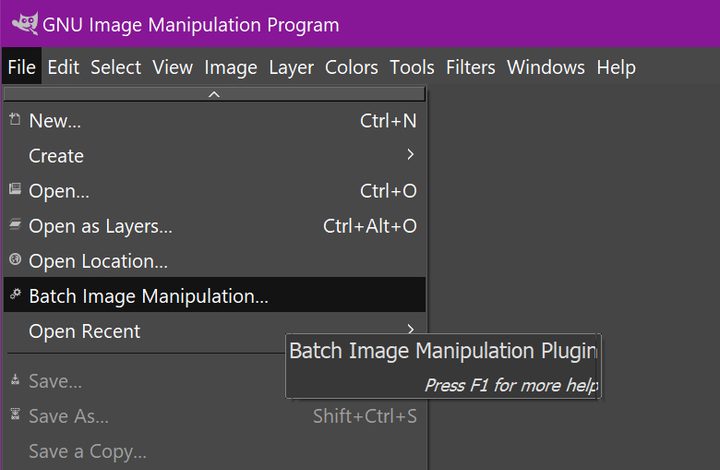
Step 1: Open GIMP and click File on the main menu.
Step 2: Select Batch Image Manipulation from the drop-down menu.
Step 3: A pop-up window appears. Under Manipulation Set, click the Add button.
Step 4: Select a manipulation on the resulting pop-up menu.
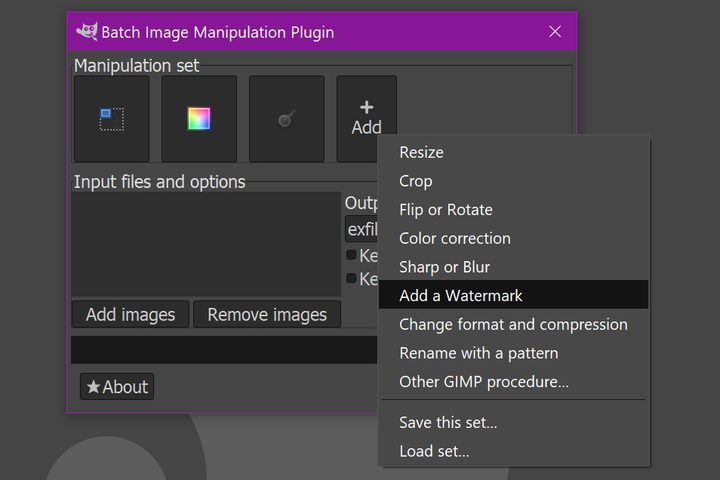
The next window you see depends on the manipulation you choose. Here they are at a glance:
- Resize – Alter the height and width in percent or pixels. You can also use a Stretch, Preserve, or Padded aspect ratio, and change the interpolation. It also lets you change the image’s X and Y DPI settings.
- Crop – You can use a standard aspect ratio, a manually set aspect ratio in pixels, and designate a starting point: Center, top-left, top-right, bottom-left, or bottom-right.
- Flip or Rotate – Flip your images horizontally or vertically, or rotate them 90, 180, or 270 degrees.
- Color Correction – Adjust the brightness and/or contrast, convert to grayscale, or use automatic color level correction. You can also change the color curve using a settings file stored on your PC.
- Sharp or Blur – Move a slider left (add sharpness) or right (more blurred).
- Add a Watermark – You can apply a text-based watermark you type into the window, or select an image stored on your PC. You can also set the watermark’s opacity level and location.
- Change Format and Compression – Convert your image to one of 10 formats, including JPEG, GIF, and TGA. There’s also a quality slider ranging from 0 to 100.
- Rename with a Pattern – Enter characters to keep the original filename without an extension, use incremental numbers, or use the captured date and time.
- Other GIMP Procedure – Select from a list provided by GIMP, like Posterize, Bump Map, Blur, and loads more.
For each manipulation window, be sure to click the OK button so it’s saved in the current manipulation set.
Step 5: Click the Add button again if you want to add another manipulation to the set, as shown above.
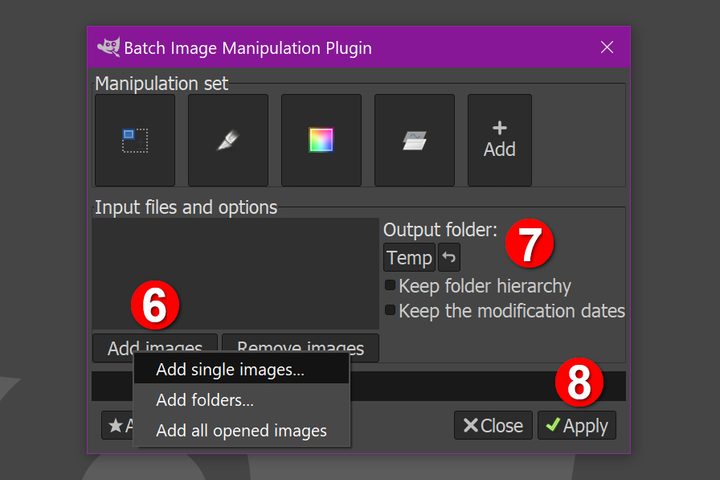
Step 6: Click the Add Images button located under Input Files and Options and select the images you want to edit in bulk.
Step 7: Select an output folder.
Step 8: Click Apply to begin the batch edit process.
Batch edit in MacOS
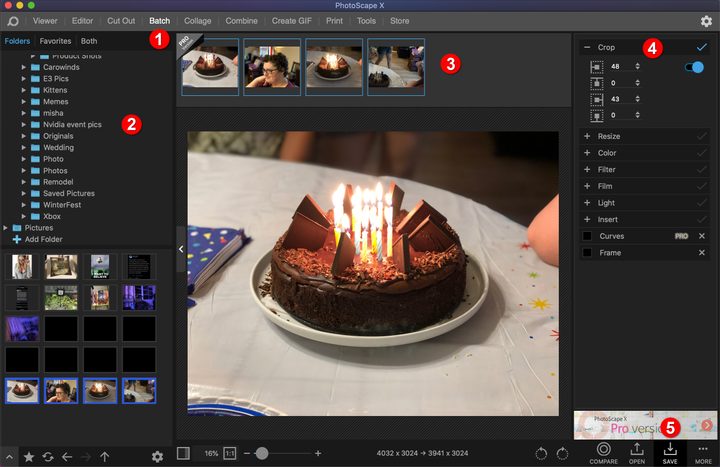
You can now install both GIMP and the BIMP plug-in on MacOS. However, for this section, we chose an app-based alternative: PhotoScape X on the Mac App Store. There are two batch edit features locked behind a “pro” paywall; however, the basic necessities like cropping and resizing remain free. Trouble is, the overall interface is a bit clunky, especially if you heavily rely on GIMP.
Step 1: With PhotoScape X open, click Batch located on the menu.
Step 2: Click the blue “plus” icon next to Add Folder on the left to load the folder containing your images.
Step 3: Your image gallery loads in the bottom left window. Drag the images you want to edit up into the top center window.
Step 4: On the right, select the manipulator you want to apply to the images. Like the GIMP plug-in, you can apply multiple image manipulators before exporting the altered images.
Here are the available manipulators at a glance:
- Crop – Click the up and down arrows to widen or expand each side based on the center of your images.
- Resize – Change the width and/or height in pixels, change the aspect ratio, widen or shorten the edges, or enter a custom size.
- Color – You have lots of options here, like applying automatic levels, contrast, or colors; brightening or darkening; adding HDR; adjusting the clarity; changing the overall temperature, and more.
- Filter – You can play with filters to add effects like grain, vignette, sharpen, or bloom. You can use filters to adjust color and luminance noise.
- Film – Add up to six effects pulled from the app’s huge library spanning Film, Duotone, Overlays, Old Photos, Dirt & Scratches, and Textures. Some of these are locked behind the “pro” paywall, however.
- Light – Like Film, you can add up to six effects pulled from the app’s huge library spanning Light Leaks and Lens Flares.
- Insert – Add up to six inserts: Stickers, Images, Figures, Filters, and Text.
Step 5: To export your modified images, click the Save button.
Batch edit in Chrome OS
Like Windows and MacOS, there is no native batch editing capability in Chrome OS. Instead, you’ll need to turn to the Linux-based version of GIMP and the BIMP plug-in.
In Ubuntu, you can find the snap version in the Software Center. It may also be listed in other distribution’s software markets. Alternatively, you can download the flatpack build directly from Gimp.org. Keep in mind that for the BIMP plug-in, you’ll need Gimptool to compile the plug-in before you can instal it.
Those who are used to Linux may find this process a breeze. Unfortunately, those of us who have less experience with tech may find this solution to be more trouble than it’s worth. Instead, you can save yourself the headache by using web-based or Android apps that can batch-edit photos. For example, you could use Polarr Photo Editor, Lightroom, Photoshop Express, and Pixlr. Just know that this is usually a paid feature.