Battery life is key for notebooks, and Windows 10 offers a new Battery Saver feature meant to improve endurance. We compared Windows 8.1 to Windows 10 Technical Preview to find out which one presently offers better battery life. The results are surprising — and show that Microsoft still has a fair bit of work to do.
Battery Saver kicks in when the battery gets low
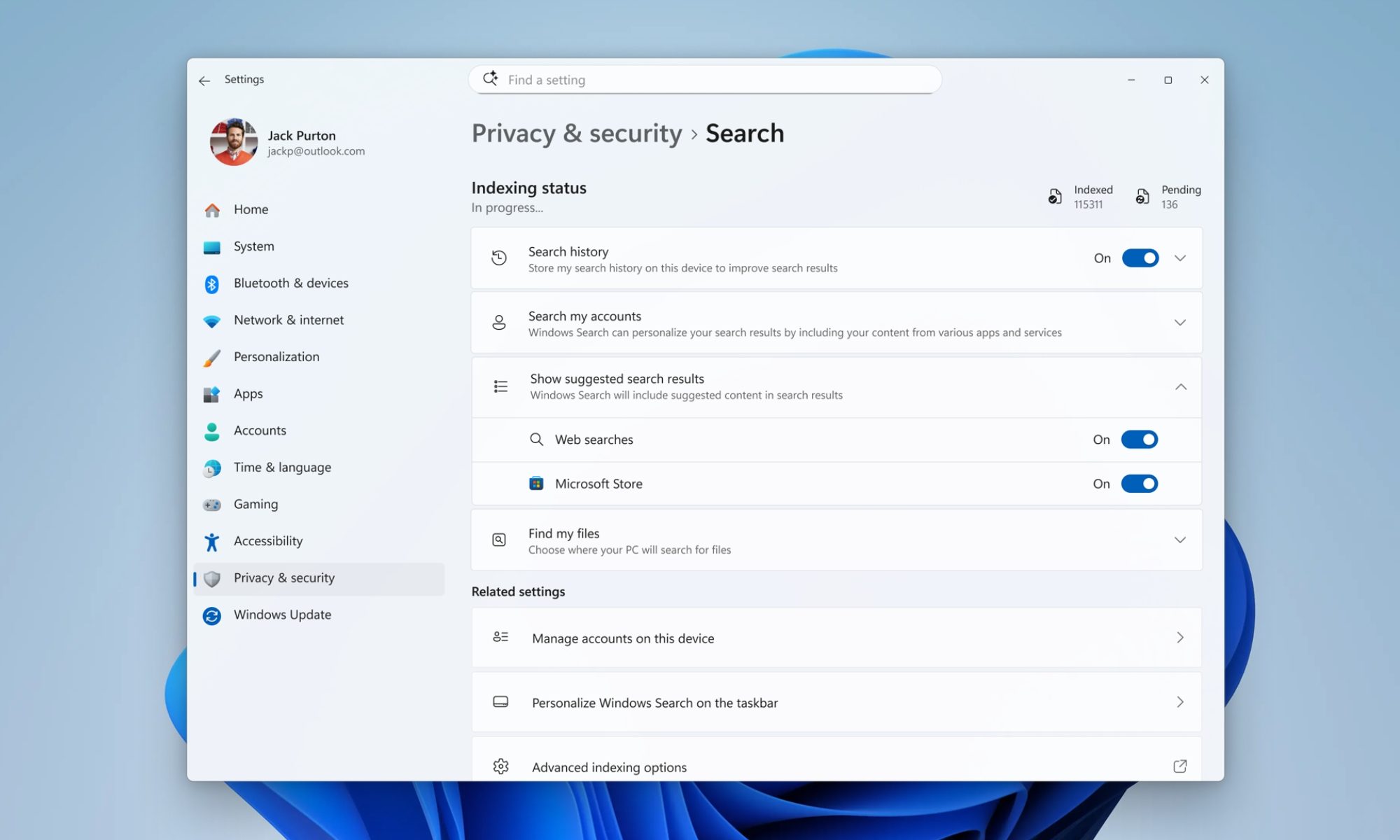
Battery Saver is a new Windows 10 feature that popped up in earlier builds of the Technical Preview, but wasn’t functional until the January build. To open it, press Windows + I, which will launch the Settings app, and go to System > Battery saver. The initial screen shows how much battery life and estimated time you have remaining.
While active, Battery Saver limits background activity to conserve battery life. You can turn it on manually or click Battery saver settings to control its automatic activation. Here you can set a checkmark to turn Battery Saver on automatically if your battery falls below a custom level. We have it set to 20 percent.
The battery usage overview reveals power hogs
If you’re wondering whether reducing the power usage of apps running in the background will have any effect, take a look at how much they consume in the first place. Return to the overview and click on Battery usage to see what’s consuming the most energy. You can view data for the battery use of your system, screen, and Wi-Fi from the past week, past two days, and past 24 hours. Another graph shows you the percentage of applications running in the foreground and background.
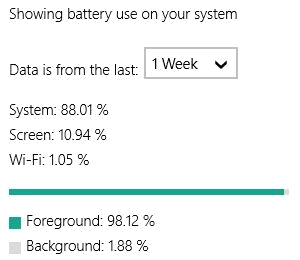 On the Yoga Pro 2 we used for testing, the screen consumed nearly 11 percent of battery life. Over 98 percent of power used by software went to foreground applications, which in our case was mostly the Chrome browser. At the time this screenshot was taken, barely 2 percent of battery life was spent on background activity over the past week, but for the last 24 hours of our testing that number jumped to 8 percent. It appeared that connecting an external monitor caused this jump.
The good news is that applications running in the background consume very little energy. On the other hand, this data suggests that closing background processes won’t have much impact on battery life in Windows 10. Nevertheless, knowing what takes the biggest toll on your battery level can help you reduce its impact and increase your battery life overall.
At this point, the battery usage view has a major limitation: It doesn’t show which apps are hogging most of the energy. Users must guess by viewing CPU and RAM usage in Task Manager. We’d like to see more refined data in the future, such as a list of apps and their energy usage, information already available on Windows Phone and Android devices.
At idle, Windows 8.1 clearly outperforms Windows 10 Technical Preview
We performed an idle time test to compare the battery usage of Windows 8.1 to Windows 10 on a dual booting Lenovo Yoga Pro 2. To ensure that both operating systems use the devices under comparable conditions, we configured the system to start with Microsoft services only. We used identical Power Plan settings on both OSes.
Windows 8.1 clearly outperforms Windows 10 Technical Preview, even with Battery Saver turned on.
Windows 10 contains additional Energy Saver settings under advanced power settings, the Control Panel equivalent of Battery Saver in the Settings app. It’s the same feature, though the terminology is different. During the first run we left Battery Saver enabled with the trigger charge level at 20 percent. On a second run, we set it to 100 percent to make Battery Saver run throughout the test.
To prevent Windows from phoning home during tests we turned off the Wi-Fi. The display was set to turn off after 1 minute and was turned on at the lowest brightness for around 65 seconds every half hour for a battery level check. When starting the test, the battery was fully charged. Here are the results.
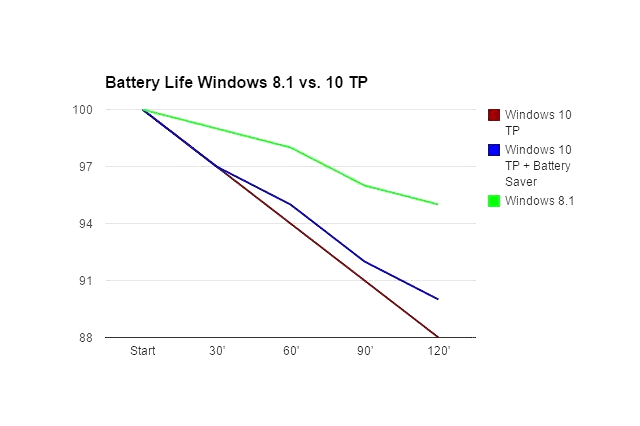
Windows 8.1 clearly outperforms Windows 10 Technical Preview, even with Battery Saver turned on. And as indicated in the chart, Battery Saver doesn’t offer a lot of potential for saving energy, although it slightly improved Windows 10 Technical Preview’s lasting power. In comparison, however, Windows 8.1 still knocked it out of the park.
On load, Windows 8.1 makes our battery last slightly longer than Windows 10
Idle consumption is just a baseline. What’s more interesting is how power efficient your system is under usage conditions. That’s where Peacekeeper comes in. Originally a tool to test browser performance, Peacekeeper also contains a simple battery test, which loops its browser tests until your battery runs out and the computer shuts down.
We performed this test under similar conditions as described above, except that we left the screen, the keyboard backlight, and Wi-Fi on for the entire test. We also set an artificially high critical battery level to force Windows to shut down and terminate the test. (This was intended to prevent overly long test times.) We started at 100 percent and had Windows shut down at 87 percent battery level. For Windows 10 Technical Preview, we measured energy efficiency with Battery Saver activated during the entire test.
The result wasn’t groundbreaking. Under load conditions, Windows 8.1 offers slightly better battery life. In our test, it was a difference of only one minute for 13 percent of battery life. Unfortunately, Peacekeeper doesn’t measure seconds. Extrapolated to 100 percent, you might get around 8 minutes more battery life out of a Lenovo Yoga Pro 2 running Windows 8.1 than Windows 10. That’s far less impressive than the idle test.
The reason Windows 10 performed so poorly is most likely due to the nature of the operating system. Keep in mind that it’s essentially an alpha version, which runs a host of processes in the background that collect data to monitor and analyze usage, catch bugs, and learn from user behavior. This would definitely explain why on idle, Windows 10 Technical Preview’s performance was disastrous in terms of battery life. It will be interesting to see whether the tides turn with the final release of Windows 10, when all this code collecting telemetry data will be gone.
Until then, we’re keeping our laptop charger handy.