1. Home
  2. Phones
  3. Apple
  4. Mobile
  5. News

New iOS Kindle app opens up buffet of Kindle Unlimited books

Add as a preferred source on Google

Amazon pushed out a major update to its iOS Kindle app that brings it up to speed with competing apps such as Oyster and Scribd. The Kindle app now supports book browsing for Kindle Unlimited subscribers, Goodreads recommendations, Audible progressive play, and more.

Oddly enough, when Kindle Unlimited arrived earlier this year, Amazon didn’t update the Kindle app to allow for in-app book browsing. Users had to check out books from Amazon’s website and send them to the Kindle app on their phones or tablets. Now, iOS users can use Amazon’s Book Browser to look for their next book in Kindle Unlimited’s massive, 700,000-book library.

Recommended Videos

If you’re not sure which book you want to read next, you can tap on it to see the book description, customer reviews, and a sample. As soon as they find the book they’re looking for, they can simply start reading without leaving the app. You can also add books to your wish list, so you don’t forget what you want to read next. For some inexplicable reason, the Book Browser feature isn’t available on iPhones. Only those with iPads can take advantage of the new browser.

Regardless of whether you read on your iPad or iPhone, the Kindle app will give you recommendations from Goodreads, the social book sharing site Amazon bought a while back. If you’re already a Goodreads user, you can share reading progress updates, highlights, and more directly in the book while you’re reading. Avid readers may also share quotes on social media or rate and review the book they just finished on Goodreads and Amazon.

To help you find what to read next, the Kindle app will recommend books to you based on your previous purchases. If you’re reading a series, Amazon will automatically show you the next book in the series, let you read an excerpt, and even add it to your wish list. Last but not least, the company added Audible progressive play, which allows you to start playing audiobooks while they’re downloading.

Overall, it’s a pretty comprehensive update, and one that’s sure to up the ante in the all-you-can-eat ebook subscription app competition. If you don’t have the Kindle app on your phone, you can get it for free from the iOS App Store.

Malarie Gokey
As DT's Mobile Editor, Malarie runs the Mobile and Wearables sections, which cover smartphones, tablets, smartwatches, and…
Samsung finally switched to silicon-carbon battery on Galaxy Z Fold 8. What’s so special about it?
One of Galaxy Z Fold 8’s biggest upgrade is hiding inside
Galaxy Z Fold 8 Ultra with Fold 8

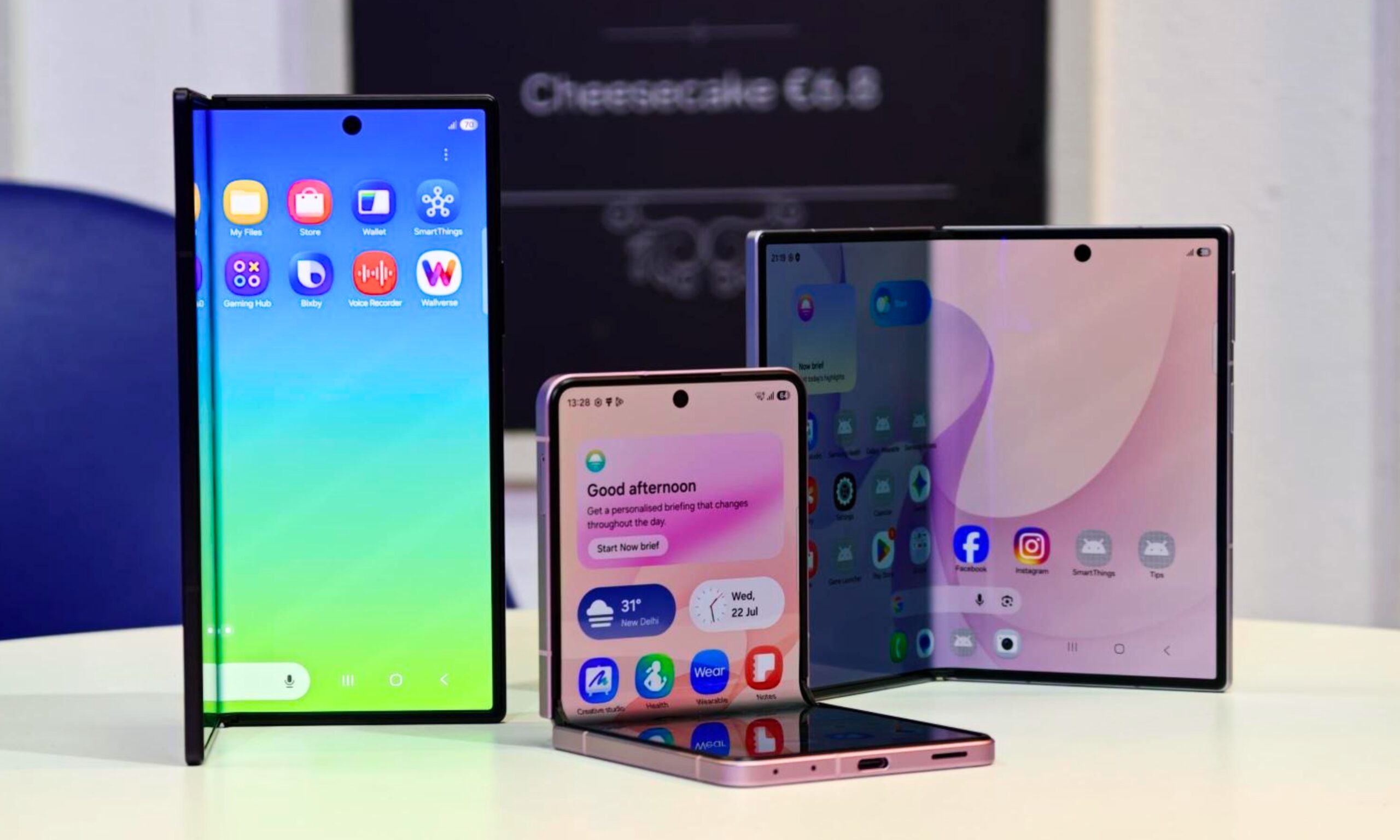
Samsung has finally joined the silicon-carbon battery race with its latest batch of premium foldables packing the new battery tech. But details for this change were rather hard to spot on the spec sheets. The company has confirmed during media briefings that the Galaxy Z Fold 8 Ultra, Galaxy Z Fold 8, and Galaxy Z Flip 8 all use silicon-carbon batteries.

Even then, the resulting capacities are hardly record-breaking. The Fold 8 Ultra carries a 5,000mAh battery, the regular Fold 8 gets 4,800mAh, and the Flip 8 has 4,300mAh. Rivals from Honor and Motorola have already crossed the 6,000mAh mark. But the figures only tell part of the story.

Read more
I’ve used foldable phones for years. Here’s how to pick the right one between the Galaxy Z Fold 8 and Flip 8
Samsung’s three new foldables solve very different problems
Galaxy foldables with its screen visible

After years of reviewing foldable smartphones, I have learned that choosing one involves much more than what looks pretty or how large you want. Book-style foldables are usually sold as productivity machines, while flip phones cater to people who value portability. Samsung’s latest lineup complicates that choice by introducing two very different book-style models alongside its familiar clamshell.

Most of their shared specifications fade into the background once you start using them. Their shapes and screens have a much greater impact on daily life. So here's how I'd make a decision when choosing between the new Galaxy Z Fold 8 Ultra, Galaxy Z Fold 8, and Galaxy Z Flip 8.

Read more
How to set up selfie video sign-in for your Google account
Your face can now serve as a way to get back into your Google account. Here's how to set it up.
Google account selfie sign in tutorial featured

Losing access to a Google account is rarely a quick fix, but Google has been actively working to make things easier. Last year, the company introduced a feature called Recovery Contacts that lets you designate a trusted friend or family member to verify your identity if you ever get locked out. Now, Google has introduced a new option, one that uses your face to get you back in instead of a phone call to a friend.

Like Recovery Contacts, the new selfie video authentication feature requires some setup before you can use your face to sign into your Google account. This involves recording the reference video that Google will use to verify your identity whenever you attempt to log in this way. Here's how to set up selfie video sign-in for your Google account.

Read more