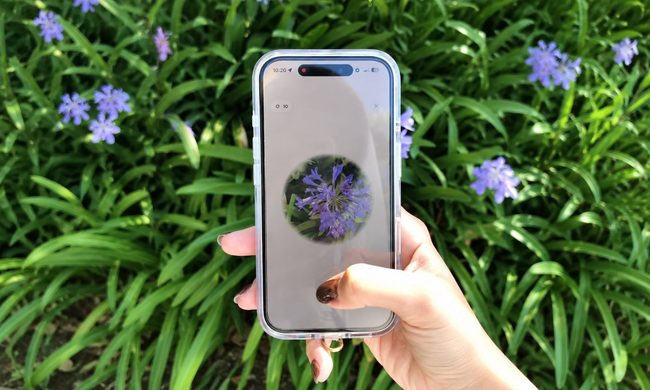
Whether you found a cool illustration that you want the high-res image for, or you fell in love with a mysterious cardigan in the wilds of the internet, you can use reverse image search to find the source of all your visual curiosities.
With reverse image search, you can upload an image to a program, and it will find every place it appears online, especially in higher resolutions (if available), or it may spit out similar visuals. Of course, this is great if you’re trying to find out how much that cool pin you have is going for on eBay, but it’s also vital for verifying the authenticity of images (helpful in our world of AI).
You can reverse image search on Android phones like the Pixel 10 Pro XL and on iPhones like the iPhone 17. This guide will teach you how to work with both to investigate any image you take or find. Here’s how to start your reverse image search journey.
Difficulty
Duration
What You Need
-
iPhone or Android device
How to reverse image search with the Google app
One of the easiest ways to do a reverse image search is through the Google app for both Android and iOS. These steps are the same regardless of your phone.
Step 1: First, open the Google app. If you don’t have it installed, you can download it from Google Play or the App Store.
Step 2: Once you’re in the Google app, choose the camera icon located in the search bar to bring up the Google Lens feature.
Step 3: Next, you can either upload an image from your photo library or take a new photo. Google will analyze the image and search for similar ones online. To improve your search results, it’s important to help Google focus on the most relevant part of the image. You can do this by using the crop function on your phone. Additionally, adding a few keywords can refine your search.

How to reverse image search with Google Photos
If you’re a Google Photos user, you can also perform a reverse image search — this time using Google’s Photos app. The steps below work on iOS and Android.
Step 1: Open the Google Photos app on your phone.
Step 2: Once you’re in the Google Photos app, select the image you’d like to reverse search.
Step 3: Next, click the three dots in the top right and select Google Lens. Google will analyze the image and search for similar ones online.

How to reverse image search from Google Image Search
You don’t even need to download an image to search for it, as Google Image Search has the ability to perform a reverse image search straight from an image search. Here’s how.
Step 1: Find the image you want to search from and tap the Camera icon in the bottom-left of the image.
Step 2: If you want to search for the entire image, just wait a moment and Google will pull up the information it has for the image.
Step 3: But if you want to selectively search for a certain part of the image, maybe to find out more about a specific person, character, or product in the image, then you can drag the selection box to surround just that part.
Step 4: Wait a moment and Google will do its magic.

How to reverse image search using ChatGPT
Google isn’t the only game in town if you’re looking to reverse image search, and AI assistants like ChatGPT can help you find a source or tell you more about an image.
While this can work, be aware that ChatGPT speaks authoritatively, but it may not always be correct. It’s best to use AI as a jumping off point for your own research.
Step 1: To start, open the ChatGPT app. You’ll also need to be signed in to search and analyze images. If you don’t have the app, you can get it from the Google Play Store, or the Apple App Store.
Step 2: Upload your image by tapping the Gallery button in the bottom-left.
Step 3: When the image is uploaded, type your query below it so you can get a more specific answer. Tap the Enter button.
Step 4: After a short processing time, ChatGPT will give you an answer. If you want to further narrow down your query, you can do so now. However, it can struggle to pin down exactly where the original image is sourced from.

How to reverse image search with Google Assistant or Google Gemini (mostly Android)
Using Google Assistant, you can also do a reverse image search. Increasingly, however, people are replacing Google Assistant with Google Gemini. In that case, the steps are slightly different, which you’ll see below.
These steps mostly work on Android, but not necessarily iOS. However, Google is always making changes to its software, so keep that in mind.
Google Assistant Step 1: To use Google Assistant, you must first open an image either through the photo gallery on your device or through any app on Android.
Step 2: To launch Google Assistant, you can use various methods, such as the “Hey Google” voice command, pressing and holding the home button, utilizing gestures, or accessing the Google Assistant app.
Step 3: The next step is to say “Search this screen” or “What’s on my screen?” In doing so, this will prompt Google Assistant to analyze the screen using Google Lens. From there, Google Lens will identify the image and provide you with search results, similar images, and related information.
Google Gemini Step 1: To use Google Gemini to do a reverse image search, you must first open the Google Gemini app.
Step 2: From there, choose the + icon in the message bar. You can choose from Upload a file, Upload from gallery, Upload from Drive, or Camera to take a photo.

Step 3: Next, ask your question concerning the image. For example, you could ask questions like: “Find the original source of this image.” “What breed is this dog?” “What kind of flower is this?” “When was this photo taken?” Keep in mind that Google Gemini is relatively new and its list of features is continuing to grow. In terms of doing a reverse image search, this is perhaps the weakest solution on this list — at least for now.

How to reverse image search with Circle to Search (Android)
Finally, you can do a reverse image search using the Circle to Search feature, available exclusively on Android.
Circle to Search is a new feature from Google that allows you to search for items by circling them on your screen. It’s similar to Google Lens, but instead of taking a picture, you simply circle something that is already displayed on your screen.
Why is reverse image searching important?
Reverse image searching is significant in today’s digital world. It acts as a powerful tool for verifying information and combating the spread of fake news and misinformation by allowing users to confirm the authenticity and origin of images quickly. This is especially crucial when misleading images can easily go viral. Furthermore, it empowers creators and copyright holders to protect their work by identifying unauthorized use or plagiarism.
Beyond that, reverse image searching has practical applications in everyday life. It can help identify unknown objects, find higher-quality versions of images, and even assist with shopping by locating products and comparing prices. In essence, reverse image search provides a deeper understanding of online visual content, fostering a more informed and responsible digital experience.