

The personal computer has changed dramatically over the last decade. Desktops haven’t disappeared, but they’ve been replaced in popularity by laptops, which in turn are now threatened by tablets. All of these devices are computers, but they have different priorities. Productivity is considered the domain of desktops and some laptops, while tablets are used as consumption devices.
Or rather, that’s the assumption many make. But is it true? Or can a tablet actually be used for productivity in the same way as a laptop, effectively replacing it? To find out, I purchased an iPad, along with a Logitech keyboard cover, and used it in lieu of a laptop whenever possible for three months. Have tablets won me over, or does the laptop still have a purpose?
Getting acquainted
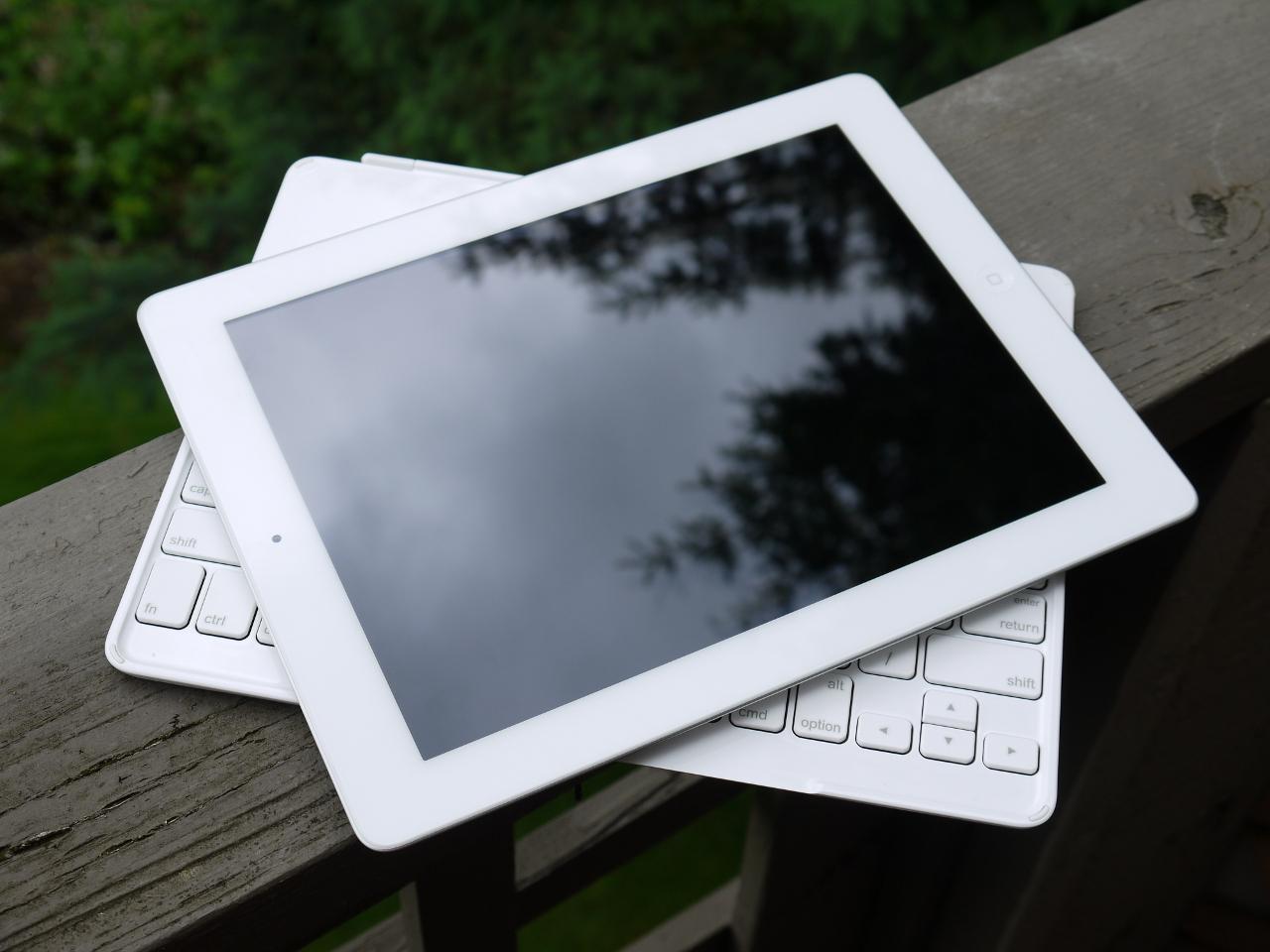
I always find unwrapping a new tablet to be a treat. Both Android and iOS require just minutes to set up, and both boot to a nice, fresh screen that’s usually loaded with a handful of stock apps. Connecting the Logitech keyboard to the iPad took thirty seconds, and while the model I purchased does roughly double the tablet’s thickness, the complete package remains smaller and lighter than any laptop.
I wanted to decide if a tablet was a worthwhile replacement using the same metric as most consumers: my wallet.
Tablets do retain an edge, however, in the moments just after initial setup. Opening a Web browser on any modern computing device is a cinch, but what about finding the calculator, changing settings, or customizing the wallpaper? Windows, OS X, and Linux still have a learning curve that tablets lack, and this makes them less friendly, less approachable. These minor frustrations add up over time and can eventually lead to a sour impression that doesn’t fade. I’m not at all surprised that tablets have received excellent customer satisfaction ratings, something computers have always struggled to achieve.
So, can you really be productive?
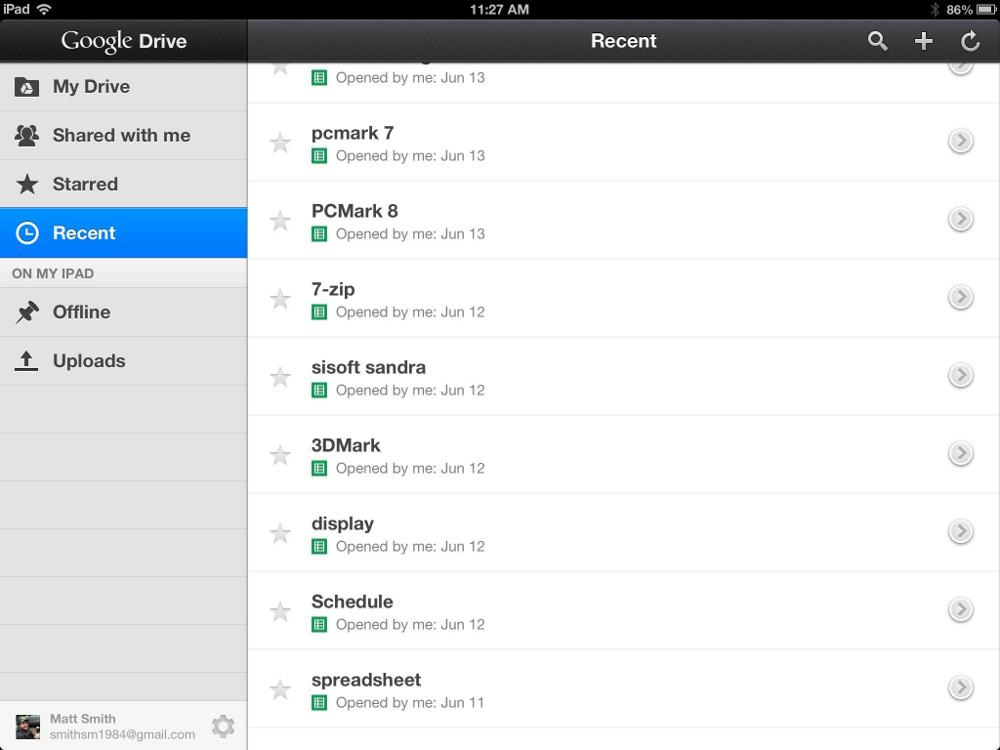
After configuring my new iPad, I immediately dove into the meat of my testing: productivity. My plan was simple: load Google Drive, then work. This was the obvious choice because, like so many people, I already use Google Docs as my default online productivity suite.
And things went … nowhere. The Google Drive app loaded without issue, as did my documents, but the user experience wasn’t great. Technically, you can do a lot, but the features of the document editor weren’t robust. To make matters worse, I ran into occasional lag between my keystrokes and their input on-screen.
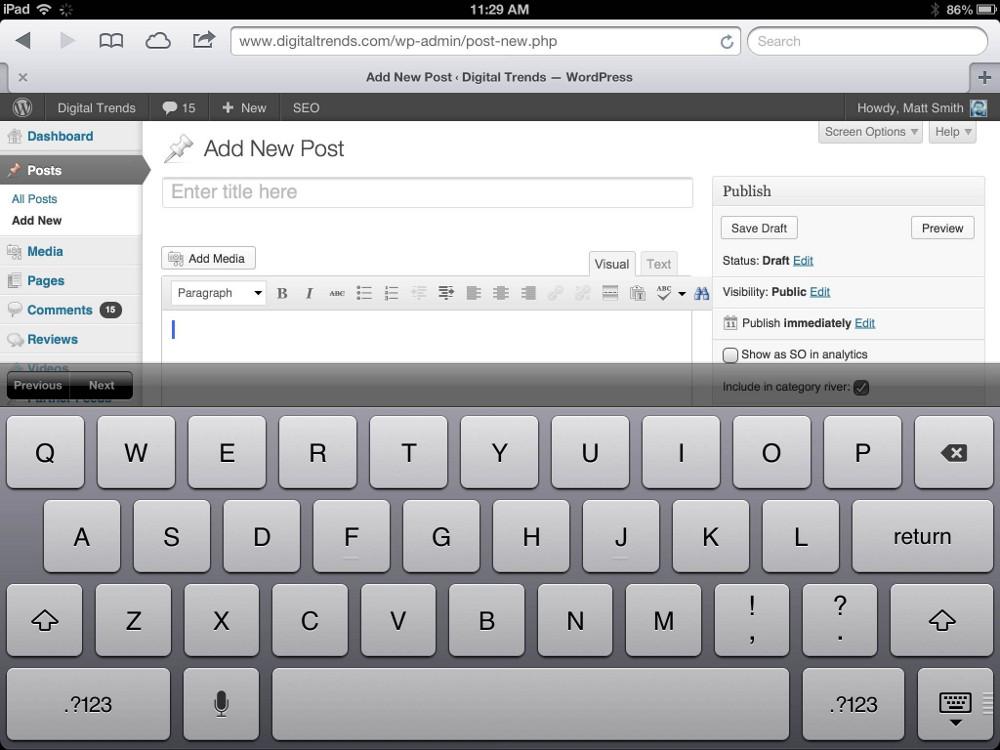
Frustrated, I closed Drive and hopped back to Safari, determined to try productivity through WordPress. My efforts almost immediately ran into a brick wall. One might expect a trendy blogging platform like WordPress to be on top of mobile support – and one would be a fool, because the exact opposite is true. WordPress installations are basically inoperable through most mobile browsers, including Safari, because of text input errors.
With a sigh, I quickly grabbed the free WordPress app, expecting it to calm my now frazzled nerves. Nope! While there is indeed an app, and it at least works, the app is a headache that, for whatever reason, adds a second bulky toolbar interface over top of the existing WordPress interface, and then renders everything in slow, awful in-app browser. What a mess!
Defeated, I headed back to my office to work on my powerful, reliable desktop. But while my new tablet had won that battle, I wasn’t ready to concede the war.
Apps can solve productivity … for the most part
My attempt to use a tablet as a laptop started terribly, but I wasn’t ready to give up. The iPad has plenty of apps, so I started to dig into them to discover how developers had tackled these problems.
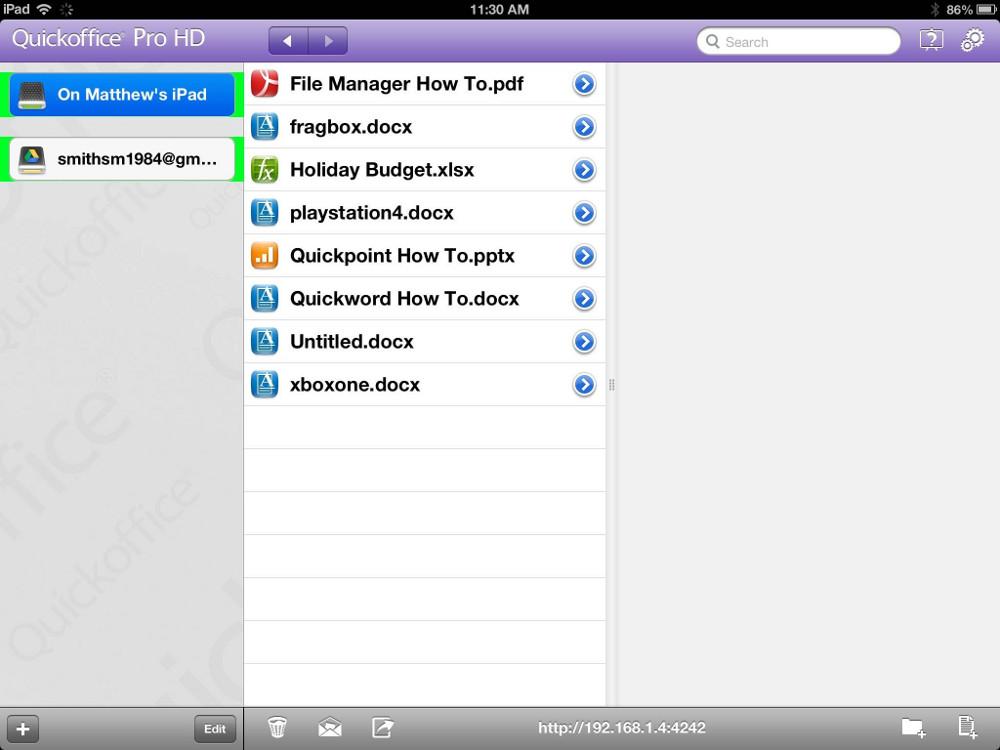
The first task to conquer was document editing, and for that I settled on QuickOffice Pro HD, which is developed by Google. The suite costs $20 and allows for offline or online editing of documents in Microsoft Word, Excel, and Powerpoint format, and the app can be hitched to a number of cloud services like Google Drive (of course). Other options include Documents-To-Go ($17), iWork ($10), and Smart Office 2 ($10). Office 365 subscribers can use the newly released Office for iOS app, but it’s optimized for the iPhone, so don’t expect it be great on a tablet.
Next, I wanted to solve image editing. This proved difficult, as most iPad apps focus on photo editing, which means they apply filters, crop, and perform just a few other basic functions. The best option for real image editing is Adobe Photoshop Touch ($10). Though not as powerful as desktop image editors, the app can handle basic tasks and has a pretty slick interface. I’ve yet to find an alternative that’s as functional.

With image editing handled, I decided to move on to PDFs. After some searching, I found that real PDF editing isn’t really possible on the iPad; if you want to create from scratch, or make significant edits (such as moving images), you’re out of luck. What you can do is create .PDF files from existing documents with Adobe’s online CreatePDF tool, and you can fill PDF forms and make annotations with apps like PDF Reader Pro ($10), iAnnotate ($10), and GoodReader ($5).
These apps made productivity a real possibility. With them, I could to write entire articles and create images for them, without relying on a desktop or laptop PC. Yet there were some limitations, like the WordPress app, that I could never entirely work around.
What about Android and Windows?
The duration of my long-term experiment took place on the iPad, but you may wonder how Android and Windows compare.
Android is a fragmented mess, but the variety of tablets can provide interesting alternatives. You can buy the Nexus 10 for its high-res display, choose the Galaxy Note 8 for its stylus, or pick up an Asus Transformer Pad Infinity with its excellent keyboard peripheral. There’s simply more options with Android, and while none of them are better than the iPad overall, there might be one that’s better for you. Android also is at no great disadvantage in terms of apps; QuickOffice Pro HD, and Photoshop Touch are available, as is a buffet of PDF editors.
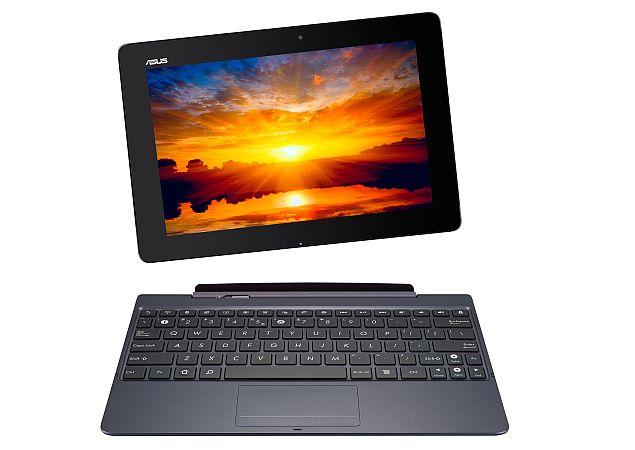
Windows is a much different beast. While technically you have a choice between Windows RT and Windows 8, the lack of RT devices on the market means you’ll likely end up with the latter. In either case, you’ll end up with a device that has Internet Explorer and Microsoft Office, which means you’ll be able to do just about anything you could do on a traditional laptop.
That gives Microsoft a big win in terms of productivity, but victory comes at the expense of entertainment. Browsing the Web on a Windows 8 tablet is not as enjoyable as doing the same on an Android or iOS device, and the Windows 8 app store is still terrible, though it’s slowly starting to improve.
Consumption matters
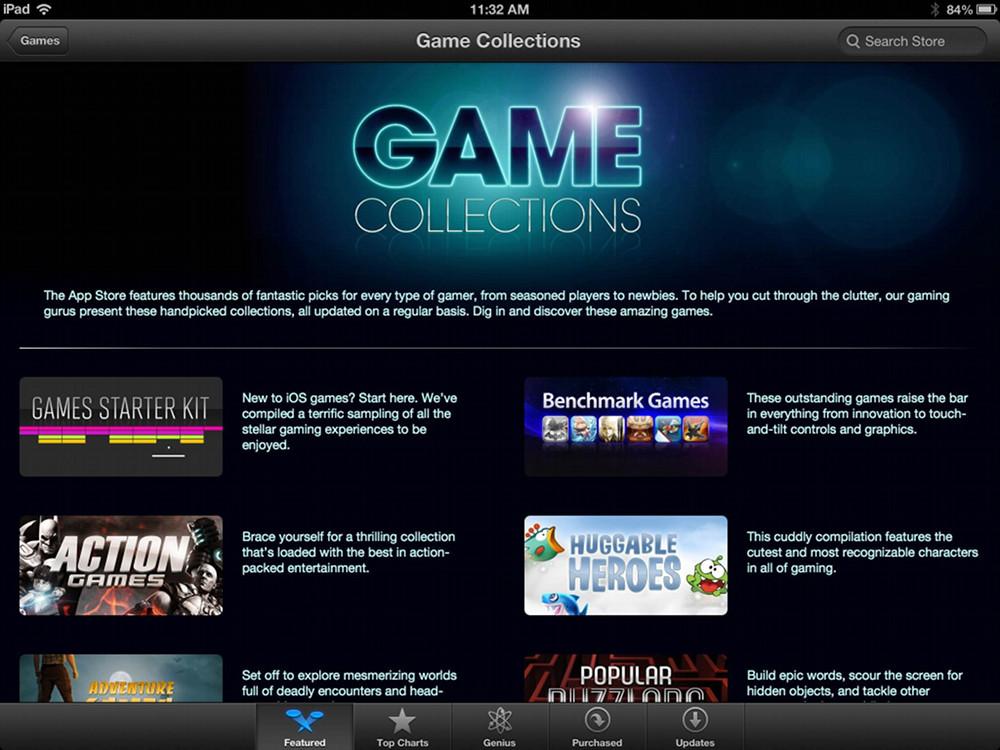
Productivity is a concern for many tablet buyers, but, as important as it may be, I was surprised to find how rarely I used the tablet for that purpose. My aim during this experiment was to use my laptop as little as possible, substituting the iPad instead. And in the three months I conducted this experiment, I found my laptop spent most of its time collecting dust.
A tablet’s simply better for consumption, while also good enough for most productivity.
Granted, I didn’t stop using my desktop, but the way I use it is unusual because I work from home, and thus have a home office. Most people don’t. With this “office” usage excluded, there were days I never touched a traditional PC. All of my personal use, from writing emails to playing games, was accomplished on the tablet. Why? Because a tablet’s simply better for consumption, while also good enough for most productivity.
And by focusing on consumption, Apple and Google managed to create not just a device, but a unique platform. There are apps available for tablets that simply aren’t available anywhere else, so those who stick with a laptop are actually left with less choice. That this situation has developed within just a few years is amazing; even the iPad’s greatest proponents didn’t guess it would develop a catalog of software so impressive even Windows would find itself playing catch-up.
The bottom line
When I started this experiment, I decided to lay down my own money – and not the company’s – for the tablet. I wanted to decide if a tablet was a worthwhile replacement using the same metric as most consumers: my wallet.
Now, at the end of my experiment, the verdict is a clear “yes!” I will be keeping the iPad and I will continue to use it for both consumption and productivity. There’s no chance that it will replace my home office, but the tablet has proven itself capable of light productivity and is clearly superior for entertainment.
Does this mean you don’t need to own a PC? Not exactly. There are still tasks that tablets struggle with: editing photos on the iPad is possible, for example, but generally easier and more enjoyable on a PC. The point isn’t that a tablet completely replaces a laptop, however; the point is that it obscures the need to buy a new one. If you’re reading this article, you almost certainly already own a PC, and you’re choosing to either upgrade to a new computer or buy your first tablet – and the tablet is a better choice for most people.
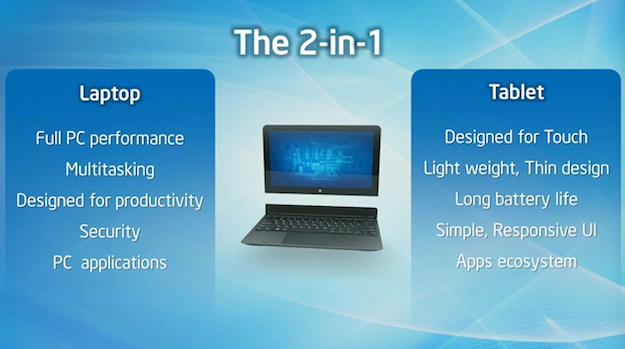
Then again, the need to choose may prove short-lived. Intel’s push for Ultrabooks has expanded into a push for “2-in-1” computers that can serve as a laptop or tablet with nearly equal grace. Such a device could push dedicated tablets to the margins as PCs step forward to take on the mantle of consumption device with pride rather than derision.
For now, however, go ahead and buy that tablet. It may surprise you.


