


“In general, the HP Photosmart eStation C510a is a great multifunction printer and is especially ideal for family use.”
- Unique tablet interface offers intuitive UI, helpful printer settings, useful bonus apps
- Impressive photo printing, designated photo tray
- Bright, responsive touchscreen, Wi-Fi for portability
- Photo gallery service for showing off and printing photos
- Lack of physical controls on eStation can be disorienting
- Loud
- Expensive – you’re paying for the tablet’s novelties, not an outstanding printer
- No USB port
“Why you can trust Digital Trends – We have a 20-year history of testing, reviewing, and rating products, services and apps to help you make a sound buying decision. Find out more about how we test and score products.“
The HP Photosmart eStation is a credible multifunction printer that performs on par with its competitors and is by all accounts an average, competent device… with one glaring exception that sets it apart: Its detachable Zeen tablet. The tablet works as a controller for the printer, and while it won’t be able to replace the iPad (or even come close), it definitely makes the printing process a little more enjoyable, and packs some worthwhile extras. However, we could understand that the average consumer looking for a printer might balk at a $299 price tag, regardless of any innovative accessories.
Build and design
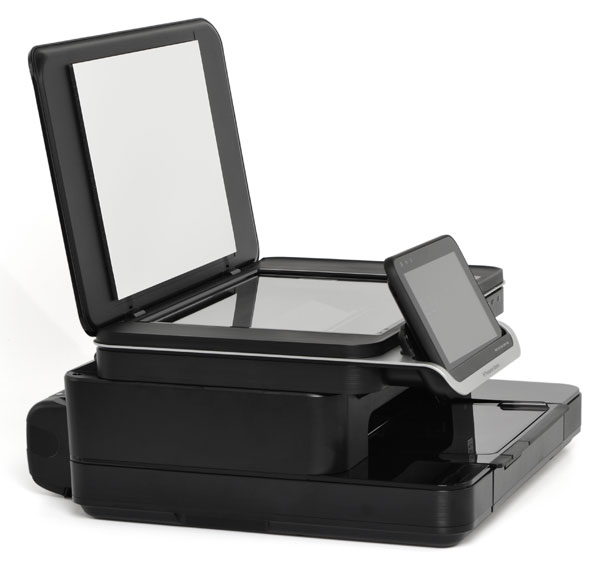
The Photosmart eStation is a sleek-looking printer, but that doesn’t mean it’s the easiest thing to move around. It has a nice compact look to it – no photo tray or feed sticking out, keeping it from being anything but flat – but it’s not something you want sitting on the average desk. Of course, the inclusion of a 7-inch tablet alleviates that need anyway: Park the thing where you will, and you’ll still be able to control most everything from afar via Wi-Fi.
The eStation has two separate trays for paper and photo printing, a nice addition if only for the ability to use photo sheets that are pre-sized.
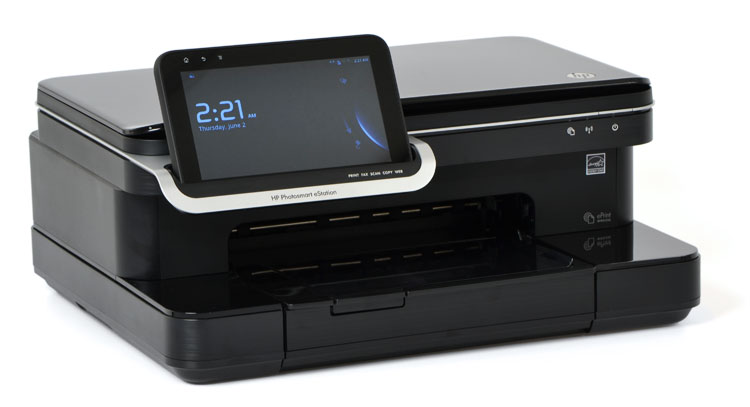 Some users might feel somewhat alienated by the Photosmart eStation’s lack of physical buttons. Those comfortable with tablets and touchscreens – especially iPhone users who can’t remember what a button or keypad looks like – will feel at home by relying entirely on the Zeen. Just know that if you’re a transitioning user attracted to the idea of a printer-tablet combo, the Zeen isn’t a bonus. It’s the primary system to control every printer function – the eStation itself only has a power button. That said, tablets are popular for a reason, and that’s because they have a low learning curve and are easy and fun to use, and the Zeen with its user-friendly and simplistic UI is no exception.
Innovative features
Much of this review could easily focus on what sets the Photosmart eStation apart from most of its competition: The tablet. We could devote this entire section to the accessory, the Zeen, but we won’t go quite that far. The printer comes with a detachable 7-inch Android tablet that is reminiscent of Samsung’s Galaxy Tab, plus some extra heft. It’s a convenient tool that’s about as fun to use as most low-level tablets, but be prepared for something a little slower and chunkier than your average multifunction tablet, despite its similar appearance.
That said, it’s a nice addition to your printing setup. Connecting via Wi-Fi was extremely simple, and the tablet runs you through setup. There’s something extra encouraging about the visual, interactive process that makes setup more enjoyable and tangible than it usually is. Our only complication was getting the Zeen to recognize it was docked – an obnoxious warning telling us we couldn’t complete setup until the thing was attached to the printer plagued us until a couple of shutdowns and startups got the thing going. But after that, short demo videos and step-by-step instructions got us installing software and ink cartridges. The thing was up and running in no time.
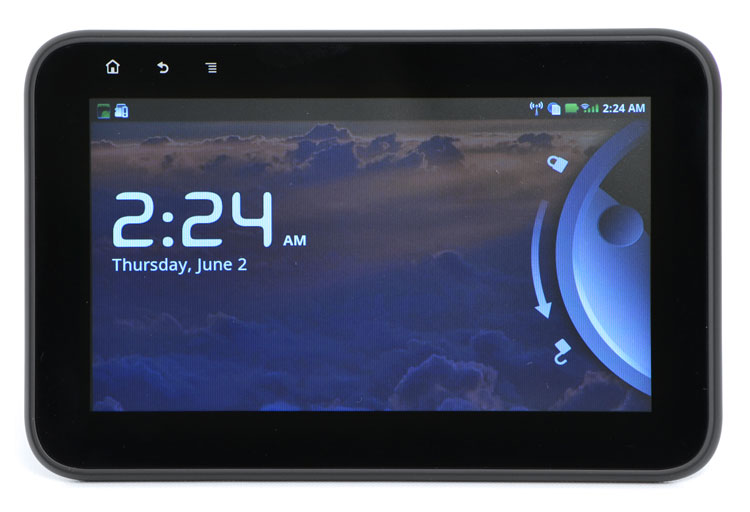 Whether you’re copying, faxing, photo printing, document printing, or scanning – the Zeen will guide you through. These are simple functions with correspondingly simple instructions, but hands-on, interactive directions are reassuring for first-time users.
The Zeen is especially handy for photo printing. You can upload and save your own photos to it, creating your galleries, which you can print from easy with a touch of your finger, and it includes simple editing functions to boot. You aren’t only limited to printing what you’ve created either: There are several apps that let you print news or children’s activities (think coloring pages and paper airplanes). The eStation’s separate tray for photo paper makes it extremely easy to size correctly and keep you from slashing up expensive sheets of photo paper for one image.
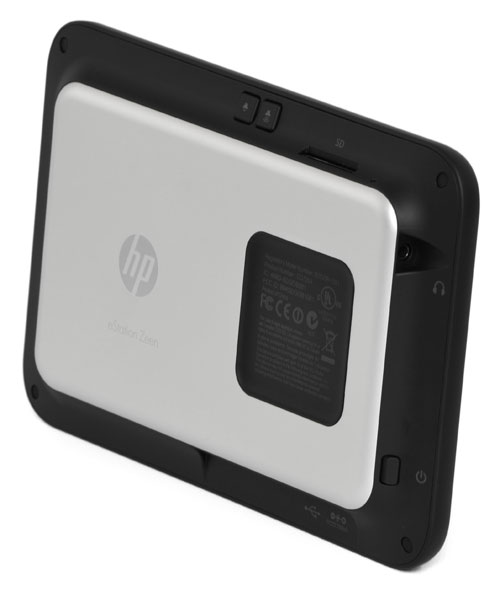 Using the printer’s Wi-Fi capability, you aren’t limited to docking the Zeen either. You can put the thing anywhere you like and print rooms away with the tablet. Like we said, it’s not the most mobile thing in the world, but it gets the job done. And it isn’t limited to printer-functionalities: It integrates with Yahoo for news and e-mail, has Internet browsing capability, as well as access to Barnes & Noble e-books. There’s also a Facebook app, but we were disappointed with its limitations and the access you’re required to the give the application. Keep in mind that although it runs Android, the Zeen doesn’t access to Google Marketplace for games and other third-party apps. What you see is what you get.
But back to its printer-focused functions. The Zeen’s system dashboard pulls up all the basics you need to use the Photosmart eStation. You can view and change your network, see if your SD card is being recognized, change the tablet’s brightness, and check up on your ink levels (provided the printer itself is on). Getting deeper yet, you can monitor product updates and printer maintenance. Basically, if you’re sick of hunting through your PC for printer needs, it’s a nifty tool that can save you from clawing your mouse.
As far as its non-tablet features go, the Photosmart eStation’s photo printing setup was a welcome surprise. Many printers can auto-adjust for paper sizing, but being able to manually insert a sheet into its own, dedicated tray and slide it into place is a reassuring way to know you aren’t wasting the stuff, and that there’s no chance you’re going to get a strangely formatted image.
The eStation’s Wi-Fi capability is another bonus, and the HP iPrint Photo app allows you to print (photos and documents) from iPhones, iPod touches, Symbian and Windows smartphones. The growing popularity and quality of smartphone cameras makes a feature like this all the more useful.
The included HP software wasn’t as user friendly as we would have hoped, but that’s probably because most of its functions can already be found on the tablet. And if you’re into this printer, we’re guessing it’s because of the tablet and not the software. Still, the HP ePrinter Solution Center covers all the basics (like manipulation) and you will need it for scanning purposes. We’re seeing more and more printers include extras like basic photo editors and auto-sharing features, but seeing as most of these elements lie somewhere in the Zeen, it’s understandable that HP would skimp on them here.
Print performance
Given the eStation’s photo-friendly features, we were first drawn testing its photo printing capabilities. The first sample photo we printed was bright and vibrant, but we did notice that the white balance in other photos was a little off, giving it a slightly yellowish tint. Still, the results were crisp and colors popped.
 The printers’ speed is neither anything to sneeze at or write home about. HP advertises it at up to 33 PPM (B&W) and 32 PPM (color) in best-case scenarios, which is on par with most competitors, if a little slow. The same goes for photos: The eStation can print photos “as fast as [in] 16 seconds,” but in our use it seemed to hover around the one-minute mark. Again, most multifunction printers are just slightly speedier, but we were happy with the quality of these printers and that’s generally important enough to outweigh such a small margin of difference.
General document printing was adequate. Printing at various sizes produced clear, highly readable documents – our only complaint was that its blacks seemed lighter than we would prefer for our most professional documents. Its print resolution is average for most general use printers, as is its 125-sheet input tray (again, a little below average, but that’s a pretty minor caveat). A 20-sheet designated photo tray makes up for any lack of capacity in the main tray, in our opinion.
As for the Zeen, the 7-inch tablet has a pretty low resolution – 800×480 – but compared to the touchscreens on most printers this is obviously a huge jump. It has 512MB of memory and 4GB for internal storage, so photo buffs shouldn’t plan on making the Zeen a destination for your entire photo library. It runs Android 2.1, but HP layers its own custom UI on top. You can’t compare it to other tablets, but it serves its purpose well without any serious lag and is actually a pretty competent e-reader.
Conclusion
In general, the HP Photosmart eStation is a great multifunction printer. It’s especially ideal for family use, and will undeniably meet your printing (photo and text), scanning, copying, and faxing (if you even need that) needs. The Zeen, which may initially feel like a bulky, gimmick addition to the printer, actually has a variety of useful purposes, and we can see the built-in Web apps getting enough use to be considered valuable.
It’s sleek, modular build compensates for what could otherwise be seen as a printer too big for the household use. Easy setup and Wi-Fi connectivity round out the eStation’s worthwhile features. We can understand the device being more of an investment than a fair amount of consumers are willing to make for a printer, especially one that’s big draws aren’t entirely its printing ability, however.
Highs:
- Unique tablet interface offers intuitive UI, helpful printer settings, useful bonus apps
- Impressive photo printing, designated photo tray
- Bright, responsive touchscreen, Wi-Fi for portability
- Photo gallery service for showing off and printing photos
Lows:
- Lack of physical controls on eStation can be disorienting
- Loud
- Expensive – you’re paying for the tablet’s novelties, not an outstanding printer
- No USB port


