
These days, Facebook and Instagram go hand in hand. The two services offer integration you simply won’t find across any other social media platforms. Unlike Twitter, which publishes your Instagram posts as basic web links, Facebook actually lets you share images directly from the photo-sharing app to your timeline and News Feed.
It makes sense for Facebook to provide streamlined features for a popular app like Instagram, especially given the social media giant bought the platform for $1 billion in cash. That said, the best thing about syncing your Facebook and Instagram accounts is how effortless it is. Before guiding you through the process, let’s take a look at some of the benefits.
What’s not to like?
There are several reasons why you should consider linking Facebook and Instagram. Linking will allow you to post the pics and videos you take or edit using the aforementioned photo-sharing app directly to Facebook. If you’re someone who enjoys getting likes on Instagram — and who doesn’t? — that will translate to Facebook, too. Each image or video shared goes back to its original source, allowing you to drive engagement, whether from your friends or a wider audience (assuming your posts on both accounts are public).

Facebook also has a significantly larger user base than Instagram, so there’s a chance it could help you to reach more people. And, seeing as Instagram’s algorithmic feed is thought to prioritize posts with higher engagement, the extra likes could help your content rank higher in the News Feed as well. Even for those who are not looking for more exposure, cross-posting could allow your Facebook contacts that aren’t on Instagram to keep up with your activity. You will also be able to more easily recover either account if you ever lose access.
Finally, due to the seamless integration between the two platforms, your Instagram post details (including captions) will be shared to Facebook, complete with any location data, hashtags, and emojis you’ve added. Your uploads will also be saved to Facebook — in their own album, titled “Instagram photos” — allowing you to quickly tag your friends on the social network.
Linking Instagram with Facebook
The process for linking your Facebook and Instagram accounts is almost identical in iOS and Android. Keep in mind, however, that this process can only be done via a smartphone app, not your desktop.
To begin, open the Instagram app and go to the Profile screen. Tap the three horizontal lines that symbolize the menu icon in the upper-right corner of your profile, followed by Settings at the bottom of your display.

Next, scroll through the list of options and tap Account < Linked Accounts. Here, you will find a list of social platforms that offer Instagram integration, with Facebook at the top of that list. Tap Facebook and sign in using your login credentials either through the Facebook app or your mobile browser.
Once you’ve signed in, that’s it! Your accounts will now be connected and you won’t have to do anything to post simultaneously on both platforms. Every time you wish to share an Instagram photo on Facebook, you can do so by enabling its corresponding button on the caption screen. You can also set it to automatically share all new posts (more on that later).
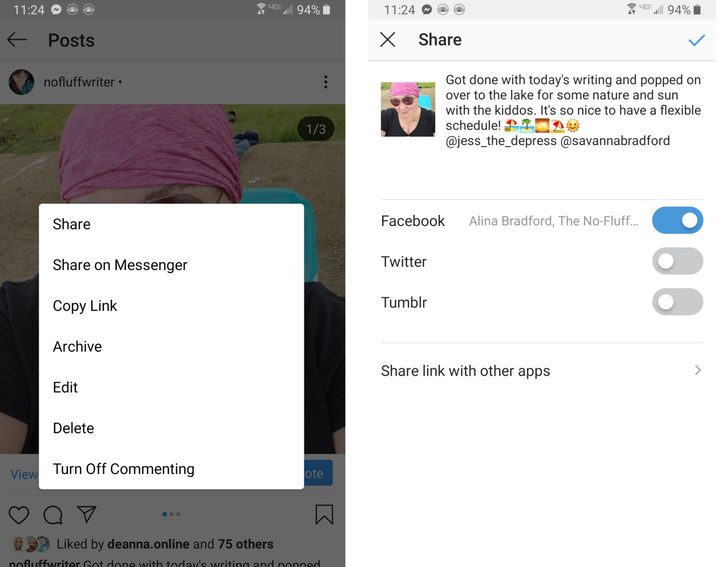
To share a previous Instagram pic on Facebook, choose the image you would like to share from your Instagram profile and tap the menu in the upper-right corner. Next, tap Share in the resulting pop-up menu, toggle the slider beside Facebook, and tap the check mark icon in the upper-right corner to post the photo to Facebook.
Removing Instagram integration
Keep in mind that, for whatever reason, you can change the app’s permissions or remove its integration with Facebook at any time. To do so, head back to the Linked Accounts menu that you accessed earlier and tap Facebook. Assuming you’re connected to a Facebook account, the icon will be blue and the name associated with the account will be displayed to the right.
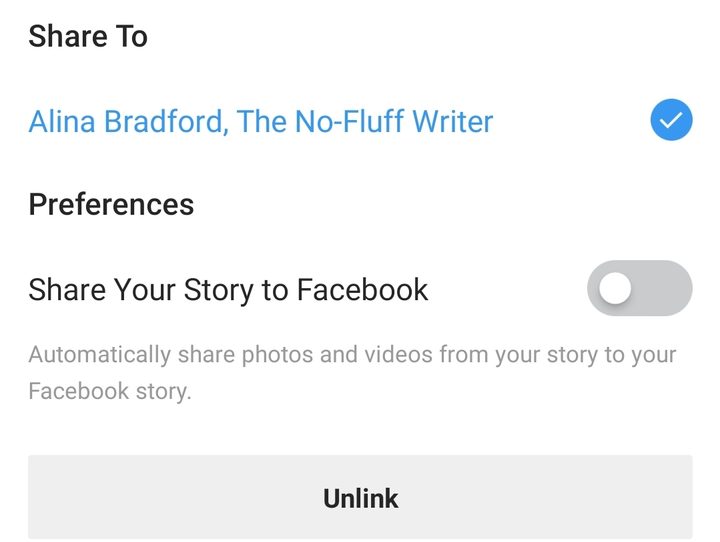
The next page will give you some additional options regarding your account, including options to automatically share your posts and Stories to Facebook. To unlink your account, simply tap Unlink at the bottom of the page and confirm your decision in the resulting pop-up window. Should you reconsider, just follow the steps outlined above to reconnect them.


