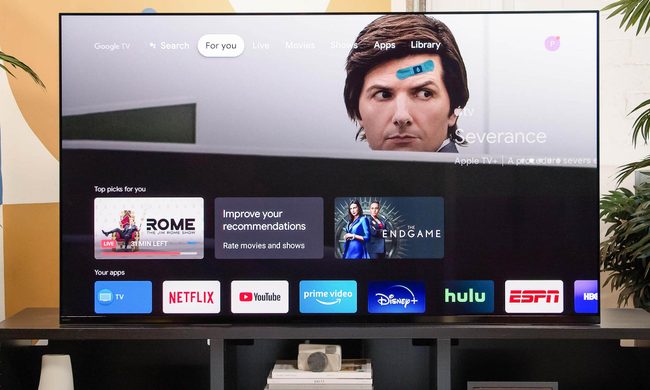
So you’ve gotten your hands on a brand-new Sony X800E 4K smart TV and you’re ready to set it up. Not sure where to begin? We’ve put together this handy Sony X800E unboxing and setup guide, which will give you step-by-step instructions on installation, starting from the moment you crack open the box all the way through finalizing the software setup.
What’s in the box?
In addition to the TV itself, you’ll find the following in the box:
- Quick setup guide.
- User manual.
- Three stand pieces.
- Eight screws.
- IR blaster.
- Remote with included batteries.
Several items are not included with the TV. You will need to buy HDMI cables to connect your TV to other devices. The easiest way to ensure you have HDMI cables is to buy the AmazonBasics High-Speed HDMI cables at the same time you buy your TV. If you decide not to buy the AmazonBasics HDMI cablse, make sure that the HDMI cables you do have or buy are rated as “high speed” cables so they can accommodate the large amount of data 4K HDR content requires.
Additionally, the TV does not come with any wall mounting hardware. For information about wall mounting check out our wall mounting guide video.
Hardware setup
Inside the box you’ll find a quick setup guide that will give you helpful hints for assembly. Be sure to give this a read as it includes some helpful indicators as to where key parts reside within the box, as well as how to best position the TV when attaching the stand.
Begin by assembling the stand. The smaller pieces stand vertically on the inner arms of each base piece. Align the dimples on the base arms, with the flat portion facing toward the solid finished part of the base. Secure both pieces with two screws each.
Next, plug the TV in to a wall outlet. The AC power cable is hardwired into the back of the TV, so you won’t have to go searching for it.
There are three different input bays on the back of the Sony X800E. On the side bay are two HDMI ports, three USB ports, and a coaxial input for antenna or cable connection. The smaller right-hand bay has another pair of HDMI ports, an optical digital audio out, and a 3.5mm aux analog audio output. The large center bay includes legacy component connections and the Ethernet port for hardwired internet connection.
Features and design
The profile of the Sony X800E is interesting. While the display panel itself is notably thin, the back bumps out about halfway down the side. This shouldn’t affect stand-mounted setups, but it will cause the screen to jut out a bit from the wall when wall mounting.
The black matte bezel is thin, measuring about half an inch, and the stand is only 20 inches wide, which should make the X800E easy to setup atop most any entertainment center.
Software setup
The X800E runs the Android TV smart TV OS, which provides a quick setup wizard when you turn the TV on for the first time. If you’re not already connected to the internet via Ethernet cable, software setup starts with configuring your Wi-Fi connection. After you’re connected to the internet, the TV will offer to scan for TV channels if you have an antenna connected, or program itself to control your cable box. Be sure to log in with your Google account if you have one — since the X800E utilizes Android software, this will open up features like personalized recommendations or access to content you have already purchased through the Google Play Store.
If you’re planning to use the X800E’s voice controls, this needs to be enabled in the settings menu first. You’ll then be able to control the TV with the phrase “OK, Google.” Users with an Amazon Alexa device can also control the TV through their Echo speaker, as well. Finally, content can be cast to the TV via Google Cast-compatible apps.
We hope you found this Sony X800E unboxing and setup guide helpful. Happy watching!