
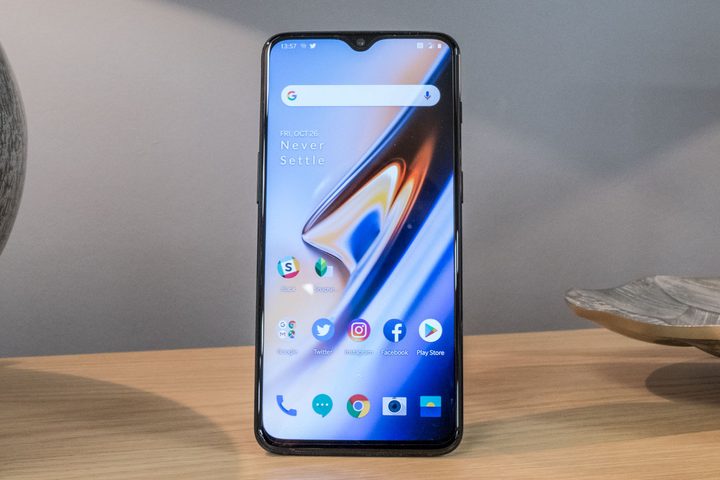
Now that you’ve finally got the spectacular new OnePlus 6T in hand, what’s the first thing you should do? Tweak the settings of course. This is a quick rundown of a few of the settings you’ll want to change on the OnePlus 6T to get the best overall user experience.
You can also check out our thoughts on the OnePlus 6T, and see how it compares to its predecessors, as well as the Samsung Galaxy S9, which shares similar specs.
Enable new navigation gestures


While Android 9.0 Pie brings lots of great new features, its updated navigation gestures are not among them. You’ll want to enable the far superior navigation gestures in OxygenOS as soon as you turn on the OnePlus 6T to avoid a lot of headaches.
To enable the custom navigation features, go to Settings > Buttons & Gestures > Navigation Bar & Gestures. Select the radio button next to Navigation Gestures. Once enabled, you simply need to swipe up from the bottom of the display to return to the home screen.
Activate Night Mode
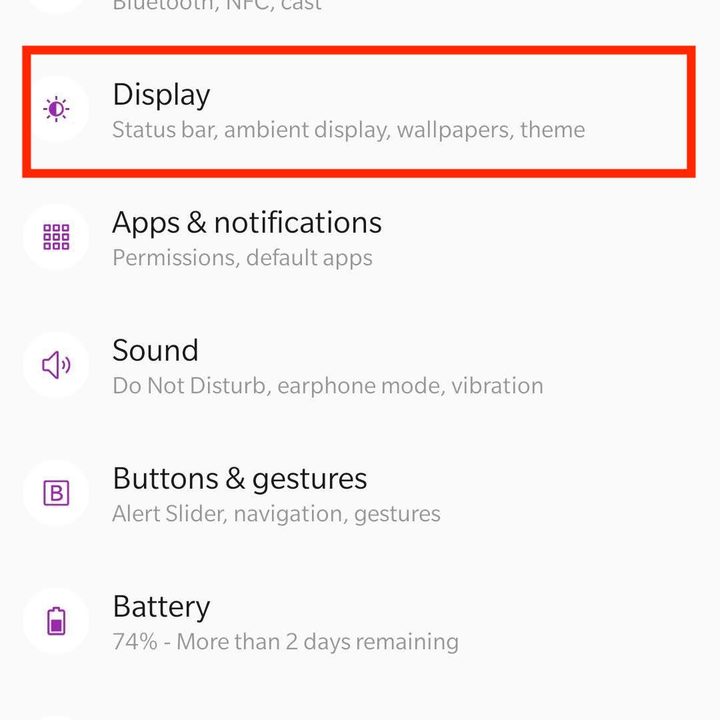

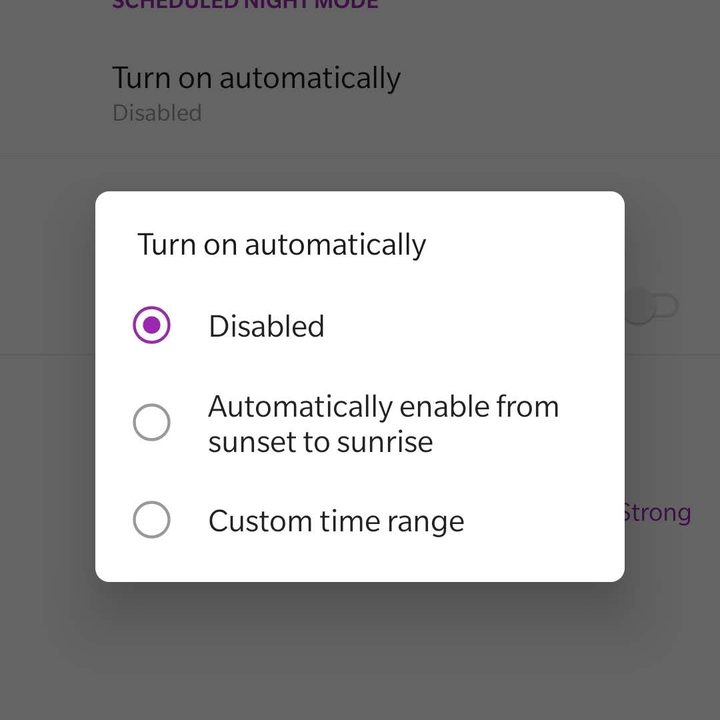
Over the past few years, the effects of blue light have become of increasing concern. While we know blue light can disrupt sleep, there’s also the possibility it can have other deleterious health effects. Fortunately the OnePlus 6T has a blue light filter called Night Mode that can be easily activated.
To use Night Mode, go to Settings > Display > Night Mode. Select the radio button next to Automatically Enable From Sunset to Sunrise if you want the phone to handle turning on Night Mode. If you’d prefer to set your own schedule, just tap the radio button next to Custom time range.
Improve Ambient Display


Ambient Display shows basic information such as the time, battery percentage, and notification icons. It’s a good idea to set up two customizations for this feature. The first is a gesture that lets you tap on the screen to quickly turn on the ambient display, while the other will cause the screen to illuminate when you get new notifications.
Setting up these customizations takes just a few moments. You’ll need to go to Settings > Display > Ambient Display. Toggle on the sliders next to Turn On Screen To Show and New Notifications.
Change your theme and accent color


One of the quickest ways to make your phone feel more familiar is by customizing its interface. While you’re setting up your new OnePlus 6T, you’ll want to customize your theme and accent colors to match your preferences.
When you’re ready to change your theme and accent colors, go to Settings > Display > Theme. From here, you can choose the radio button that matches your preferred theme. Next, tap Accent Color and choose the color you’d like to use, followed by OK.
Show battery percentage in status bar


Sure, the OnePlus 6T has awesome battery life, but you’ll still want to have an idea just how much juice you have left. Luckily, there’s an easy setting to update on your phone that will let you quickly see your current battery percentage in the status bar.
To display battery percentage information, head to Settings> Display > Status Bar and toggle the slider next to Show Battery Percentage. If you’d like, you can also tap Battery Style to customize the battery icon that appears in the status bar.
Enable Double Tap to Wake


If you don’t like tapping the power button each time you want to unlock your OnePlus 6T, you can easily set up a gesture to wake your phone. Double Tap to Wake does just what it says: It allows you to wake the phone with a double tap to the screen.
To enable Double Tap to Wake, go to Settings > Buttons & Gestures > Quick Gestures. Toggle on the slider next to Double Tap To Wake. While you’re here, you may also want to toggle on the slider for Flip To Mute.
Quick activate the Assistant app

Google Assistant is an invaluable feature that provides lots of information about your day. If you’re a frequent Google Assistant user, you’ll quickly realize the feature is a whole lot more difficult to access when you’re using the new OxygenOS navigation gestures. Fortunately, OnePlus has a setting that allows you to hold the power button to open Google Assistant.
Setting up the feature takes just a moment. Go to Settings > Buttons & Gestures and toggle the slider next to Quick Activate The Assistant App. Once the feature is activated, just hold the power button to access Google Assistant. If you want to access the power button menu, you’ll need to hold the power button a little longer than normal.
Enable Battery Saver

Again, we can’t complain about the battery life on the OnePlus 6T. It’s plenty to get you through a day with a little to spare. However, if you do tend to test the limits of your battery, you should turn on the Battery Saver mode. With Battery Saver enabled, your phone’s performance will degrade slightly when that battery is almost depleted in order to eke out a little more time.
To enable Battery Saver, head to Settings > Battery > Battery Saver. Toggle the slider next to Turn On Automatically and adjust the slider to the percentage at which you would like Battery Saver to begin working.
Show Lockdown option


One thing’s for sure: There’s no shortage of ways to unlock your OnePlus 6T. While you’ll probably use the Face Unlock feature or in-display fingerprint sensor, there are privacy and legal concerns surrounding these features. Lockdown is a button you can tap that will disable all authentication methods other than your PIN or Pattern. This is a feature you’ll definitely want to enable.
You add the Lockdown button to your power button menu by going to Settings > Security Lock & Screen > Lock Screen Preferences, and toggle on the slider next to Show Lockdown Option. Once you’ve finished, you can tap the power button to access the Lockdown button.
Set up Smart Lock


While Smart Lock isn’t an exclusive feature for the OnePlus 6T, it’s one of the most convenient you’ll find in Android. Smart Lock allows you to define certain areas and circumstances where your phone will automatically unlock. Unless you have very sensitive information on your phone, this is a feature you’ll probably want to set up.
To set up Smart Lock go to Settings > Security & Lock Screen > Smart Unlock. Enter your PIN or Pattern. Tap On-Body Detection if you’d like the phone to remain unlocked when you have it on your person. Select Trusted Places if you’d like to establish certain spots where the phone stays unlocked. If you’d prefer to keep your phone unlocked when it’s close to certain equipment like your laptop, press the Trusted Devices button.


