We spend more time than ever online, and between your phone, tablet, and computer, you probably spend most of your day staring at one screen or another. Sometimes, you need a break. Thankfully, the new Zen Mode on OnePlus devices does just that, allowing you to take some time to chill and escape the constant barrage of notifications and updates.
In this article, we’ll show you how you can use Zen Mode and take some time to relax.
What is Zen Mode?

It’s no secret that we love smartphones. But you can have too much of a good thing, and it’s important to take some time away from your daily driver’s screen. We’ve seen software that helps with this come out in recent years, including Android’s Digital Wellbeing and iOS’s Screen Time. Zen Mode is slightly different, as it doesn’t measure the time you’ve spent staring at your screen. Instead, all Zen Mode does is give you 20 minutes of peace away from the constant barrage of notifications.
So basically, it’s a branded Do Not Disturb mode? Well, not exactly. While Do Not Disturb stops notifications from bothering you, it doesn’t stop you from distracting yourself by diving back into social media apps every 5 minutes. Activate Zen Mode and your phone goes into lockdown for a full 20 minutes. You’ll be able to receive phone calls, make emergency calls, and use the camera app — but that’s it. You’ll be locked out of every other app, feature, and service for the next 20 minutes. All notifications other than calls will be muted, ensuring you’re completely undisturbed until Zen Mode ends.
Also, it’s important to note that you won’t be able to cancel Zen Mode once it’s begun, so make sure you’re absolutely ready before you tap Start.
How to use Zen Mode


Starting Zen Mode is easy, but if you’re planning on using it regularly, you might want to add it to the Quick Settings in your phone’s notification shade.
- To do this, pull down your notification shade by dragging from the top, then drag again to open your Quick Settings.
- Tap the Edit button to edit which tiles are present in your Quick Settings.
- Swipe left to access the additional tiles. Then tap-and-drag the Zen Mode tile to the left to add it to your Quick Settings.
Once you’ve added Zen Mode to your Quick Settings, starting it is as simple as tapping the icon. You’ll then be taken to Zen Mode. Tap Let’s go, then Start to get going.
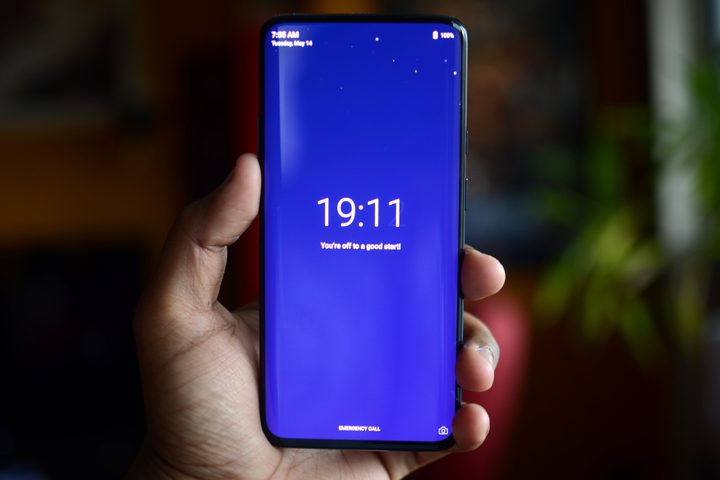
That’s it — once you hit the Start button you’ll be sent to a blank screen that counts down the 20 minutes until your time out is over. The date and time will be there, and you’ll be able to tap to access your dialer and camera, but everything else is locked behind that blue screen until the 20 minutes is up. Use your free time wisely.