Samsung DeX is arguably the best way to get a desktop-like experience from a phone. The platform was first released with the Galaxy S8 series as a way to use your phone as the brains for a computer-like interface, and since then it has grown into a sleek, well-rounded interface that you can use for productivity and entertainment tasks alike.
DeX is now a few years old, and Samsung has built loads of great features into it. Interested in learning more about it for yourself? Here are seven of the best features Samsung DeX has to offer.
Connect however you want
Before diving into actually using DeX, you’ll need to connect it to a monitor or display. Thankfully, there are plenty of ways you can do so. The easiest way is perhaps to simply get an HDMI to USB-C cable and plug it into your phone. You don’t need to use a first-party cable to do so — I used an Amazon adapter and a standard HDMI cable, and it worked just fine.
Alternatively, you can connect wirelessly — simply open the Settings app, head to Advanced Features > Samsung DeX, then turn on DeX, select to use DeX on a TV or monitor, and wait for the system to detect a display. Most internet-connected TVs and monitors should work through this tech. Last but not least, you can connect to DeX through a normal PC or Mac using the DeX app.
Use your phone as a trackpad
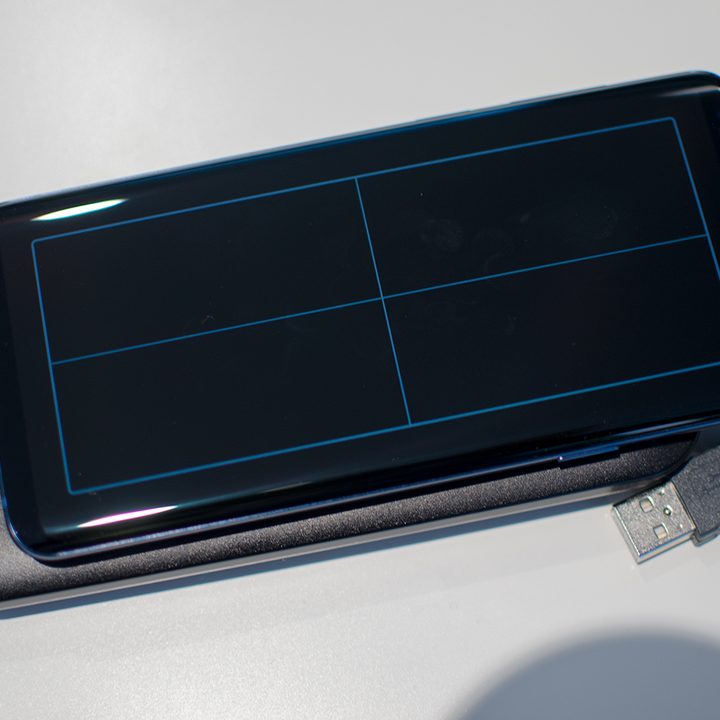
Don’t have an external keyboard or mouse to use DeX with? No worries! DeX allows you to use your phone as a trackpad, and while it’s not the most intuitive experience, it does work well in a pinch.
To use a smartphone as a trackpad for DeX, connect to a monitor, swipe down on the notification shade on your phone, and select the option to “use your phone as a trackpad.” You can rotate the screen by turning the phone like you would with any other app, tap with two fingers to right-click, and do other things that you would expect to be able to do on a normal trackpad.
Customize the DeX wallpaper

You can customize some aspects of Samsung DeX like you would on any other desktop — and customizing them doesn’t necessarily affect your phone when you’re using it normally.
Most notably, you can change the wallpaper of your DeX, and doing so won’t change the wallpaper of your phone. To do this, while using your DeX, simply right-click (or two-finger tap with a touchpad) on the desktop and select the Wallpaper option. Then you can change to your preferred wallpaper.
Make sure apps are always accessible
Do you regularly use certain apps? In that case, you may want to pin them to the task bar so that you can open them no matter what you’re doing. To pin an app to the task bar, open up the app, right-click the icon in the task bar at the bottom of the screen, and tap the Pin Shortcut to Taskbar button. You’ll then always see the app icon, so you can open it at all times.
Learn keyboard shortcuts
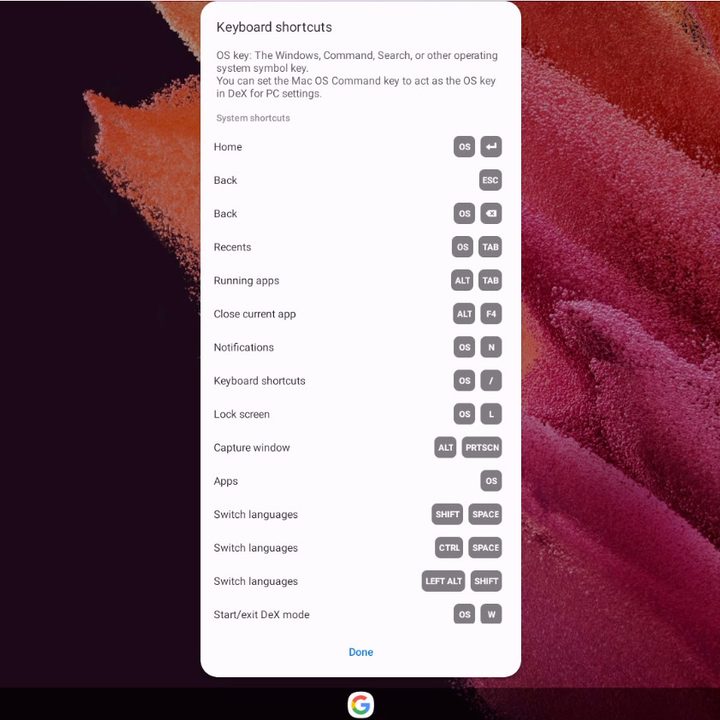
As with any desktop operating system, the best way to make the most out of DeX is to learn its keyboard shortcuts. There are tons of shortcuts on DeX that are worth learning, including those related to multitasking. Keyboard shortcuts vary depending on how you’re using DeX — since you can use it with a monitor or through your Mac or PC. When you first connect your DeX with a keyboard, you’ll be given the option to see a list of keyboard shortcuts to get you started, which can come in handy.
Use apps made for DeX
Most apps will work perfectly fine without the need for special DeX versions, but if you regularly use certain apps, it may be worth checking if they are properly optimized for use with DeX. To see a list of apps optimized for DeX, open up your apps list and select the link at the top of the screen that says Check out apps for Samsung DeX. You’ll see many top apps listed, including Microsoft’s Office suite, a series of Adobe apps, and more.
Manage windows
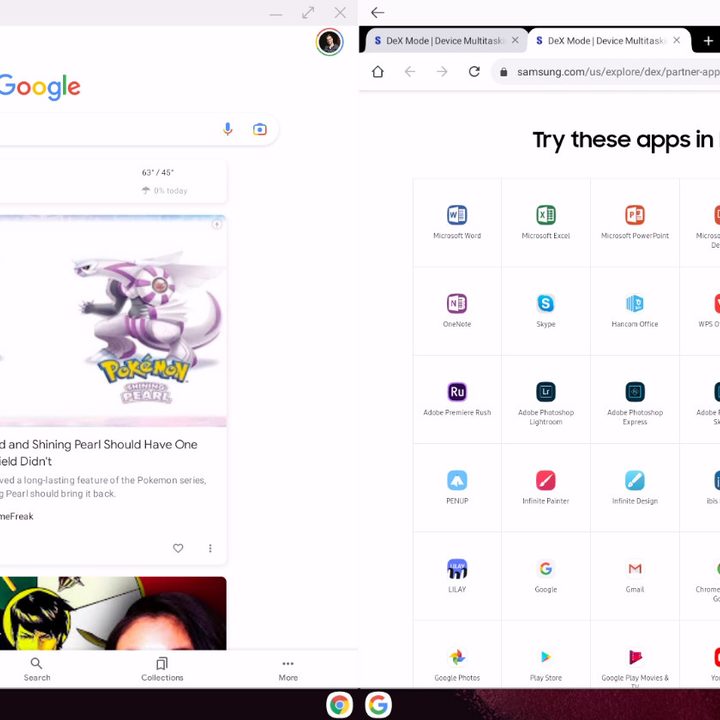
Unfortunately, DeX isn’t great at helping you manage your windows, and I’m hoping it will get a whole lot better in coming years. That said, there are a few things that can help. For example, it’s pretty easy to enter full-screen mode, and there are lots of ways to do so. You can double-click the top of a window, drag it to the top of the screen, and release, or you can tap the Full Screen button on the top right of the window. Otherwise you’ll need to stick with manually resizing apps, which you can do by grabbing the corner of the app and resizing. Alternatively, there are some shortcuts that could help with app resizing and snapping, though those shortcuts will vary depending on how you’re using DeX. On Mac, for example, you can hit Command + Left arrow to snap a window to the left half of the display. This is really the only way to properly enter split-screen mode — there aren’t buttons you can press on the interface to enter it without a keyboard.