Google Home is one of the best smart platforms on the market. With support for thousands of devices, easy setup, and a powerful mobile app to run the show, it’s an intuitive option for most shoppers. But what if you don’t want to use your smartphone to operate your smart home network? What if you prefer using your PC? While Google Home does not yet have dedicated PC software, it does offer a Google Home web application. It’s a bit limited in scope, but it can handle most of the basic tasks with ease.
Interested in checking out Google Home on PC? Here’s a look at how it works, along with some of its limitations and other workarounds.
Can you use the Google Home app on a PC?
Google Home doesn’t have a PC app, but it does have a website. Unfortunately, Google notes that Google Home for web is in Public Preview, meaning not all features are available, and you may encounter glitches during use. The website is seeing constant updates, so there’s a good chance it’ll work just as well as the mobile apps in the future. Be sure to check it out regularly to see what’s been added.
If you’re interested in checking out some of its latest features, you’ll want to join Public Preview. This can be done by heading over to the Google Home website, signing into your account, and selecting the Public Preview button. You’ll then have the option to join Public Preview, giving you advance access to features still in development.
Alternatively, you can try using the Nest web app to control your cameras and other gadgets that were originally set up with the Nest app. Between the two, you should have a good smattering of functionality when it comes to accessing your smart home on PC.
There are a few other workarounds you can implement to get Google Home on your PC. Read on to learn about the alternatives.
Use Google Home through your Chromebook
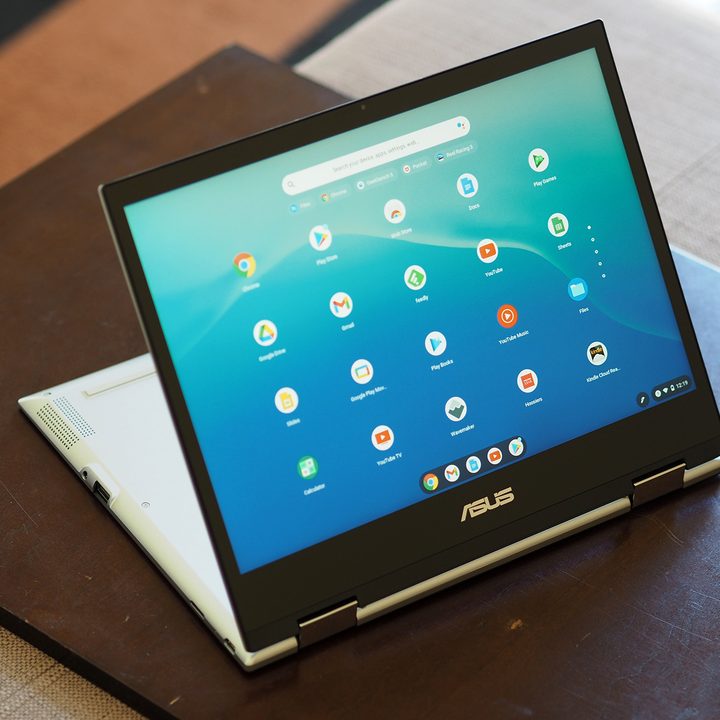
While your run-of-the-mill desktop doesn’t feature onboard support for the Google Home app, those using a Chromebook can download and use the application as they would on a regular mobile device — and it’s all possible via the Google Play Store.
To get started, go into the Settings menu of your Chromebook. Click Apps, find the Google Play Store tab, then click Turn On. Now all you have to do is head into the Google Play Store on your Chromebook, download the Google Home app, and launch it.
Because the building blocks of Chrome OS and Android are pretty close in nature, you’ll be able to use the Google Home app to do everything you normally do on your mobile device — including device controls, routine building, and casting — but through your Chromebook.
Put Google Chrome to the test

If you’re already using Google Chrome as the default web browser for your PC or Mac and are looking to add Google Home functionality to your desktop, you’ll be glad to know that you can use Google Chrome to unlock the casting and streaming features that are built into the Google Home app.
To do so, you’ll first want to ensure that your desktop is running the latest version of Chrome. Next, with the Chrome browser launched, you can either click the More icon (three vertical dots) or right-click a blank section of your webpage. Then, click Cast, followed by your device of choice.
While you won’t be able to use Google Chrome for Google Assistant or any kind of device customization for the hardware on your network, the casting function will allow you to send audio and video from your desktop to certain Google Home devices on your network.
Try an Android emulator

Did you know that you can mimic your phone or tablet’s Android operating system to your desktop? With programs like Bluestacks, you can enjoy the look, feel, and functionality of your phone’s Android OS right from your home computer. While there are a handful of emulators to choose from, Bluestacks is known for its reliability, easy layout, and customization options.
To get started, download Bluestacks for your PC or Mac, then launch the program. During setup, you’ll be prompted to enter Google Play Store credentials for downloading apps. After entering this info, go into the Play Store, search for Google Home, and click Install.
When you launch the Google Home app, you’ll be prompted to enter your Google account info, at which point the rest of your installation will mirror that of Google Home on a mobile device. Once you’ve locked down your location preferences and a few other tweaks, you’re ready to use the app.
The nice thing about Bluestacks (minus the ads) is that Google Home will perform exactly the same way it does on the mobile gear the app is designed for.
Frequently asked questions
Can you install the Google Home app on Windows?
While there’s no official Google Home app built for Windows, Mac, or Linux desktops, you can download an Android emulator to mimic the functionality of the Google Home app on your PC.
Can you control all Google Home devices from your PC?
With programs like BlueStacks installed on your machine, you’ll be able to control and customize smart home devices exactly as you would on the Google Home app proper.
Can you use Google Home as a speaker for a PC?
The Google Home app can’t be used as a speaker for your PC, but that doesn’t mean you’re out of luck. If you own a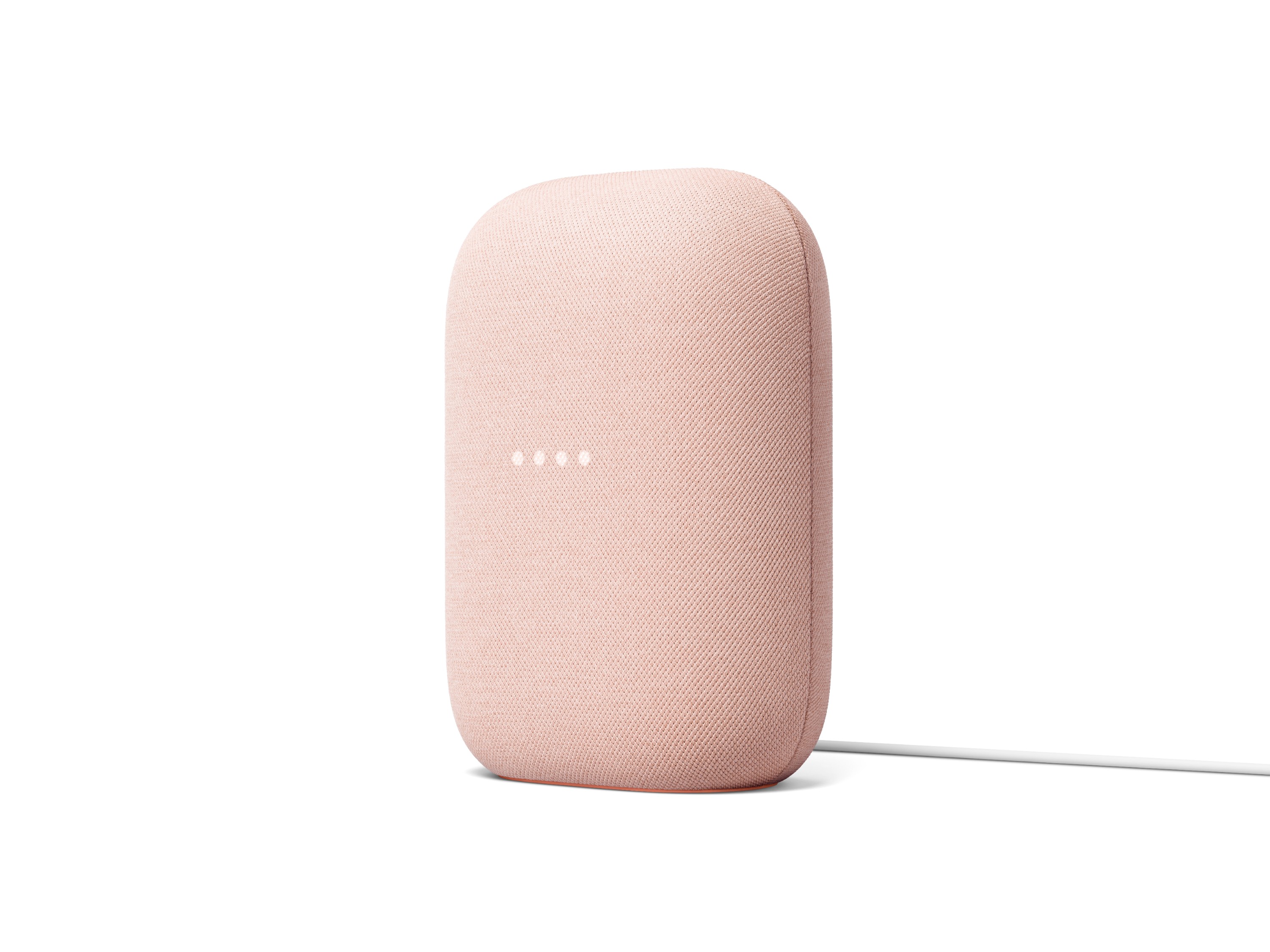
Can you use Google Assistant on a PC?
Similar to the Google Home app, there’s no official Google Assistant app for desktop computers. That said, there exists an unofficial Google Assistant that you can download to add the voice assistant to your PC. Keep in mind that the process for installing this backend solution is a bit complex, and we can’t promise how well it will actually work.