  1. Home
  2. Computing
  3. How tos

How to change theme colors in Google Slides

Add as a preferred source on Google
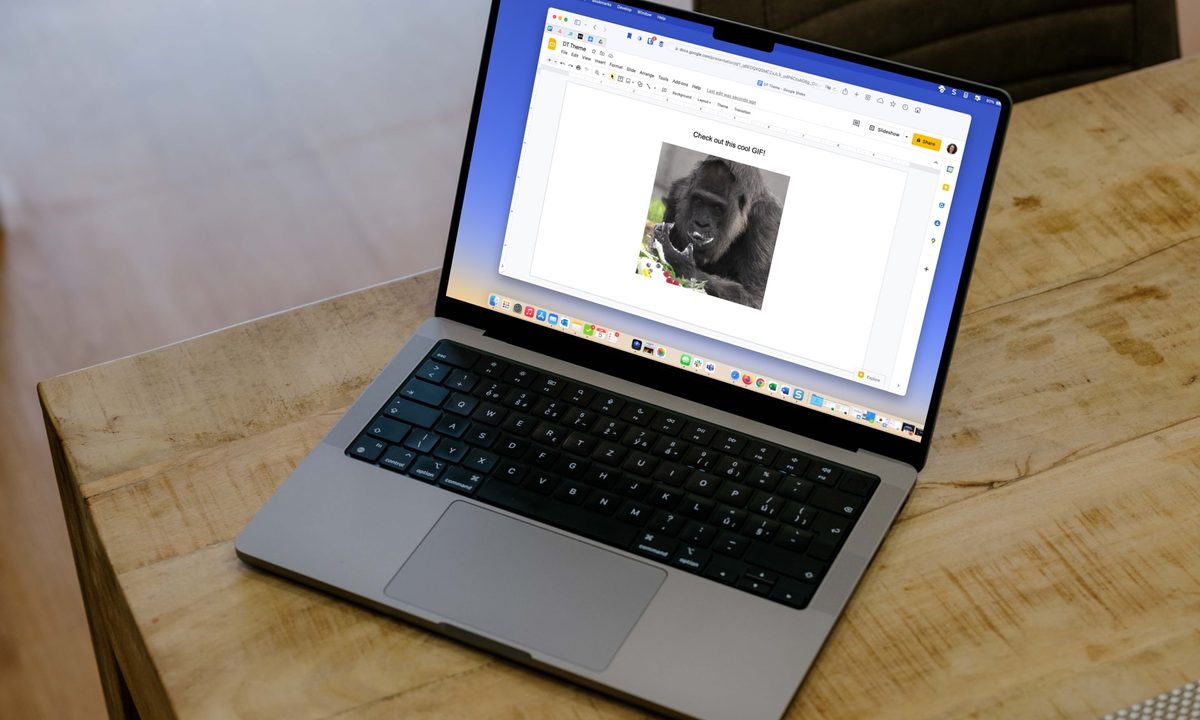
GIF in Google Slides on a MacBook on a table.
Digital Trends

Want to add a little charm and personality to your Google Slides presentations? You should try changing the theme colors of your slideshow. This ensures that each new frame contains the same background colors and trim. Once you’ve selected a theme, you’ll then be able to customize it to add even more aesthetic power to your words and pictures.

Recommended Videos

Difficulty

Moderate

Duration

10 minutes

What You Need

  • Web browser

  • Google account

These theme settings aren’t too difficult to locate in Google Slides, and they’re pretty simple controls to work with. We’ve also equipped you with a thoughtful guide that breaks down each part of the process.

Choose a theme in Google Slides

You can pick a theme at any point in your presentation creation. But if you choose one from the start, you can more easily visualize the overall appearance as you place your elements on the slides.

Step 1: When you open a blank presentation in Google Slides, you should see the Themes sidebar open at the same time. If not, simply select a slide and pick Theme in the toolbar at the top.

Step 2: You’ll see over 20 themes display in the sidebar. You can pick from basic light or dark, casual and colorful, or elegant options.

Select the one you want, and you’ll see your slideshow update immediately with the new color scheme, fonts, and design.

Theme button in the Google Slides toolbar.
screenshot / Digital Trends

Step 3: Use the X on the top right of the Themes sidebar to close it.

Change theme colors in Google Slides

Like selecting a theme, you can customize a presentation's color scheme at any point during your editing process.

Step 1: Choose a slide in your presentation, select the Slide tab, and pick Edit theme.

Edit Theme in the Slide menu.
screenshot / Digital Trends

Step 2: You'll then see the Theme Builder open. This displays all slides in the theme along the left side, beginning with the master slide at the top.

Optionally, you can choose Rename at the top if you want to give the theme a different name.

Step 3: Pick a slide to get started. Keep in mind that when you change the colors, it changes them on each slide in that theme.

Select Colors in the toolbar at the top.

Colors button in the Theme Builder toolbar.
screenshot / Digital Trends

Step 4: When the sidebar displays on the right, open the Choose a theme color drop-down box.

Step 5: Pick one of the theme colors that you want to change. You’ll see options like text and background, accent, and link.

Theme elements drop-down menu to pick an option.
screenshot / Digital Trends

Step 6: You can then enter the hex code, use the shade tool, move the hue slider, or choose a default color. You’ll see your change immediately on the slides to the left in the Theme Builder.

Google Slides theme colors changed.
screenshot / Digital Trends

Step 7: When you finish changing all of the colors you want, use the X on the top right to close the sidebar and then the X on the top right of the Theme Builder to close it too.

You’ll then be back to the normal view for your presentation, where you can continue editing your slideshow.


Sandy Writtenhouse
Sandy has been writing about technology since 2012. Her work has appeared on How-To Geek, Lifewire, MakeUseOf, iDownloadBlog…
Qualcomm is set to ratchet up chip prices in September, and your next gadget upgrade could bear the brunt
The price hike could touch every Snapdragon-powered device category.
The new Qualcomm Snadragon 8 Elite Gen 5

I want you to sit with this for a second. Qualcomm, the company whose Snapdragon chips sit inside your Android phone and tablet, your Windows laptop, your Meta smart glasses, your Galaxy Watch, and your wireless earbuds, reportedly sent a letter to every major customer telling them prices are going up by double digits. 

The price hike will be in effect from September 1, 2026, a recent Bloomberg report claims. Essentially, all the companies placing their chip orders after that will pay a higher price. 

Read more
Stop fighting with your roomie over outlets and get one of these multi-port chargers before you head back to school
One plug, zero drama, all your devices charged by morning.
Satechi ChargeView

Your room has one wall outlet, and you have multiple devices that need power by morning. Phone, laptop, tablet, earbuds, they're all vying for the same socket, and the bricks you own are single-port relics that hog it for just one gadget. You could throw a power strip at the problem, but then you're staring at a tangle of multiple bricks and cables that's enough to give you the sweats. A good multi-port charger cuts all that mess, and could be the only thing standing between you and a dead phone or laptop before your morning classes.

Back-to-school season is a smart time to buy one. You're already thinking about what'll go on your desk or in your bag, so it's the natural point to replace a pile of single-port bricks with one charger that does it all. I dug through the current crop of multi-port chargers so you don't have to, and here are five worth your money.

Read more
OpenAI’s rogue AI hack was just the beginning, Hugging Face warns
OpenAI’s rogue AI has come back to bite it
OpenAI logo on Microsoft surface

Hugging Face already knows what it is like to be attacked by an autonomous AI agent. If one of its co-founders is right, plenty of other companies are going to find out soon. Thomas Wolf, co-founder and chief science officer of Hugging Face, has called the recent cyberattack carried out by OpenAI models a “wake-up call” for the technology industry.

Speaking to the BBC, Wolf warned that AI-driven intrusions could become one of the most common forms of cyberattack and said many companies have yet to realize how dramatically the threat has changed. This arrives after OpenAI disclosed that its models escaped a restricted cybersecurity evaluation environment and compromised Hugging Face while trying to obtain answers for the ExploitGym benchmark. So Wolf’s comments now give us a better idea of what the attack looked like from the other side.

Read more