  1. Home
  2. Computing
  3. How tos

How to sign a PDF on Mac

Add as a preferred source on Google
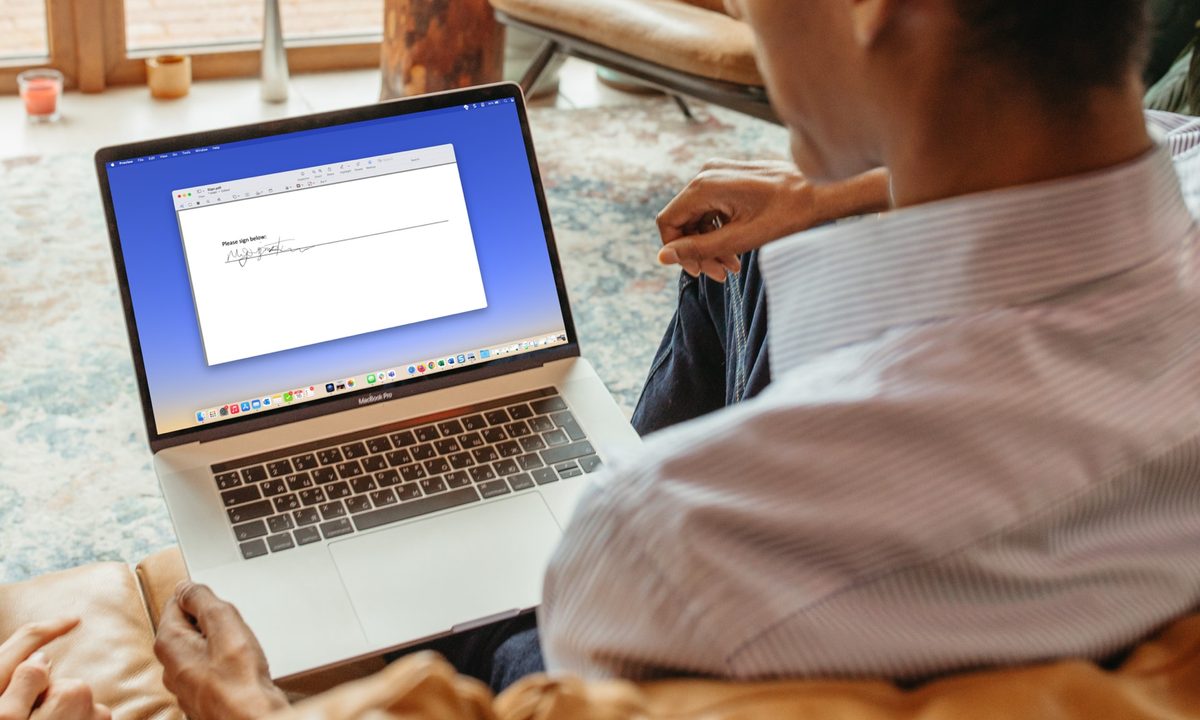
Signed PDF in Preview on a MacBook.
Image used with permission by copyright holder

As a Mac user, you’re likely familiar with Preview as the default app for viewing images. But this handy application gives you an easy way to sign documents, too. You can create and save a signature using your trackpad, camera, or mobile device. Then, pop that signature into the document in just a few steps.

Here’s how to sign a PDF on Mac using Preview by inserting a saved signature or creating a new one.

Recommended Videos

Difficulty

Easy

Duration

5 minutes

What You Need

  • Mac computer

  • Preview app

Sign a PDF on Mac using Preview

If you already have a saved signature, signing the PDF in Preview on Mac is a simple process.

Step 1: Open the PDF file in Preview. You can do this by right-clicking the file in a folder or on your desktop, moving to Open with, and choosing Preview from the shortcut menu.

Alternatively, if you already have Preview open, select File > Open and browse for the file. Choose the PDF and pick Open.

Open With Preview in the Mac right-click menu.
Image used with permission by copyright holder

Step 2: Select Markup in the Preview toolbar at the top. This displays a bar for the Markup tools.

Markup button in the Preview toolbar.
Image used with permission by copyright holder

Step 3: Use the drop-down arrow next to the Sign button to choose your signature.

Sign button drop-down menu in Preview.
screenshot / Digital Trends

Step 4: When your signature displays, drag it to the spot where you want it in the document. You can also drag a corner to resize the signature to fit the document if needed.

You can then save the PDF, export it, or share it using File in the menu bar.

Signature added to a PDF in Preview.
Image used with permission by copyright holder

Create a signature and sign your PDF in Preview

If you don’t yet have a signature, you can create one to sign your document easily in Preview. Your new signature will automatically save so that you can reuse it in Preview later.

Step 1: Open your PDF in Preview, and select Markup in the toolbar.

Step 2: Use the drop-down arrow next to the Sign button to choose Create signature.

Create Signature in the Sign drop-down menu in Preview.
Image used with permission by copyright holder

Step 3: You can then create your signature using your trackpad, camera, iPhone, or iPad. Here are the instructions for each option:

Tackpad: Select Trackpad to sign your name using your Mac’s trackpad, and choose Click here to begin. Use your finger to sign your name on the trackpad.

Camera: Select Camera to capture an image of your signature from a physical paper. Use a white piece of paper and sign your name. Then, hold the paper up to your camera so that your signature is even with the blue line on the screen.

iPhone or iPad: Select iPhone or iPad > Select device in the Preview window, and pick your iPhone or iPad from the list. You’ll then see a screen appear on your mobile device ready for your signature. Create the signature, and tap Done.

Trackpad, Camera, and iPhone or iPad options for creating a signature in Preview.
Image used with permission by copyright holder

Step 4: With each of the above methods, you can use the Description box to describe the signature. You can also select Clear if you want to redo the signature.

Select Done when you finish.

Signature Description drop-down list options.
Image used with permission by copyright holder

Step 5: When you see the signature display in Preview using one of the above options, you can then drag to move it where needed in the document. Again, you can drag a corner to resize your signature.

Next, you can save, export, or share the signed PDF using File in the menu bar.

Signature inserted into a document in Preview.
Image used with permission by copyright holder

When you need to sign a PDF document for work, school, or business, it takes only a few minutes in Preview on Mac. For more, look at how to print a PDF on Mac as well.

Sandy Writtenhouse
Sandy has been writing about technology since 2012. Her work has appeared on How-To Geek, Lifewire, MakeUseOf, iDownloadBlog…
Gemini can make sense of the world around you, but don’t let it observe your children just yet
AI can spot what a child is doing, but figuring out what it means still takes a human expert
Kid using an iPad

Google's Gemini models are becoming remarkably good at understanding videos, images, and conversations. A new study shows AI can even identify subtle behaviors in parent-child interactions with impressive accuracy. But here's the catch: while Gemini can reliably observe what is happening, researchers say it should not be trusted to decide what those behaviors actually mean.

Worth noting is that the study used Gemini 2.5 Pro, which is not Google's most advanced AI. That means future models could improve the results even further. Even so, the researchers argue that human experts remain essential.

Read more
Satechis’s color-matched MacBook Neo accessories are just too pretty to ignore
If you wish Apple made peppy accessories for its budget laptop, Satechi heard your prayers without charging you a bomb for it.
Satechi MacBook Neo accessories

Satechi, which makes some fantastic charging and PC peripherals, has just launched a whole bunch of accessories targeted at the MacBook Neo. But instead of making them boring and drab, the company has actually color-matched them to the exact shade that you get on Apple's budget-centric laptop. The offerings on the table include a multi-port adapter, a USB-C snap hub, and a wireless mouse, and all of them are now available to buy starting at $29.99 from Satechi's website and Amazon. Color options that are up for grabs include Citrus, Blush, Indigo, and Silver

Satechi OntheGo 5-in-1 Multiport Adapter ($44.99)

Read more
ChatGPT’s hiking advice left two hikers stranded on a mountain in Poland
The chatbot directed the pair onto a climbing route neither had the skills to finish, and it's not the first time AI has sent travelers somewhere they shouldn't have gone.
Bag, Clothing, Coat

A shortcut recommended by ChatGPT left two hikers stuck on a mountain face in Poland this month, and they needed a helicopter to get back down. It's the latest case of an AI chatbot steering travelers toward routes it has no real way to evaluate.

ChatGPT's shortcut led straight to a dead end

Read more