There’s not much LibreOffice can’t do when it comes to managing documents, from working on manuscripts to coding. However, users will note that while there are formats for math, spreadsheets, writing, and more, there isn’t a specific option for editing a PDF.
Don’t worry! Like many text editors, LibreOffice lets you edit PDFs, and it’s not bad at it, either. Here’s how to use LibreOffice as a PDF editor.
How to edit PDFS in LibreOffice
If you haven’t done so yet, make sure to visit the LibreOffice website and download the app for your computer. It’s free to use, you don’t need to create an account, and it works with a wide variety of platforms, which makes it an excellent contender against something like Microsoft Word. Once you have LibreOffice, here’s what to do:
Step 1: Download the PDF you intend to work on. It will need to be on local storage or a compatible drive for LibreOffice to easily locate it, so you may need to download it from the internet or your email if necessary.
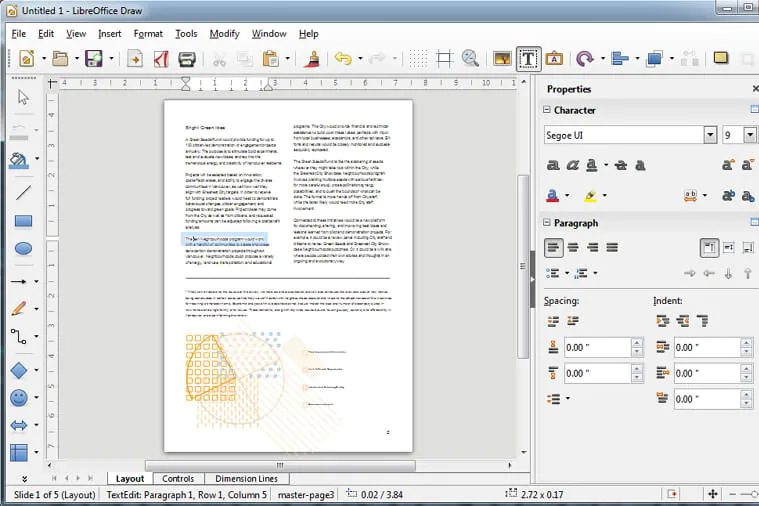
Step 2: Open up LibreOffice and choose the Draw Drawing option from the left-side menu. This is the best format in which LibreOffice allows users to edit PDFs, so you’ll need to start here.

Step 3: Choose the File option from your menu and select Open.

Step 4: Your local files will now open. LibreOffice typically opens to your compatible documents. You’ll want to go to your downloads section or use the search function to find your specific PDF file. When you do, select it to get started.

Step 5: LibreOffice will now open the PDF in Draw so that you can work on it.

Step 6: You’ll notice that the PDF looks a little odd since we have dark mode enabled in LibreOffice. Dark mode will color the PDF as well, so to get a clear look at the colors, it’s a good idea to disable it before you start working.
Step 7: Now you can select any part of the PDF or its text, and a box will appear on it allowing you to edit, move, and generally change things. On the left, you will see a slideshow-like menu that allows you to navigate between different pages of the PDF and find what you are looking for. On the right, you will see formatting options for the text or object you have selected.

Step 8: Saving the document normally will keep it as a Draw OFT file or similar format in LibreOffice. You probably don’t want that, so to save your changes as a PDF, make sure to go to File, Export, and Export as PDF.

What if the formatting on my PDF is messed up?
That can happen. LibreOffice is interpreting the PDF document as a Draw file while you work on it. That can lead to issues, like objects and text boxes placed in the wrong area. Or, you may find some text difficult to edit because LibreOffice will interpret each line of text as a separate box. This can vary depending on how the PDF was created.
There’s not much you can do about this except to make corrections. Draw is the best free option for editing PDFs that LibreOffice can provide, and it’s typically a better choice than trying to edit a PDF in Word. The best option would be to edit a PDF with Adobe Acrobat or a similar Adobe program, which will be the most accurate. However, getting Acrobat for free may be difficult, as there’s no guarantee of a free trial. You can also try editing your PDF on a platform like Google Drive, which is also free if you have a Google account, to see if the results are more accurate.