Chances are, if you’re reading this, you or someone you know wants to learn how to create art, but you don’t have the supplies for it. However, you do have a phone. You might even have a tablet.
Is it possible to become an artist with just those tools? The short answer is a resounding “yes.” The longer answer is that I tried it and succeeded, but there were some issues I ran into along the way.
The devices I used for mobile artwork
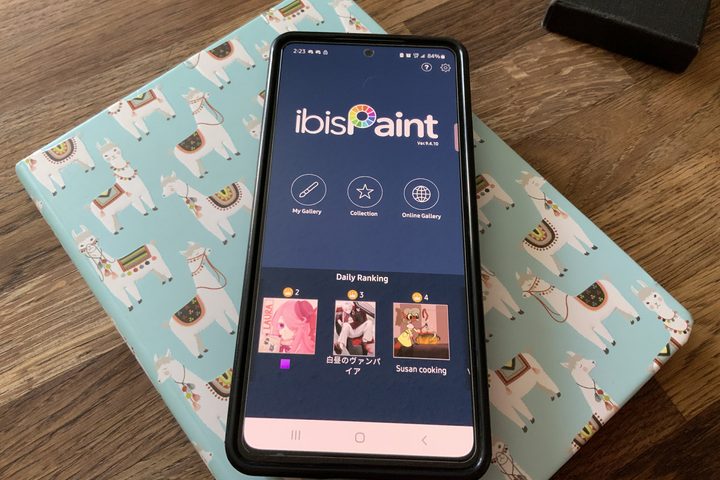
A majority of people — like myself — won’t have the best smartphone on the market. I use a Samsung Galaxy A53, a middle-of-the-road phone. It’s not made to produce art. I can tell you with all certainty that it didn’t make it easy either.
I also own an iPad; not an iPad Pro or anything built for artistry, just a regular ol’ iPad. I had always wanted to learn how to make art on a tablet — I’d even heard it’s how many professional artists do their work. My hopes were high. And I have to say, they’re really onto something.
It’s important that I also share I have made art for a great number of years. My medium has always been on the PC, and that experience didn’t really transfer to a touchscreen. I knew that. I went into this from the standpoint of someone trying to learn art solely on their phone and tablet. If anything, having past experience held me back in a few ways.
A great experience, with time and patience
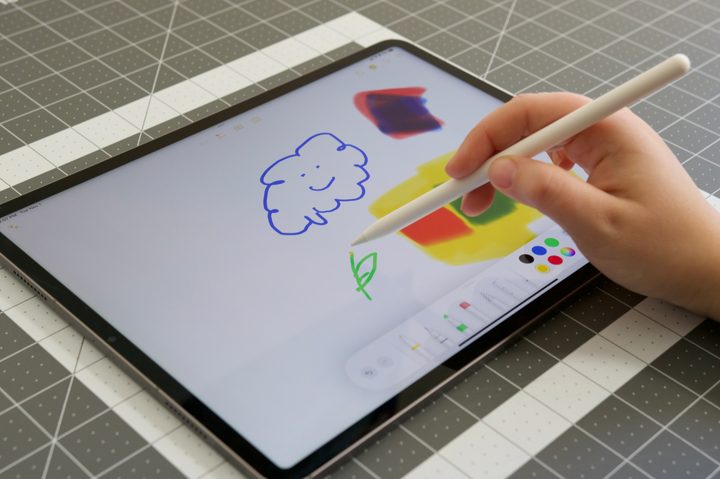
The iPad sucked the hope out of me at first. Perhaps this won’t be the experience of everyone else starting out on a tablet, but I struggled with it for the first 10 or so hours. Doesn’t sound good, right? Don’t be dissuaded, it does get better. Much better.
I started drawing on the iPad with just my finger. The excitement to create was high, as were my hopes. I thought a touchscreen would make art really easy. I had the expectation that I’d suddenly create amazing work instantly. You can see where this is going, can’t you?
I felt frustrated by how slow and clumsily it felt to draw with my finger. I didn’t have precision. I tried pens with touchscreen tips. It was choppy. So I decided an Apple Pencil would surely fix this issue! Until I saw its price. If I’m already not going to dump money into art supplies, I don’t want to do the same over a tool for the iPad that I didn’t even know I would commit to yet.
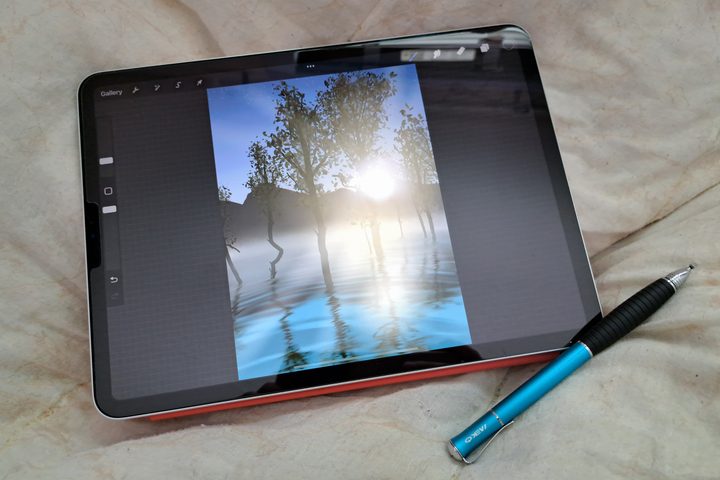
Instead, I turned to Amazon and found myself a Meko stylus specifically made for sensitivity and precision. It was pretty cheap, and I can attest to it being absolutely worth the price. I had to get used to the strange way it laid on the screen first, but once I adjusted, it felt great — and it was even usable on my phone. You might be off-put by its style, so I’d highly suggest looking through the best styluses and finding one that’s the right fit for you.
I moved over to trying art on my phone. The app Sketchbook made working with my finger really intuitive. Meanwhile, IbisPaint X only really flourished with a stylus. Both were free, which was a plus. Not only that, the screen of a phone is obviously smaller than a tablet. That was an issue I had, but surprisingly less than I thought it would be.
After a few weeks of hard practice, I definitely felt like I achieved artist status regardless of the problems I faced. They took time to overcome, but with that time, I learned how to make better work. I even found that I enjoyed drawing with a touchscreen! After all, I could do it anywhere. Watching a movie, on a car ride, or even in the airport. Having my art become mobile and easy to access made it immensely useful and easy to work on.
Where things went really wrong
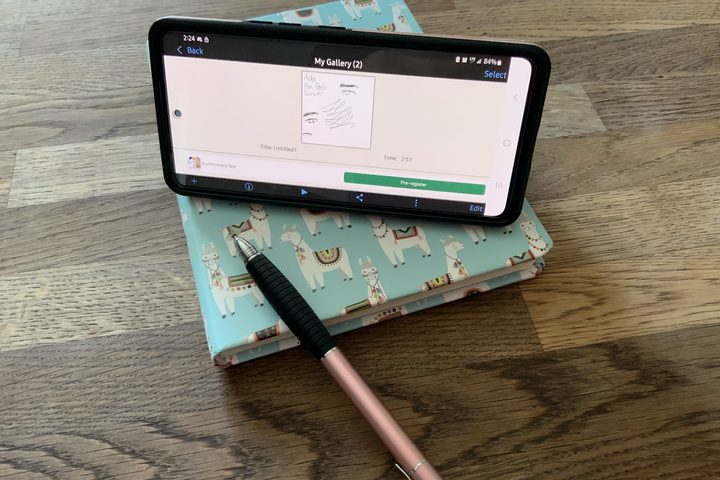
Since the Galaxy A53 wasn’t made for art, it really doesn’t lend itself well to the cause. The touchscreen on it can be affected by any hard or soft objects. Any bumps or nudges from unrelated objects mess with the piece. It’s great for just using my hands to draw, but terrible for the Meko stylus I got. That’s really frustrating because I lacked the precision I need to make the art I want.
Sadly, another issue with using the phone is the screen size. As to be expected, it was too small. Not impossibly small, mind you (it’s really great for small art pieces or works without a lot of fine details). I love doodling on it in my spare time, but I would probably never make a complicated piece on there for my own sanity’s sake.
For the iPad, the thing that aggravated me so much was how much it lacked intuitive features. I struggled to import images, and I really struggled to export images. Many times, I outright gave up exporting my work and took a screenshot because I couldn’t be fussed to understand what was happening. Sometimes I avoided working on the iPad just because of how bad I felt about the software design.
How you can start creating art on the go
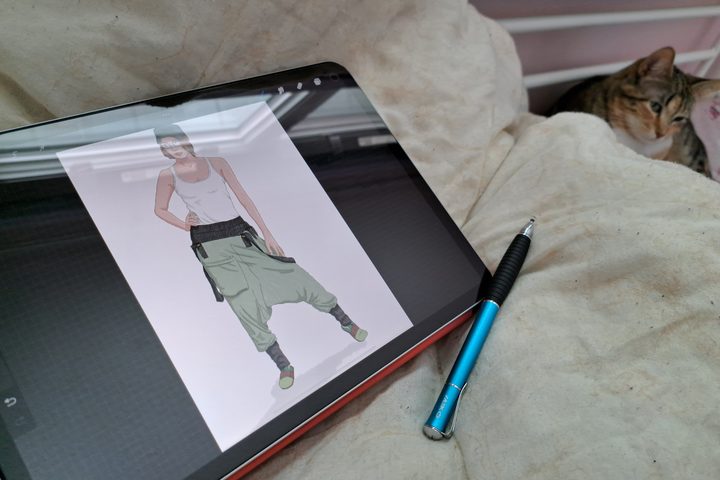
If you’re wanting to start your own journey with art on devices you already own, I definitely recommend trying with a tablet over a phone. A phone is good for doodling on, but it’s much more difficult to get into. With a tablet, you have the same free options as the phone, like Sketchbook or IbisPaint, but Procreate actually won me over. It does cost money, and sometimes it was confusing to use, but its brushes and options are unmatched. However, invest in some kind of stylus to save yourself the headache later.
Starting with your phone is ideal for the right person since it can be done with a grand total of zero cost or risk. You don’t need a stylus, and honestly, the versatility of Sketchbook on my phone made me comfortable enough to just use my hands. The brushes and intuitive design made it so easy to start from scratch. Even though the screen is small, I’m going to continue to practice with it because I had such a good experience.
If you’re still wondering how to begin the journey of art itself, I will always recommend the website Drawabox. It contains free lessons that cover all the steps of learning art at various stages. The lessons available are easy to follow, and really challenge you to learn the most constructive approach.
Finally, the last tip I can share with you is to not give up right away. Learning to draw is like learning a language. It takes time and practice to properly grasp it, but with dedication and a willingness to learn, you will be able to share all those ideas you’ve been cooking up in your noggin. Don’t give up!