As someone who does a lot of writing for a living, reading is a key part of my life. They go hand in hand, after all. But most of my reading these days is focused on news articles rather than books. Thankfully, going back to Kindle devices and other e-readers has changed that, and I’ve rediscovered my love of reading, well, books.
Personally, I have found the base model Amazon Kindle (2024) that I purchased to be good enough for the basics. After all, as long as I can read on an e-ink display, it’s getting the job done. Right?
When Amazon released the first Kindle Scribe in 2022, I was intrigued by the ability to use a stylus to write notes or highlight as I read, or even use the device as a digital notebook. This was the kind of tool I would have loved to have had when I was going to school. I got my hands on the new 2024 version and will write a full review after I’ve put it through its paces, but here are some initial thoughts after my first couple of days with the device.
The digital notebook I’ve been searching for

When I got the Remarkable Paper Pro a few months ago, I was excited about it because I loved the idea of an e-ink digital notebook. Though it was great for handwritten and typed notes with the right accessories, I found the note-taking experience with actual books to be subpar, as it was a bit of a process to get documents and even web articles on it. Thankfully, the Kindle Scribe is what I’ve been wanting.
I’m the kind of reader who will mark up books as I read them because there’s something I want to look up, or some text stands out to me and I want to highlight its importance, or I have some notes I want to make. With the Kindle Scribe and the Premium Pen, it is so easy to do all these things. I also love that the Premium Pen has a rubbery eraser tip at the end, which feels really natural to use.

Similar to an iPad and the Apple Pencil, the Premium Pen magnetically attaches to the side of the Kindle Scribe. The magnet strength is decent, though I wish it was a bit stronger. Still, it’s easy enough to grab it when I need it and put it away when I’m done and want to keep reading.
The shortcut button on the Premium Pen is also incredibly convenient. The default action is mapped to the highlighter, which, for me, is completely fine, though it can be changed in the settings. When I want to highlight something, I just pull out the Premium Pen and then press and hold while highlighting — it’s so nifty.
But the Kindle Scribe isn’t just for marking up the books you read — there’s a whole separate digital notebook section as well. You can create as many digital notebooks as you want and choose a paper template for each one as the default. For writing, there are four different pen types: a highlighter, eraser, lasso, and pointer tools. It’s a minimal selection for the different pen types, but it does the job.
Actually good AI tools

One of the main upgrades on this version of the Kindle Scribe relates to the new AI tools. Yes, yes — AI isn’t everyone’s thing (it really isn’t mine), but whether you love it or hate it, AI is here to stay. And on the Kindle Scribe, Amazon’s AI features are actually good.
The AI tools aren’t obnoxious and in your face. They’re tucked away and only there if you need them. You may be asking, “What kind of AI tools?” There are two main ones: note summaries and a refinement feature. The summaries feature takes your notes/notebooks and can generate a brief summary of what you’ve written, while the refinement feature can take your (possibly sloppy) handwriting and convert it into a script font so it’s easier to read.
These are the only AI tools that Amazon has included in the Kindle Scribe, so don’t worry — it’s not overloaded with AI like your smartphone. And again, these tools aren’t always on your face; you just use them when you want to, so that’s a nice touch.
My biggest issue with the Scribe so far
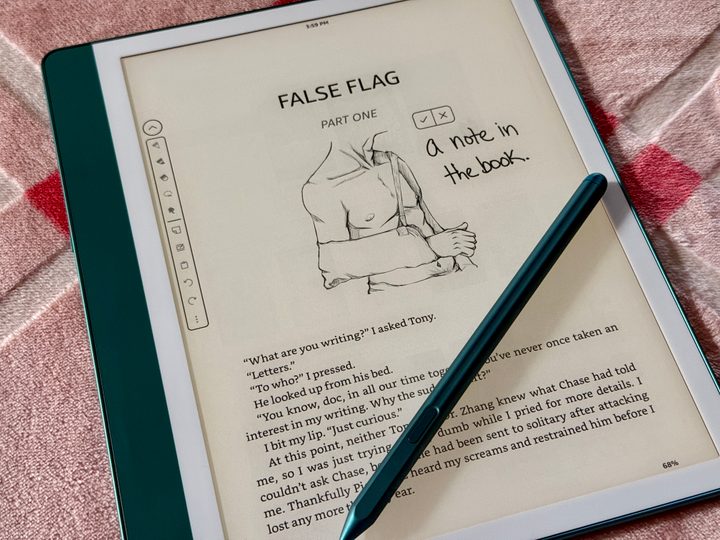
As I mentioned already, you can use the Kindle Scribe to write notes on the book you’re reading, too. But the way that it works isn’t ideal.
When you write on the pages of a Kindle book, it basically creates a “canvas” that you can write text or even draw on with the pen. The text moves out of the way and will wrap itself around the outside of your little canvas area.
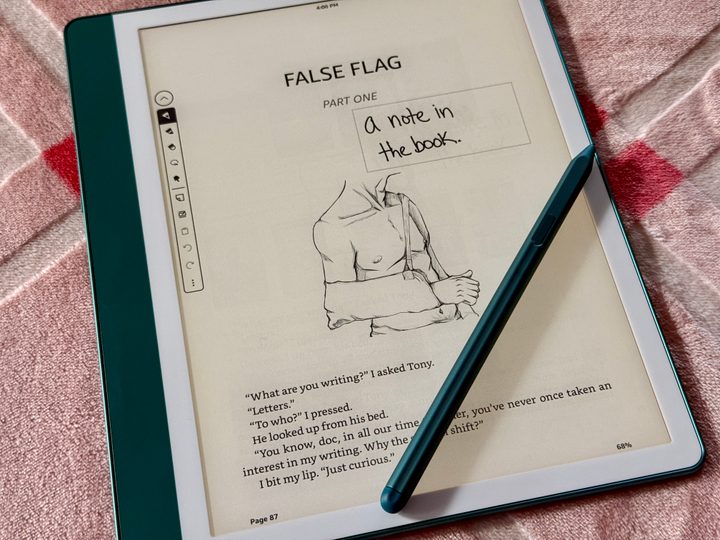
This works fine, but I noticed that if you write a note in a big empty space, say the white space around an image header before a chapter’s text, it pushes the image down, even though your writing should theoretically fit there.
I haven’t used the original Kindle Scribe, but this was an issue with the first one, too. It does look like Amazon is getting closer to a solution for this, but it’s still a bit irksome. Hopefully, the next Kindle Scribe will allow you to freely write all over the book as you please, or at least have an option for it.
The best of both worlds

I would have loved having the Kindle Scribe for my college days, as it would have made it so much easier to take notes while reading textbooks. Those days are way behind me, but the Kindle Scribe is still very enjoyable.
My experience with Kindles before this has just been the base model, but the Kindle Scribe is becoming my new favorite device. I like that it can be used as just a digital notebook, but I can also read my books on it and write in it, too. I wish it had color so it would be more like the Remarkable Paper Pro, but even with its monochrome screen, it’s been a treat to use.
Stay tuned for my full review of the Kindle Scribe 2024 coming soon. So far, though, it’s looking good.