As much as I loved my old GPU and appreciated it for holding on for as long as it did, it had one very annoying problem in some games — constant frame rate drops. You know, that thing when suddenly, instead of having 60 frames per second (fps), you’re down to five. Yeah. Not fun.
Whether you own one of the best graphics cards or something from five generations ago, chances are that you’re no stranger to this issue. It happens a lot, and while the GPU is not always the cause, that’s usually a good starting point when troubleshooting your PC. Here’s how I fixed my frame rate drops, and how you can fix yours, too.
Frame rate drops can ruin your game
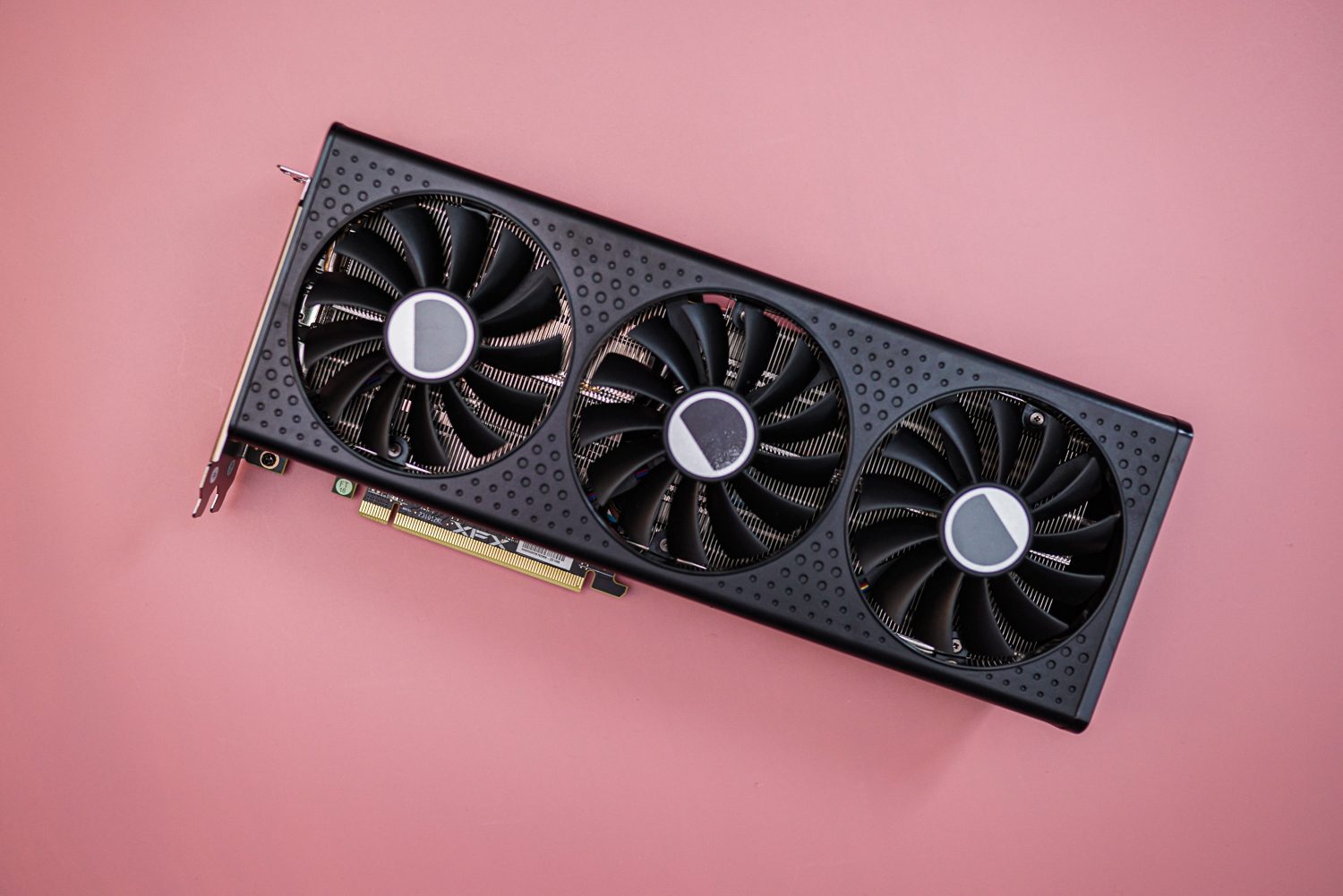
The issue of sudden frame drops is something I’ve dealt with on pretty much every GPU I’ve ever owned. Now that I have the RTX 4080 Super, it’s not a frequent occurrence, but it still happens occasionally. It’s a common problem, and also one of the most annoying issues a GPU owner can face.
This issue affected me the most on my previous GPU, which was the good ol’ Nvidia GTX 1060. Due to the GPU shortage of 2021, I missed my upgrade window and had to wait it out, so I was stuck with my (brave, but tired) GTX 1060 for years.
It started out slow, but it got to a point where gaming was more of a chore than a source of fun. The constant fps drops made me underperform in every single game I tried my hand at, apart from indies that would be able to run on older hardware. If the GPU was struggling, so was I, and I was decidedly tired of it.
When your frame rates drop, everything comes to a halt. The game suddenly feels like a slideshow. It catches up eventually, but by then, you might’ve lost the match — or at the very least, the will to keep on playing.
You don’t have to track your fps to know when this happens, as it’s extremely visible. The exact problem varies from game to game, but you might notice everything feeling sluggish. Frame rate drops are often accompanied by stuttering, crashes, and overall poor performance. They’re a symptom of an underlying problem, which needs a bit of troubleshooting to be resolved.
Here’s what you can to do fix this frustrating issue.
How I fixed my GPU frame rate drops

The first thing to note here is that the problem might not even be directly related to your GPU. Many different things can cause frame rate drops, including issues with the CPU or the power supply. Check out our PC troubleshooting guide to get a better idea of what might be going on beyond the GPU stuff; below, I’ll focus on what worked for me when it was the graphics card that was struggling.
Reinstall the driver
Keeping your drivers up to date is an obvious thing, but many of us forget about it (myself included). If you’ve updated your driver to the latest version and your GPU is still struggling, you might need to do a clean install of it instead.
We have in-depth guides on updating and reinstalling drivers for both Nvidia and AMD, so start there.
Get the temperatures under control
If your GPU is overheating, it won’t do a good job when faced with games and other resource-heavy tasks. This was a big one for me — although getting the temps under control didn’t completely fix the stuttering and fps drops, it certainly helped. It also let me rest easy without wondering about what’ll happen when my GPU inevitably sets itself on fire. (Spoiler alert: that almost never happens. Thankfully.)
I recommend downloading a tool like HWiNFO or MSI Afterburner to track your graphics card’s temperatures. The threshold for what’s too high is different for each GPU, but if you see temp spikes or the card is always at above 90 degrees Celsius, chances are that it’s overheating.
If that’s the case, here are your options:
- Give your PC a thorough clean, including removing the GPU and cleaning the card itself. We have a guide on how to clean your PC, so check that out.
- Consider upgrading your cooling. When I had this problem, I replaced my case fans and added an exhaust fan to remove more hot air from the case.
- Undervolt your GPU — more on that below.
- Improve your cable management to give your GPU more room to breathe.
Once you knock off a few degrees, you might see an improvement.
Undervolt and/or overclock your GPU
Undervolting your GPU sounds like it’d be lowering its performance, but it actually doesn’t. It’s possible to lower your graphics card’s power demands, thus improving temperatures, while still maintaining (or even boosting) its performance.
Overclocking, on the other hand, is a raw performance gain, but it might not be a big deal. It’s worth a try, provided you play it safe. However, it might raise your temps, so you could also underclock it at a minimal performance loss.
Check out our complete guides to undervolting your GPU and overclocking a graphics cards.