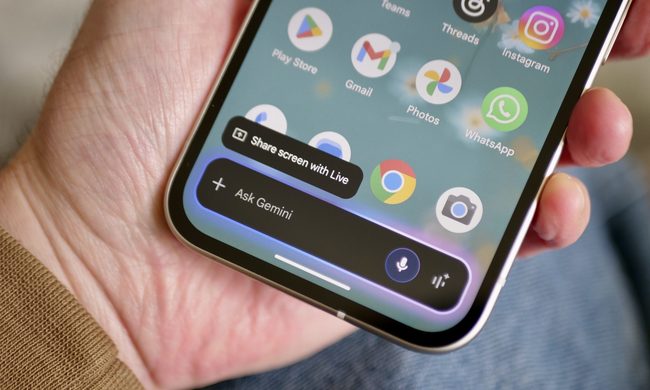
Rooting an Android phone or tablet allows you to maintain a more minimalist version of Android, without the bloatware that manufacturers often tack on. It has become increasingly difficult over the years, but you don’t necessarily have to root your phone to get all the benefits. Here are a few ways to give your Samsung Galaxy S8 a stock Android look and feel without having to root it. Don’t own a Samsung Galaxy S8? We also have directions for getting Google Pixel features on any Android phone.
Let’s start with the biggest difference maker for daily use, the launcher. Our pick for the most basic launcher is the Pixel Launcher that comes on Google Pixel phones. It’s available in the Play Store. You’ll be informed that this launcher will not work with your phone (which is a lie). You’ll still need to install it nonetheless. To do so, go to Settings, then Security, and turn on Unknown sources.
After that grab the latest APK file, then start the download and save it to your device. Once it downloads, go to the My Files app on your phone, tap the APK, and select Install. After it installs, select the Home button and select the Pixel Launcher. This will set Pixel Launcher as the new default launcher.
Next up, is the messaging app which is in the Google Play Store. Search for Android Messages in the Play Store and then install it. Open it and follow the prompts to set it as the default messaging app. Next we are going to add a new stock keyboard. Go to the Play Store and search for Gboard. Install Gboard, open the app, and again follow the prompts to set this as your default input method.
Now, let’s switch the browser. If Google Chrome is not already installed on your phone search for Chrome in the Play Store and install it. Now, go to Settings, and then Apps, then tap the three dots in the top right corner, and select Default Apps. Then tap Browser Apps and select Chrome. Now, anytime you open links it will automatically open Chrome.
Now, let’s change the Dialer and Contacts. Go to the Play Store and search for ExDialer and install it. Once this is installed, got to Settings, then Apps, and then select the three dots in the top right corner again. Now select Default Apps, then tap on Calling Apps, and select ExDialer.
Now, let’s have our Android use the stock Calendar app rather than the Samsung Calendar app. Like Chrome this may already be on your device, but if it is not go to the Play Store and search for Google Calendar and install it. Open Google Calendar and set it up if you have not already done so.
Next go to Settings, tap Apps, and select Samsung Calendar (it’s the Calendar app with the green icon, not the blue icon). Once there, select Clear Defaults and this will remove Samsung Calendar as the app that handles events on your device. The next time you are prompted to select a calendar to mark an event select Google Calendar to set it as your new default calendar. Now, select More Options in Settings and turn off notifications for the Samsung Calendar to prevent double notifications for future events.
For a final touch, let’s add a stock Android wallpaper. Select the wallpaper you prefer, then tap, and hold it once the wallpaper is enlarged. Then select Download Image using the three dot button in the top right of the screen and this will be saved in your Gallery. Now, tap and hold on the home screen background, tap Wallpapers, and then tap My Photos. Select the wallpaper you downloaded and select Set Wallpaper.
David Cogen, a regular contributor here at Digital Trends, runs a popular tech blog TheUnlockr.com that focuses on tech news, tips and tricks, and the latest tech. You can also find him over at Twitter discussing the latest tech trends.